


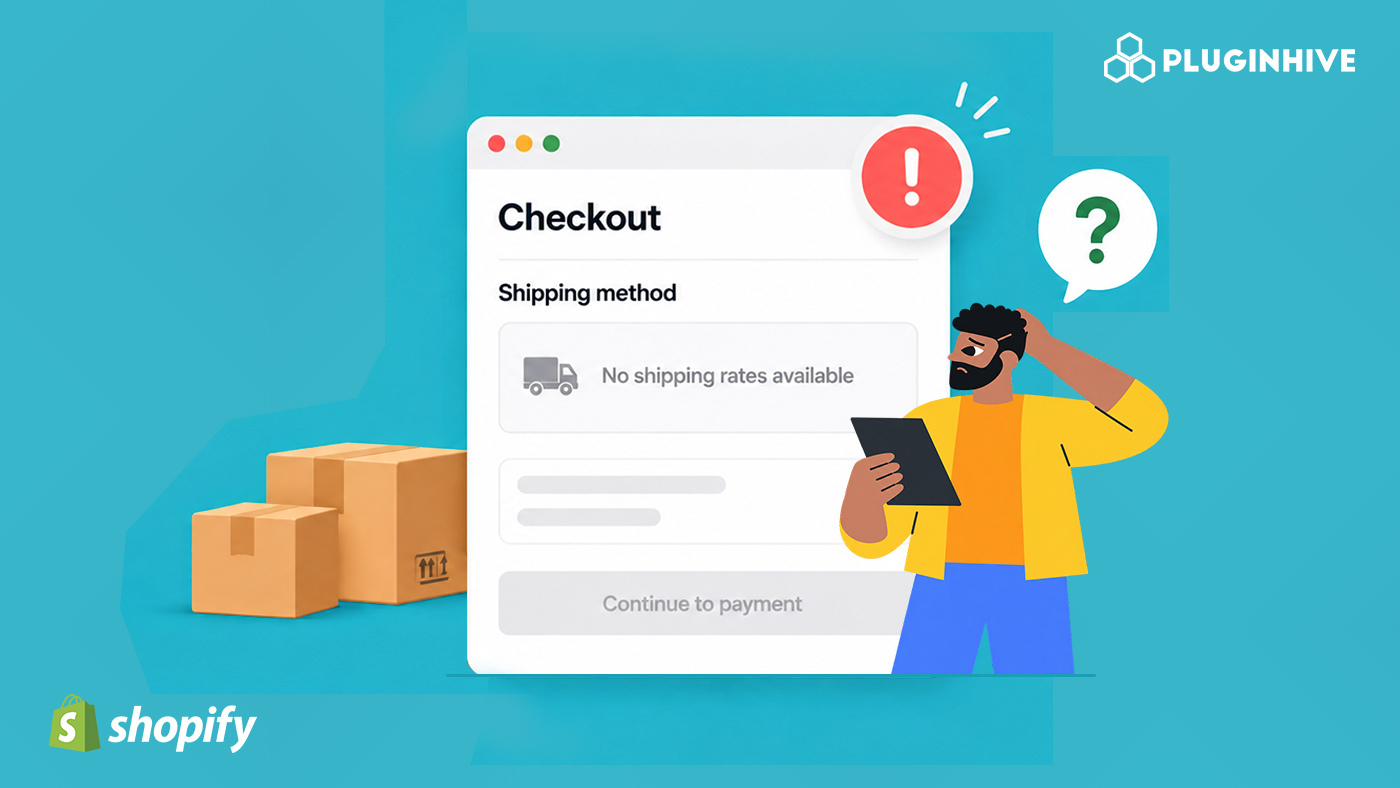
One of the most common and frustrating problems Shopify merchants run into is reaching the checkout step and finding that shipping options simply don’t appear. No carrier rates, no flat rates, sometimes no shipping section at all. When this happens, customers can’t complete their purchase, and you have no visibility into why. This guide walks through every major reason Shopify shipping rates fail to show at checkout, how to diagnose each one, and how to fix them systematically so your checkout works reliably.
In This Article
- Why Shopify Shipping Rates Matter at Checkout
- The Most Common Reasons Shopify Shipping Rates Don’t Show
- Step-by-Step Troubleshooting for Missing Shopify Shipping Rates
- When Carrier-Calculated Rates Specifically Don’t Show in Shopify
- How the PH MultiCarrier Shipping Label App Fixes Shopify Shipping Rates at Checkout
- Best Practices to Keep Shopify Shipping Rates Working
- Conclusion
- FAQs
Why Shopify Shipping Rates Matter at Checkout
Shopify shipping rates are more than a logistical detail. They are a conversion point. Customers who reach the checkout step and see no shipping options typically don’t wait around to contact support. They abandon the cart and often don’t return. Research consistently identifies unexpected shipping costs or the absence of shipping options as one of the top reasons for cart abandonment.
For Shopify merchants, this means a missing or broken Shopify shipping rates setup doesn’t just cause friction. It directly costs revenue on every order that hits the problem. Getting rates to show accurately and reliably is as important as your product pages and checkout design.
The Most Common Reasons Shopify Shipping Rates Don’t Show
Before jumping into fixes, it helps to understand the most frequent root causes.
- No shipping zone covers the customer’s address: Shopify only calculates and displays shipping rates for destinations that fall inside a configured shipping zone. If a customer’s country, state, or region is not covered by any zone in your shipping profile, no rate appears at checkout.
- Products are missing weight or dimensions: Carrier-calculated rates require accurate product weights to calculate. If a product’s weight is set to 0 or left blank in Shopify, the carrier API either returns no rate or returns an error.
- The Shopify plan doesn’t include carrier-calculated shipping: Carrier-calculated shipping, which lets your store pull live rates from DHL Express, UPS, FedEx, and other carriers at checkout, is only available on specific Shopify plans.
- Shipping profile is not assigned to the product: In Shopify, shipping profiles control which rates apply to which products. If a product is not assigned to any shipping profile, or is in a profile with no active rates for the customer’s zone, no Shopify shipping rates will appear for that item.
- All rates have conditions that the order doesn’t meet: Shopify allows rate conditions based on order weight or price. If you have only set up rates with a minimum or maximum order value, and a customer’s cart falls outside those ranges, no rate will show.
Step-by-Step Troubleshooting for Missing Shopify Shipping Rates
Work through these checks in order. Most issues are resolved before the end of this list.
Step 1: Verify your shipping zones and profiles
Go to Settings > Shipping and Delivery in Shopify. Check:
- At least one shipping profile is active
- The profile contains a shipping zone that covers your customer’s country
If the customer’s country is not in any zone, add it. If no rate exists in the zone, add one.
Step 2: Check product weights
Go to your product catalogue and check the Weight field for every product in the test order. Set the weight to an accurate value for every item.
Step 3: Check rate conditions
Within each shipping zone, open your configured rates and look at the conditions applied:
- Is there a minimum order weight or price?
- Is there a maximum weight or price?
If no rate covers the cart’s weight or value, add a catch-all rate or remove the condition.
Step 4: Check your Shopify plan
Go to Settings > Plan and confirm whether your plan includes carrier-calculated shipping. Shopify makes this feature available on the Grow plan (Annual Billing) or higher.
Step 5: Test in a fresh browser session or with a different customer address
Sometimes shipping rates don’t show because of a cached session or because the test address is in an uncovered zone. Open an incognito window, add a product to cart, and proceed to checkout using a known destination.
Step 6: Review third-party app connections
If you use a carrier-calculated shipping app, go to the app and confirm:
- Your carrier account credentials (API keys, account numbers) are still valid
- The app has not been paused or deactivated
For merchants using major carriers like UPS, check the complete UPS shipping setup guide for Shopify for credential and rate configuration specifics.
When Carrier-Calculated Rates Specifically Don’t Show in Shopify
Live carrier rates at checkout have an additional set of failure points beyond basic configuration. If your flat rates are showing but your carrier-calculated Shopify shipping rates are not, check these:
- Shopify plan restriction: As noted above, Shopify restricts carrier-calculated shipping to certain plans. If this feature is greyed out in your settings, your plan doesn’t support it natively.
- Carrier API credentials expired or incorrect: Every carrier integration uses account credentials to request live rates. Expired API keys, changed passwords, or incorrect account numbers will break the rate request.
- Shipment origin address is incomplete: The carrier API calculates rates from a specific origin. If your ship-from address in Shopify is incomplete or uses an unrecognised postcode, the API request fails.
- Carrier doesn’t serve the destination: Not every carrier ships to every country. If a customer’s destination is outside your carrier’s coverage, no rate will be returned for that carrier. Other configured carriers may still return rates.
For merchants using DHL Express, the complete DHL Express shipping guide for Shopify covers how to configure your account credentials, origin address, and service settings so live rates return correctly.
How the PH MultiCarrier Shipping Label App Fixes Shopify Shipping Rates at Checkout
For merchants who need live carrier rates from multiple carriers to show reliably at Shopify checkout, the PH MultiCarrier Shipping Label app by PluginHive handles the carrier API connections through a single integration.
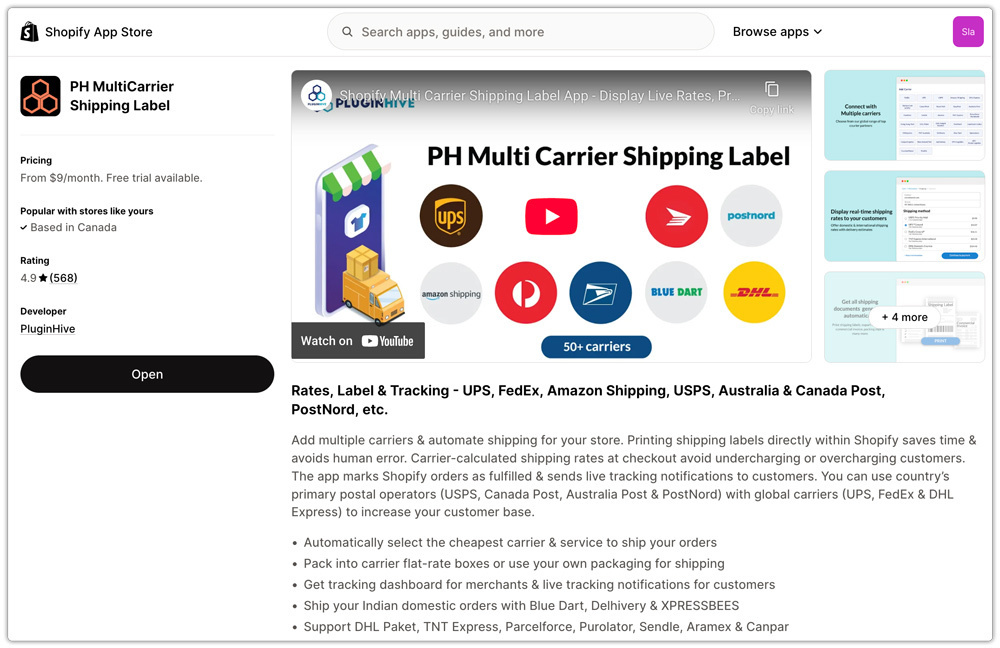
The app connects your Shopify store to carriers like DHL Express, UPS, FedEx, Australia Post, India Post, USPS, and others, and pulls live rates from all connected carriers simultaneously at checkout.
Here is how it addresses the most common Shopify shipping rate failures:
- Shipping zones and destinations: Configure shipping services for different countries, regions, and zones so the right rates are available for each destination.

- Product weights and packaging: Use product weights from Shopify and configure package dimensions, weights, and custom boxes for more accurate carrier rate calculations.

- Rate conditions: Set rules based on destination, weight, order value, product, shipping service, and other conditions to control when rates appear at checkout.

- Multiple carriers: Connect and configure multiple carriers such as UPS, FedEx, DHL Express, USPS, Australia Post, India Post, and others within the same app.

- Carrier account credentials: Add and manage your carrier account details directly in the app so it can connect with the carrier APIs and retrieve live rates.

- Rate troubleshooting: Use the app’s Rate Logs to check the information used for rate calculations and troubleshoot cases where a carrier rate isn’t returned.

- Live checkout rates: Fetch current rates from connected carriers during checkout instead of relying on manually maintained shipping rates.

For merchants also managing labels and tracking in the same workflow, the app handles label printing, bulk fulfilment, and tracking number sync back to Shopify orders. The multi-carrier shipping setup guide covers how to configure multiple carriers in the same integration.
Best Practices to Keep Shopify Shipping Rates Working
Once you’ve resolved missing rates, a few ongoing habits prevent the problem from coming back:
- Set product weights before publishing: Make a policy of never publishing a product without a weight. A missing weight on a new product immediately breaks carrier-calculated rates.
- Review shipping zones when expanding to new markets: When you start selling to a new country or region, check that a shipping zone exists for it. New destinations not covered by a zone will produce the same missing-rates problem immediately.
- Test checkout after any Shopify plan change: Plan upgrades or downgrades affect which carrier-calculated shipping features are available. Always run a checkout test after any plan change to confirm rates still show.
- Monitor carrier API credential expiry: If your carrier integration requires API keys or passwords, note their expiry dates and renew them before they lapse. A credential expiry is silent at checkout; the customer simply sees no rates.
- Use a fallback flat rate: Even if your primary setup uses live carrier rates, configure a flat-rate fallback for each zone. If the carrier API is temporarily unavailable, the fallback ensures customers can still complete their purchase rather than seeing a blank shipping section.
Conclusion
Missing Shopify shipping rates at checkout almost always trace to a configuration gap: a zone that doesn’t cover the customer’s country, a product with no weight, a rate condition the order doesn’t meet, or a broken carrier API connection. Working through each check systematically resolves the issue in most cases without needing developer involvement.
For merchants who want live rates from multiple carriers to show reliably without managing each carrier integration separately, the PH MultiCarrier Shipping Label app connects all supported carriers to Shopify checkout through a single integration, handles the API calls at the moment of checkout, and works independently of the carrier-calculated shipping plan restriction that catches many merchants off guard.
FAQs
Q. Why are Shopify shipping rates not showing for international customers only?
The most likely cause is that the customer’s country is not covered by any shipping zone in your active shipping profile. Go to Settings > Shipping and Delivery, check your zones, and add the missing country to an existing zone or create a new one.
Q. Can missing product weights cause Shopify shipping rates to not show?
Yes. Carrier-calculated rates require accurate product weights to generate a rate from the carrier’s API. A product with a weight of 0 or a blank weight field will typically cause the rate request to fail or return no result.
Q. What should I do if only one carrier’s rates are missing but others are showing?
Check the credentials and connection for the specific carrier that isn’t returning rates. The most common causes are expired API keys, an incorrect account number, or the carrier not serving the customer’s destination.
