


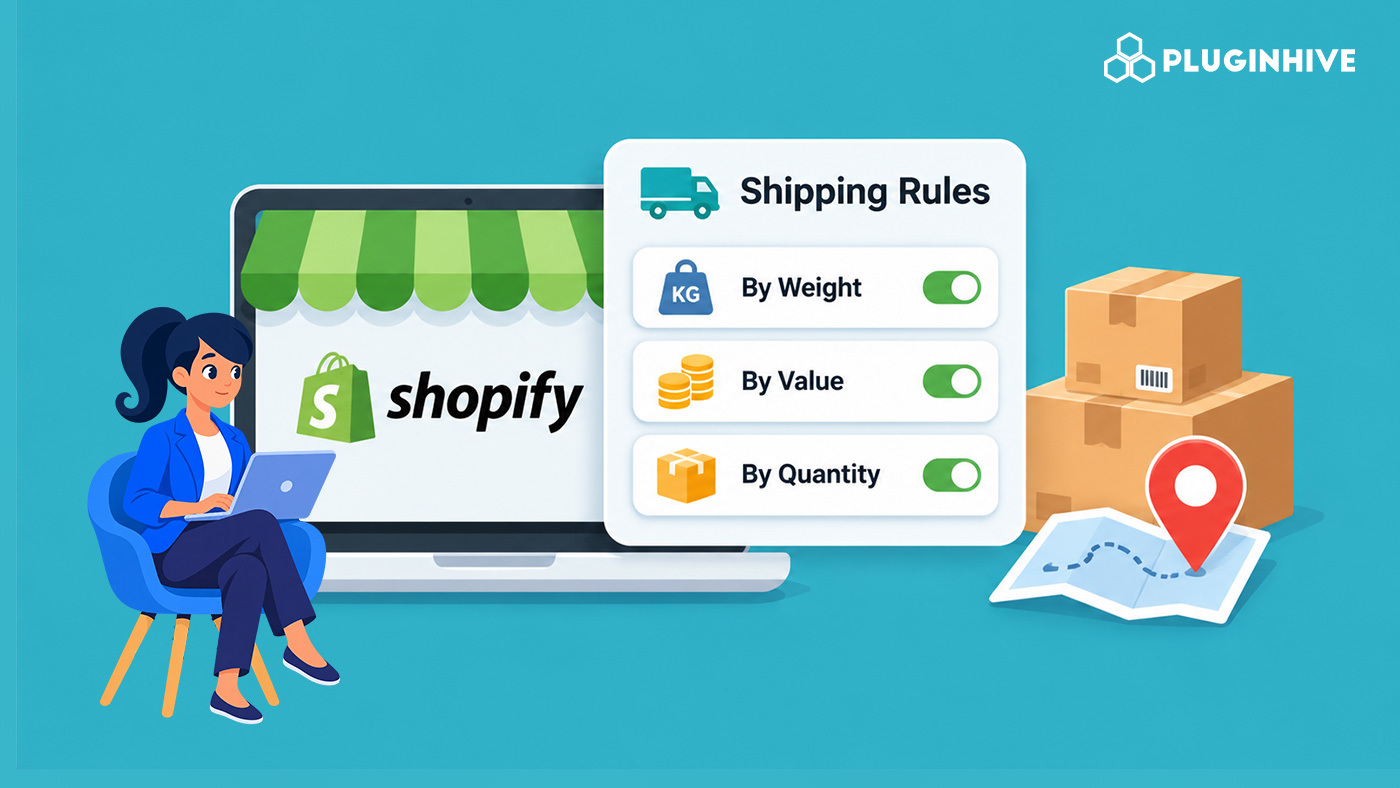
A flat $8 shipping fee is easy to set up, and it quietly loses money. A 200g order and a 6kg order cost very different amounts to ship, and a $30 cart and a $300 cart deserve different thresholds for free shipping. Shopify Shipping Rules let you match what customers pay to what each order actually costs you. This guide covers what Shopify supports natively for weight and order value and how to automate all three with rules at checkout and at label creation.
In This Article
- What Shopify Shipping Rules Support Natively
- Before You Set Any Rates
- Set Shopify Shipping Rules by Weight
- Set Shopify Shipping Rules by Order Value
- Common Rate Mistakes to Avoid
- Automate Shopify Shipping Rules with the PH MultiCarrier Shipping Label App
- Conclusion
- FAQs
What Shopify Shipping Rules Support Natively
Shopify rates live inside shipping zones. A zone is a group of countries or regions, and each zone gets its own rates. The available rate types are flat, order amount (price-based), weight-based, and carrier- or app-calculated rates. Free shipping can be added to any of them.
- Flat: one price for every order in the zone
- Order amount: different prices for different cart values
- Weight: different prices for different order weights
- Carrier or app calculated: a carrier or app returns a live rate at checkout
There is no native quantity-based rate type. We cover that gap below. If you want a refresher on how zones work, the guide to calculating shipping costs based on Shopify shipping zones is a useful companion.
Before You Set Any Rates
Check these four things first. They prevent most rate errors.
- Product weights: Weight-based and calculated rates only work correctly if every product has an accurate weight. A product with no weight is treated as weighing nothing, so the wrong rate can apply. If rates are missing at checkout, this troubleshooting guide covers the usual causes.
- Active markets: A country must be in an active market before customers there can order, even if a shipping zone covers it.
- Shipping profiles: Profiles let you apply different rules to specific products, such as heavy items or fragile goods.
- Your admin may look slightly different: Shopify is gradually moving profiles and rates to shipping options by market. Your current setup stays in place until your store is upgraded.
Set Shopify Shipping Rules by Weight
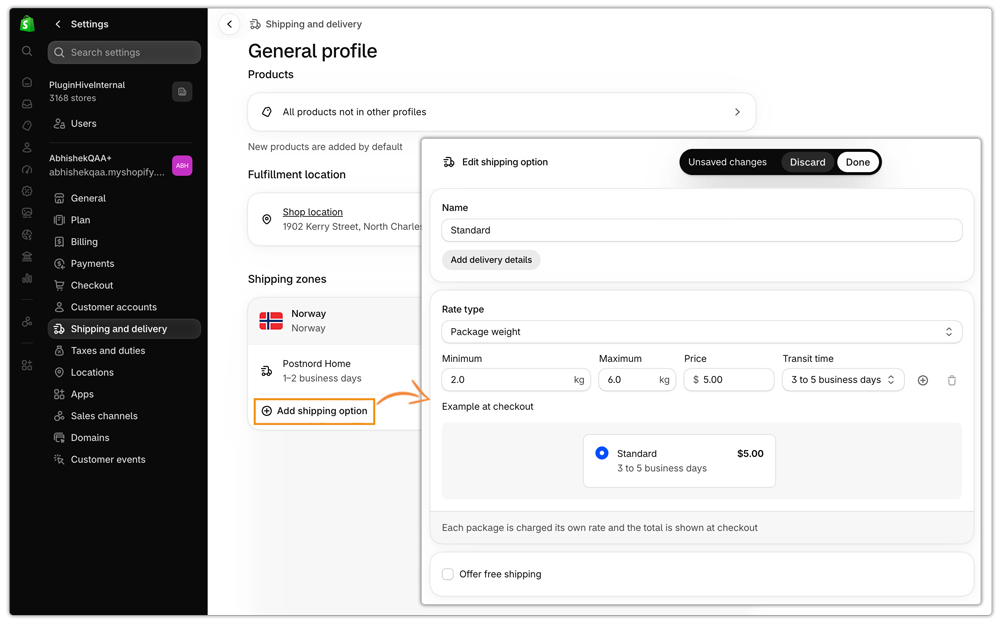
Weight-based rates suit catalogs where product weight varies widely. They are based on the combined weight of items shipping from the same location with the same shipping option. A typical structure looks like this:
| Order weight | Shipping price |
|---|---|
| 0 – 0.99 lb | $4.99 |
| 1 – 4.99 lb | $9.99 |
| 5 – 9.99 lb | $19.99 |
Steps:
- From your Shopify admin, go to Settings > Shipping and delivery
- Open the shipping profile you want to edit
- In the right shipping zone, click Add shipping option
- Enter a Name. Customers see this at checkout
- Set Rate type to Weight
- Enter a Minimum, Maximum, and Price for each range
- Click the plus icon to add more ranges
- Click Done, then Save
Set Shopify Shipping Rules by Order Value
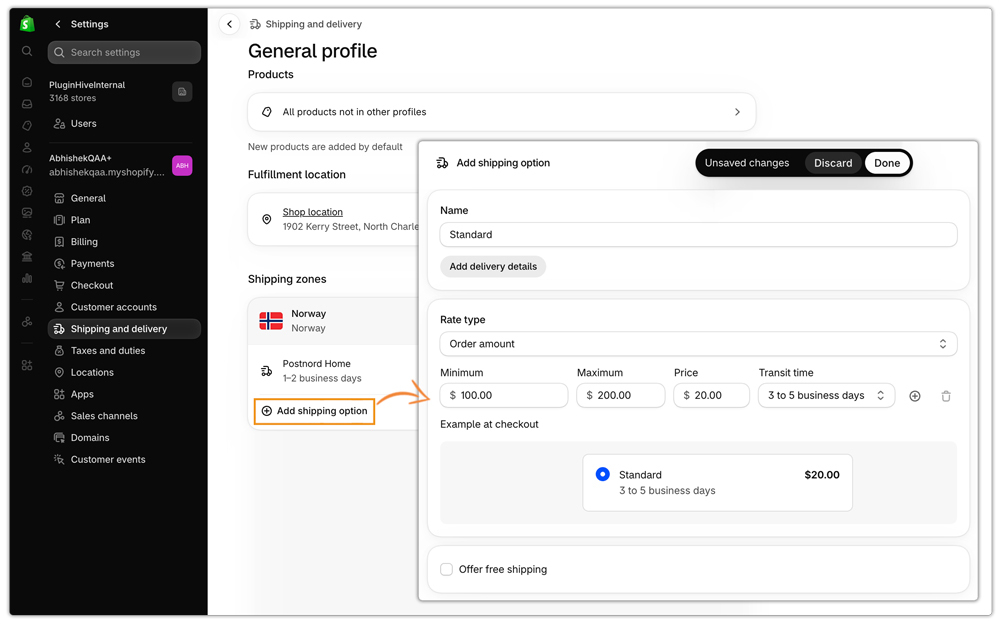
Order amount rates charge based on cart total. They also let you offer free shipping above a threshold, which encourages bigger baskets.
| Order value | Shipping price |
|---|---|
| $0 – $100 | $24.99 |
| $100.01 – $200 | $9.99 |
| $200.01 and above | Free |
Steps:
- Go to Settings > Shipping and delivery and open your profile
- Click Add shipping option in the right zone
- Set Rate type to Order amount
- Enter Minimum, Maximum, and Price for each range
- Add more ranges with the plus icon
- Optional: select Offer free shipping and enter the minimum order value
- Click Done, then Save
If you show delivery estimates at checkout, you can also add transit time to each rate. See the Shopify estimated delivery date guide for how that works.
Common Rate Mistakes to Avoid
- Leaving a gap above your highest tier: If an order falls outside every tier, no rate applies, and the customer sees a shipping error. Leave Maximum empty on your top tier.
- Forgetting packaging weight: Shopify adds your store’s default package weight to each product when combining weight-based rates. Set that default deliberately.
- Mixing profiles without testing: When an order spans multiple shipping profiles, Shopify combines the applicable rates. A cart with products from two profiles can total more than you expect.
- Never place a test order: Add items of different weights and values, enter different addresses, and check the rates. The Shopify shipping integration checklist lists what to verify.
Automate Shopify Shipping Rules
Native rates cover the basics. If you ship with your own carrier accounts, or you want rules on weight, value, and quantity together, the PH MultiCarrier Shipping Label App adds an automation layer.
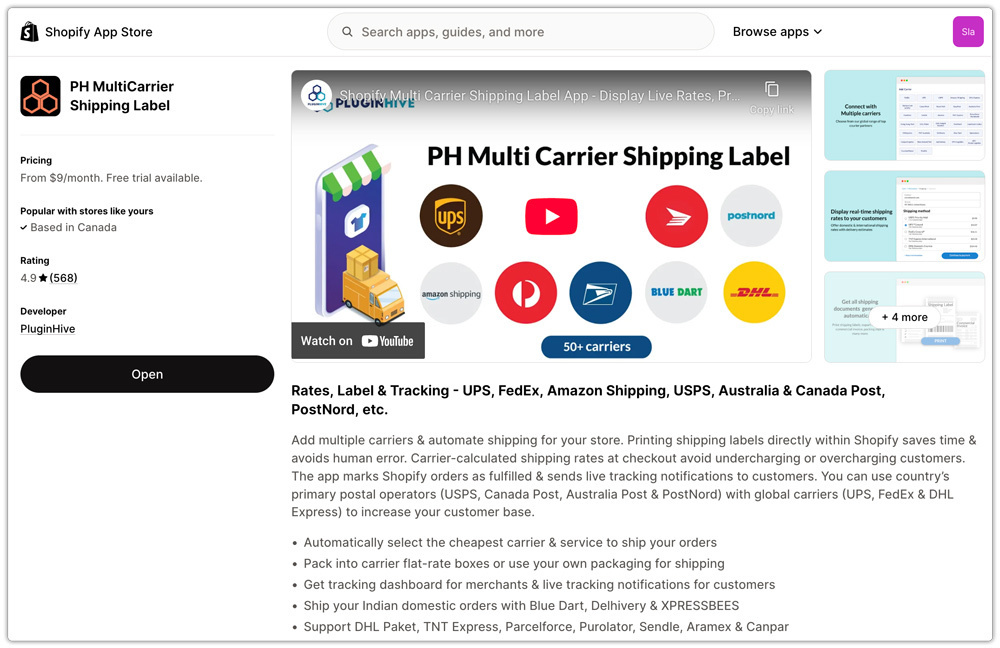
One note on availability: connecting your own UPS, FedEx, or USPS accounts to Shopify requires third-party carrier-calculated shipping, which depends on your Shopify plan or an additional monthly fee.
Rules for checkout rates
Checkout rate rules are added by default when you connect a carrier. You manage them under Menu > App Settings > Shipping Rates > Rate Automation. Rule criteria include shipping zone, order price, total weight, and quantity.
- Open the app and go to Menu > App Settings > Shipping Rates > Rate Automation
- Add a new rule or edit an existing one
- Set the criteria, such as zone, order price, total weight, or quantity
- Choose which carrier services to display when the criteria match
- Save, then place a test order to confirm
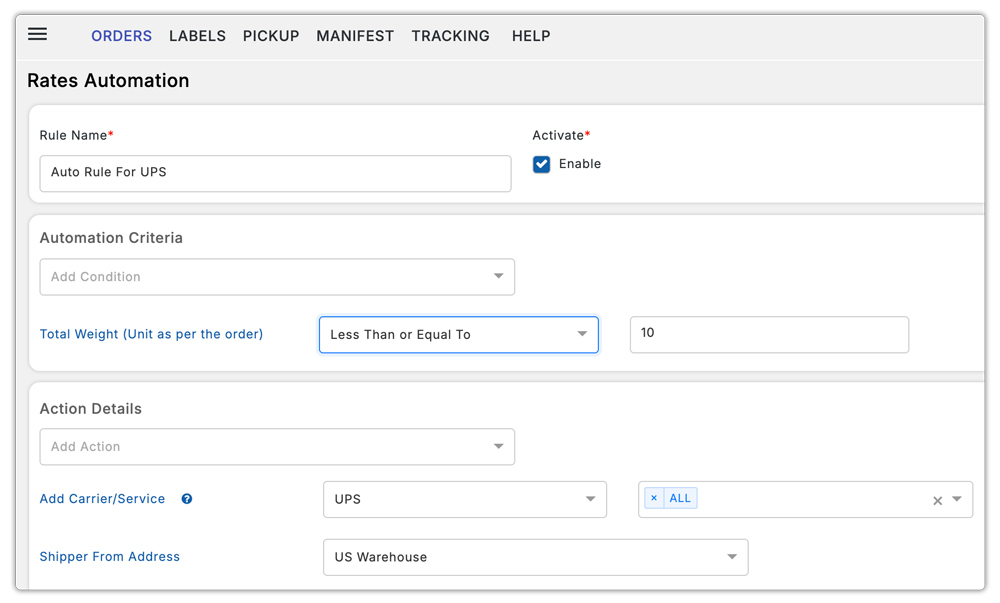
Examples of what this enables:
- Show only UPS Ground for lighter domestic orders
- Show FedEx rates only for orders of 150 lbs or more, so heavier freight routes to the right service
- Offer different carrier services by zone
- Add a rate adjustment based on order value
Rules for label generation
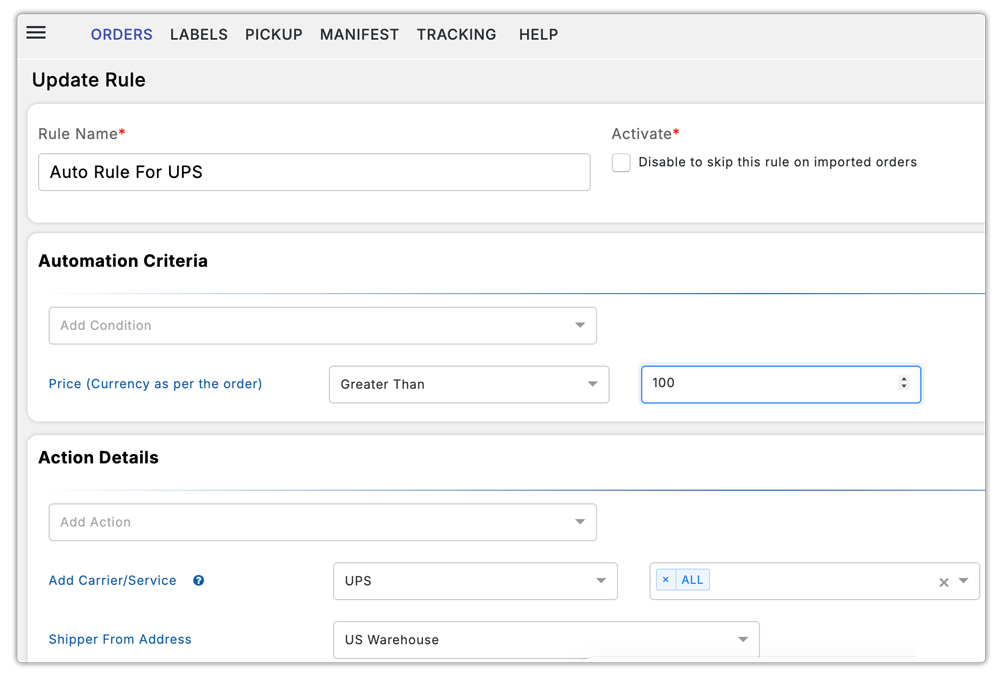
The same approach works after the order is placed. Label automation can apply a carrier and service automatically based on conditions like order price, so you aren’t choosing a service by hand on every order. For the full list of criteria and actions, see the app setup guide.
Conclusion
Native rate settings let you charge fairly for weight and order value without any apps. Set accurate product weights, build tiers with no gaps, and test before you launch.
Quantity-based pricing isn’t native, so use shipping profiles or a rule-based app. When you want weight, value, and quantity conditions working together, with your own carrier rates and automatic carrier selection, an automation layer like the PH MultiCarrier Shipping Label App handles it inside Shopify.
FAQs
Q. Can Shopify charge shipping based on weight?
Yes. Choose the Weight rate type, then set minimum, maximum, and price for each range. Make sure every product has a weight.
Q. Can I offer free shipping above a certain order value?
Yes. Select Offer free shipping on a shipping option and enter the minimum order value, or leave the price at 0 on a high order-amount tier.
Q. Does Shopify support per-item shipping rates?
Not natively. Flat rates apply once per order. For per-item pricing, use separate shipping profiles or an app with quantity-based rules.
Q. Why do customers see “no shipping rate available”?
Usually the order falls outside your rate tiers, the destination isn’t in a shipping zone, or the country’s market isn’t active. Check your zones and leave Maximum empty on your top tier.
Q. Do rate automation rules replace Shopify’s shipping settings?
They work alongside them. Native rates define what Shopify shows by default, and app automation rules control which carrier services display when conditions match.
