


Offering different delivery options is important for WooCommerce stores, especially when customers expect flexibility in how quickly they receive their orders. However, showing too many shipping options at checkout can make the decision harder instead of easier. When customers see several similar delivery options without clear differences, they may feel unsure about which one to pick, slowing down the checkout process.
Canada Post provides multiple delivery services that can work well for different shipping needs, but they need to be displayed thoughtfully inside WooCommerce. By showing only the most relevant options at checkout, store owners can keep the experience simple while still giving customers a choice. In this article, we’ll look at how to show the right Canada Post delivery options at WooCommerce checkout to make shipping decisions clear and stress-free.
Table of Contents
- Why Too Many Delivery Options Confuse WooCommerce Customers
- Understanding Canada Post Delivery Services in WooCommerce
- How to Show the Right Canada Post Delivery Options at WooCommerce Checkout
- Real-World Example: Simplifying WooCommerce Checkout with Canada Post
- Best Practices for Showing Canada Post Delivery Options at Checkout
- Conclusion
- FAQs
Why Too Many Delivery Options Confuse WooCommerce Customers
Giving customers delivery choices sounds helpful, but showing too many options at checkout often creates confusion instead of convenience.
- Customers don’t know how options differ: When checkout shows services like Regular, Expedited, and Xpresspost together, many shoppers can’t quickly understand what actually changes between them.
- People just want the best option quickly: Most customers are not comparing shipping services in detail; they simply want a reasonable price and delivery time without overthinking.
- Too many similar prices create hesitation: When delivery options have small price or time differences, customers pause to compare each one, slowing down checkout.
- Extra thinking breaks the buying flow: Checkout should feel fast and simple. When customers stop to analyze delivery choices, it interrupts their purchase momentum.
- Confusion can lead to leaving checkout: If choosing delivery feels complicated, some shoppers delay the purchase or abandon the cart altogether.
Customers appreciate choice, but only when it’s easy to understand. Showing a smaller set of clear and relevant delivery options helps WooCommerce stores keep checkout simple and encourages customers to complete their orders confidently.
Understanding Canada Post Delivery Services in WooCommerce
Canada Post offers different shipping services based on delivery speed and cost. With the Canada Post Shipping Plugin for WooCommerce with Print Label, you can connect Canada Post to your WooCommerce store and automatically show available delivery options at checkout based on the customer’s address and order details.
Domestic Shipping Services in WooCommerce
- Priority™: Fastest domestic delivery, ideal for urgent orders.
- Xpresspost™: Quick delivery within 1–2 business days with tracking.
- Expedited Parcel™: A balanced option combining reasonable cost and reliable delivery for everyday shipments.
- Regular Parcel™: A slower, budget-friendly choice for non-urgent deliveries.
International Shipping Services in WooCommerce
- Xpresspost™ International: Faster international shipping with tracking and delivery guarantees.
- International Parcel™ (Air / Surface): Choose between faster air delivery or more economical surface shipping.
- Tracked Packet™: Affordable tracked shipping for lightweight international packages.
- Small Packet™: The lowest-cost option for small items where speed is less important.
You can explore a detailed breakdown of these options in this guide on Canada Post services for WooCommerce.
These delivery services give WooCommerce stores flexibility, but showing all of them at checkout can overwhelm customers. The key is selecting which options should appear so customers can choose quickly and confidently, which we’ll look at next.
How to Show the Right Canada Post Delivery Options at WooCommerce Checkout
Using the Canada Post Shipping Plugin for WooCommerce with Print Label, you can easily curate which services appear to your customers. Here is how to streamline the process:
To get started, refer to the guide – Canada Post Plugin Setup Guide for step-by-step instructions.
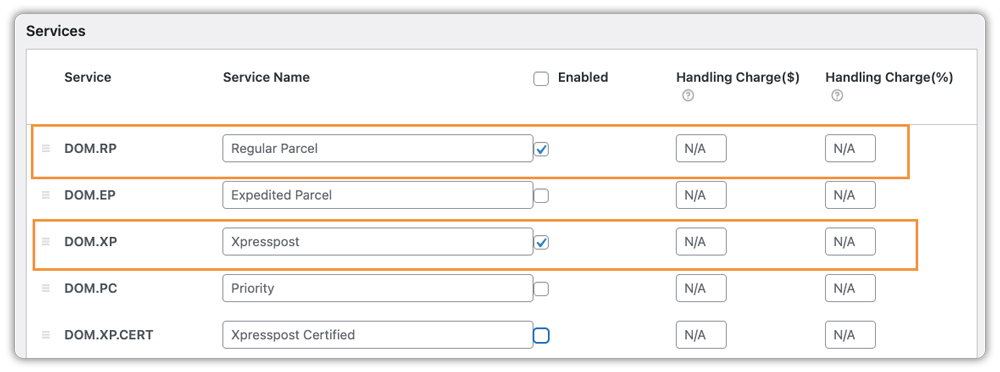
- Enable Only Necessary Services: The plugin settings allow you to toggle specific Canada Post services on or off. Instead of checking every box, select one “Budget” option (like Regular or Expedited) and one “Premium” option (like Xpresspost). This provides a clear “Price vs. Speed” choice.
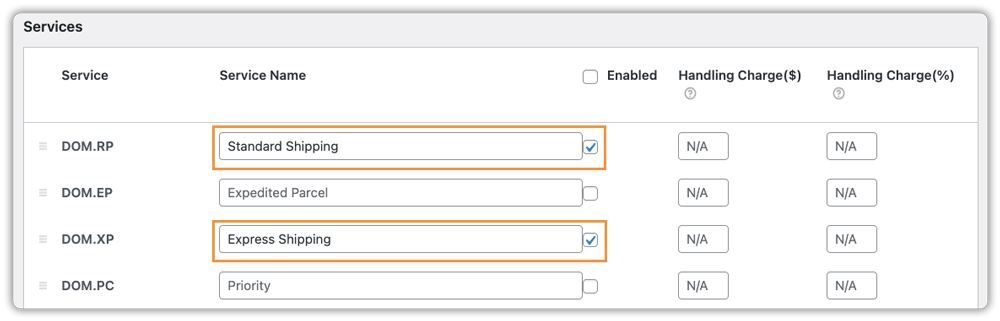
- Use “Method Title” Customization: Confusion often stems from technical names. The plugin allows you to rename the services. Instead of “Canada Post Expedited Parcel,” you might rename it to “Standard Shipping (3–5 Business Days).” This tells the customer exactly what they are paying for.
- Add Handling Charges if Needed: If your packaging materials add to your costs, use the plugin’s rate adjustment feature to include a small handling charge per service. You can also use it to offer a discount on a preferred service to nudge customers toward the option that works best for your workflow.
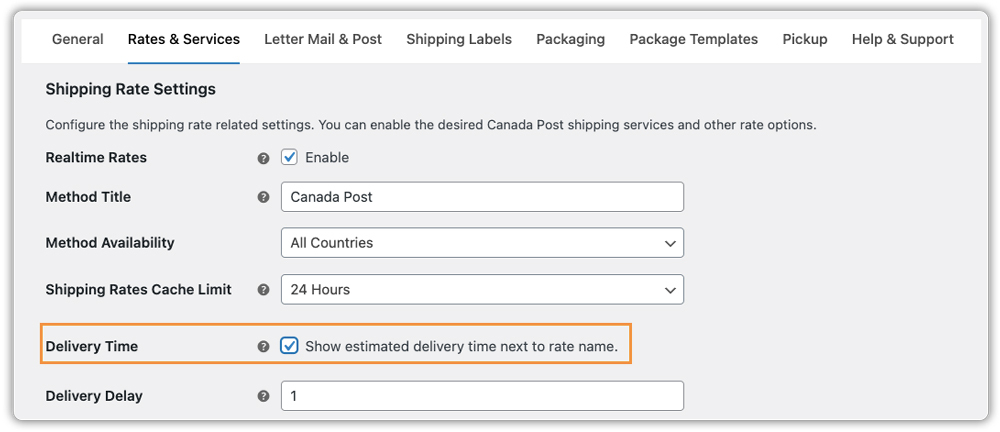
- Display Estimated Delivery Dates: Enable the Estimated Delivery time feature in the plugin settings to show an actual arrival date beside each shipping option. Seeing “Arrives: Oct 12” versus “Arrives: Oct 15” makes the value difference between services immediately obvious and helps customers choose faster.
After configuring the settings, customers will see delivery options like this at the cart and checkout.

The plugin also supports shipping labels, tracking updates, and automated Canada Post workflows. To learn more, check this complete guide on Canada Post shipping in WooCommerce.
Showing fewer, clearer delivery options helps customers decide quickly and reduces checkout friction. With the right setup, WooCommerce stores can offer flexibility without overwhelming shoppers.
Real-World Example: Simplifying WooCommerce Checkout with Canada Post
Here’s how a Canadian gift shop shipping to Canada, the US, and internationally could configure the Canada Post Shipping Plugin for WooCommerce to serve all three customer types cleanly.
| Customer Location | Service Enabled | Displayed Name at Checkout |
|---|---|---|
| Canada | Expedited Parcel™ | Standard Shipping (3–5 Business Days) |
| Canada | Xpresspost™ | Express Shipping (1–2 Business Days) |
| USA | Tracked Packet™ USA | US Standard Shipping |
| USA | Xpresspost™ USA | US Express Shipping |
| International | Tracked Packet™ International | International Standard Shipping |
| International | Xpresspost™ International | International Express Shipping |
Each customer sees exactly two options: one affordable, one faster. Services are named in plain language. Estimated delivery dates are enabled on all options, and a handling charge is applied across the board to cover packaging. The result is a checkout page that feels simple, trustworthy, and easy to act on.
Best Practices for Showing Canada Post Delivery Options at Checkout
Getting the Canada Post plugin configured is just the first step. These practices will help you keep your WooCommerce checkout clean, simple, and conversion-friendly.
- Always show estimated delivery dates. Turn on the estimated delivery date feature inside the Canada Post plugin so customers see an arrival date next to each shipping option. For more control over delivery date calculations based on your processing time, cutoff hours, or holidays, the Estimated Delivery Date Plugin for WooCommerce by PluginHive gives you precise rule-based control per shipping method.
- Hide irrelevant shipping options automatically. The Canada Post plugin lets you enable or disable services, but if you need more control, the PH Hide Shipping Methods & Rate Adjustment for WooCommerce plugin goes further. You can show or hide specific shipping methods based on conditions like cart weight, order value, customer role, and more.
- Manage multiple carriers from one place. If your store uses Canada Post along with other carriers like FedEx, UPS, or DHL, PluginHive’s WooCommerce Shipping Services brings all of them together in one dashboard, live rates, label printing, and tracking without switching between tools.
- Always set a fallback rate. If Canada Post can’t return a live rate due to a missing product weight or an unrecognized postal code, a fallback flat rate ensures customers can still complete checkout without hitting a dead end.
Put these in place once, and your shipping setup largely runs itself, leaving you more time to focus on growing your store.
Conclusion
A cluttered shipping section at checkout can slow customers down or make them hesitate before placing an order. Instead of showing every available delivery option, focusing on clear and relevant choices helps customers decide quickly and complete their purchase with confidence.
With the Canada Post Shipping Plugin for WooCommerce with Print Label, you can create a simple and organized checkout experience by showing the right services, clear delivery timelines, and easy-to-understand options. A clean checkout builds trust and makes buying easier for your customers. If you need help setting up this in your WooCommerce store, the PluginHive support team is ready to assist you with configuration and guidance.
FAQs
1. How do I show only specific Canada Post shipping options in WooCommerce?
You can control which services appear at checkout using the Canada Post Shipping Plugin for WooCommerce with Print Label. Inside the plugin settings, enable only the shipping services you want customers to see and disable the rest.
2. How can I show estimated delivery dates for Canada Post shipping in WooCommerce?
The plugin includes an option to display estimated delivery timelines alongside shipping methods. Enabling this helps customers quickly compare delivery speeds before placing an order.
3. Can WooCommerce show different Canada Post delivery options based on location?
Yes. Using WooCommerce Shipping Zones, you can assign specific Canada Post services to different regions so customers only see delivery options relevant to their shipping address.
4. How many Canada Post delivery options should I show in WooCommerce checkout?
Most WooCommerce stores perform best when showing two or three clearly labeled delivery options, typically a budget, standard, and express choice.
