


Shipping costs can heavily influence whether a customer completes their purchase or abandons their cart. If buyers only learn the shipping cost after placing an order or contacting support for a quote, this creates friction and uncertainty. Most customers today expect to see clear shipping prices during checkout before they commit to a purchase.
That’s where TNT shipping services can help Shopify merchants. With services like Express and Economy Express, merchants can offer different delivery speeds based on the urgency of the order.
The good news is that you don’t have to guess shipping prices or rely on flat rates that may hurt your margins. Shopify allows merchants to display live TNT shipping rates directly at checkout so that customers can see accurate pricing based on their location, order weight, and shipping service.
In this guide, we’ll walk through the process step by step, from the requirements you need to the setup process and a few practical tips to make sure everything works smoothly.
In This Article
- Prerequisites Before Showing Live TNT Rates in Shopify
- How to Show Live TNT Rates in Shopify
- Optimizing Your TNT Rates at Checkout
- Best Practices for Using TNT on Shopify
- Issues When Displaying Live TNT Rates (And How to Fix Them)
- Conclusion
- FAQ’s
Prerequisites Before Showing Live TNT Rates in Shopify
Before you can display live TNT rates at checkout, a few things need to be set up first. These requirements ensure that Shopify can communicate with TNT and retrieve accurate shipping prices.
TNT Business Shipping Account
The first requirement is an active TNT business shipping account.
This account gives you access to:
- Your TNT customer number
- Negotiated contract shipping rates
- API credentials required for integration
These credentials allow Shopify to request real-time shipping rates directly from TNT when a customer reaches checkout.
If you don’t have a TNT account yet, you’ll need to contact TNT and create a business shipping agreement based on your expected shipment volume.
Shopify Plan with Carrier-Calculated Shipping (CCS)
Shopify can only display real-time shipping rates when Carrier-Calculated Shipping (CCS) is enabled.
CCS is:
- Included with Advanced Shopify
- Included with Shopify Plus
- Available on the Shopify Grow plan if you switch to annual billing or request activation from Shopify Support
Without CCS, Shopify cannot show live carrier rates from TNT or any other shipping provider.
Recommended App for TNT Shipping in Shopify
To connect TNT with Shopify properly, you’ll need a shipping integration app.
A commonly used option is the PH Multi-Carrier Shipping Label app. This app helps merchants connect their shipping carriers and automate several parts of the fulfillment process.
With the app, you can:
- Connect your TNT shipping account through API credentials
- Display live TNT shipping rates during checkout
- Apply handling fees or markups if needed
- Generate shipping labels from Shopify orders
- Automatically send tracking information to customers
- Additionally, if you are looking for a dedicated tracking solution that provides your customers with a branded tracking page they can easily access, try PluginHive Shipment Tracking and Notify, which automates tracking updates and improves the post-purchase experience.
Once this setup is complete, Shopify can begin showing real-time TNT shipping prices to customers.
How to Show Live TNT Rates in Shopify
Step 1: Get Your TNT Shipping Credentials
Start by logging into your TNT business account and collecting the credentials needed for integration.
These usually include:
- TNT customer number
- API username and password
- Access to your contract shipping rates
If API access hasn’t been enabled yet, you may need to request it from your TNT account representative.
These credentials allow Shopify to pull live TNT shipping rates directly from the carrier’s system.
Step 2: Install the PH Multi-Carrier Shipping Label App
Next, go to the Shopify App Store and install the PH Multi-Carrier Shipping Label app.

After installing the app:
- Open the app dashboard.
- Add a new carrier.
- Select TNT from the carrier list.
- Enter your TNT account credentials.
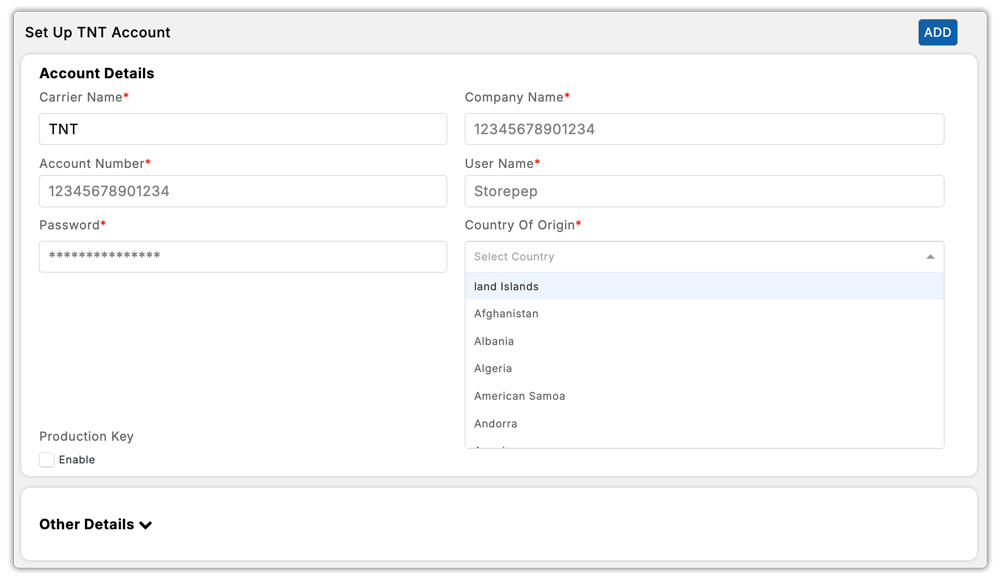
Step 3: Configure Your TNT Shipping Services
In the app settings, you can choose which TNT shipping services to offer at checkout.
- TNT Express delivery
- TNT Economy Express
- Domestic shipping services
- International shipping services

You can also adjust how these rates appear to customers. For example, you can add a small handling fee or rename services so customers better understand their delivery options.
Step 4: Enable Live TNT Rates at Checkout
Once everything is configured, the final step is to activate the shipping services.
To do this:
- Make sure Carrier-Calculated Shipping is enabled in Shopify.
- After the integration is done, the PH Multi-Carrier Shipping Label app will pull live rates directly.
- Test your Shopify checkout.

Customers can then choose the delivery option that fits their budget and urgency.
Optimizing Your TNT Rates at Checkout
Showing live TNT rates is only the first step. Many merchants also fine-tune how those rates appear so they match their business costs and shipping strategy.
Shipping often involves additional operational expenses such as packaging materials, warehouse handling, or fuel adjustments. Customizing your rates helps cover these costs without surprising customers.
With shipping apps, you can:
- Add a handling fee to cover packaging or processing costs
- Apply a percentage markup to protect profit margins
- Offer free shipping above a certain order value
- Set different rules for domestic and international destinations
All of this can be facilitated using the PH Multi-Carrier Shipping Label app, which makes all your shipping processes easy. This allows you to maintain accurate shipping prices while keeping your operations profitable.
Best Practices for Using TNT on Shopify
If you plan to rely on TNT for regular shipping, a few simple practices can help avoid common issues.
- Use accurate product weights and dimensions
Shipping rates depend heavily on package size and weight. Incorrect product data can result in incorrect prices at checkout. - Separate domestic and international services
If your store ships globally, clearly organize shipping options so customers understand the difference between local and international delivery. - Include realistic processing times
Delivery estimates should account for both shipping time and order processing time. - Automate tracking updates
Sending tracking information automatically improves the post-purchase experience and reduces customer support requests.
Issues When Displaying Live TNT Rates (And How to Fix Them)
Even though setting up live TNT rates in Shopify is straightforward, merchants sometimes face issues where rates don’t appear correctly at checkout. Most of these problems are easy to resolve once you know what to look for.
Live TNT rates not appearing at checkout
- This usually happens when Carrier-Calculated Shipping is not enabled in your Shopify plan.
- Make sure CCS is active and that TNT services are enabled inside your shipping app.
Incorrect shipping prices
- Incorrect product weight or dimensions can result in incorrect rate calculations.
- Always verify that every product in Shopify has accurate shipping details.
Rates not showing for certain countries
- This may occur if shipping zones are not configured correctly in Shopify.
- Confirm that the destination country is included in your shipping zones and allowed by your TNT services.
Checkout showing only one shipping option
- This usually means only one TNT service is enabled in your shipping configuration.
- Activate both Express and Economy services if you want customers to choose between different delivery speeds.
API connection errors
- If your TNT credentials were entered incorrectly or API access is not active, Shopify will not be able to retrieve live rates.
- Double-check your credentials or contact TNT support to confirm API access is enabled.
Addressing these common issues early ensures your customers always see accurate, reliable TNT shipping rates at checkout, which builds trust and prevents last-minute surprises.
Conclusion
Displaying live TNT rates at your Shopify checkout helps remove one of the biggest uncertainties customers face during online shopping: shipping cost. When buyers can see accurate delivery options and prices before completing their purchase, they feel more confident about moving forward with the order.
By connecting your TNT business account, enabling Carrier-Calculated Shipping in Shopify, and using a shipping automation tool like the PH Multi-Carrier Shipping Label app, you can automatically display real-time TNT rates based on the customer’s location, package weight, and chosen service. This not only improves transparency but also saves you from manually calculating shipping costs or sending quotes.
With the right setup, your checkout becomes clearer, faster, and more reliable, creating a smoother buying experience for customers and a more efficient shipping workflow for your business.
FAQ’s
Q. Can Shopify display live TNT shipping rates at checkout?
Yes. Shopify displays real-time TNT shipping rates when you enable carrier-calculated shipping and connect your TNT account through the PH Multi-Carrier Shipping Label app.
Q. Do I need a TNT business account for live shipping rates?
Yes. A TNT business account provides the credentials and contract pricing needed to retrieve live shipping rates during checkout.
Q. Which Shopify plans support live carrier shipping rates?
Shopify includes carrier-calculated shipping with the Advanced Shopify and Shopify Plus plans. Merchants can also enable carrier-calculated shipping on the Shopify Grow plan by switching to annual billing or by contacting Shopify Support.
