


A spa visit rarely stops at the base service. Customers add a hot stone treatment, upgrade their massage oil, or tack on a paraffin hand treatment, but if your WooCommerce store can’t capture those extras at the time of booking, you’re stuck handling them over the phone or losing the sale entirely.
This article shows you how to set up spa appointment bookings in WooCommerce so customers can select their service, pick a time, and add extras in one flow, using the Bookings and Appointments for WooCommerce plugin alongside PH Product Add-ons for WooCommerce.
On This Page
- Why Spa Businesses Should Offer Service Upgrades
- Popular Add-On Services for WooCommerce Spa Appointments
- How to Sell Spa Appointments with Extra Services in WooCommerce
- Example Scenario: A WooCommerce Spa Booking with Optional Add-Ons
- Tips for Upselling Spa Services Without Overwhelming Customers
- Conclusion
- FAQs
Why Spa Businesses Should Offer Service Upgrades
Spa treatments naturally offer upgrade opportunities. Most customers are willing to spend a little more when the options are presented clearly.
- Higher order value per appointment: An add-on treatment adds revenue without requiring a new customer or a new time slot.
- Better use of existing services: Extras like oils, scrubs, or hot stones are usually things your spa already stocks or offers – selling them as add-ons just makes them visible.
- Less back-and-forth at booking: When extras are listed on the product page, customers decide upfront instead of asking staff what’s available once they arrive.
- More personalized appointments: Letting customers customize their own session (oil type, pressure level, add-on treatment) makes the booking feel tailored rather than generic.
Default WooCommerce doesn’t support appointment scheduling or optional service extras out of the box, which is why a dedicated bookings setup matters here.
Popular Add-On Services for WooCommerce Spa Appointments
Before setting anything up, it’s helpful to understand which extras spas commonly offer with their core services.
- Treatment upgrades – Hot stone massage, deep tissue pressure, or a CBD oil upgrade to a standard massage
- Skin and body extras – Body scrub, exfoliating wrap, collagen face mask, or LED light therapy
- Relaxation add-ons – Aromatherapy, herbal steam, scalp massage, or a foot soak
- Product add-ons – A take-home moisturiser, facial serum, or essential oil selected during booking
- Package upgrades – Standard treatment vs. premium treatment with additional services bundled in
- Special requests – A text field where customers can note allergies, skin sensitivities, or personal preferences
Once you know which extras apply to your spa, the next step is setting them up in WooCommerce.
How to Sell Spa Appointments with Extra Services in WooCommerce
Setting up spa appointments with service extras on WooCommerce is more straightforward than it sounds. You don’t need to manage any of this manually; the right plugins handle the scheduling, the extras, and the pricing all in one place. Here’s how it works.
Set up your spa service as a bookable product
Go to your WooCommerce dashboard, add a new product, and change the product type to Bookable Product. Give it a name like “Relaxation Massage” and set a base price for the treatment. Choose your appointment duration – for example, 1-hour slots.

If you offer treatments that need a gap between appointments – for cleanup or prep, you can add buffer time too, so back-to-back bookings always have breathing room.
Then set your available days and working hours so customers can only book when you’re actually open.
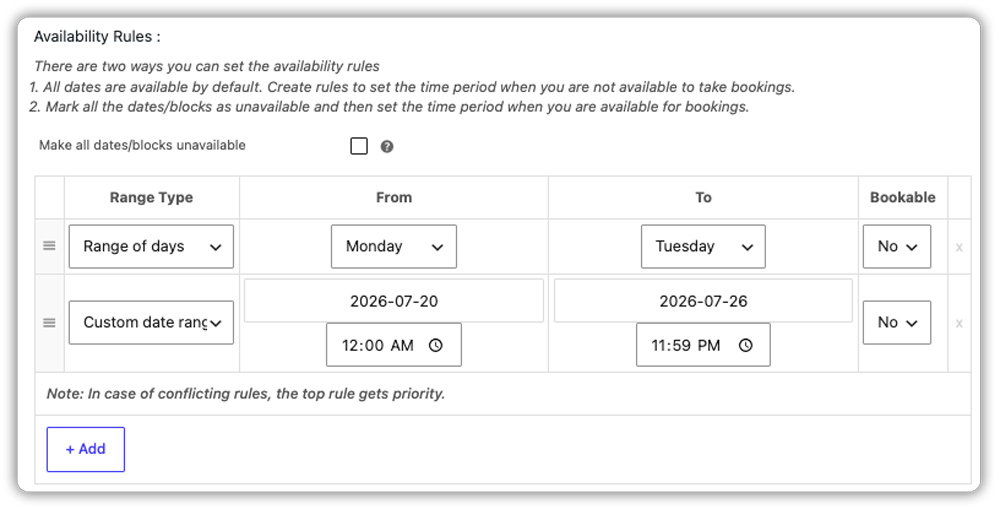
The plugin will automatically block off slots as they get booked, so you’ll never get double-bookings.
Add a basic set of extras using Booking Resources
Once your service is set up, you can attach a set of selectable extras using the Resources feature inside the Bookings plugin.

The plugin gives you two ways to display these options to customers – as a dropdown (where they pick one option, like a massage type) or as checkboxes (where they can select multiple extras, like an aromatherapy add-on and a scalp massage together). Each option can carry its own price, which gets added to the booking total automatically.
This is the simplest way to add extras and doesn’t require any additional plugins.
Add more options using the Product Add-ons
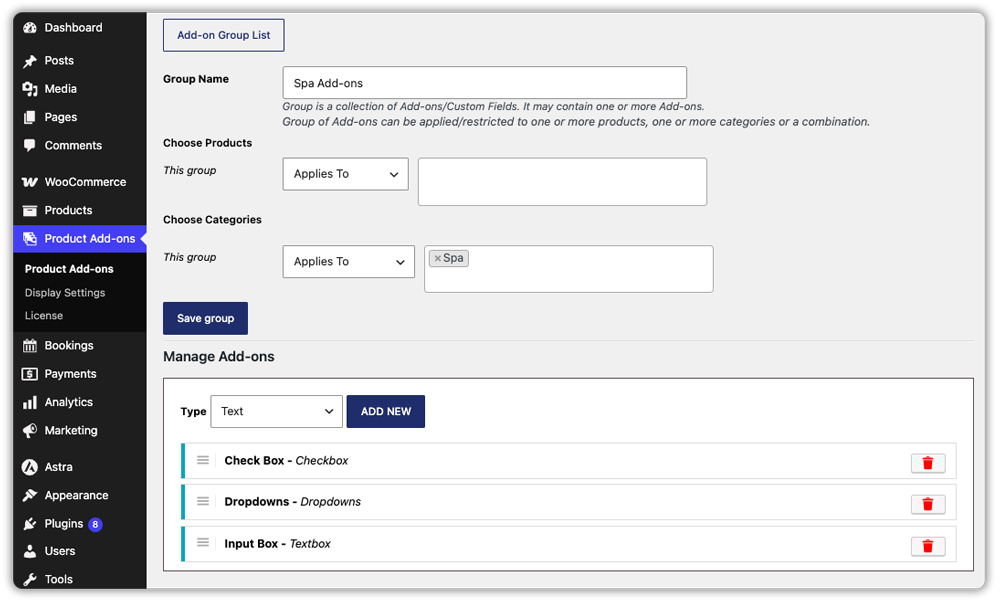
If you want to offer several types of extras on one page, PH Product Add-ons for WooCommerce can help. You can include massage types, skin treatments, and a special requests field together.
It lets you create as many fields as you need on the same booking page:
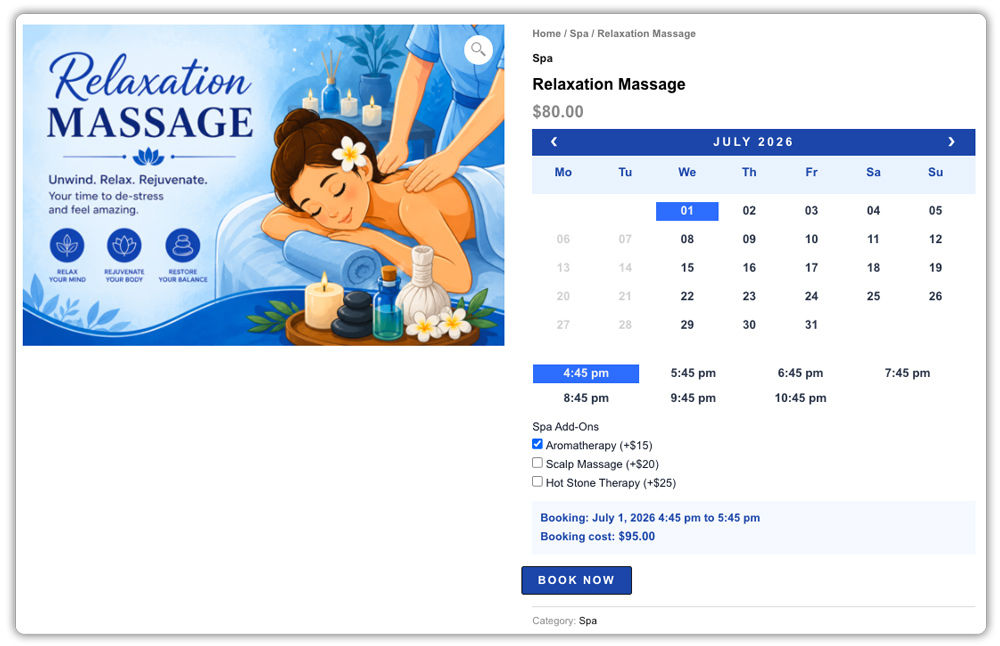
- Checkboxes for optional paid extras (e.g., “Add aromatherapy – +$15”)
- Dropdown menus for choices like preferred therapist or treatment intensity
- A text field for allergies, skin notes, or special preferences
All prices update live on the page as customers make their selections, and the full breakdown, including extras, appears at checkout.
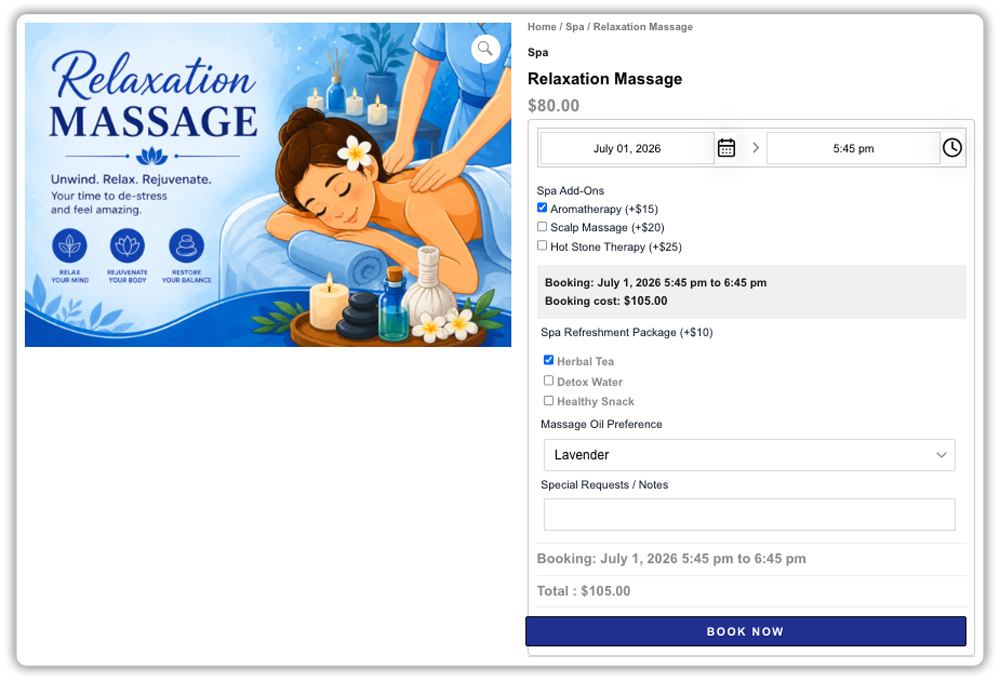
Example Scenario: A WooCommerce Spa Booking with Optional Add-Ons
Let’s say you run a WooCommerce store for a day spa that offers 60-minute massage treatments. You also want customers to choose service upgrades and leave notes while booking. Here’s what you’re likely dealing with right now.
Challenges You’re Probably Facing
- Customers book the base treatment online, then call or email to ask about extras – adding admin work before every appointment
- You can’t collect payment for add-ons at checkout, so pricing has to be handled separately or in person
- There’s no way for customers to mention allergies or preferences during booking, only after the fact
- Your upgrade options aren’t visible during checkout, so most customers don’t know they exist
How the Bookings and Product Add-ons Plugins Solve This
With the Bookings and Appointments for WooCommerce plugin handling your time slots and the PH Product Add-ons for WooCommerce plugin managing your extras, the entire process happens on one product page:
- Customers pick their appointment slot from your live calendar
- They see add-ons like “Aromatherapy upgrade (+$15)” and “Hot stone therapy (+$20)” as selectable options
- A text field collects any allergy or preference notes before checkout
- The total base price plus selected extras is confirmed before payment
Results
- Every booking arrives with the full service request already attached – no follow-up needed
- Your team can prepare for each appointment knowing exactly what was selected
- Customers can see and choose their extras at the moment they’re most engaged
- Upgrade options are part of the normal booking flow, not an afterthought
- Pricing is accurate from the start – no manual adjustments after checkout
Once this is set up, handling service upgrades is no longer something you manage on a client-by-client basis; it becomes a standard part of how your spa takes bookings.
Tips for Upselling Spa Services Without Overwhelming Customers
Getting the booking system working is half the job – how you present the extras determines whether customers actually choose them.
- Limit the list to 3–5 extras per service: A long list of add-ons slows down booking and makes the decision harder, not easier.
- Always show the price next to the option: Customers are far more likely to add an extra when the cost is visible upfront rather than a surprise at checkout.
- Group related extras together: Use a dropdown for “oil type” instead of five separate checkboxes, so the choice feels like one decision, not five.
- Match extras to the right service: A paraffin hand treatment makes sense with a manicure, not necessarily with a deep tissue massage – use separate add-on groups or conditional logic to keep options relevant.
These small adjustments can make a noticeable difference in how smoothly your store handles add-on sales without slowing customers down at checkout.
Conclusion
Selling spa appointments with extra services in WooCommerce starts with a reliable booking calendar. It also requires a simple way for customers to add extras before checkout. Bookings and Appointments for WooCommerce handles the scheduling, while Booking Resources and PH Product Add-ons give you the flexibility to offer anything from a quick checkbox extra to a fully customized treatment form. If you run into a setup question specific to your spa’s services, PluginHive support can help you configure it.
FAQs
Q: Can customers choose their preferred therapist when booking a spa appointment?
Yes. Set up each therapist as a Booking Asset with their own availability and pricing, and customers can choose a preferred therapist or be automatically assigned one based on availability.
Q: Can I collect a deposit instead of full payment for a spa appointment with add-ons?
Yes, by integrating with the PH Deposits for WooCommerce plugin, you can collect a partial payment upfront, which works well for higher-cost spa packages.
Q: Will the price of extra services show up correctly in the cart and order emails?
Yes. Whether the extra is added as a Booking Resource or a Product Add-on, the cost is calculated into the total and reflected on the cart, checkout, and order confirmation emails automatically.
