



Managing bookings in a busy WooCommerce store can quickly become overwhelming if you’re juggling multiple tools. Manually updating schedules or switching between platforms often leads to missed appointments, double bookings, and unnecessary stress. That’s why syncing your WooCommerce bookings with Google Calendar is such a game-changer. It gives you one centralized calendar to view, manage, and update all your appointments in real time.
With the Bookings and Appointments for WooCommerce plugin, you get an easy way to manage bookings and a reliable solution to keep your schedule perfectly in sync with Google Calendar. Whether you’re running a salon, fitness class, tutoring business, or consultation service, this integration ensures that every booking is automatically organized, accessible on any device, and always up to date. In this article, we’ll walk you through the key reasons to sync bookings with Google Calendar and how it can simplify booking management for your business.
Table of Contents
- Benefits of Syncing WooCommerce Bookings with Google Calendar
- Enhance Booking Management with Google Calendar Sync
- Real-World Use Case
- Tips for Smooth Booking and Calendar Management
- Conclusion
- FAQs
Benefits of Syncing Google Calendar with WooCommerce Bookings
Integrating WooCommerce bookings with Google Calendar makes schedule management smoother and more reliable. Instead of juggling different tools or updating details manually, everything stays in sync automatically. Some key benefits include:
- Automatic booking updates: New bookings made on your WooCommerce store show up instantly in Google Calendar.
- No double bookings: Real-time sync keeps your availability accurate and prevents overlapping appointments.
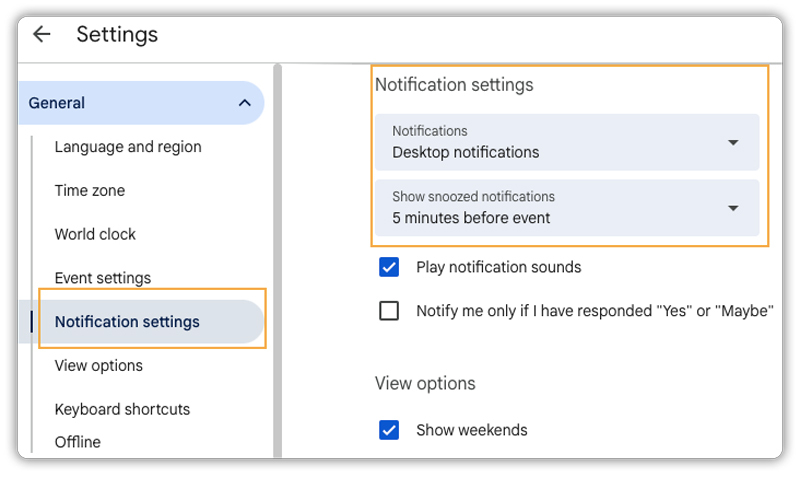
- Notifications and reminders: Google Calendar alerts you about upcoming bookings, helping reduce no-shows.
- Access on any device: Check and manage your schedule from your phone, tablet, or computer anytime.
- Simplified booking management: Having everything in one calendar makes it easier to stay organised and focus on your customers.
Syncing your bookings with Google Calendar transforms the way you handle your schedule, making it smarter and more efficient. Up next, let’s look at how you can bring this sync into action for your WooCommerce store.
Enhance Booking Management with Google Calendar Sync
Note: To begin, make sure the Bookings and Appointments for WooCommerce plugin is installed and properly configured on your store. If you haven’t done this yet, follow this setup guide to get started.
Once your plugin is ready, the next step is connecting it with Google Calendar. You can refer to this detailed guide for the step-by-step process.
After the connection is complete, you’ll have access to a range of Google Calendar sync settings that simplify scheduling, reduce errors, and give you better control over your bookings:
- Secure integration: The plugin uses Google’s official API and secure credentials (Client ID & Secret) to connect your store with your Google account, ensuring safe and reliable data transfer.
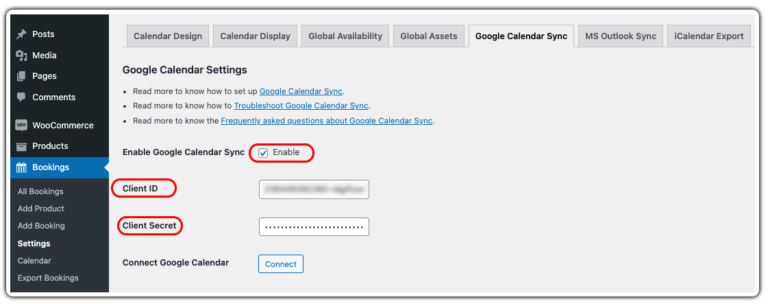
- Calendar selection: If you manage multiple calendars, you can choose which Google Calendar to sync with. Plus, you can refresh the list anytime to pick the right one for your bookings.
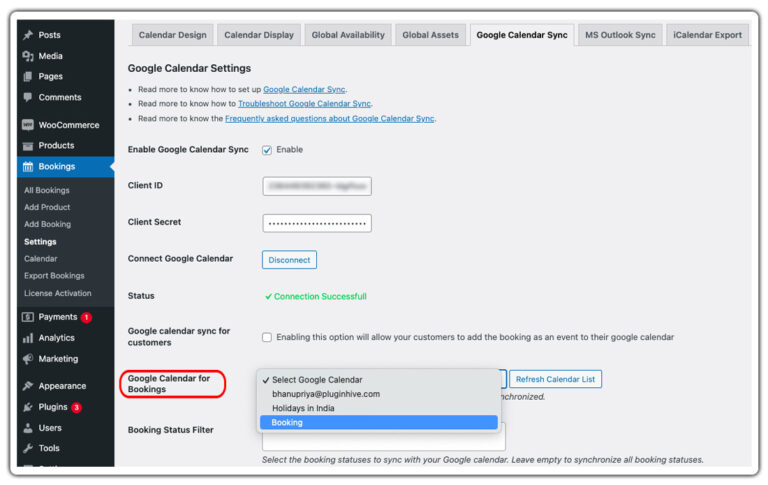
- Booking filters: Customise what gets synced by filtering bookings based on their status. For example, you may choose to only push “Confirmed” or “Paid” bookings to Google Calendar, keeping it clean and relevant.

- Instant updates: Every new booking or update in your WooCommerce store is instantly reflected in Google Calendar, giving you a clear and current view of your schedule without the risk of overlaps.
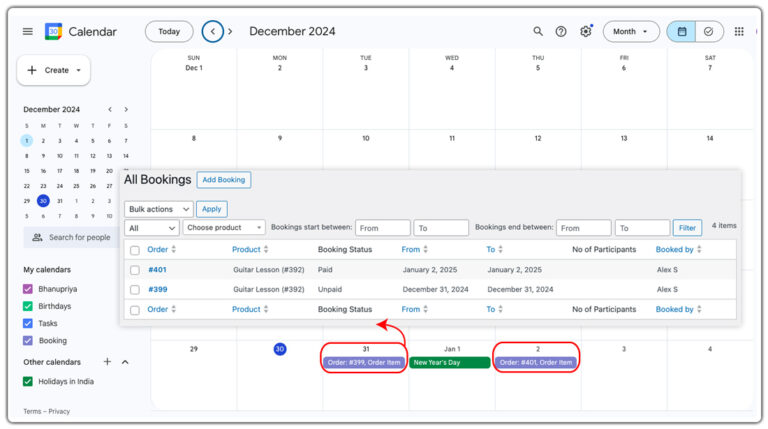
- Two-way Calendar sync: With two-way sync enabled, any changes you make in Google Calendar (like blocking time slots or editing events) automatically reflect in WooCommerce. This keeps your availability accurate at all times.

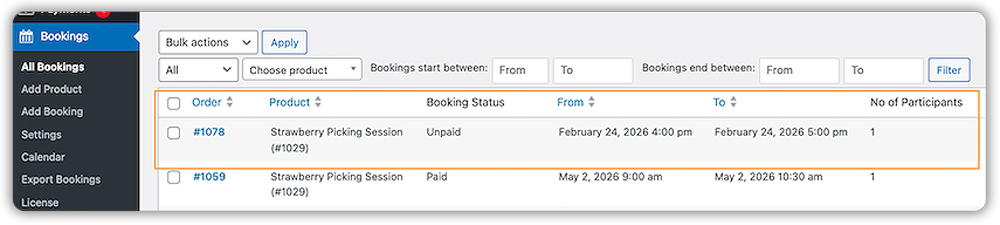
Learn more about two-way calendar sync here.
By syncing WooCommerce bookings with Google Calendar, you can maintain up-to-date availability while giving customers a smooth, reliable booking experience.
Real-World Example: Streamlining a Photographer’s Schedule
A freelance photographer uses a WooCommerce store to offer a variety of sessions, including family portraits, corporate headshots, and event photography. Personal life, travel, and editing deadlines are managed through Google Calendar.
The Problem:
Managing bookings manually can lead to several challenges:
- Manual Calendar Updates: Every booking from the website has to be added to Google Calendar manually.
- Conflicting Appointments: Personal commitments and travel can overlap with client bookings.
- Missed Opportunities: Scheduling errors may result in double-bookings, cancelled sessions, and lost clients.
The Solution:
By using the Bookings and Appointments for WooCommerce plugin with Google Calendar sync, photographers can:
- Automate Booking Updates: Website bookings appear automatically in Google Calendar.
- Maintain Accurate Availability: Real-time updates help prevent scheduling conflicts.
- Save Time: Eliminates the need for manual calendar updates, reducing admin workload.
The Result:
This integration lets the photographer manage all bookings through a single, reliable calendar. It minimizes scheduling conflicts, prevents double-bookings, and reduces administrative work, enabling them to focus more on photography and deliver a seamless booking experience for clients.
Tips for Smooth Booking and Calendar Management
Optimizing your WooCommerce bookings with Google Calendar can save time, reduce errors, and improve the overall customer experience. Here are some practical tips:
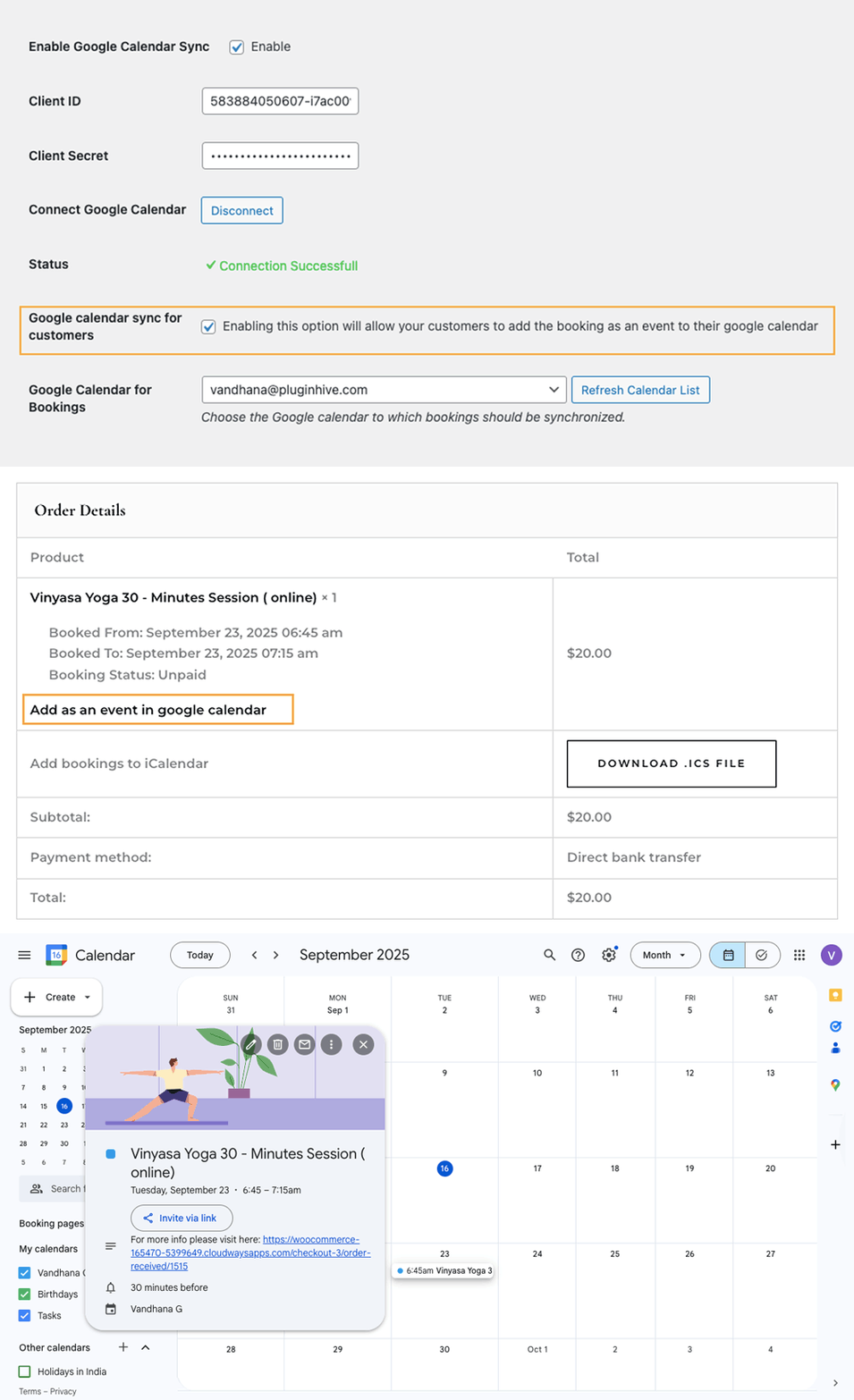
- Google Calendar Sync for Customers: Allow customers to add their bookings as events to their own Google Calendar for easy reminders.
- Enable Notifications and Reminders: Set up alerts for upcoming bookings to ensure you never miss an appointment.
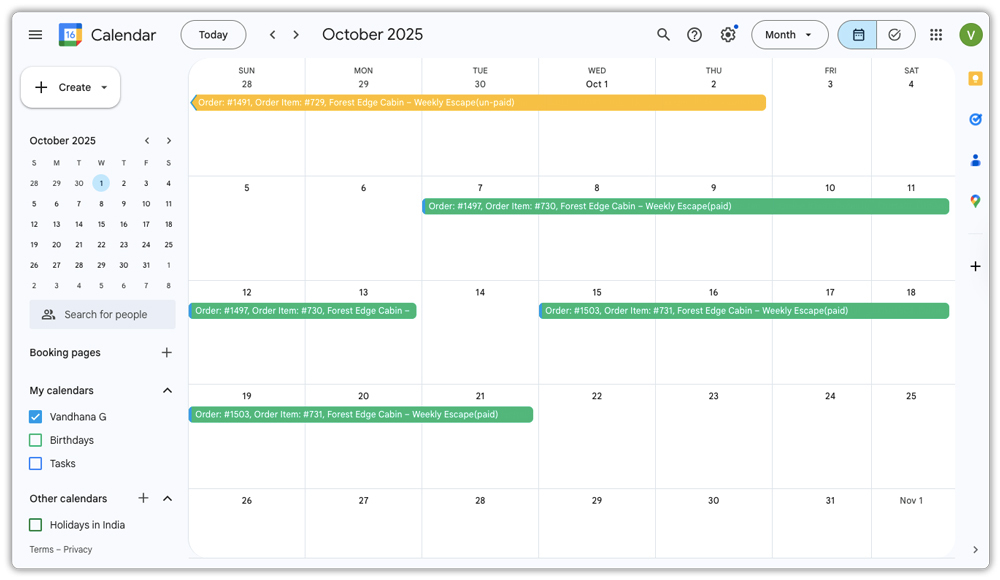
- Organize Your Calendar: Use colours or labels to distinguish booking types, making it easier to manage multiple services.
- Regularly Refresh Your Calendar: If you manage multiple calendars, refresh the sync settings occasionally to ensure everything stays updated.
Following these tips ensures smoother scheduling, accurate bookings, and a professional experience for both your team and your customers.
Conclusion
Syncing WooCommerce bookings with Google Calendar can transform how you manage your store’s schedule. It helps automate booking updates, maintain accurate availability, and reduce administrative work, giving you more time to focus on your business and provide a seamless experience for your customers. By leveraging Google Calendar integration, you can streamline your workflow, avoid scheduling conflicts, and keep all bookings organised in one central place.
For assistance or setup guidance, reach out to PluginHive support. Our team can help you configure the Bookings and Appointments for WooCommerce plugin and Google Calendar sync, ensuring your booking system runs smoothly and efficiently.
Frequently Asked Questions (FAQs)
1. Can the Bookings and Appointments for WooCommerce plugin support two-way sync with Google Calendar?
Yes. The plugin supports two-way sync, meaning bookings created in WooCommerce or directly in Google Calendar will reflect in both places.
2. Does the plugin sync past bookings made before enabling Google Calendar sync?
By default, the system syncs only the bookings created after you enable Google Calendar sync. It does not automatically sync past bookings.
3. Are Google API verification or credentials required to set up Google Calendar sync with WooCommerce Bookings?
Yes. To connect Google Calendar, you must use valid Google API credentials (Client ID, Client Secret, and correct redirect URI) and authorize the necessary permissions.
4. Can customers add their bookings to their own Google Calendar in WooCommerce?
Yes. Customers can add their bookings as events to their Google Calendar for easy reminders.
5. Can I disconnect Google Calendar from WooCommerce at any time?
Yes. You can disconnect Google Calendar from the Bookings and Appointments for WooCommerce plugin whenever needed.
6. Is there a limit to the number of bookings that can be synced with Google Calendar?
No. There is no specified limit to the number of bookings that can be synced with the plugin.
