


Running a booking-based WooCommerce store while managing your schedule in Microsoft Outlook can get messy fast. Bookings come in through your store, but your calendar stays empty, and someone on your team has to bridge that gap every single time manually.
This article shows you a cleaner way to handle it, by connecting your WooCommerce store directly to Microsoft Outlook Calendar so bookings appear there automatically.
On This Page
- Common Scheduling Challenges for WooCommerce Booking Businesses
- Why Sync WooCommerce Bookings with Microsoft Outlook Calendar?
- What You Need Before You Start
- How to Connect WooCommerce Bookings to Microsoft Outlook Calendar
- Use Cases: Who Benefits from Outlook Calendar Integration?
- Best Practices for Managing WooCommerce Bookings in Outlook
- Conclusion
- FAQs
Common Scheduling Challenges for WooCommerce Booking Businesses
Most booking businesses don’t have a bookings problem – they have a visibility problem.
Orders come in, but your team is working from a calendar that has no idea those orders exist. Here’s what that looks like in practice:
- Manual calendar entry: Someone has to take each new booking and manually add it to Outlook. It’s repetitive, easy to miss, and the first thing that slips when things get busy.
- Double-bookings: Your Outlook Calendar shows a slot as open because no one’s updated it yet. A customer books it. But that slot was already taken in WooCommerce.
- Customers with no record of their appointment: A customer books a session at your store and receives an order confirmation email, but nothing appears in their calendar. Days later, they email you asking for the time and date.
- Outdated events after cancellations: A booking gets cancelled in WooCommerce, but the Outlook event stays. Your team schedules something else in that slot, not knowing it’s been freed up.
None of these is a big problem individually. But together, they add up to a lot of unnecessary back-and-forth and the occasional missed appointment.
Why Sync WooCommerce Bookings with Microsoft Outlook Calendar?
The short answer: your team already lives in Outlook. Your bookings should, too.
When you connect WooCommerce to Microsoft Outlook Calendar using the Bookings and Appointments for WooCommerce plugin, each new booking automatically creates a calendar event on your end – no manual entry, no copy-pasting, no delays.
What makes this particularly useful for service businesses is the customer side of it. Your customer doesn’t just get an order email – they get an actual calendar invitation they can accept. Once they do, the appointment sits in their Outlook Calendar alongside everything else in their day. They know exactly when to show up, and so do you.
It’s a small change in how bookings are processed, but it removes a lot of the coordination work that would otherwise fall on your team.
What You Need Before You Start
This is a one-time setup. Before you begin, make sure you have:
- Plugin version 5.0.0 or above of Bookings and Appointments for WooCommerce: The Outlook integration isn’t available on older versions, so update first if needed.
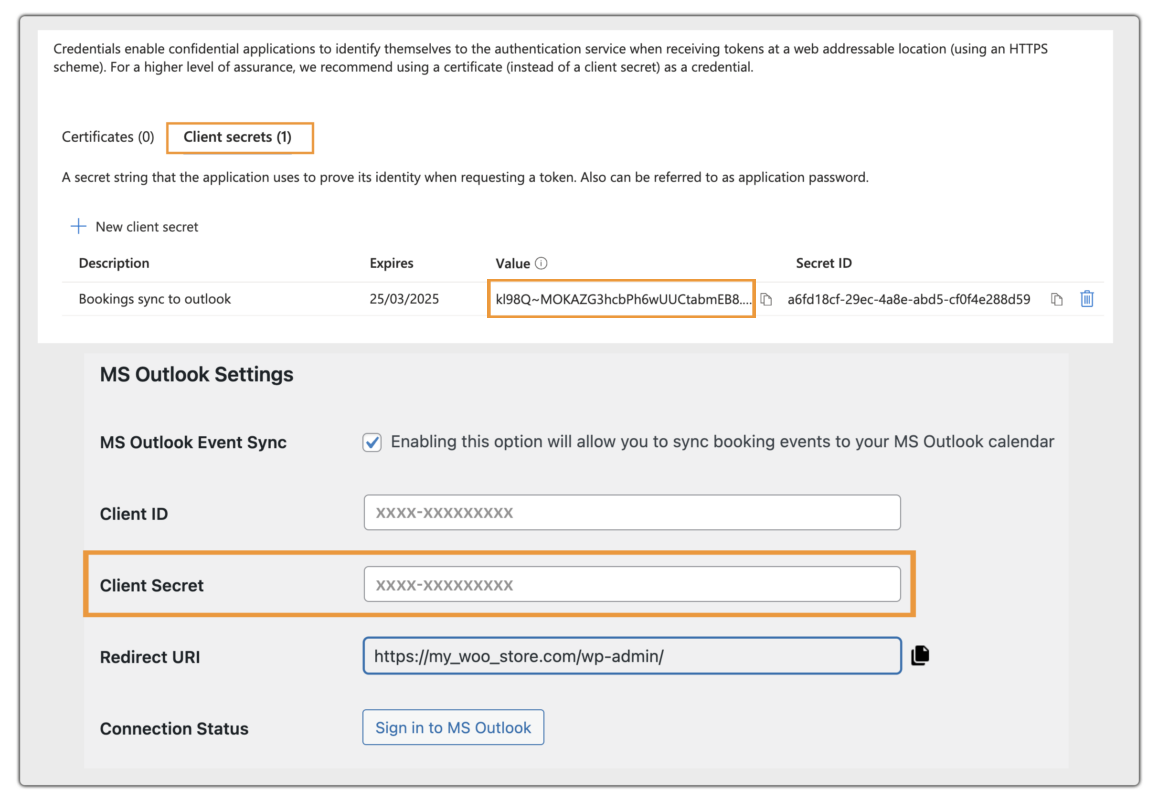
- A Microsoft Azure account: This is where you’ll register your store as an app and get the two credentials the plugin needs – a Client ID and a Client Secret. Think of these as a username and password that let the plugin talk to your Outlook account securely.
- Calendar permission is enabled in Azure: You’ll need to grant the plugin access to read and write calendar events. There’s a specific permission called Calendars.ReadWrite that you’ll turn on during setup.
How to Connect WooCommerce Bookings to Microsoft Outlook Calendar
The setup is a one-time process. At a high level, here’s how it works:
You update the Bookings and Appointments for WooCommerce plugin to version 5.0.0 or above, then register your store as an app in the Microsoft Azure portal. This gives you two credentials – a Client ID and a Client Secret, which you paste into the plugin settings.
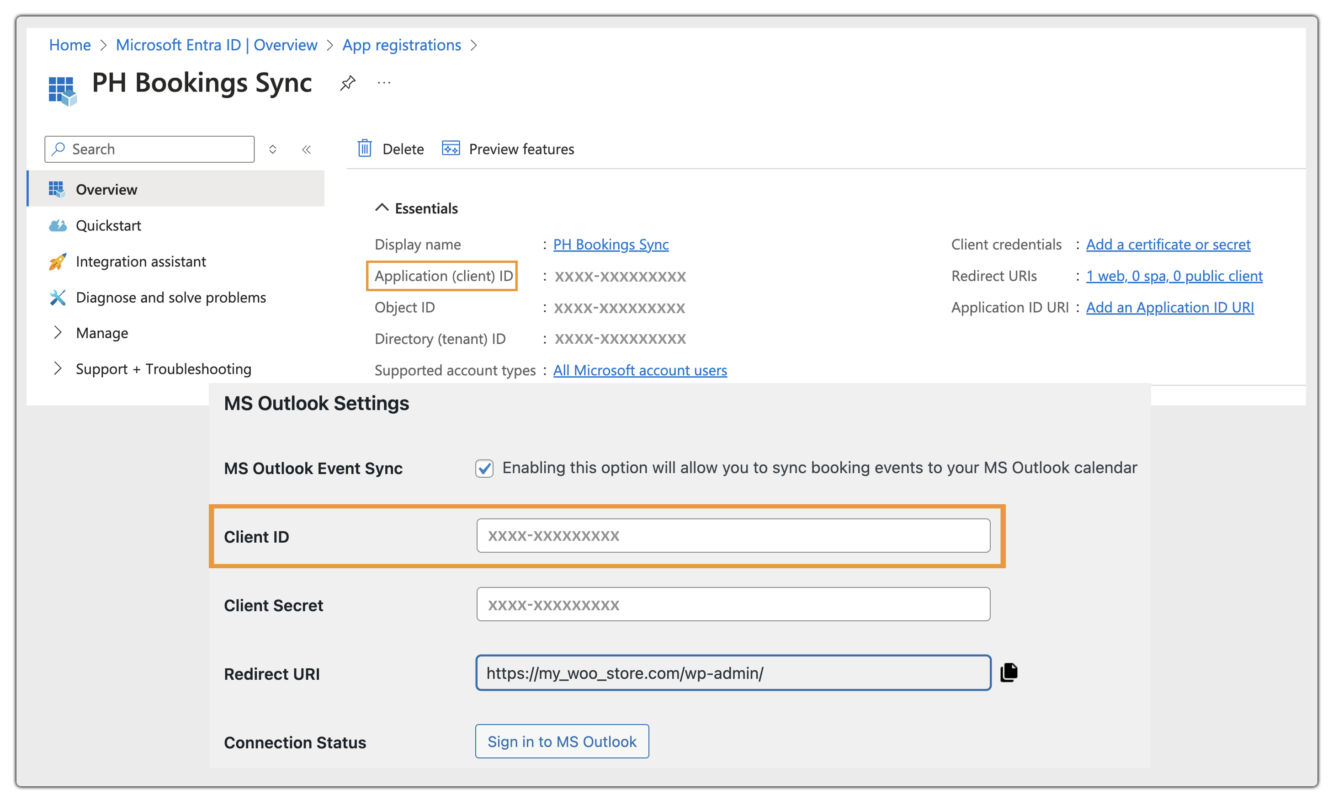
Once you sign in to MS Outlook from the plugin, you choose which calendar to sync to and set your booking status filters.
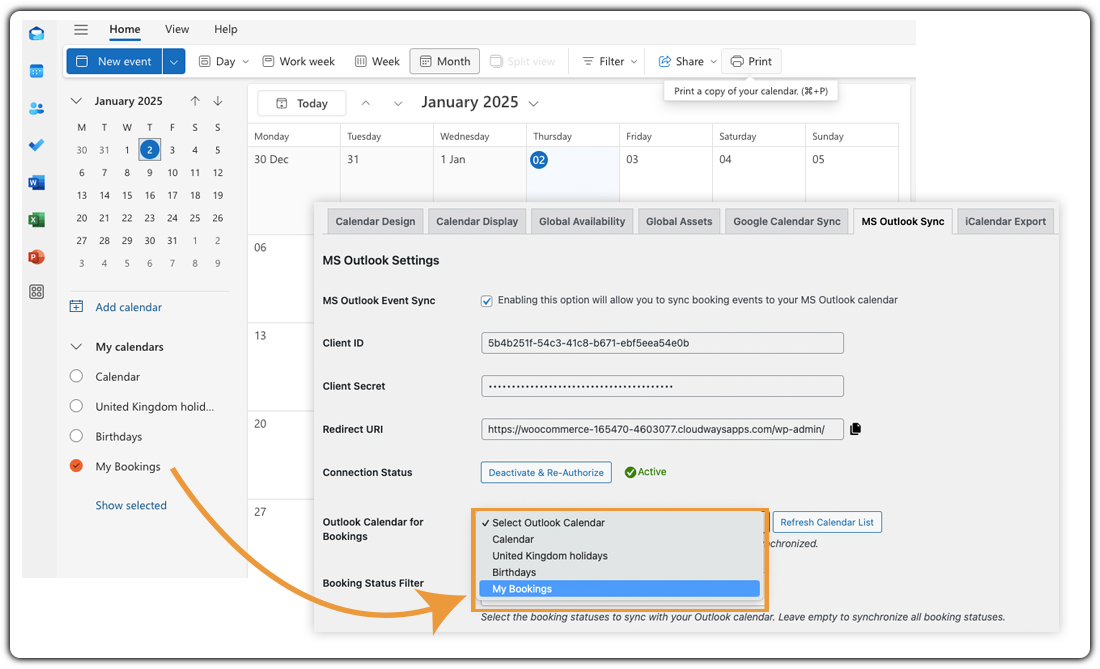
That’s it. From that point on, every new booking automatically creates a calendar event.
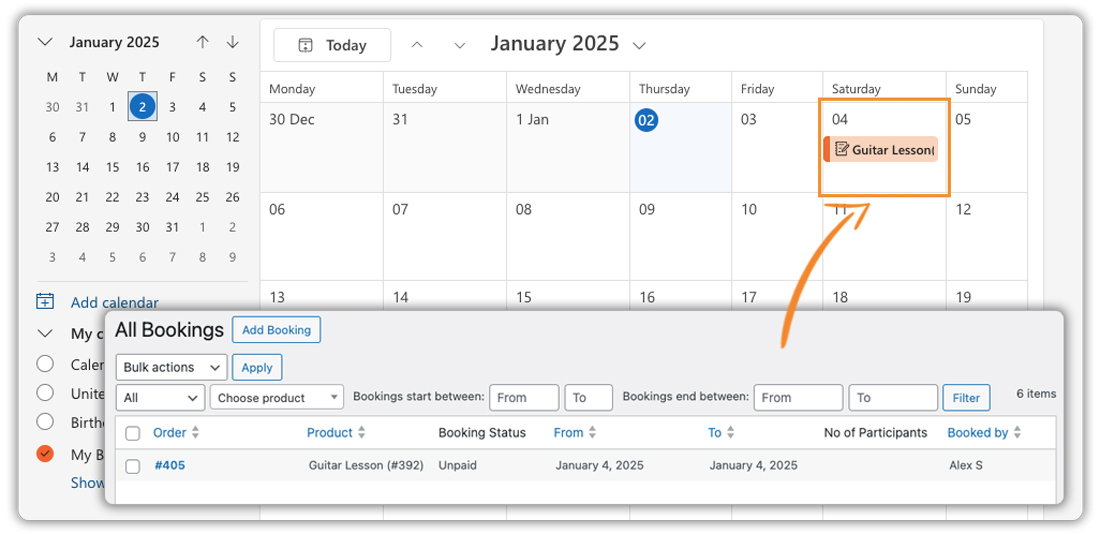
One thing customers appreciate once it’s live: they’re added as attendees on the event, so they receive a calendar invite directly in their inbox.
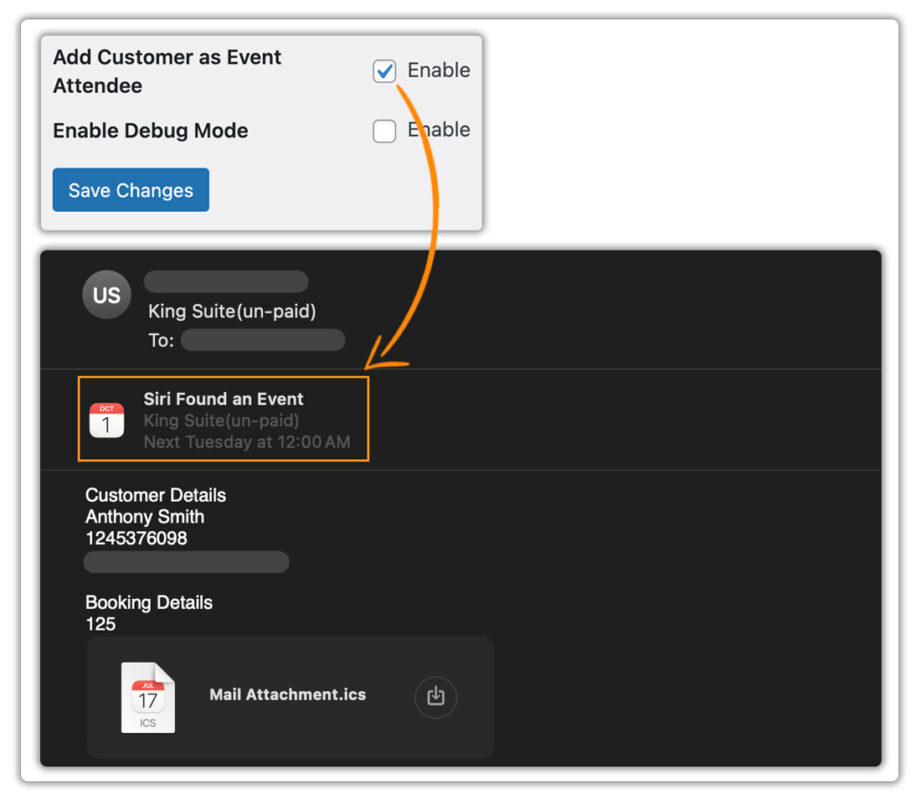
One click to accept, and the appointment is saved in their own Outlook Calendar too – no manual entry on their end.
Use Cases: Who Benefits from Outlook Calendar Integration?
This integration is a natural fit for any business where time is the product. A few examples of who gets the most out of it:
- Consultants and coaches: who take one-on-one sessions through their WooCommerce store. Client bookings appear on their Outlook Calendar automatically, and clients receive a calendar invite – no scheduling emails needed after the booking is placed.
- Fitness and wellness studio: where staff schedules are managed in Outlook. Instructors see their class bookings in their calendar without logging into WooCommerce. Front desk staff aren’t manually transferring bookings anymore.
- Rental businesses: equipment, spaces, vehicles. Each reservation becomes a calendar block, so availability is visible at a glance without having to cross-reference two different systems.
- Training providers: running workshops or sessions. Participants book through WooCommerce and get a calendar invite confirming their spot. Trainers see their full day’s schedule in Outlook.
- Healthcare and therapy practices: where appointments are sensitive and showing up on time matters. A calendar invitation is a more dependable reminder than an email, and it keeps everything in one place for the patient.
For a broader look at the kinds of businesses that benefit from WooCommerce bookings, this article on 7 businesses to run with WooCommerce Bookings covers a wider range of scenarios.
Best Practices for Managing WooCommerce Bookings in Outlook
A few things worth keeping in mind once the integration is live:
- Watch your Client Secret expiry date: The secret you generate in Azure doesn’t last forever – it has an expiry date you set during setup. When it expires, the sync stops working without any obvious error message. Put a reminder in your calendar a few weeks before it’s due, regenerate the secret, and update it in your plugin settings.
- Only sync the statuses that matter: There’s no need for every booking status to create a calendar event. Stick to confirmed or paid – that way, your Outlook Calendar only shows appointments that are real and committed, not ones still waiting on payment or approval.
- Turn on customer attendee invites: It’s easy to overlook this option during setup, but it makes a big difference for customers. A calendar invite feels more official than an email confirmation, and it gives them something they can actually act on – accept, add to their calendar, and move on.
- Test after updates: Any time you update the plugin or make changes in Azure, run a quick test booking to make sure the sync is still working. It takes two minutes and saves you from finding out the hard way that something broke.
These aren’t complicated – but getting them right means the integration runs quietly in the background without needing your attention.
Conclusion
For WooCommerce booking businesses that already use Microsoft 365, this integration is one of the more practical things you can set up. It’s a one-time configuration that removes a recurring manual task – and it improves the experience for your customers at the same time. The Bookings and Appointments for WooCommerce plugin handles the sync once it’s connected, and the PluginHive support team is on hand if you need help getting there.
FAQs
Q: Does this integration only update my calendar, or does my customer also get a notification?
Both. Your Outlook Calendar gets a new event for each booking, and your customer is added as an attendee – meaning they receive a calendar invitation they can accept directly from their inbox.
Q: Do I need a Microsoft Azure account to set this up?
Yes. Azure is where you register the connection between your WooCommerce store and Outlook. It sounds technical, but it’s mostly a one-time form-filling exercise. The setup guide walks you through it with screenshots.
Q: What happens in Outlook if a customer cancels their booking in WooCommerce?
The plugin syncs based on the booking status filters you set. If a booking is cancelled and your filters are configured to reflect status changes, the calendar event will update accordingly.
Q: Does this plugin also work with Google Calendar?
Yes. The same plugin supports Google Calendar sync – including two-way sync – and iCalendar export for Apple Calendar users. You can run all three from the same plugin settings if needed.
