



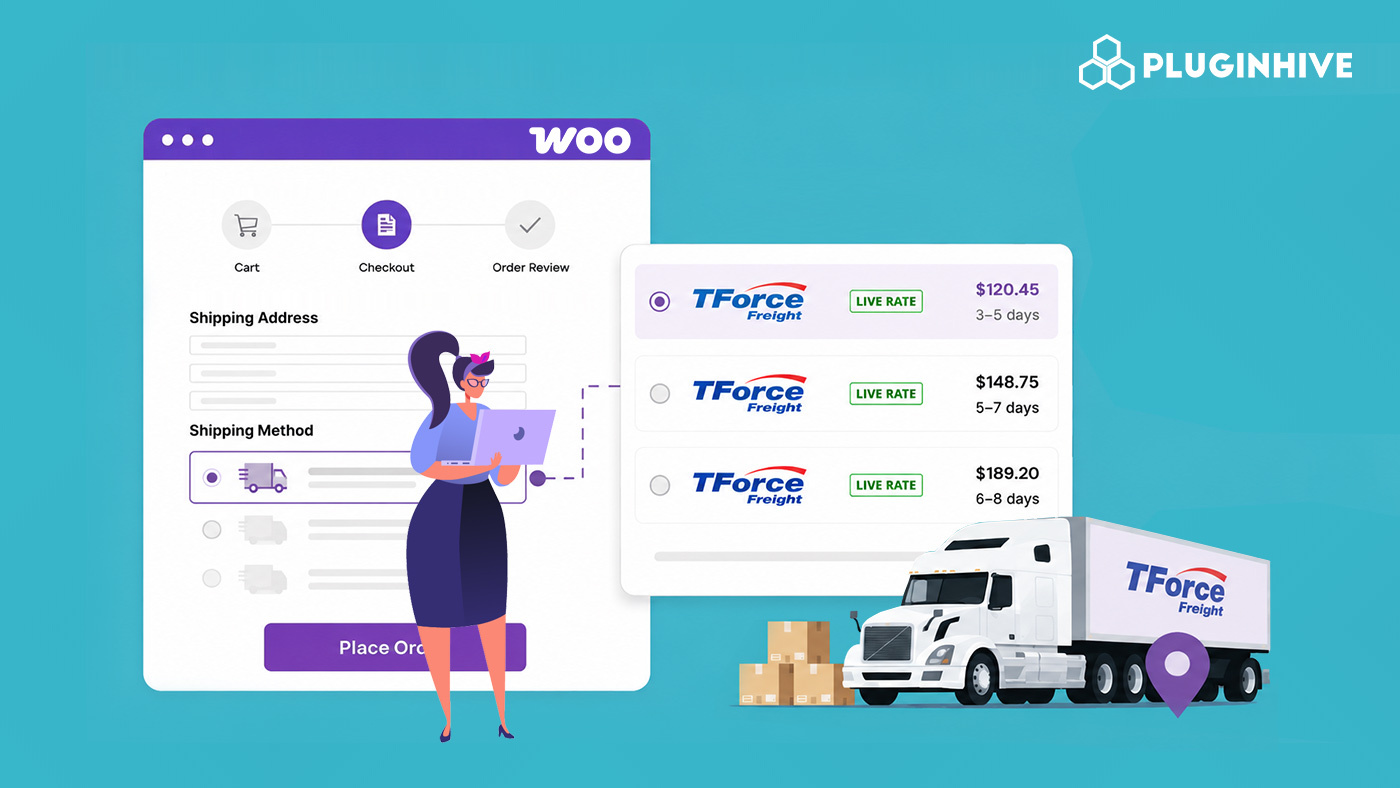
WooCommerce works well for parcel shipping, but heavy products like furniture, industrial equipment, and wholesale goods require LTL freight shipping instead. Since WooCommerce does not support LTL shipping by default, many stores rely on flat-rate estimates or manual freight quotes. TForce Freight, formerly UPS Freight, is a major North American LTL carrier serving the US, Canada, Mexico, and Puerto Rico.
This guide covers how to display live TForce Freight rates at checkout, so customers see accurate LTL shipping costs in real time instead of estimates or manual quotes.
On This Page
- TForce Freight WooCommerce Shipping Services
- How to Show TForce Freight Live Rates at WooCommerce Checkout
- Tips for TForce Freight Shipping in WooCommerce
- Real-World WooCommerce Use Case
- Conclusion
- FAQs
WooCommerce Shipping Services with TForce Freight
TForce Freight offers three LTL service levels, each suited to a different type of freight shipment.
TForce Freight LTL
Standard LTL service for shipments up to 19,999 lbs. Your freight shares trailer space with other shippers’ cargo, making it cost-effective for heavy products where delivery speed is not the primary concern. This is the most common option for WooCommerce stores shipping large or heavy products.
TForce Freight LTL — Guaranteed
This service offers the same shipment range as standard LTL but includes a time-definite delivery commitment with guaranteed arrival by the end of the business day. It works well for customers who need predictable freight delivery timelines.
TForce Standard LTL
Designed for near-full-truckload volumes and large freight shipments approaching or exceeding 20,000 lbs with up to 9,999 pieces. This service is ideal for large WooCommerce wholesale or B2B shipments.
How to Show TForce Freight Live Rates at WooCommerce Checkout
Displaying live TForce Freight rates at the WooCommerce cart and checkout pages is simple with the PH TForce Freight Shipping Plugin for WooCommerce with Print Label. Install and activate the plugin, then configure it in your WooCommerce store.
For detailed setup instructions, refer to the TForce Freight Shipping Setup Guide .
TForce Freight rates depend on accurate shipment information, such as:
- Product weight
- Product dimensions
- Freight class
Make sure your WooCommerce products contain the correct shipment details to receive accurate freight rates.

Enable real-time rates and the TForce Freight services you want to display at checkout, including Standard LTL and Guaranteed LTL.

Once the services are enabled and product shipping data is configured correctly, customers automatically see live TForce Freight rates on the WooCommerce cart and checkout pages.

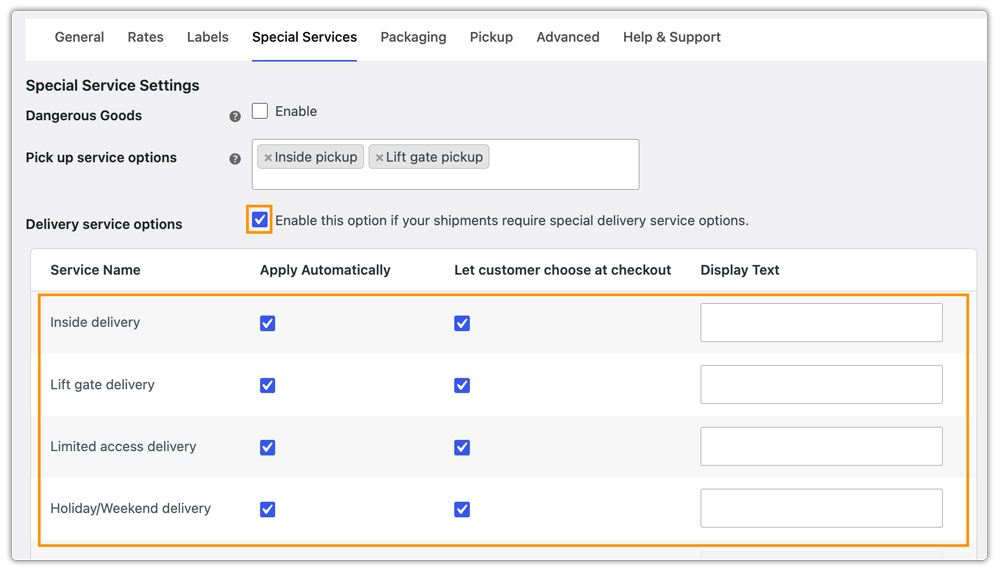
You can also enable additional accessory services such as residential delivery, liftgate delivery, inside delivery, and more. Customers can select these services directly at checkout based on their delivery requirements.
The plugin also allows store owners to generate and print Bills of Lading (BOL) directly from the WooCommerce order page. To learn more about BOL generation and freight label printing, refer to the detailed article guide.
Tips for TForce Freight Shipping in WooCommerce
- Always Verify Freight Class Before Going Live: Freight class errors are one of the most common causes of unexpected freight billing adjustments. Before enabling live rates, verify freight classifications using the NMFC directory or density-based freight calculations.
- Enable Residential Delivery and Liftgate Services: Many residential customers do not have loading docks available. Enabling liftgate delivery at checkout allows customers to request unloading assistance during delivery, avoiding manual delivery issues later.
- Add TForce Freight Tracking to WooCommerce Emails: The plugin automatically saves TForce tracking information to WooCommerce orders. For advanced tracking notifications and live tracking links inside customer emails and My Account pages, stores can also use the WooCommerce Shipment Tracking Pro plugin.
- Use TForce Freight Alongside Parcel Carriers: The plugin works alongside parcel carriers such as UPS and FedEx. TForce Freight rates appear only when cart contents qualify for freight shipping, while lighter items continue to use standard parcel shipping methods. Stores can also use the WooCommerce Shipping Services to display rates from additional carriers.
- Hide TForce Freight Services Based on Cart Conditions: Using the PH Hide Shipping Methods & Rate Adjustment for WooCommerce plugin, stores can show or hide specific TForce Freight services based on conditions such as cart value, destination, or product category.
- Running a WooCommerce Marketplace? For multi-vendor WooCommerce marketplaces, the PH Multi Vendor Shipping Addon for WooCommerce calculates TForce Freight rates separately for each vendor based on their warehouse origin address.
Real-World WooCommerce Use Case
A WooCommerce store selling premium office and home furniture had no freight integration configured. Most shipments weighed between 180 and 600 lbs, and the team handled freight quotes manually through email. They estimated freight costs using flat rates inside WooCommerce, but the pricing was often inaccurate. Some long-distance orders were undercharged while nearby deliveries were overpriced. Customers regularly contacted support about freight costs, and the quoting process consumed hours every week.
How the Plugin Helped
The store installed the PH TForce Freight Shipping Plugin for WooCommerce with Print Label and connected their TForce account. They added product weights, dimensions, and freight classes across the catalog and enabled both Standard LTL and Guaranteed LTL services at checkout.
- Live freight rates immediately appeared at WooCommerce checkout based on real shipment data.
- Customers could now select their preferred freight option and complete orders without waiting for manual freight quotes.
- The store also started generating BOL documents and freight labels directly from WooCommerce.
The Result
- Manual freight quoting was eliminated
- Freight pricing became accurate across all shipping zones
- Liftgate delivery fees were collected correctly at checkout
- Freight fulfillment time decreased significantly
Conclusion
Displaying live TForce Freight rates at WooCommerce checkout helps eliminate manual freight quoting, inaccurate flat-rate pricing, and shipping-related checkout friction for heavy products and LTL shipments. By configuring accurate shipment details, WooCommerce stores can provide a smoother and more reliable freight shipping experience for customers.
Need help setting up TForce Freight in WooCommerce? Reach out to Pluginhive Support.
FAQs
Q. What is freight class, and why does it matter?
Freight class is a standardized shipment classification used by LTL carriers to determine shipping costs based on density, handling difficulty, and shipment characteristics. Incorrect freight classes can lead to reclassification charges after shipment pickup.
Q. Can WooCommerce display both freight and parcel shipping rates together?
Yes. WooCommerce can display TForce Freight rates alongside parcel carrier rates such as UPS, FedEx, or USPS, depending on the products in the customer’s cart.
Q. Does TForce Freight support international shipping?
TForce Freight primarily supports freight shipping across the US, Canada, Mexico, and Puerto Rico. Stores shipping globally outside North America typically require additional international freight carrier integrations.
Q. Can TForce Freight handle residential deliveries?
Yes. TForce Freight supports residential freight deliveries, and stores can also offer additional services such as liftgate delivery and inside delivery for residential customers.
