


If you ship heavy, palletized, or LTL (Less-Than-Truckload) freight through your WooCommerce store using TForce, creating shipping labels manually for every order can quickly become time-consuming. Switching between WooCommerce and the TForce Freight portal to enter shipment details increases the chances of errors and slows down order fulfillment.
The PH TForce Freight Shipping Plugin for WooCommerce with Print Label lets you generate TForce Freight shipping labels directly from your WooCommerce dashboard. This guide explains how to do it and streamline your freight shipping workflow.
On This Page
- Why Print TForce Freight Shipping Labels from WooCommerce?
- Prerequisites Before Printing TForce Freight Labels
- How to Print TForce Freight Shipping Labels in WooCommerce
- Real-World Use Case
- Conclusion
- FAQs
Why Print TForce Freight Shipping Labels from WooCommerce?
For LTL shipments, the shipping label is one of the most important shipping documents. It contains shipment information, origin and destination addresses, tracking details, and barcode information that TForce Freight uses throughout transit.
Printing labels directly from WooCommerce offers several advantages:
- Eliminate manual entry of shipment information into the TForce Freight portal
- Generate labels using the customer’s actual order details
- Reduce shipping errors caused by duplicate data entry
- Speed up warehouse packing and dispatch
- Keep your entire shipping workflow inside WooCommerce
Whether you’re shipping industrial equipment, furniture, automotive parts, or large commercial products, printing labels directly from WooCommerce makes freight fulfillment much more efficient.
Prerequisites Before Printing TForce Freight Labels
WooCommerce does not include built-in support for TForce Freight shipping labels. The PH TForce Freight Shipping Plugin for WooCommerce with Print Label adds complete label generation directly inside WooCommerce.
Before generating shipping labels, make sure you’ve completed the following:
- Install and activate the plugin and connect it to your TForce Freight account using your API credentials
- Configure your shipper address and freight settings
- Add accurate product dimensions, weight, and freight class to your WooCommerce products
- Enable shipping label generation in the plugin settings
Once your plugin is configured, you’re ready to create freight shipments. To learn step by step, refer to this guide — Setting Up WooCommerce TForce Freight Shipping Plugin.
How to Print TForce Freight Shipping Labels in WooCommerce
Once you’ve configured the plugin, printing labels only takes a few clicks.
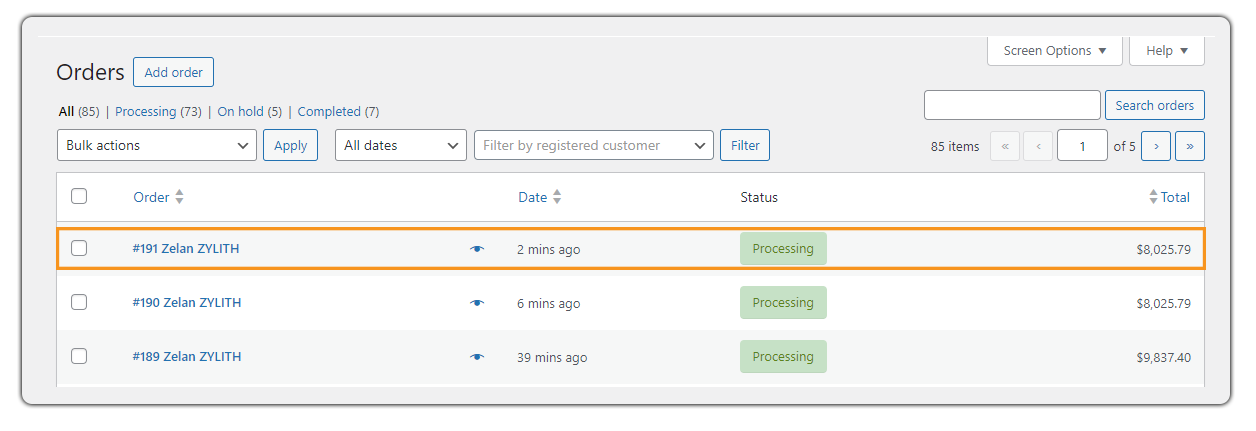
Step 1: Open the WooCommerce Order
Go to WooCommerce → Orders and open the order that needs to be shipped via TForce Freight. The plugin automatically retrieves all shipment information from the order, including:
- Customer shipping address
- Freight class
- Package weight
- Package dimensions
- Number of handling units
- Shipping service
Step 2: Generate the Shipment
Inside the order page, click Generate Packages if packages haven’t already been created.

Once the shipment details are verified, click Create Shipment. The plugin sends the shipment request directly to TForce Freight and creates the shipment automatically.

Step 3: Print the TForce Freight Shipping Label
After the shipment is successfully created, simply click Print Label. The plugin downloads the official TForce Freight shipping label generated by TForce Freight.
The label includes information such as:
- Shipment barcode
- Tracking number (PRO Number)
- Consignee information
- Shipper information
- Service details
- Freight handling information

The label is now ready to be attached to your freight shipment. Once the shipment has been created, you can also schedule a TForce Freight pickup directly from WooCommerce. This eliminates the need to log in to the TForce Freight website separately, allowing your shipping process to remain completely centralized.
Real-World Use Case: A Heavy Equipment Supplier Shipping with TForce Freight
A WooCommerce store sells industrial machinery, generators, automotive parts, and other heavy equipment that are shipped as LTL (Less-Than-Truckload) freight using TForce Freight. As the business grows, it begins processing dozens of freight shipments every day, making an efficient shipping workflow essential for timely order fulfillment.
The Challenge
With every order, the warehouse team has to switch between WooCommerce and the TForce Freight portal to manually enter shipment details, including customer information, freight class, pallet details, weight, and dimensions. They also need to generate shipping labels separately and return to WooCommerce to update tracking information. As order volumes increase, this manual process becomes time-consuming, slows down fulfillment, and increases the chances of shipping errors caused by duplicate data entry.
The Solution
To simplify the process, the business installs the PH TForce Freight Shipping Plugin for WooCommerce with Print Label. With the plugin, the warehouse team can:
- Generate TForce Freight shipments directly from WooCommerce
- Print official TForce Freight shipping labels in just a few clicks
- Automatically retrieve and save the shipment’s tracking (PRO) number
- Schedule TForce Freight pickups without leaving WooCommerce
Instead of managing shipments across multiple platforms, the business now handles its entire TForce Freight shipping workflow from a single WooCommerce dashboard. This saves time, reduces manual work, and minimizes shipping errors.
Conclusion
Managing freight shipments manually can slow down order fulfillment and increase the chances of shipping errors. The PH TForce Freight Shipping Plugin for WooCommerce with Print Label simplifies the entire freight shipping workflow by letting you generate carrier-compliant shipping labels and manage shipments directly from your WooCommerce dashboard. This helps save time and streamline LTL shipping operations.
For setup assistance or troubleshooting, visit PluginHive Support.
FAQs
Q. Can I generate TForce Freight tracking numbers automatically?
Yes. Once a shipment is successfully created, the TForce Freight Shipping Plugin automatically retrieves the TForce Freight PRO (tracking) number and associates it with the WooCommerce order.
Q. Can I schedule TForce Freight pickups from WooCommerce?
Yes. After creating a shipment, you can schedule a TForce Freight pickup directly from WooCommerce using the TForce Freight Shipping Plugin without logging into the TForce Freight portal.
Q. Does the TForce plugin support multiple pallets or freight packages?
Yes. The TForce Freight Shipping Plugin supports multiple handling units, allowing you to create shipments with multiple pallets or freight packages based on your shipment requirements.
Q. Can I display live TForce Freight shipping rates at checkout?
Yes. The plugin retrieves real-time TForce Freight LTL shipping rates from your TForce Freight account and displays them to customers during checkout.
Q. Does the plugin support residential and commercial freight deliveries?
Yes. You can configure shipments for both residential and commercial destinations, including additional freight services when required.
Q. Can I add freight services like liftgate or inside delivery?
Yes. The plugin supports several TForce Freight accessorial services, including liftgate service, residential delivery, limited-access locations, and inside pickup or delivery, depending on your shipping requirements.
