


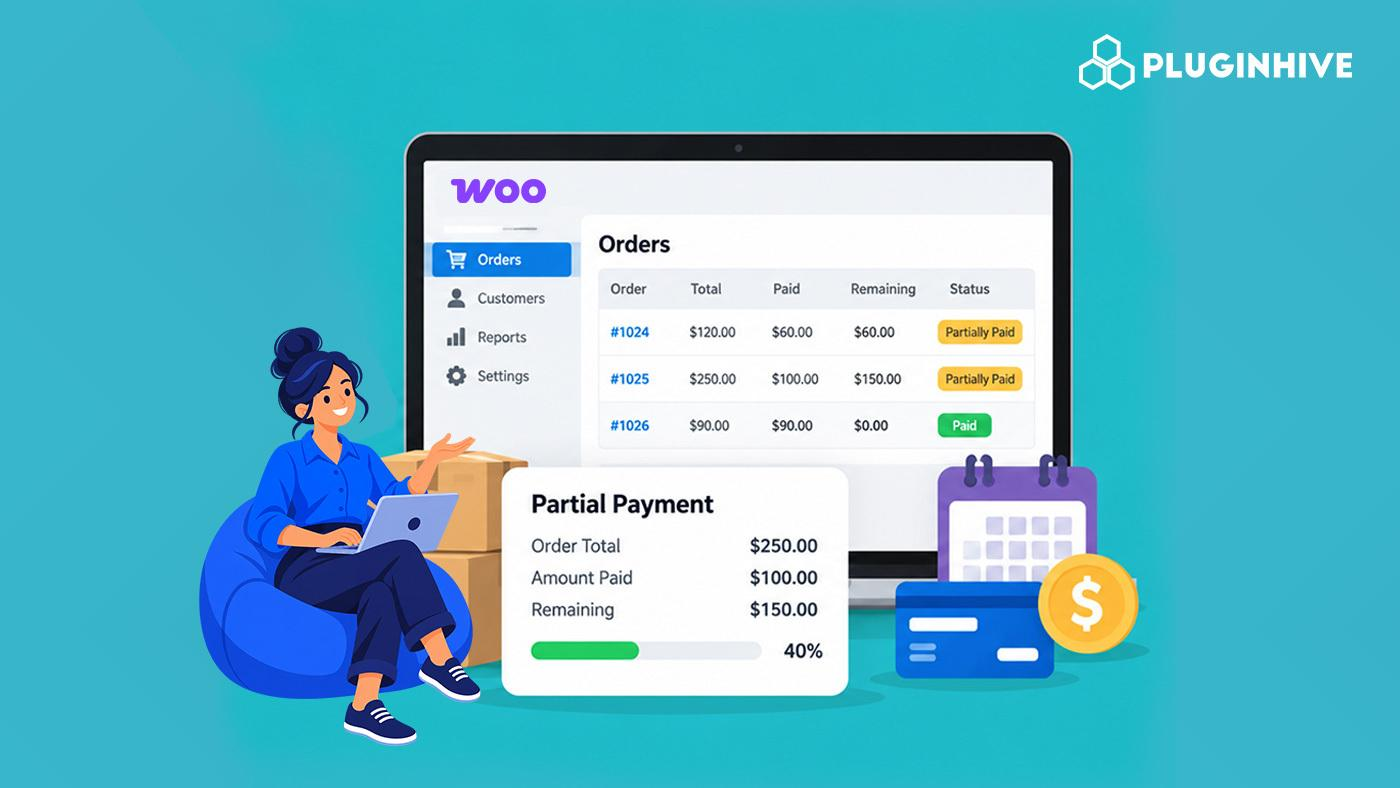
When you let customers pay a deposit upfront, the sale feels done, but the real work starts afterwards. You need to know who has paid, who still owes a balance, and when each payment is due. Without a clear way to track WooCommerce partial payments, you end up checking orders one by one and chasing customers over email.
PH Deposits for WooCommerce by PluginHive gives you one dashboard to see all of this. In this article, we’ll show you how to track partial payments, manage the balance orders, and follow a few simple habits to collect every payment on time.
Table of Contents
- What Are WooCommerce Partial Payments?
- Why Tracking Partial Payments Matters for Merchants
- How to Track WooCommerce Partial Payments
- How to Manage WooCommerce Partial Payment Orders
- Best Practices for Managing Partial Payments
- Conclusion
- FAQs
What Are WooCommerce Partial Payments?
WooCommerce partial payments let customers pay part of the price at checkout and the rest later. The first payment is called a deposit, and the leftover amount is called the balance. This works well for high-value products, made-to-order items, and bookings.
WooCommerce does not support this by default. PH Deposits for WooCommerce adds it to your store and lets you collect partial payments in three ways:
- Percentage deposit: Customers pay a set percentage of the price, such as 20%.
- Fixed deposit: Customers pay the same amount on every product, such as $15.
- Scheduled payment plan: Customers pay an upfront amount and then installments on a schedule you choose. Not sure which one suits your store? This guide on WooCommerce deposits vs payment plans compares them.
You can make the deposit required or optional. You can also apply it to your whole store, selected products, categories, or user roles.
After checkout, the remaining amount is collected through a separate balance order. For payment plans, it is collected through follow-up orders. This means every payment you are waiting on is a real order in your store, which is what makes tracking possible.
Why Tracking Partial Payments Matters for Merchants
A deposit only secures part of the sale. Until the balance comes in, you are still waiting on revenue. Here’s what good tracking does for your store:
- Shows what you are owed: You can see open balances at a glance instead of adding them up yourself.
- Protects your cash flow: When you know which payments are due soon, you can plan stock, supplier, and staff costs with more confidence.
- Catches late payments early: Overdue balances stand out, so you can follow up before they are forgotten.
- Saves time: You do not need spreadsheets or manual order checks to find unpaid orders.
- Helps you answer customers quickly: When a customer asks how much is left, you have the answer ready.
Good tracking turns partial payments from a loose end into a routine part of running your store. To see more reasons stores use deposits, read our guide on the benefits of using WooCommerce deposits.
How to Track WooCommerce Partial Payments
PH Deposits for WooCommerce includes an Overview dashboard that puts all your deposit orders in one place. Here’s how to use it.
Open the Overview Dashboard
In your WordPress dashboard, go to WooCommerce Deposits and open the Overview dashboard.

Check the Summary Cards
At the top, summary cards show your revenue and order status. A quick look tells you how much deposit revenue you have and how your orders are doing.
Use the Deposit Order Details Table
Below the cards, the Deposit Order Details table lists your deposit orders. From here, you can:
- Filter and search: Find a particular customer or order quickly.
- Send reminders: Nudge a customer about a pending balance without opening the order.
- Mark as Paid: Update an order when the customer pays offline, for example by bank transfer.

Check Individual Orders
Orders with an unpaid balance carry the Partially Paid status in your WooCommerce orders list. When a customer pays a balance, the plugin adds a timestamped note to the order, so you always have a payment trail.

With these views, you always know what is paid and what is pending. The next step is collecting what is left.
How to Manage WooCommerce Partial Payment Orders
Once you can see your pending balances, you can set up the plugin to collect them with very little manual work.
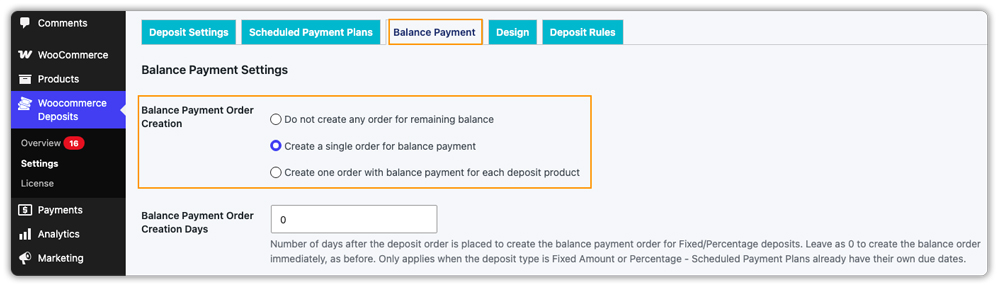
Choose How Balance Orders Are Created
In the plugin settings, pick how the remaining balance order is created. You can create a single balance order, or a separate order for each deposit product. For fixed and percentage deposits, you can also delay the balance order by a set number of days. The plugin then sends the reminder email and opens the order for payment.
Send Balance Reminders
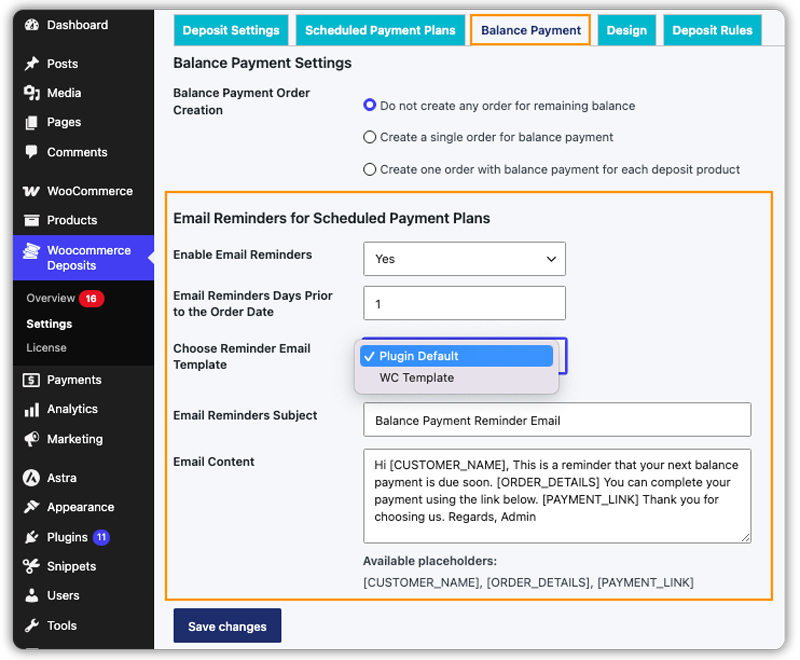
Turn on email reminders and choose how many days before the due date they go out. You can use the plugin’s template or the WooCommerce email template, and edit the subject and message. Each reminder includes a payment link, so customers can pay in one click. Here’s a closer look at adding payment links to deposit reminder emails.
Collect the Balance
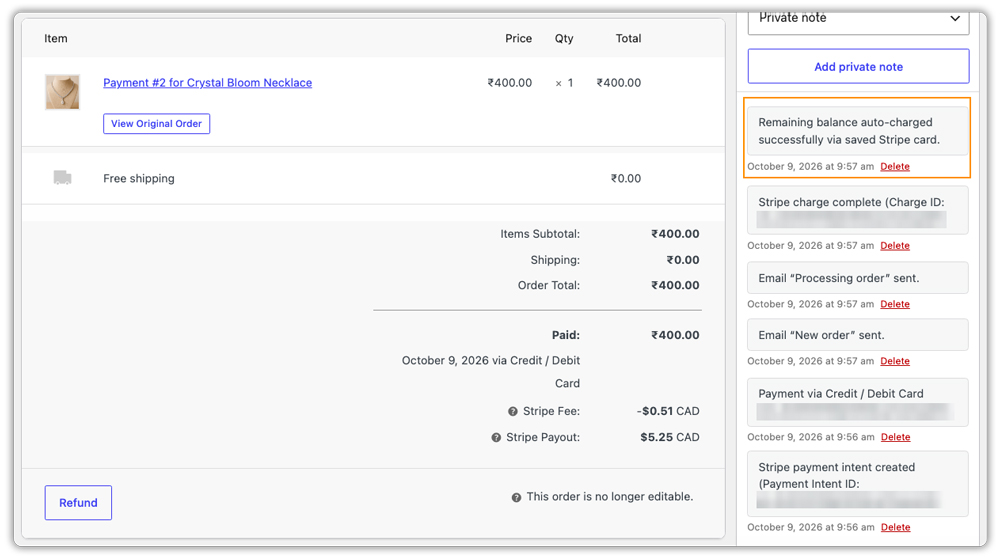
You can send the payment link to your customer when you are ready, or update the order status once the payment arrives through your preferred method. For offline payments, use Mark as Paid. If you use Stripe, you can also try the Stripe auto collection feature. It is in beta, and it charges the remaining balance to the customer’s saved card on the due date.
With these options in place, most of the follow-up happens in the background, and you step in only when something needs attention.
Best Practices for Managing Partial Payments
A few simple habits keep partial payments running smoothly:
- Be clear about the terms: Show the deposit and balance on the product page, and say upfront whether the deposit is refundable.
- Use deposit rules: Set deposits by product category or user role instead of editing each product one by one.
- Check the dashboard regularly: A quick daily or weekly look keeps small delays from piling up.
- Decide when shipping is charged: Choose whether shipping is added to the first order or the final one.
- Plan for missed payments: Decide what happens if a customer never pays the balance, and share that policy before purchase.
These habits matter most for custom and high-value products. You can find more ideas in this article on the top industries benefiting from WooCommerce deposits.
Conclusion
Collecting a deposit is only half of the job. Tracking and managing WooCommerce partial payments is what helps you get the rest of the money in on time, without chasing every order by hand. With the Overview dashboard, reminder emails, and clear order statuses, you always know where each payment stands.
PH Deposits for WooCommerce handles the process from deposit to final payment in one place. If you need help setting this up in your WooCommerce store, the PluginHive support team is ready to assist you with configuration and guidance.
FAQs
1. Does WooCommerce support partial payments by default?
No. WooCommerce does not include built-in support for deposits or partial payments. You need a plugin like PH Deposits for WooCommerce to collect them.
2. How can I see which orders still have a pending balance?
Open the Deposit Order Details table on the Overview dashboard. Orders with an unpaid balance also show the Partially Paid status in your WooCommerce orders list.
3. Can I record a payment my customer made offline?
Yes. Use the Mark as Paid action in the Deposit Order Details table to update the order.
4. Can customers pay in installments instead of one balance payment?
Yes. You can create a scheduled payment plan with recurring or custom installments. Learn more in this guide on how to offer WooCommerce payment plans without subscriptions.
