


Delivery uncertainty directly hurts WooCommerce conversions. Nearly 70% of online carts are abandoned, with unclear or missing delivery information being a major factor. In a UPS Pulse of the Online Shopper study, over 50% of shoppers said they abandoned a cart because the delivery date was too slow or not shown at all.
By displaying UPS live delivery estimates in WooCommerce, stores replace vague shipping timelines with clear “Arrives by” dates. Let’s deep dive.
On This Page
- Why Estimated Delivery Date Matters for WooCommerce Conversions
- Best Way to Show UPS Live Delivery Estimates in WooCommerce
- Conversion Optimization Tips Using UPS Delivery Estimates
- Real-World Use Case
- Conclusion
- FAQs
Why Estimated Delivery Dates Matter for WooCommerce Conversions
Delivery estimates directly answer two questions every shopper has before buying: “When will my order arrive?” and “Where is my order?” When these answers aren’t clear, conversions drop.
Here’s why delivery estimates make a real difference:
- Reduce Cart Abandonment: Shoppers hesitate when delivery timelines are vague. Clear “Arrives by” dates remove uncertainty and push customers to complete checkout.
- Build Trust Before Purchase: Showing accurate UPS delivery estimates signals reliability. Customers feel confident ordering when expectations are set upfront.
- Improve the “Where Is My Order?” Experience: Accurate delivery dates reduce post-purchase anxiety and WISMO (“Where Is My Order?”) queries by setting clear delivery expectations from day one.
- Set Realistic Delivery Expectations: Live UPS estimates factor in location, service type, and transit time, avoiding over-promising and delivery-related complaints.
- Match Modern eCommerce Standards: Leading marketplaces show delivery dates early in the buying journey. WooCommerce stores that do the same stay competitive and conversion-ready.
Delivery estimates don’t just inform customers, they reassure them before and after checkout, leading to higher conversions and fewer support issues.
Best Way to Show UPS Live Delivery Estimates in WooCommerce
The most reliable way to display accurate UPS live delivery estimates in WooCommerce is by using the WooCommerce UPS Shipping Plugin with Print Label. It simplifies the entire process by directly connecting your store with UPS and fetching real-time delivery data automatically.
For step-by-step installation and configuration, refer to the UPS Shipping Guide for WooCommerce .
Once the plugin is configured, you can:
Enable Estimated Delivery Dates Easily
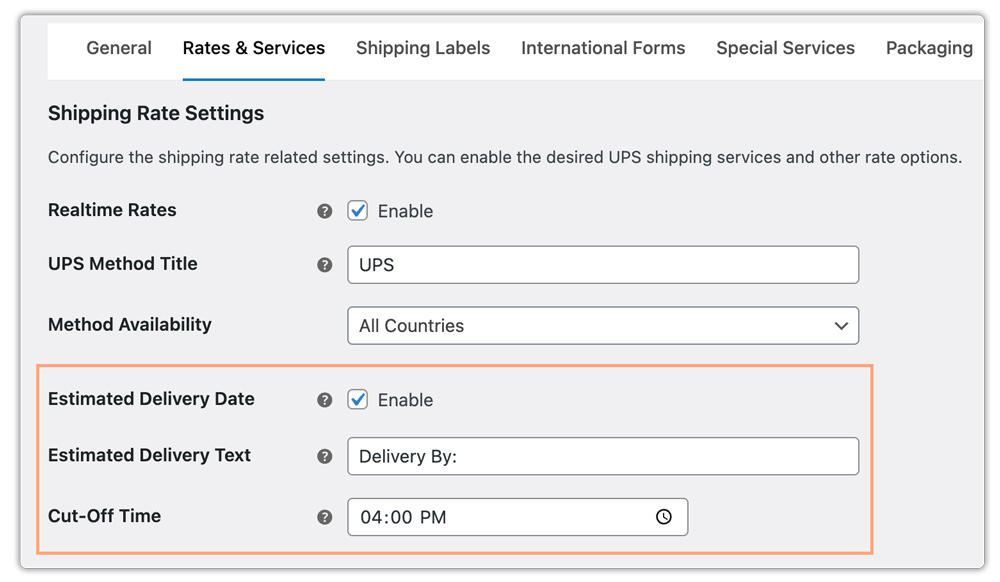
- You can enable the “Show Estimated Delivery Date” option directly within the plugin settings to display delivery timelines across your store.
- Customize the display text, such as “Estimated Delivery” or “Delivery by”, to match your store’s tone and checkout experience.
- Set a daily order cut-off time so orders placed after that time automatically roll over to the next business day for accurate delivery calculation.
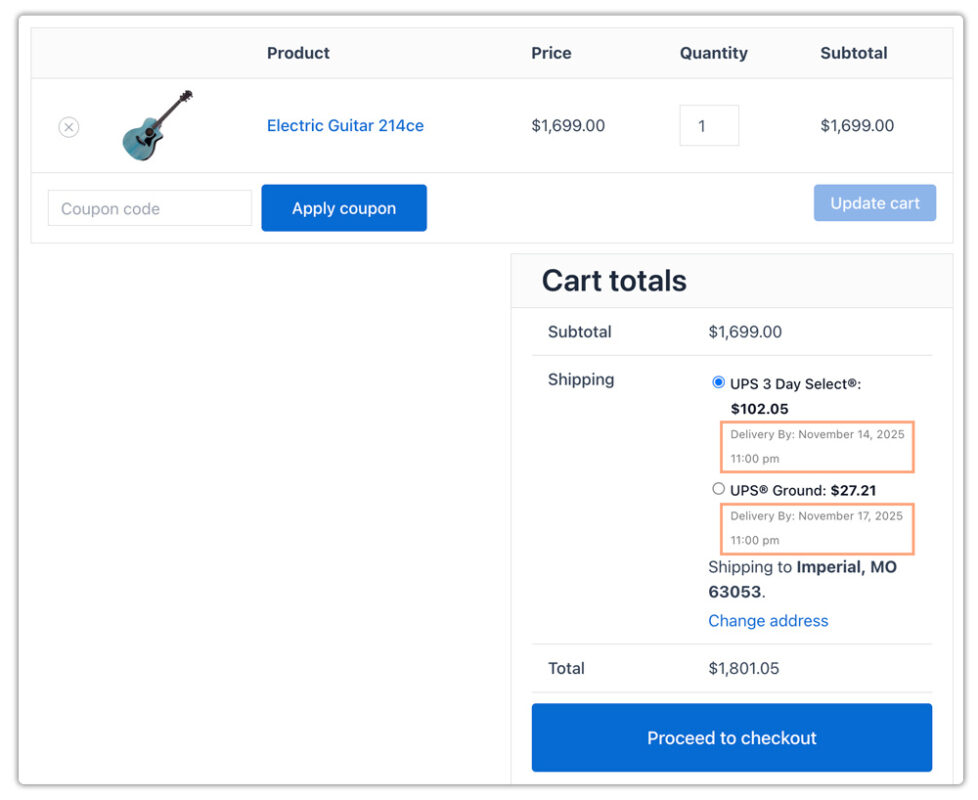
Display UPS Delivery Dates at Cart/Check Out: By showing real-time UPS delivery estimates, customers know exactly when to expect their orders, reducing hesitation at checkout.
If your store requires advanced delivery logic, such as adding buffer days, handling weekends differently, or syncing store holidays, you can use the Estimated Delivery Date Plugin for WooCommerce alongside the UPS Shipping Plugin for greater flexibility and precision.
Conversion Optimization Tips For Using UPS Delivery Estimates in WooCommerce
Using UPS delivery estimates effectively isn’t just about showing a date; it’s about presenting realistic timelines, reducing friction, and guiding customers toward confident purchase decisions.
Here are proven tips to optimize conversions while keeping delivery expectations clear.
- Define your daily order cut-off time in the UPS plugin settings so delivery estimates match your actual warehouse dispatch schedule.
- UPS does not deliver on Sundays or certain holidays. Adjust your delivery estimate settings or add buffer days to ensure customers always see achievable delivery dates.
- You can use the Hide WooCommerce Shipping Methods & Rate Adjustment Plugin to hide redundant or higher-cost UPS services. A cleaner checkout with fewer, relevant options reduces decision fatigue and improves conversions.
- Instead of a single date, show a range like “Delivery between Nov 14-16.” This helps manage expectations and accounts for delays. You can achieve this with the Estimated Delivery Date Plugin.
- Subtly emphasize faster UPS services with messaging like “Arrives sooner” to nudge customers toward quicker delivery choices without aggressive upselling.
- Ensure delivery estimates shown on product pages, checkout, and order confirmation emails stay consistent. Mixed messaging can hurt trust and increase support tickets.
When combined with accurate UPS data and smart presentation, delivery estimates become a conversion lever, helping customers buy faster, feel confident, and stay informed after checkout.
Real-World Use Case: WooCommerce Store Using UPS Delivery Estimates
A mid-sized WooCommerce store shipping across the U.S. was facing high cart abandonment and frequent “Where is my order? (WISMO)” inquiries, mainly due to unclear delivery timelines shown at checkout.
Before automating UPS shipping and enabling the live delivery estimates options:
- Cart abandonment rate: 68%
- Checkout drop-offs related to shipping questions: ~22%
- WISMO (“Where is my order?”) support tickets: 35-40% of total tickets
- Delivery messaging: Generic “3-7 business days.”
What changed:
The store integrated UPS via the WooCommerce UPS Shipping Plugin and,
- Enabled UPS live delivery estimates using real-time service data
- Set a daily order cut-off time aligned with warehouse operations
- Adjusted for non-delivery days and holidays
- Displayed delivery ranges during peak seasons
- Automatically shared UPS tracking details post-shipment
After implementation (within 60 days):
- Cart abandonment dropped to 57%
- Checkout conversion rate improved by 14%
- WISMO tickets reduced by nearly 30%
- Customer complaints related to late delivery dropped significantly
By showing accurate, location-based UPS estimated delivery dates before purchase, and reinforcing them with tracking after shipment, the store reduced uncertainty and converted more shoppers.
Conclusion
Delivery uncertainty can be a major barrier to conversions in WooCommerce, but showing accurate UPS live delivery estimates effectively removes this friction. For WooCommerce store owners looking to implement this seamlessly, the WooCommerce UPS Shipping Plugin with Print Label is a reliable solution.
Need help setting this up? Reach out to the support team here for guidance.
FAQs
- How can I handle holidays when showing UPS delivery dates?
Use buffer days in your delivery estimate settings to account for UPS-observed holidays. This prevents over-promising and keeps your customers informed about potential delays.
- How can I offer international UPS shipping in WooCommerce?
To provide global delivery options for your WooCommerce store, you can configure UPS international services. Read the detailed guide on setting up UPS international shipping in WooCommerce.
- Can I print UPS shipping labels in bulk for my WooCommerce store?
Yes. You can print multiple UPS labels in bulk with the UPS plugin. Check out this guide to learn more: Generate UPS Shipping Labels in Bulk.
- Can I track my UPS orders in WooCommerce?
Yes! You can track UPS shipments directly from your WooCommerce store. For detailed instructions, check out How to Track UPS Orders in WooCommerce.
