



Printing USPS shipping labels directly from your WooCommerce store streamlines your fulfillment process and saves time. Without proper label generation, store owners may face delayed deliveries. The PH USPS Shipping Plugin for WooCommerce with Print Label allows you to connect your store with USPS, generate accurate shipping labels, and manage orders efficiently from a single dashboard.
In this guide, we’ll show you how to print USPS shipping labels from WooCommerce orders and share tips to make your shipping process smoother and error-free.
On This Page
- Importance of Shipping Labels in WooCommerce
- How to Print USPS Shipping Labels in WooCommerce
- Tips to Avoid Common USPS Label Printing Mistakes
- Real-World Use Case
- Conclusion
- FAQs
Importance of Shipping Labels in WooCommerce
Shipping labels are more than just stickers on a package; they are a crucial part of order fulfillment. Correctly generated USPS labels ensure that packages reach customers on time, with accurate tracking information and postage charges.
Key reasons shipping labels matter in WooCommerce:
- Accurate Delivery & Tracking: Labels contain barcodes and tracking numbers that help USPS scan and monitor shipments in real time, keeping both merchants and customers informed.
- Reduced Shipping Errors: Manual label creation can lead to wrong addresses, postage mistakes, or misrouted packages. Automating label printing reduces these errors.
- Time & Cost Efficiency: Printing labels directly from WooCommerce orders eliminates the need to manually enter shipment details in USPS systems, saving time and avoiding duplicate work.
- Professional Customer Experience: Automated labels with correct shipping information convey reliability, boosting customer trust and satisfaction.
- Compliance & Returns Management: USPS labels include postage verification and return instructions, helping merchants comply with postal requirements and manage returns efficiently.
Using the WooCommerce USPS Shipping Plugin ensures that labels are generated accurately, automatically, and efficiently, helping your store scale without fulfillment bottlenecks.
How to Print USPS Shipping Labels in WooCommerce
Printing USPS shipping labels doesn’t have to be a headache. With the PH USPS Shipping Plugin for WooCommerce with Print Label, the process is smooth, fast, and fully integrated within your WooCommerce dashboard.
Here’s what makes it so convenient:
- Generate Packages Automatically – The plugin creates packages based on your store’s packaging settings, so each shipment is ready without manual calculations.

- Create Shipments with Tracking IDs – Once a package is generated, a shipment is created, and a tracking ID is automatically assigned.
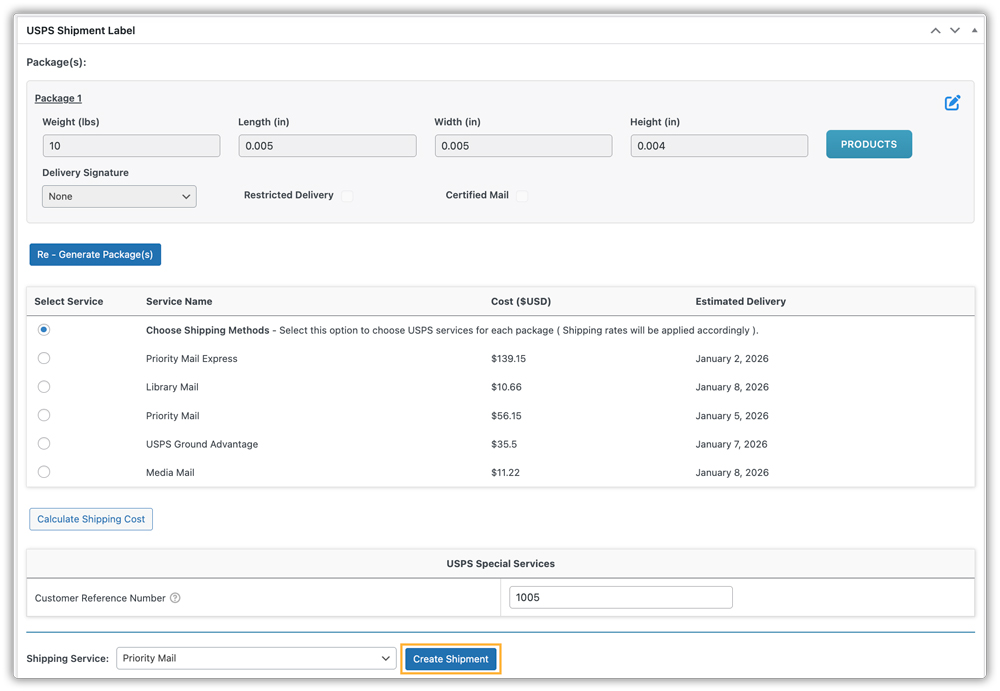
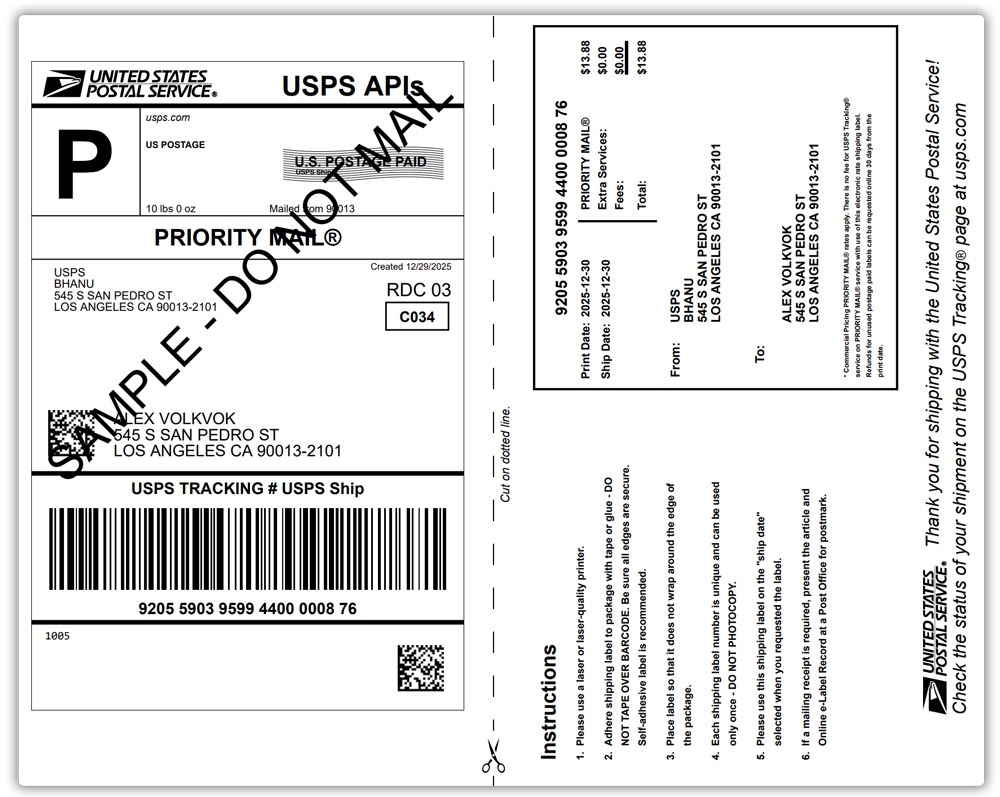
- Print Labels Instantly – After the shipment is created, the Print Label button becomes available, allowing you to print labels immediately.
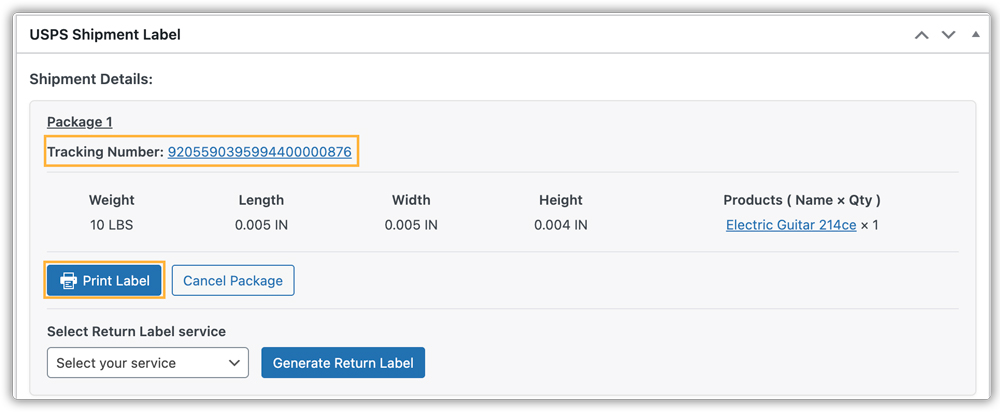
- Store & Reprint Labels Anytime – All generated shipping labels are saved in your WooCommerce database, so you can download or print them again whenever needed.
Need to ship multiple orders at once? The plugin allows printing labels for several orders together, saving time for busy stores.
Tips to Avoid Common USPS Label Printing Mistakes
Even with a powerful plugin, mistakes can happen when printing USPS shipping labels. Here’s how to keep your shipments error-free:
- Double-Check Package Details – Ensure weight, dimensions, and packaging type match the actual order. Incorrect package info can lead to delivery delays or extra charges.
- Verify Shipping Addresses – Always confirm that customer addresses are complete and formatted correctly to avoid returned or delayed packages.
- Use the Correct USPS Service – Select the service that fits your delivery timeline and cost expectations. Avoid defaulting to the fastest option for every order.
- Check Label Orientation and Format – Ensure labels print clearly and are compatible with your printer to prevent scanning issues at USPS facilities.
- Reprint Labels from the Database – If a label fails to print, don’t create a new one unnecessarily. Use the stored label in WooCommerce to avoid duplicate shipments or charges.
- Batch Orders Carefully – When printing bulk labels, double-check selected orders to prevent assigning the wrong label to the wrong package.
Following these tips helps you reduce errors, save time, and maintain a smooth shipping workflow, keeping both your store and customers happy.
Real‑World Use Case: How a US Store Simplified Label Printing with the USPS Plugin
A US‑based WooCommerce store selling home decor struggled with daily order fulfillment. With 80-120 orders per day, the manual process of creating USPS shipping labels was time‑consuming and error‑prone. Inaccurate addresses and inconsistent package data led to delivery delays in nearly 18% of shipments, increasing support tickets and customer complaints.
After integrating the PH USPS Shipping Plugin for WooCommerce with Print Label, the store transformed its shipping workflow:
- The system automatically generated packages using accurate dimensions and weight, eliminating manual calculations and reducing packaging errors by 65%.
- Each order produced a USPS shipping label with a tracking ID directly in WooCommerce, allowing labels to be printed within seconds instead of minutes.
- The team could select multiple orders at once and print all labels together, cutting label processing time by over 50% during peak days.
- Creating shipments, printing labels, and storing tracking numbers all took place within WooCommerce, eliminating the need to log into external USPS systems.\
As a result of these improvements, the store saw:
- A 32% reduction in daily fulfillment time
- A drop in shipping‑related customer support tickets by 40%
- Faster delivery confirmations and improved customer satisfaction scores
This real‑world example shows how automating USPS label printing not only saves time but also significantly improves accuracy and efficiency.
Conclusion
Efficient shipping label management is essential for running a smooth and reliable fulfillment process. By streamlining how labels are generated, printed, and tracked, store owners can save significant time. A well-organized label workflow also allows your team to focus on packing and shipping more orders accurately, even during peak periods, without getting overwhelmed.
For any setup questions or assistance, contact the PluginHive Support Team.
FAQs
Q. What is the best USPS shipping plugin for WooCommerce?
The PH USPS Shipping Plugin for WooCommerce with Print Label is a complete USPS shipping solution that lets you display live USPS rates, print shipping labels, and manage shipments directly from WooCommerce.
Q. Can I display USPS real-time shipping rates in WooCommerce?
Yes. The plugin supports live USPS rates at cart and checkout, ensuring customers see accurate shipping costs. For setup details, refer to the USPS Shipping Rates in WooCommerce.
Q. Can I combine USPS live rates with free shipping or flat rates?
Yes. You can create flexible shipping rules to offer free shipping above a certain cart value or show flat-rate options using the PH Table Rate Shipping Pro Plugin for WooCommerce, while still displaying USPS live rates when required.
Q. Can I show estimated delivery dates along with USPS shipping rates?
Yes. Using the Estimated Delivery Date Plugin for WooCommerce, you can display accurate delivery estimates alongside USPS rates at checkout, giving customers clarity on when their orders are expected to arrive.
Q. Can multi-vendor WooCommerce stores use this plugin?
Yes. With the WooCommerce Multi-Vendor Shipping Addon, each vendor can display real-time USPS rates and print shipping labels independently.
Q. Can I provide complete shipment tracking for USPS orders?
Yes. The system automatically adds tracking numbers when it generates labels. For enhanced tracking features and customer notifications, you can integrate the Shipment Tracking Pro for WooCommerce Plugin.
