


Shipping gets complicated when your WooCommerce store runs from multiple warehouses. You must decide which warehouse fulfills an order, handle split shipments, and balance cost with delivery speed. UPS makes this easier with its strong network, real-time rates, and reliable services. By connecting UPS to WooCommerce with the right solutions, you can route orders to the nearest warehouse.
This guide covers how to manage single and multi-warehouse shipping in WooCommerce with UPS, the challenges, and best practices for smooth fulfillment.
On This Page
- Warehouse Shipping in WooCommerce – Overview
- Challenges of Warehouse Shipping in WooCommerce
- Manage Warehouse Shipping with UPS in WooCommerce
- Real-World Scenario
- Best Practices for Warehouse Shipping in WooCommerce
- Conclusion
- FAQs
Overview of Warehouse Shipping in WooCommerce
Warehouse shipping in WooCommerce is about more than just packing orders; it’s about choosing the right warehouse for fulfillment and keeping inventory synced. For small stores with a single location, this is straightforward. But when businesses operate multiple warehouses or fulfillment centers, the process becomes more complex. Orders may need to be routed to the closest warehouse, split between locations, or recalculated for accurate shipping costs.
Since WooCommerce doesn’t offer native multi-warehouse support, store owners typically rely on shipping plugins and carrier integrations. Let’s look at some of the challenges store owners may face.
Challenges of Warehouse Shipping in WooCommerce with UPS
While UPS offers powerful shipping solutions, managing warehouse fulfillment through WooCommerce can still present some challenges. Store owners working with multiple warehouses may run into issues such as:
- Inventory Syncing Across Warehouses: WooCommerce doesn’t natively track stock across different warehouses, which can lead to overselling or delays if one location runs out of items.
- Order Splitting: If a customer’s order needs to be shipped from more than one warehouse, ensuring accurate UPS shipping costs and clear communication can become difficult.
- Complex Rate Calculations: UPS rates can vary depending on package size, weight, and shipping origin. Handling multiple warehouse origins makes rate accuracy even more important.
- Label Generation & Pickup Scheduling: Without automation, creating UPS labels for different warehouses and arranging pickups can be time-consuming and error-prone.
- Limited Native WooCommerce Options: Since WooCommerce is built for single-location stock, advanced features like multi-warehouse routing, automated UPS integration, or split shipments require additional plugins.
These challenges can slow fulfillment and raise costs, which is why many WooCommerce stores rely on UPS plugins with multi-warehouse automation. With the right solution, warehouse shipping becomes seamless and efficient. Let’s see how.
Manage Warehouse Shipping with UPS in WooCommerce
The WooCommerce UPS Shipping Plugin with Print Label, along with the Multi-warehouse Shipping Add-on, makes managing warehouse shipping in WooCommerce simple and efficient.
To get started, first configure the UPS plugin for your store — set up the UPS plugin for WooCommerce . This connects your store with UPS, enabling live shipping rates, label printing, and tracking.
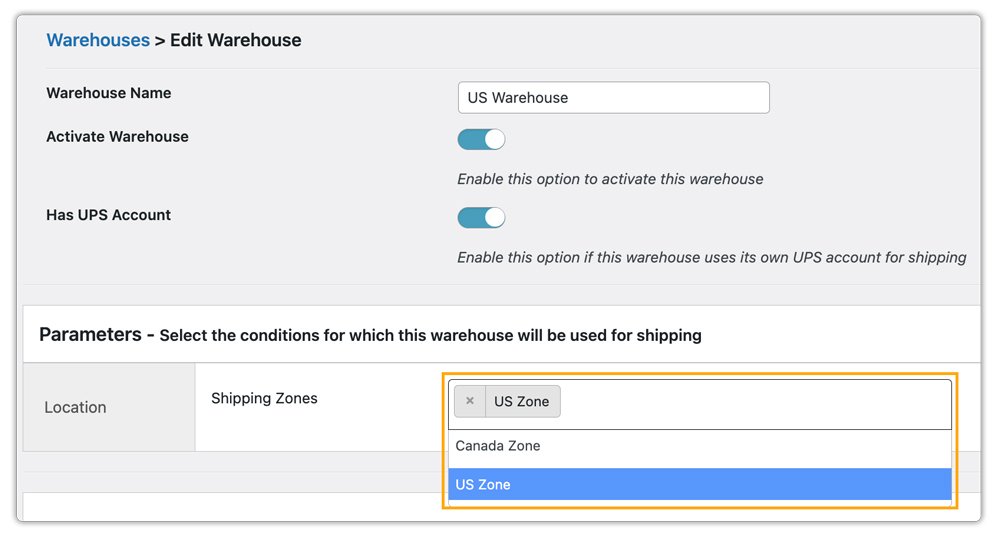
With the Multi-warehouse Shipping Add-on, each warehouse can be configured with its own address, and even a unique UPS account if needed.
A UPS account’s ability to support multiple shipping addresses depends on the account type and country.

This addon lets you assign multiple warehouse addresses in WooCommerce. You can define warehouse rules using exact shipping zones.
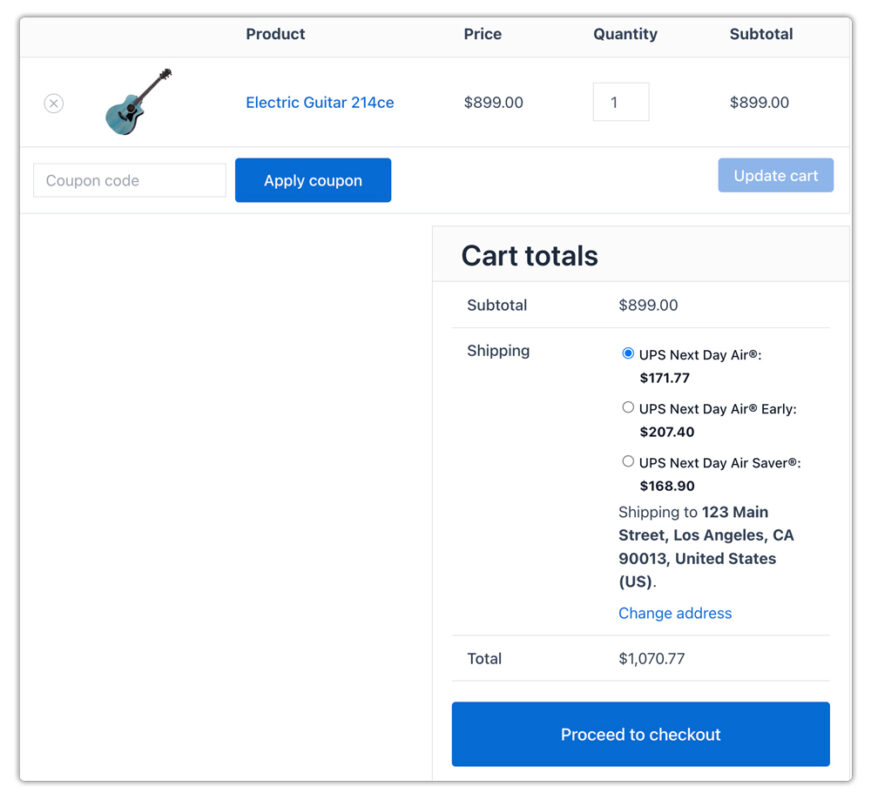
When a customer places an order with an address that matches your defined rules, the shipment is created from the corresponding warehouse address, and the UPS plugin displays the rates accordingly.
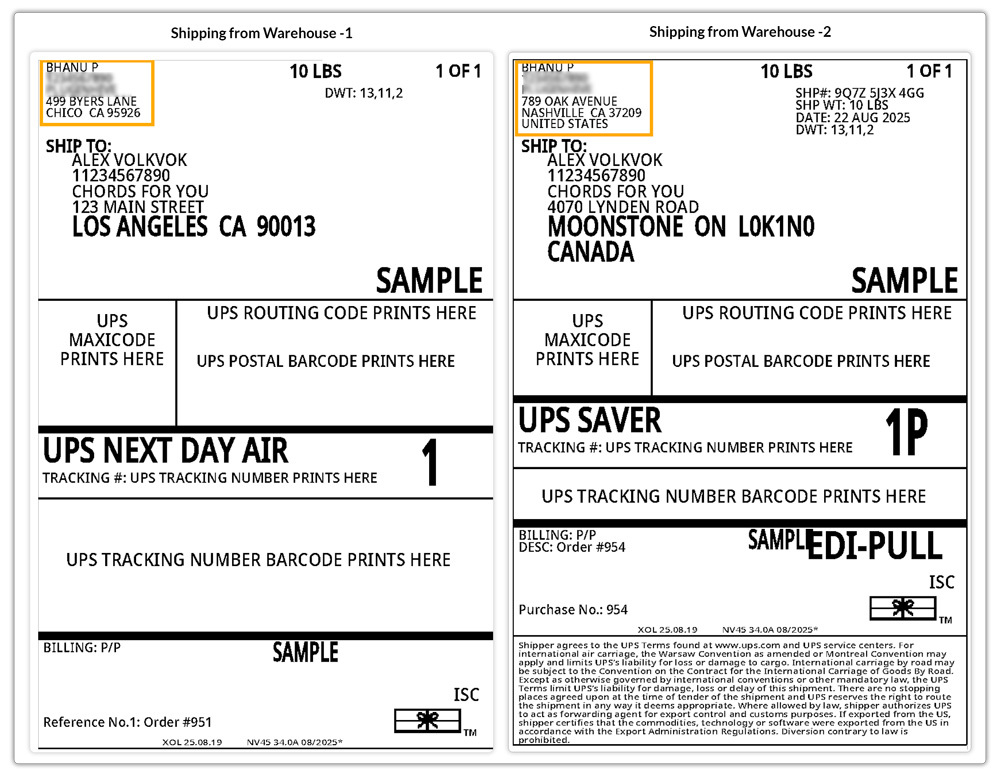
The UPS plugin also lets you generate and print shipping labels for each warehouse, ensuring smooth fulfillment and accurate tracking.
This is how simple it is to manage warehouse shipping in WooCommerce with UPS and the right integration. Now, let’s see it in action with a real case study.
Real-World Scenario
A mid-sized WooCommerce store selling home decor products operates from three different warehouses across California, New York, and Georgia. Each warehouse manages inventory specific to its region to reduce delivery times.
The Challenges
The store faced several shipping and fulfillment issues:
- Orders were often assigned to the wrong warehouse
- Higher UPS shipping costs due to unnecessary long-distance shipping
- Delayed deliveries that frustrated customers
- Manual confusion while generating shipping labels
The Solution
With the WooCommerce UPS Shipping Plugin with Print Label, along with the Multi-warehouse Shipping Add-on, the store streamlined its process:
- Configured each warehouse with its own address
- Set warehouse rules based on postal codes and regions
- Automatically routed orders to the nearest warehouse
- Displayed accurate UPS rates at checkout for each customer
- Generated shipping labels directly from the correct warehouse
The store reduced shipping errors, saved on costs, and ensured faster deliveries, which led to happier customers and improved overall efficiency.
Best Practices for Warehouse Shipping in WooCommerce
Efficient warehouse shipping ensures smooth order fulfillment. Here are some best practices to follow when managing multiple warehouses in WooCommerce:
- Automate and manage warehouse shipping with the right solutions, like the WooCommerce UPS Shipping Plugin and Multi-warehouse Shipping Add-on, to avoid manual errors.
- Regularly update stock levels across warehouses to avoid overselling
- Use separate UPS accounts for different warehouses if needed
- Monitor delivery times, costs, and customer feedback to optimize performance
- Assign warehouses strategically to cover key regions and reduce transit times
By following these practices, you’ll streamline operations and deliver a faster, more reliable shopping experience for your customers.
Conclusion
Managing warehouse shipping with UPS in WooCommerce can be complex, especially with multiple locations. But PluginHive makes it easier with the right solution, by helping you automate fulfillment, route orders to the nearest warehouse, and ensure accurate rates at checkout. This reduces errors and speeds up deliveries, resulting in a smoother operation for your store and a better experience for your customers.
Need help setting it up? Contact PluginHive Support.
FAQs
- Can I track my shipments with UPS in WooCommerce?
Yes. You can easily track UPS shipments directly from WooCommerce orders. The tracking details are automatically updated and shared with customers. Read here: Learn more about UPS Tracking for WooCommerce Orders
- Can I ship using UPS SurePost from WooCommerce?
Yes. UPS SurePost is supported and is a cost-efficient shipping method for lightweight, non-urgent deliveries. Check out this guide to learn how UPS SurePost works in WooCommerce
- Can I ship internationally with UPS from WooCommerce?
Absolutely. You can ship to more than 220 countries and territories worldwide with UPS international services. Learn more here: WooCommerce UPS International Shipping
- Can I schedule UPS pickups from my WooCommerce store?
Yes. You can request and manage UPS pickups directly from your WooCommerce orders, avoiding manual drop-offs.
