


Black Friday is one of the busiest shopping periods of the year. For WooCommerce store owners, it’s an opportunity to attract new customers, boost sales, and clear inventory. However, without proper preparation, handling a sudden increase in website traffic, managing promotional offers, and fulfilling a large number of orders can quickly become challenging.
Preparing your WooCommerce store for Black Friday involves more than setting up discounts. You also need to make sure your website performs well, shipping options are ready, and orders can be processed without delays. In this guide, we’ll cover practical ways to prepare your WooCommerce store for Black Friday, from optimizing website performance and planning promotions to managing shipping and order fulfilment efficiently.
On This Page
- How to Prepare Your WooCommerce Store for Black Friday
- Optimize Your WooCommerce Store for Increased Traffic
- Plan WooCommerce Black Friday Promotions
- Make WooCommerce Shipping Easier During Black Friday
- Streamline WooCommerce Order Fulfilment
- Test Your WooCommerce Store Before Black Friday
- Manage WooCommerce Orders After Black Friday
- Final Thoughts
- FAQs
How to Prepare Your WooCommerce Store for Black Friday
Good preparation is mostly about doing the right things in the right order. Black Friday falls on the Friday after US Thanksgiving, which is the fourth Thursday of November, so you can start planning well before the sale. Here is a simple timeline to follow. If you are short on time, compress the steps and focus on testing checkout and shipping first.
- 3 to 4 weeks before Black Friday: Check store speed, update plugins, and decide your offers.
- 2 to 3 weeks before: Set up shipping options, rates, and discounts. Schedule your sale prices.
- 1 to 2 weeks before: Check stock, order packaging, and confirm carrier pickup dates.
- Final week: Place test orders, announce your sale, and avoid last-minute changes.
- Black Friday to Cyber Monday: Watch orders closely and ship every day.
- After the sale: Send tracking updates, handle returns, and review what worked.
Each step below fits into this timeline.
Optimize Your WooCommerce Store for Increased Traffic
More visitors mean more pressure on your store. A slow page costs you sales, so fix speed early.
- Check your hosting plan: Ask your host whether it can handle a traffic spike, and upgrade temporarily if needed.
- Compress your images: Large product photos are the most common reason pages load slowly.
- Update everything: Update WooCommerce, WordPress, your theme, and your plugins, then take a full backup.
- Remove unused plugins: Fewer plugins mean less to load and less to go wrong.
- Keep checkout short: Remove optional fields and offer guest checkout, so shoppers on phones can finish quickly.
Do these updates at least two weeks before the sale. That leaves time to fix anything that breaks.
Plan WooCommerce Black Friday Promotions
Your offers decide how much you earn, not just how much you sell. Plan them with your costs in mind.
- Pick a few clear offers: A percentage discount, a free shipping threshold, or a bundle deal is easier to understand than five overlapping coupons.
- Count shipping in your margins: A 30% discount plus free shipping can leave very little profit on heavy items.
- Schedule your prices: WooCommerce lets you set start and end dates on sale prices, so the sale begins and ends on time without you being online.
- Reward your email list first: Early access for subscribers gives you a first wave of orders and helps you spot problems before the biggest crowds arrive.
- Set limits: Cap coupon usage or limit offers to certain products so a popular deal doesn’t empty your stock.
Once your offers are fixed, the next job is making sure shipping supports them.
Make WooCommerce Shipping Easier During Black Friday
Shipping is where most Black Friday stress lands. Customers abandon carts when delivery costs or dates look unclear, and your team loses hours when rates and labels need manual work. Three areas are worth setting up now.
Offer Flexible Shipping Options
Customers want a choice between a cheaper, slower option and a faster one. Offer standard, express, and local pickup if you can, and make sure each option is clear at checkout.
Delivery dates matter just as much during a sale. The Estimated Delivery Date Plugin for WooCommerce shows delivery dates on the product, cart, checkout, and order pages. You can also set a cut-off time, so orders placed after it count as next-day orders. This helps you set realistic expectations when your team is busy. To learn more about showing delivery dates and setting estimated delivery windows, read our guide on adding estimated delivery dates in WooCommerce.

To control which options appear, the PH Hide Shipping Methods & Rate Adjustment plugin lets you show or hide methods based on conditions like products, cart value, or location. For example, you can hide a slow method for heavy parcels or a local pickup option for customers who live far away.
Provide Shipping Discounts
Free shipping is one of the most popular Black Friday offers. A common approach is free shipping above a set order value, which also encourages bigger carts.
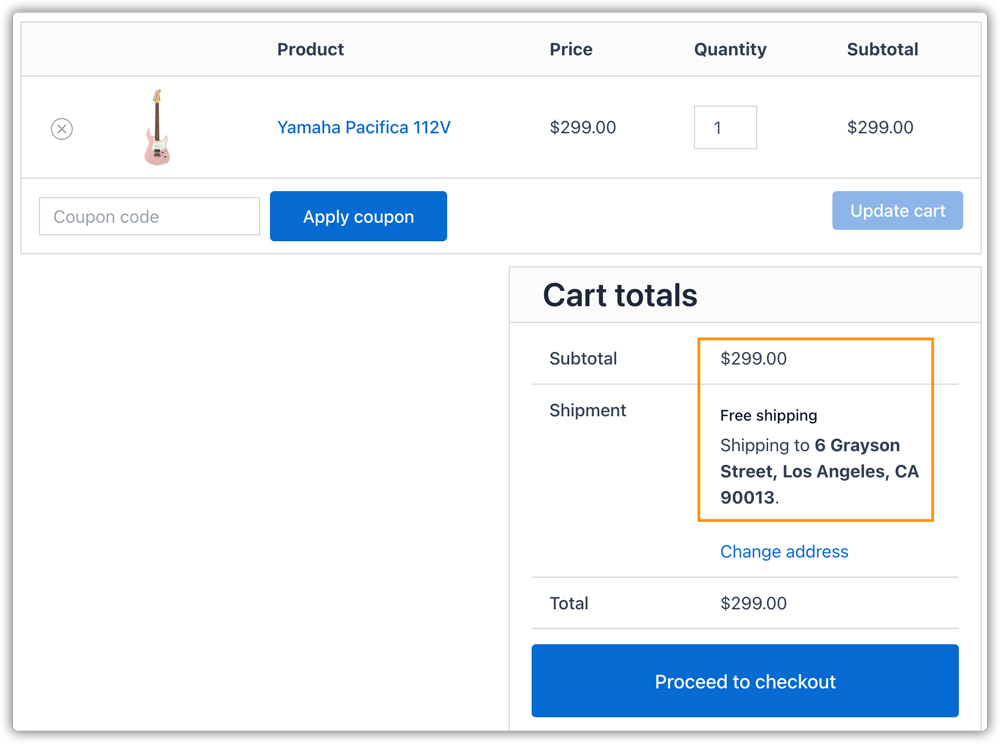
The same Hide Shipping Methods & Rate Adjustment plugin can reduce shipping rates based on conditions such as products, cart conditions, locations, user roles, and coupons. It can also hide other methods when free shipping is available, so customers see one clear choice. This is easier than editing rates by hand for every product. If you want more ideas for your sale, our guide on how to offer shipping discounts in WooCommerce covers different discount options you can try.
Display Accurate Shipping Rates
Live rates calculate the cost from the package weight, size, and destination, so customers pay a fair price and you avoid absorbing the difference. Showing the right cost early also helps reduce cart abandonment caused by unexpected shipping charges.
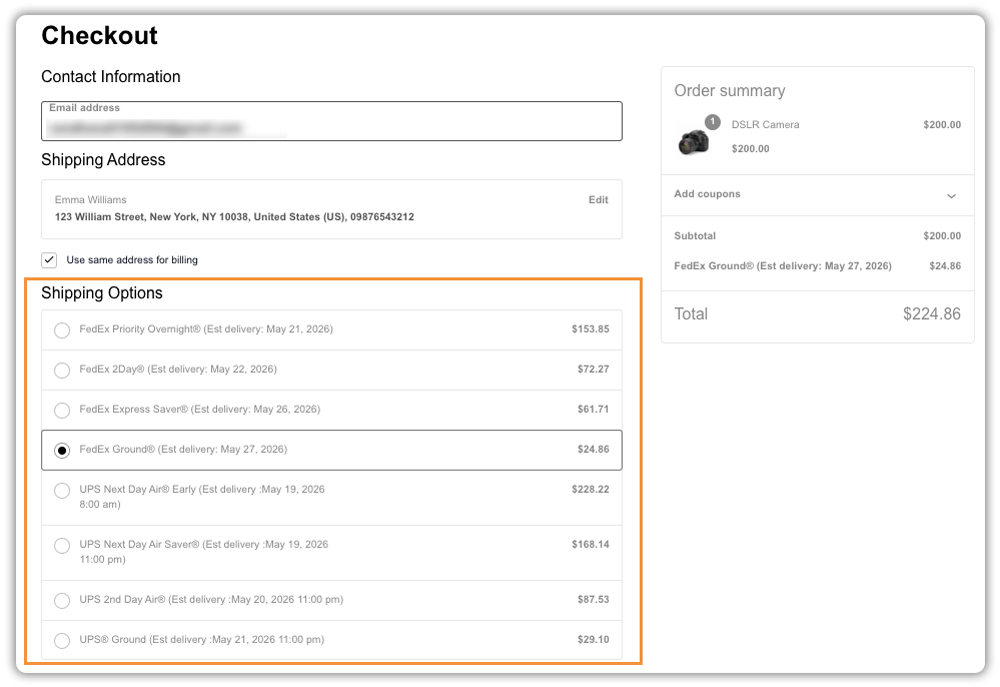
The WooCommerce Shipping Services plugin by PluginHive displays live carrier rates on the cart and checkout pages. It also lets you print shipping labels from the same plugin, which saves time later in the process. If you ship with one carrier, PluginHive also has single-carrier plugins for UPS, FedEx, Canada Post, and others.
Set your rates and discounts together, then test them. That way, your offers and your shipping costs work from the same numbers.
Streamline WooCommerce Order Fulfilment
Fulfilment is the work between “order placed” and “parcel handed to the carrier.” During Black Friday, small delays add up quickly.
- Generate labels from the order page: Printing labels inside WooCommerce avoids copying addresses into a carrier website. Many PluginHive carrier plugins also support bulk label printing, which helps when you process dozens of orders at once.
- Prepare packing supplies early: Boxes, tape, and label paper run out faster than you expect.
- Sort orders by shipping method: Pack express orders first so they make the carrier pickup.
- Confirm pickup times with your carrier: Ask about holiday schedules and the last pickup day before Black Friday weekend.
- Check stock daily: Low-stock items should be hidden or marked as backorder before customers pay for something you cannot ship.
A daily routine, such as packing in the morning and handing parcels over in the afternoon, keeps the queue from growing.
Test Your WooCommerce Store Before Black Friday
A test order costs you a few minutes. A broken checkout on Black Friday costs much more. Run through the full customer journey at least a week before the sale.
- Place test orders with different products, coupons, and shipping addresses.
- Check shipping rates for local and international orders, and confirm free shipping triggers at the right amount.
- Check delivery dates and cut-off times if you display them.
- Test your payment methods with small real transactions or your gateway’s test mode.
- Check order emails to see that customers receive confirmations with the right details.
- Generate a test label to confirm your carrier connection works.
- Browse on a phone, since many shoppers will buy on mobile.
Fix what you find, then stop making changes. A calm final week is a good sign that your preparation worked.
Manage WooCommerce Orders After Black Friday
The sale ends, but the work does not. Customers will start asking where their orders are, so stay ahead of those questions.
- Send tracking details automatically. Shipment Tracking Pro for WooCommerce adds tracking numbers to order emails and supports bulk import of tracking data. You can also create a branded order tracking page so customers can check status on your store.
- Clear the backlog first. Ship older orders before newer ones, and update customers if something will be late.
- Prepare for returns. Post your return policy clearly and keep return labels ready if you offer them.
- Review your results. Check which offers, products, and shipping options sold best, and write down what you would change next year.
Once the Black Friday rush is over, accurate financial tracking becomes just as important as managing orders. Ecommerce accounting software like Webgility helps WooCommerce sellers automate sales and refund syncing with QuickBooks, reconcile payments, and maintain accurate books with human bookkeeping expertise.
To see how tracking details can be added to your order emails automatically, read our guide on automating WooCommerce shipment tracking emails.
Final Thoughts
A successful WooCommerce Black Friday comes down to preparation: a fast store, clear offers, accurate shipping rates, and a fulfilment routine your team can repeat daily. Start with the timeline above, test everything once, and give yourself room to ship without rushing.
If you need help setting up shipping rates, discounts, or labels, contact the PluginHive Support team.
FAQs
Q: What is BFCM in WooCommerce?
BFCM stands for Black Friday Cyber Monday. It refers to the four-day shopping period from Black Friday through Cyber Monday, when many WooCommerce stores offer special discounts and deals. Store owners should prepare for increased website traffic, shipping demands, and order fulfilment throughout this period.
Q: When should I start preparing my WooCommerce store for Black Friday?
Ideally four to six weeks before. That gives you time to improve speed, plan offers, and test shipping. If you have less time, focus on testing checkout and shipping first.
Q: How do I offer free shipping on Black Friday in WooCommerce?
You can set up free shipping in WooCommerce shipping zones with a minimum order amount. For more control, such as discounts by product, location, or coupon, use the PH Hide Shipping Methods & Rate Adjustment plugin.
Q: How can I make my WooCommerce store faster for Black Friday?
Compress images, remove unused plugins, update your software, and check that your hosting plan can handle extra visitors. Do these changes early so you can fix any issues.
