


When a customer completes a booking on your WooCommerce store, the first thing they expect is a confirmation email. Not a generic order receipt – an actual confirmation that tells them what they booked, when it’s happening, and that their slot is secured. If that email doesn’t arrive, doubt sets in. Customers start messaging you to check if the booking went through. You end up replying manually, one customer at a time. And this keeps happening with every single booking.
With the Bookings and Appointments for WooCommerce plugin by PluginHive, booking confirmation emails go out automatically with the right details, at the right time, without any manual effort from your side. In this guide, we’ll walk you through why these emails matter, how the plugin handles them, and how to make them work best for your store.
Table of Contents
- Why WooCommerce Booking Confirmation Emails Are Important
- Limitations of Default WooCommerce Emails for Bookings
- How to Send Automatic WooCommerce Booking Confirmation Emails
- Tips to Make Your WooCommerce Booking Confirmation Emails More Effective
- Example Scenario
- Conclusion
- FAQs
Why WooCommerce Booking Confirmation Emails Are Important
A booking confirmation email is not just a formality; it is the first signal your customer gets that your business is professional and dependable. It sets the tone for the entire customer experience, and getting it right from the start makes a real difference to how customers perceive your store.
Beyond just reassurance, booking confirmation emails also help you:
- Reduce support queries: When customers have all their booking details in their inbox, they don’t need to reach out asking for confirmation.
- Build trust: A clear, professional confirmation email shows customers that your business is organised and reliable.
- Avoid no-shows: Customers who receive a confirmation are more likely to show up, especially when the email includes their date, time, and any preparation instructions. To further minimize missed appointments, you can also set up automated booking reminders to notify customers a few hours before their slot.
For service-based businesses – salons, coaching services, wellness studios, rental businesses– this kind of timely, accurate communication is what keeps customers coming back.
Limitations of Default WooCommerce Emails for Bookings
WooCommerce does send a confirmation email after every order, but it’s designed for product sales, not bookings. It tells the customer what they purchased and what they paid. That’s about it.
Here’s what the default WooCommerce email doesn’t include:
- The date and time of the booking
- The duration of the appointment or service
- The number of participants
- Any preparation instructions or next steps
For a customer who just reserved a hotel room or booked a two-hour consultation, that missing information is a real problem.
The Bookings and Appointments for WooCommerce plugin closes this gap by adding dedicated booking confirmation emails that include all of these details automatically. And because these emails work independently from WooCommerce’s standard system, they go out even if your regular order emails are switched off.
How to Send Automatic WooCommerce Booking Confirmation Emails
Here is how to set it up with the Bookings and Appointments for WooCommerce plugin.
Step 1 – Understand When the Confirmation Email is Triggered
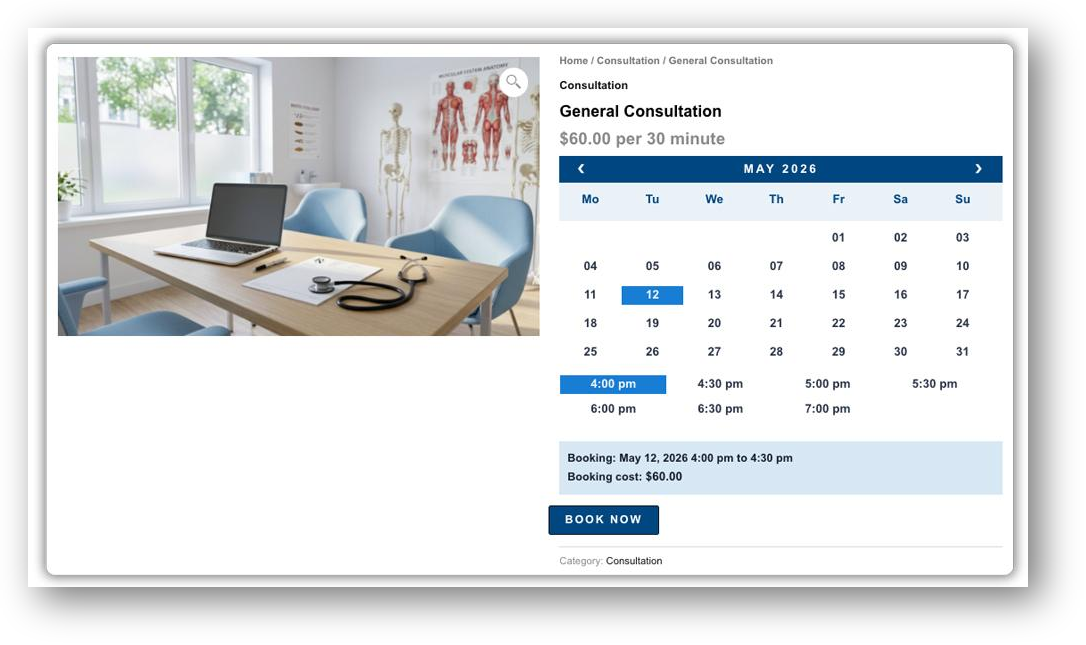
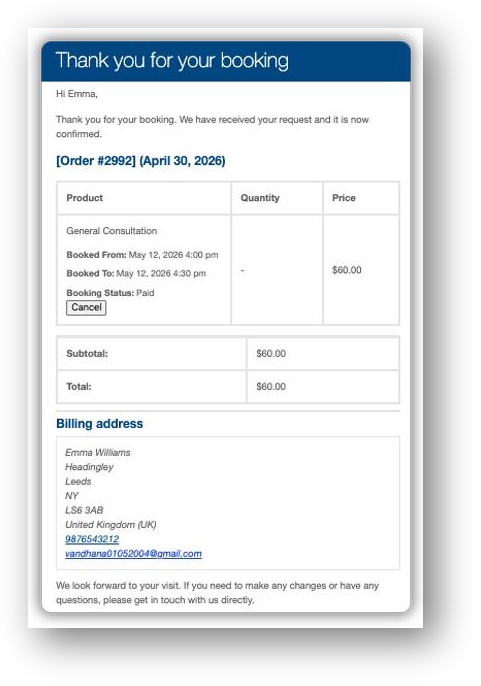
Once a customer selects their date or time slot and completes the booking, the plugin automatically sends them a confirmation email.
The confirmation email includes all the details the customer needs – the service booked, date and time, duration, participants, and total cost.
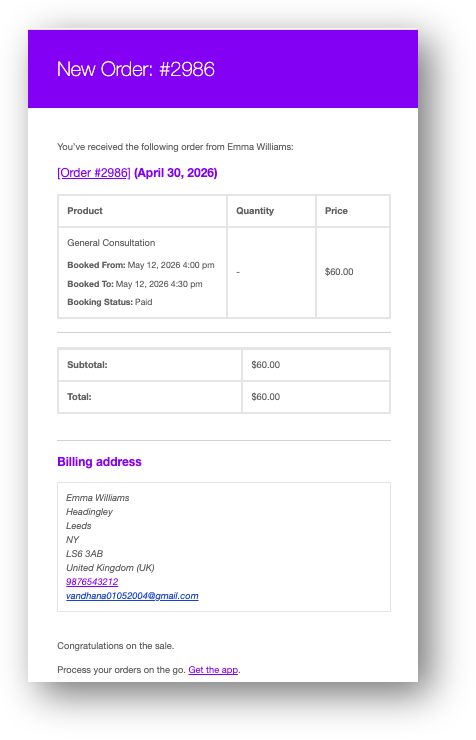
At the same time, you receive a new booking notification on the admin side.
If your business requires you to review bookings before confirming them, you can enable the Requires Confirmation option on the bookable product.
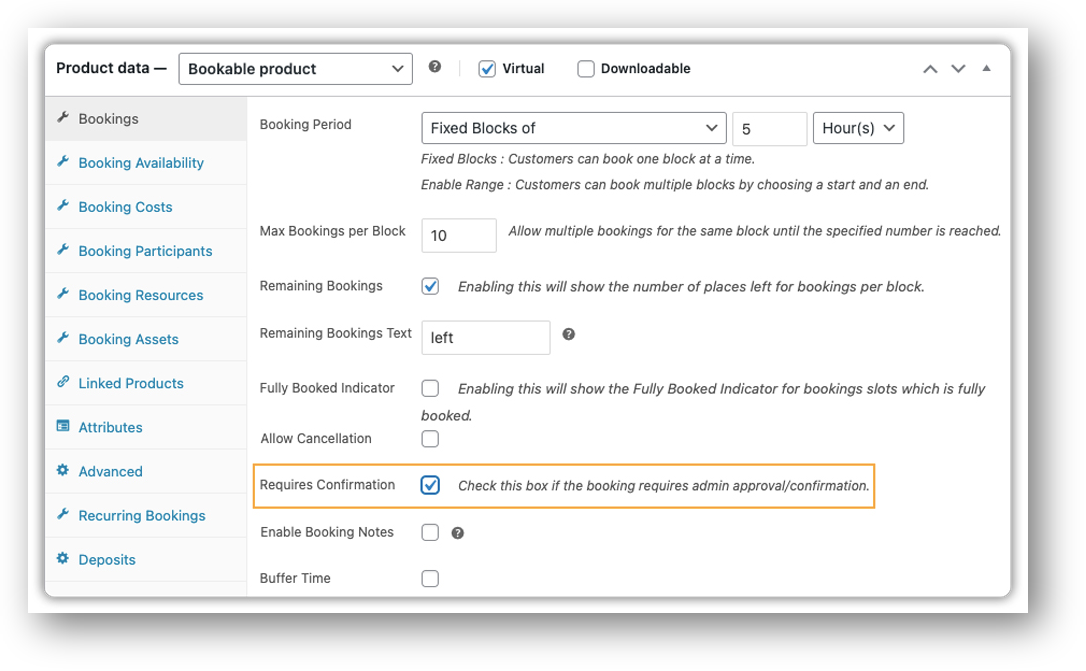
In this case, the customer first receives a holding email letting them know their request is under review.
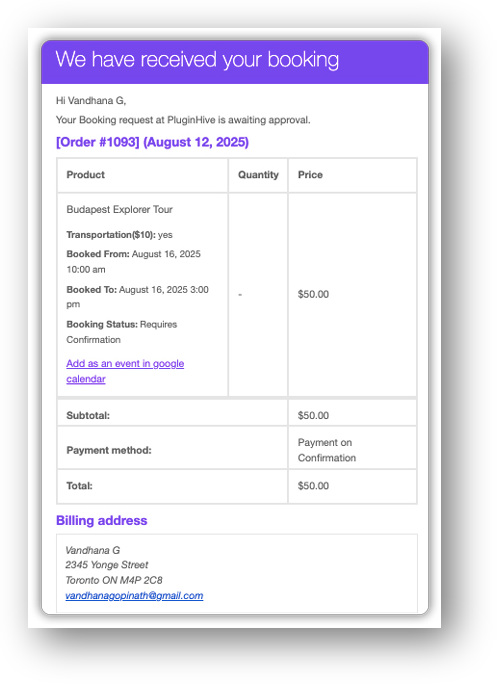
Once you approve it from your dashboard, the confirmation email, along with a payment link, goes out to the customer automatically.
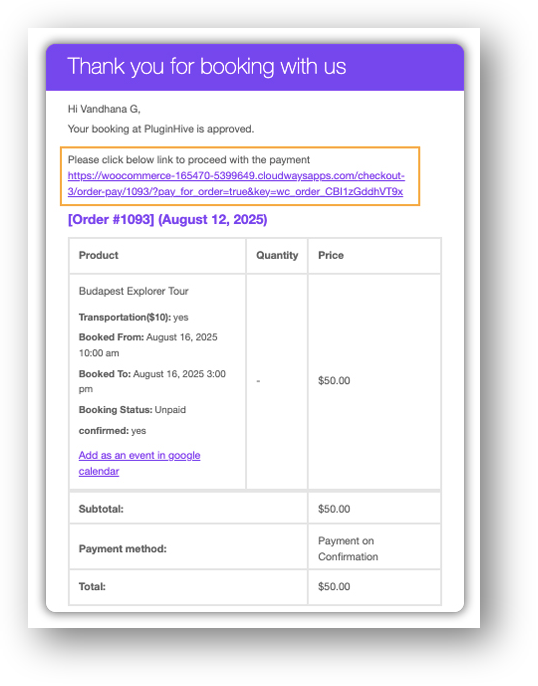
For a detailed walkthrough of this workflow, refer to WooCommerce Bookings Confirmation & Payment on Approval.
Step 2 – Customise Your Booking Confirmation Email
Go to WooCommerce → Settings → Emails and locate the booking confirmation email added by the plugin.
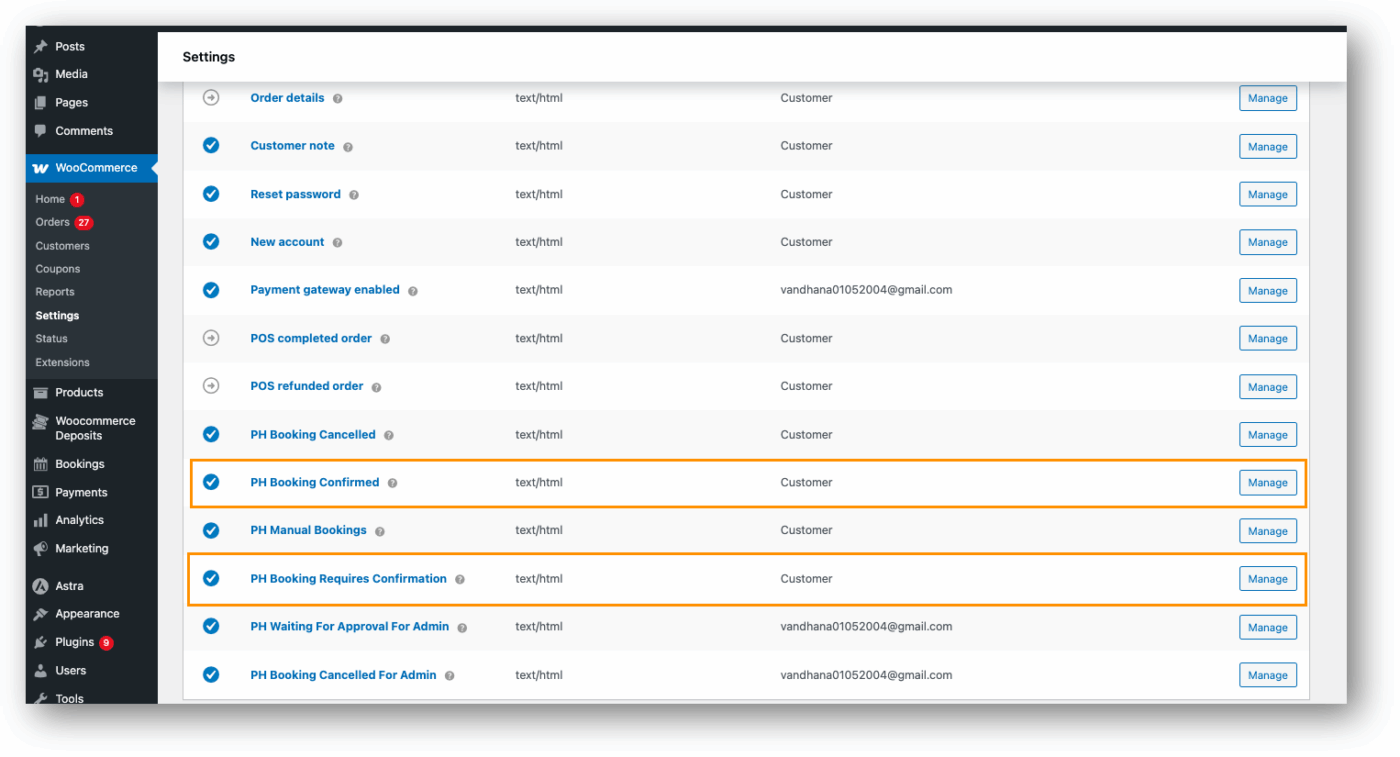
Here you can edit the subject line and body text to match your brand. Make the subject line specific, including the service name, to make it far easier for customers to find the email later. You can also add any instructions the customer needs before their appointment, such as location details, what to bring, or a Zoom link for online sessions.
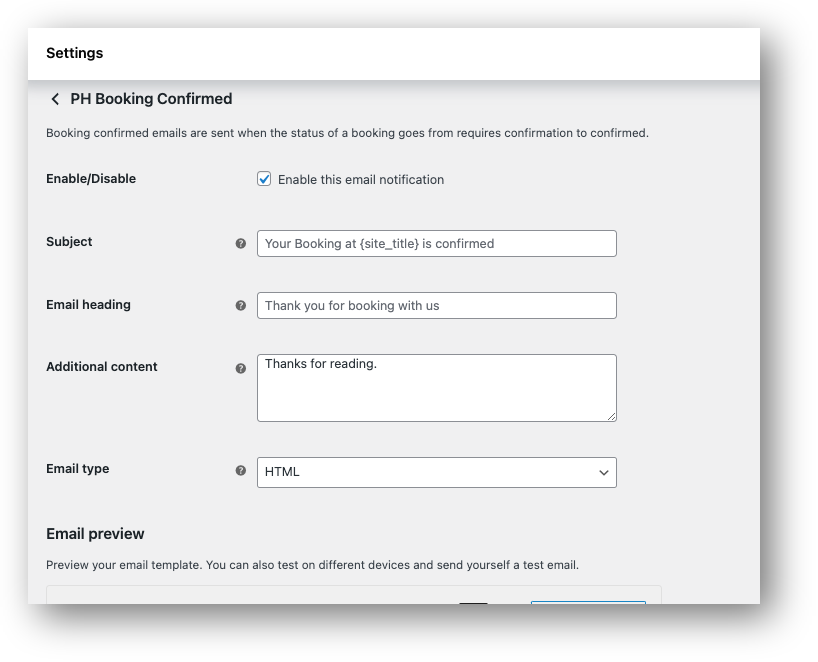
Step 3 – Test the Email Before Going Live
Place a test booking using your own email address and check how the confirmation email looks in an actual inbox, especially on mobile. The plugin is also compatible with the Preview E-mails for WooCommerce plugin, which lets you preview your email templates directly from your dashboard without placing a test booking each time.
For more details on all booking email settings, refer to WooCommerce Bookings Email Notifications.
Tips to Make Your WooCommerce Booking Confirmation Emails More Effective
Sending an automated confirmation is a great start, but a few small improvements can make a big difference to your customers’ experience.
- Highlight Booking Details Upfront: Place the booking date, time, and service details at the top of the email. Customers should not have to search for essential information.
- Include Calendar Link: When you enable Google Calendar or iCal integration in the plugin, confirmation emails automatically include “Add to Calendar” links for Google, Outlook, or Apple Calendar. This makes it easy for customers to save their booking and reduces no-shows.
- Add Contact Information: Provide a clear way for customers to reach you in case they have questions. This builds trust and improves the overall customer experience.
- Use a Professional and Branded Design: Maintain consistent branding with your logo, colors, and tone. A professional look makes your emails more credible and recognizable.
Example Scenario: Salon Managing Appointment Confirmations with WooCommerce
Let’s say you run a WooCommerce-based salon offering hair and beauty appointments. Right now, you’re handling booking confirmations manually, emailing each customer individually to let them know their slot is confirmed.
The Problem
Customers complete a booking and message you shortly after asking if it went through, because the email they received had no booking details – just a generic order receipt. You’re spending time replying to each one, confirming slots, and separately following up on payments. It’s repetitive, inconsistent, and takes up time you don’t have.
The Solution
With the Bookings and Appointments for WooCommerce plugin, a booking confirmation email goes out automatically the moment a booking is placed, including the service, date, time, and cost. If you prefer to review bookings before confirming them, you can enable the Requires Confirmation option. The confirmation email, along with a payment link, is sent to the customer automatically the moment you approve. No manual emails, no follow-ups.
For more on how salons can make the most of WooCommerce bookings, refer to Streamline Salon Appointments with WooCommerce Bookings.
The Results
- Customers stop messaging you, asking if their booking went through
- Every customer gets the same clear, professional confirmation every time
- Payments are handled through the confirmation email itself – no separate follow-up needed
- You spend zero time writing individual confirmation messages
Conclusion
Booking confirmation emails are one of the simplest yet most impactful things you can do for your WooCommerce store. They reassure customers, reduce unnecessary back-and-forth, and make your business look professional, all without any manual effort once set up.
The Bookings and Appointments for WooCommerce plugin handles all of this automatically – the right confirmation, with the right details, at the right time. Set it up once, and it works for every booking from there.
If you need help configuring it for your store, the PluginHive support team is always happy to assist.
FAQs
Q. How do I send a booking confirmation email in WooCommerce?
WooCommerce’s default order email does not include booking-specific details. To send a proper booking confirmation email, you need the Bookings and Appointments for WooCommerce plugin. Once installed, the plugin automatically sends a confirmation email with all the booking details, date, time, duration, and cost as soon as a booking is placed.
Q. How do I automatically send a confirmation email after a booking?
With the Bookings and Appointments for WooCommerce plugin, confirmation emails are sent automatically, with no manual effort needed. Once a customer completes a booking, the plugin instantly triggers the confirmation email. If you use the Requires Confirmation option, the email goes out automatically the moment you approve the booking.
Q. Can I customise the booking confirmation email in WooCommerce?
Yes. Go to WooCommerce → Settings → Emails and locate the booking confirmation email added by the plugin. You can edit the subject line, body text, and tone to match your brand. For a full walkthrough, refer to the WooCommerce Bookings Email Notifications guide.
