



Businesses that rely on bookings know how frustrating no-shows can be. Every missed booking, whether it’s an appointment, class, rental, or event, means lost time, wasted resources, and reduced revenue. Reminder emails help solve this by keeping customers informed, reducing missed bookings, and creating a smoother experience for customers and staff. With the Bookings and Appointments for WooCommerce plugin, these reminders are automated, customizable, and effortless to manage. In this guide, we’ll show how to make the most of reminder emails, explore best practices, and highlight a real-world example of how they can make a measurable difference.
Table of Contents
- Understanding Email Notifications in WooCommerce Bookings
- Effortless Reminder Emails with WooCommerce Bookings
- Best Practices for Effective Reminder Emails
- Real-World Example
- Conclusion
- FAQs
Understanding Email Notifications in WooCommerce Bookings
Email notifications ensure that customers stay updated throughout their booking journey. From confirmations to reminders, these automated messages help reduce confusion, reduce no-shows, and improve customer satisfaction.
The Bookings and Appointments for WooCommerce plugin provides powerful, customizable email features to make this process seamless.
Core Email Notification Features of the Bookings plugin
- Automated New Booking Notifications for both store owners and customers, including complete details like booking cost, duration, participants, and status.
- Booking Confirmation and Cancellation Emails, with the flexibility for store owners to approve bookings before sending branded confirmations.
- Customizable Reminder Emails, automatically sent before the booking (e.g., one day prior) using dynamic tags like [CUSTOMER_NAME], [SITE_NAME], and [BOOKING_DETAILS].
- Follow-up Emails After Booking Completion, perfect for requesting reviews, sharing resources, or encouraging repeat bookings.
Among all these notifications, reminder and follow-up emails stand out as the most effective tools for reducing no-shows and encouraging repeat bookings.
Effortless Reminder Emails with WooCommerce Bookings
Manually emailing customers before and after every booking can take up a lot of time, and things can easily slip through the cracks. With the Bookings and Appointments for WooCommerce plugin, you can automate these emails so customers are always in the loop, without any extra work on your part.
- Keep Customers on Track with Reminder Emails
Note: Make sure the plugin is installed and properly set up in your store. If you haven’t done that yet, follow this setup guide to get started.
Once the plugin is installed and ready, the next step is to configure it correctly to make sure every reminder works smoothly. Here’s how to set it up for optimal results:
- Configure Reminder Emails
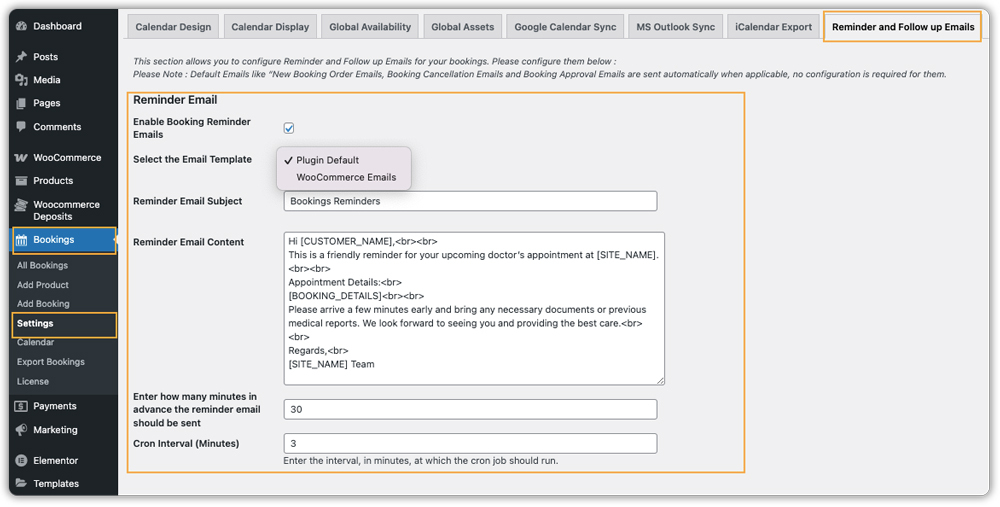
- Enable Booking Reminder Emails: Turn on reminders to automatically notify customers before their booking.
- Select the Email Template: Choose the plugin’s default template or customise your own using WooCommerce email.
- Email Subject & Content: Personalise messages using placeholders like [CUSTOMER_NAME], [SITE_NAME], and [BOOKING_DETAILS].
- Send Timing: Specify how many minutes before the booking the reminder should be sent.
- Cron Interval: Set how frequently the system checks for sending reminders (e.g., every 5 minutes).
The customer will automatically receive this reminder email before their scheduled appointment, based on the timing you’ve set in the plugin, as shown in the example below.
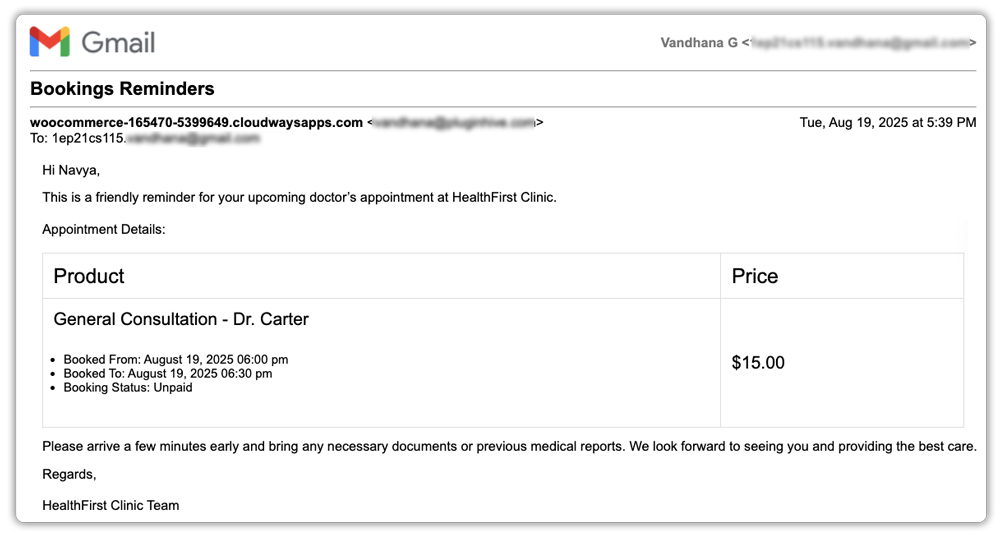
These automated reminders help reduce no-shows and make your business look professional and organised.
Need help configuring reminder emails on your WooCommerce store? Learn more in this guide: WooCommerce Bookings Email Notifications & Reminders.
Best Practices for Effective Reminder Emails with WooCommerce Bookings
Sending reminder emails is more than just hitting “send.” The right approach can reduce no-shows, improve customer experience, and strengthen trust. Here are some proven best practices:
1. Send Reminders at the Right Time: Timing is key. Send reminders one day before the booking or a few hours ahead to give customers enough notice while keeping the appointment fresh in their mind.
2. Use Deposits Add-On for Payment Reminders: Use the PH Deposits for WooCommerce plugin to send reminder emails tied to balance payments based on booking dates.
3. Include Calendar Links: When a store owner enables calendar integration in the Plugin, confirmation emails automatically include “Add to Calendar” links for Google, Outlook, or Apple Calendar. This makes it easy for customers to save their booking and reduces no-shows.
4. Include a Call-to-Action (CTA): Encourage customers to confirm, reschedule, or contact you if needed. A clear CTA reduces confusion and helps prevent missed appointments.
5. Use Branded, Friendly Language: A friendly, professional tone paired with your brand elements (logo, colours) makes your emails recognisable and trustworthy.
6. Test and Optimise: Review your reminders regularly. Check open rates, click rates, and responses to find what timing, language, or templates work best for your audience.
Following these best practices ensures your WooCommerce booking reminder emails are effective, reliable, and customer-focused, helping you reduce no-shows and build stronger relationships with clients.
Real-World Example: Reducing No-Shows with WooCommerce Booking Reminder Emails
Let’s say you run a WooCommerce-based spa and wellness business, offering multiple services like massages, facials, and yoga sessions.
The Challenges You’ll Face
- Customers often forget their appointments, leading to no-shows.
- Manual reminders are time-consuming and inconsistent.
- Missed appointments mean lost revenue and wasted staff time.
How to Solve This with Bookings by PluginHive
With the Bookings and Appointments for WooCommerce plugin, you can:
- Automate reminder emails before every booking with personalised details.
- Send follow-up emails after completion to request feedback, promote services, or encourage rebooking.
- Include calendar links in emails so customers can save appointments to Google, Outlook, or Apple Calendar.
The Results
- Reduced no-shows and fewer last-minute cancellations.
- Improved customer engagement and loyalty through timely, personalised communication.
- Time saved for your team as reminders and follow-ups are fully automated.
- Stronger brand image and professional, reliable customer experience.
Conclusion
Running a successful WooCommerce-based service business means managing bookings efficiently, keeping customers informed, and reducing no-shows. With the Bookings and Appointments for WooCommerce plugin, you can automate reminder and follow-up emails, personalise messages, and include calendar links, all without adding extra work for your team.
Whether you offer appointments, rentals, or events, this solution helps you stay organised, improve customer engagement, and ensure a seamless experience from start to finish. Need help setting it up? PluginHive Support is available to guide you and optimise your booking communication for maximum results.
FAQs
1. Can WooCommerce reminder emails be personalised automatically?
Yes! With the Bookings and Appointments for WooCommerce plugin, you can use placeholders like [CUSTOMER_NAME], [BOOKING_DETAILS], and [SITE_NAME] to personalise each email automatically.
2. Can WooCommerce follow-up emails increase repeat bookings?
Yes. Follow-up emails through Bookings and Appointments for WooCommerce plugin can thank customers, request reviews, or encourage rebooking, helping turn one-time clients into loyal customers.
3. Do WooCommerce booking reminder emails work for all types of bookings?
Yes. Whether you offer appointments, rentals, or events in WooCommerce, automated reminders and follow-ups can be applied to any booking product.
4. How do WooCommerce emails with calendar links help my business?
“Add to Calendar” links let customers save appointments directly to Google, Outlook, or Apple Calendar, reducing forgetfulness and improving attendance.
5. Can WooCommerce reminder emails be tied to payment reminders?
Yes. Using the PH Deposits for WooCommerce plugin, the booking reminders can also notify customers about upcoming balance payments, helping reduce missed payments.
6. Do I need to manually send WooCommerce reminder emails?
No. Once configured, the Bookings and Appointments for WooCommerce plugin automates both reminder and follow-up emails, saving time and ensuring customers stay informed.
