


Managing a photography business involves more than taking great photos; it also requires handling schedules, inquiries, and session timings. When clients must message you to check availability or confirm bookings, it often leads to delays, miscommunication, and missed sessions. For WooCommerce store owners, this becomes even harder since the platform is built for products, not time-based services.
An automated booking system solves these issues. With the Bookings And Appointments for WooCommerce, you can let clients book photography sessions online, whether it’s a portrait shoot, maternity session, family shoot, or corporate headshot. Clients simply choose a date, pick a time slot, add any needed extras, and confirm instantly. In this article, we’ll explore how WooCommerce Bookings for photography sessions works, the challenges it solves, and how you can set it up to streamline your entire photography appointment workflow.
Table of Contents
- Challenges in Managing Manual Photography Session Bookings on WooCommerce
- Automating Photography Session Scheduling Using WooCommerce Bookings
- Types of Photography Sessions You Can Offer Through WooCommerce Bookings
- Best Practices for Managing Photography Appointments on WooCommerce
- Conclusion
- FAQs
Challenges in Managing Manual Photography Session Bookings on WooCommerce
Running photography sessions on WooCommerce becomes difficult when everything is handled manually. Common challenges include:
- No built-in scheduling: Clients can’t choose dates or time slots, leading to more inquiries and slow confirmations.
- Overlapping bookings: Without an automated calendar, double-booking happens easily.
- Time-consuming communication: Clarifying availability, duration, pricing, and add-ons requires constant back-and-forth.
- Hard to manage different session types: Each shoot, maternity, family, newborn, and headshots needs its own duration and pricing, which WooCommerce doesn’t support by default.
- No quick way to block unavailable days: Time off or schedule changes must be updated manually.
- No automated reminders: Without confirmations or reminders, no-shows and late arrivals increase.
These issues show that manual booking isn’t sustainable. Photographers need a more structured, automated system to manage sessions smoothly. In the next section, we’ll look at how WooCommerce Bookings can help overcome these challenges and streamline your entire scheduling process.
Automating Photography Session Scheduling Using WooCommerce Bookings
With the Bookings And Appointments for WooCommerce plugin, photographers can offer clients a seamless, self-service booking experience while keeping their schedule fully organised.
Note: Before getting started, ensure the Bookings And Appointments for WooCommerce plugin is installed, activated, and configured properly. If not, follow the quick setup guide to complete the initial configuration.
- Set Clear Availability Based on Your Working Hours
Every photographer works differently; some shoot only on weekends, others follow fixed hours, and many adjust seasonally. The plugin lets you set detailed availability rules so clients can book only when you’re free. You can define working days, operating hours, holidays, and travel days with ease.

Need help setting this up? Explore the guide on configuring availability in WooCommerce Bookings.
- Define Accurate Booking Durations and Time Slots
Session durations vary widely, and explaining them to each client can be repetitive. WooCommerce Bookings allows you to set precise session durations, so the system automatically creates the right time slots, whether the session is 30 minutes, 1 hour, or 2 hours. This keeps your calendar structured and prevents overlap.
- Add Buffer Time Between Sessions
You can add setup or cleanup time before or after each session to prevent back-to-back bookings and keep your schedule manageable.
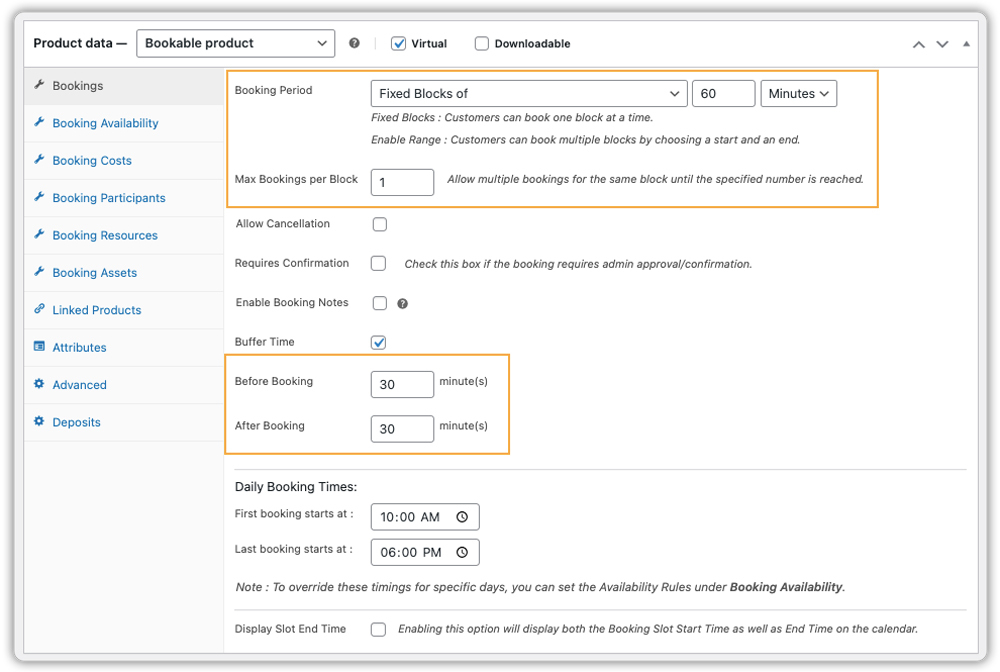
Refer to the quick tutorial on enabling buffer time between appointments.
- Use Dynamic Pricing for Different Photography Needs
Photography pricing is rarely one-size-fits-all. The plugin allows you to set flexible pricing rules based on session type, duration, day of the week, or even season. You can charge differently for weekdays and weekends, offer premium rates for long sessions, or apply special pricing for holidays.

For more details, refer to the pricing configuration guide.
- Offer Add-On Services During the Booking Process
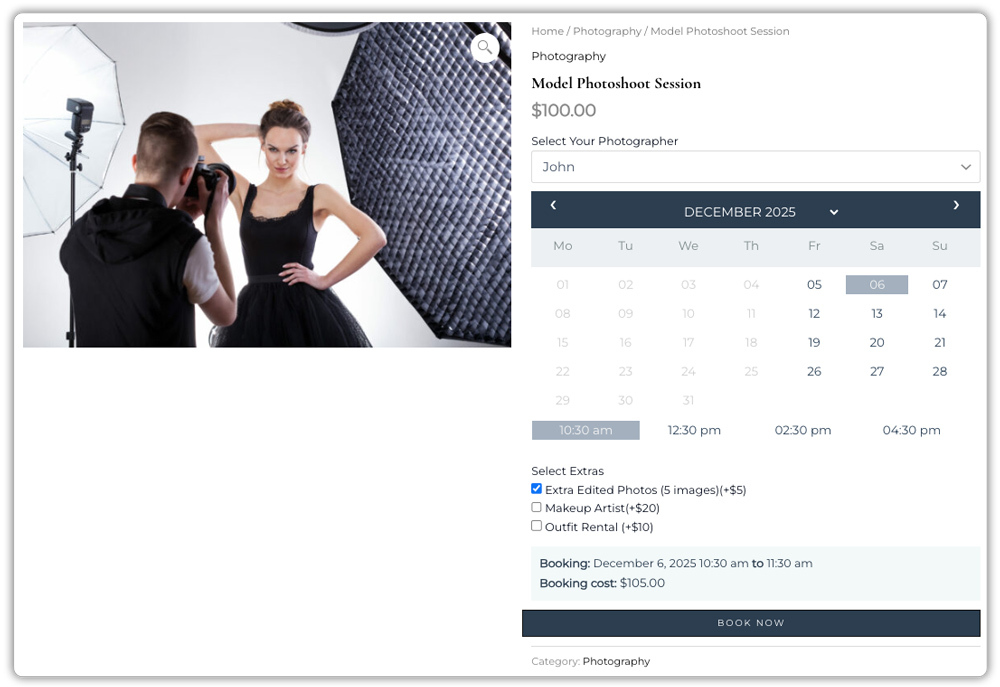
Photography sessions often include optional extras, and managing these manually can be complicated. With the plugin’s resources feature, clients can personalise their bookings by selecting additional services such as extra edited photos, makeup artist support, outdoor location fees, themed backdrops, or props.

Learn how to create extras and add-on services in the setup guide.
- Assign Photographers or Shared Resources Automatically
If your business includes multiple photographers or uses shared equipment, the plugin’s asset feature ensures that availability stays accurate at all times. You can assign each photographer their own schedule or mark specific equipment as a bookable resource. When one resource is booked for a time slot, it becomes unavailable automatically for others.
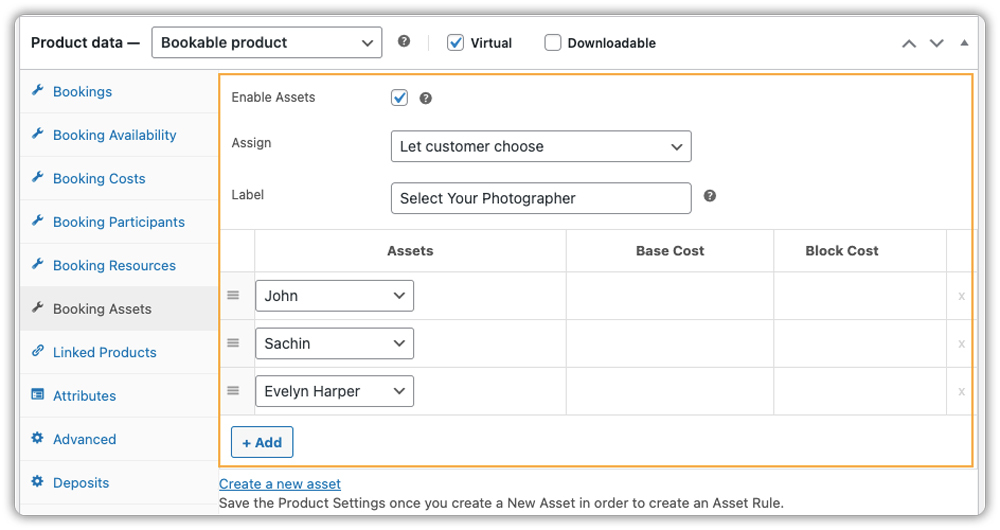
See the booking assets guide for setup steps.
Here’s a preview of what your customers will see when booking a session:
- Send Automated Confirmations and Reminders
The plugin sends instant confirmations, reminders, and updates, reducing no-shows and saving time on manual follow-ups.

You can configure this easily using the bookings email notifications guide.
- Sync Bookings Seamlessly With Google Calendar
Your bookings can sync automatically with Google Calendar, allowing you to track sessions across devices. Each appointment appears with full details, helping you plan daily and weekly schedules, travel time, and studio preparations.

Check the Google Calendar integration guide.
By automating scheduling with WooCommerce Bookings, photographers can eliminate manual coordination and offer clients a smooth, professional booking experience.
Types of Photography Sessions You Can Offer Through WooCommerce Bookings
WooCommerce Bookings allows you to list different photography services with their own availability, duration, pricing, and add-ons. The table below shows the most common session types and how the plugin supports flexible scheduling for each.
| Session Type | How WooCommerce Bookings Helps |
|---|---|
| Portrait Photography | Set short time slots, offer backdrop choices, add extra edited images, and adjust weekday/weekend pricing |
| Family & Kids Sessions | Longer durations, add props or themes, buffer time for smooth transitions |
| Maternity Photography | Custom availability, gown rentals, makeup add-ons, and dynamic pricing for peak seasons |
| Newborn Photography | 2–3 hour slots, built-in buffer time, add props, wraps or themed setups |
| Engagement & Couple Shoots | Travel fees, multiple package lengths, and assign specific photographers |
| Event & Birthday Photography | Minimum booking hours, add albums or videography, sync bookings with Google Calendar |
| Product / Commercial Photography | Half-day/full-day blocks, equipment upgrades, and custom commercial pricing |
| Pet Photography | Short or long sessions, add themed props, block outdoor-specific days |
| Seasonal / Mini Sessions | Fixed 10–20 min slots, restricted-day availability, themed add-ons |
With the Bookings And Appointments for WooCommerce plugin, you can offer a wide variety of photography sessions, each with its own schedule, pricing, and add-ons, all managed from one place. This flexibility makes it easy for clients to book exactly what they need while keeping your workflow organised and efficient.
Best Practices for Managing Photography Appointments on WooCommerce
Managing photography appointments effectively goes beyond just enabling bookings; it’s about maintaining a smooth workflow, reducing admin work, and delivering a great client experience. Once your booking setup is ready, these tips help keep everything organised.
- Allow clients to pay in advance with deposits: Using the PH WooCommerce Deposits plugin, you can let clients pay a partial upfront amount to secure their session. This reduces cancellations and increases booking commitment.
- Limit last-minute bookings: Set a minimum lead time (24–48 hours) before a client can book. This gives you enough time to prepare equipment, plan your setup, and avoid rushed sessions.
- Enhance sessions with paid add-ons: Use the PH Product Addons for WooCommerce plugin to offer extras like edited photos, outfit changes, priority delivery, or props. This improves the experience and increases revenue.
- Make cancellation rules clear: Display simple and transparent policies directly on booking pages and emails so clients understand what to expect.
- Monitor booking performance trends: Track popular session types, peak time slots, and frequently chosen add-ons to improve your pricing and offerings.
A well-managed appointment workflow not only saves time but also improves the client experience, helping your photography business run smoothly and professionally.
Conclusion
WooCommerce Bookings for photography sessions gives photographers a complete system to manage schedules, pricing, and client communication, all from their existing WooCommerce store. By automating availability, time slots, reminders, and payments, the Bookings and Appointments for WooCommerce plugin eliminates the administrative overhead that slows most photography businesses down.
Whether you offer portraits, maternity shoots, commercial sessions, or seasonal mini shoots, WooCommerce Bookings adapts to your workflow, not the other way around. If you’re also managing a photography studio space, explore how to handle photography studio rentals with WooCommerce Bookings alongside session bookings. And if you’d like hands-on help configuring your booking system, the PluginHive support team is available to guide you through every step.
FAQs
Q: Can clients book recurring photography sessions through WooCommerce?
Yes. Using the Bookings and Appointments for WooCommerce with the PH Recurring Bookings add-on, clients can schedule recurring sessions such as weekly product shoots, monthly branding sessions, or bi-weekly social media content shoots. If recurring bookings aren’t needed, clients can book multiple dates manually.
Q: Can I offer different types of photography sessions on the same WooCommerce store?
Yes. You can create multiple bookable products like family shoots, portraits, newborns, or maternity sessions. Each can have its own duration, pricing, and add-ons.
Q: Can clients select add-ons like extra prints or props during WooCommerce bookings?
Yes. You can offer add-ons using the Bookings plugin’s Resource feature for options like choosing a photographer or equipment. You can also use the PH Product Addons for WooCommerce plugin to offer extras such as edited photos, props, makeup services, or priority delivery
Q: Can I set different pricing for weekends, holidays, or longer photography sessions in WooCommerce?
Yes. Dynamic pricing lets you charge differently for weekends, peak seasons, or extended sessions so your rates match demand.
Q: Can clients book non-consecutive photography sessions in one go on WooCommerce?
Yes. With the Bookings And Appointments for WooCommerce and PH Multiple Non-Adjacent Bookings add-on, clients can pick and pay for separate dates or time slots (e.g., a portrait session on Monday and a family shoot on Saturday) in a single booking flow.
