



As a WooCommerce store owner, presenting your products in the most engaging way possible directly impacts your conversions. One simple yet powerful visual enhancement is adding color swatches – clickable color previews that replace dull dropdowns so customers can instantly see and choose product colors.
In this article, we’ll explore why color swatches matter and show you how to implement them using PH WooCommerce Product Add-Ons, a versatile plugin that lets you add customizable fields like color selectors to your WooCommerce products.
Table of Contents
- What Are WooCommerce Color Swatches and Why They Matter
- Limitations of WooCommerce’s Default Color Options
- How to Add Color Swatches to WooCommerce Products
- Real-World WooCommerce Products That Benefit from Color Swatches
- Conclusion
- FAQs
What Are WooCommerce Color Swatches and Why They Matter
Color swatches simplify one of the most common decisions shoppers make. Instead of scanning a dropdown and imagining what a color might look like, customers see it right away and make a choice that feels natural.
Why Color Swatches Matter for Your Store
- Better shopping experience: Visual selection feels more natural than text-based options and helps customers browse products with less effort.
- Clearer expectations, fewer returns: When your customers can see the color before purchasing, there’s less chance of disappointment after delivery.
- More mobile-friendly: Swatches are easier to tap than dropdowns or small radio buttons, especially on smaller screens.
- More polished product pages: Visual swatches give your store a modern, well-designed look that builds trust with first-time visitors.
- Faster purchase decisions: Studies show visual information processes 60,000 times faster than text, helping customers choose quickly
By turning color choices into visual elements, you reduce friction in the buying process and make your products easier to browse and understand.
Limitations of WooCommerce’s Default Color Options
WooCommerce allows you to set up color variations, but the default setup is quite basic. It works for listing options, not for showing them visually. As a result, product pages can feel less clear and less engaging for shoppers.
Where Default WooCommerce Color Options Fall Short
- Colors are shown as text only: Customers see color names in a dropdown instead of seeing the actual colors.
- Not very mobile-friendly: Dropdowns and small selectors are harder to use on phones and tablets.
- Limited control over appearance: There’s little flexibility to change how color options look or align them with your store’s design.
- Harder to scan when there are many options: Long lists of color names slow down decision-making.
- Not ideal for customized products: Stores that offer add-ons or personalized choices often need more flexibility than default variations provide.
When customers can’t clearly see their options, choosing a product takes more effort. This can lead to hesitation, confusion, or even abandoned carts.
In the next section, we’ll look at how to add color swatches to WooCommerce products and explore better ways to display color choices that feel clear, visual, and easy to use.
How to Add Color Swatches to WooCommerce Products
Adding color swatches doesn’t have to be complicated. With PH Product Add-ons for WooCommerce, you can replace plain color dropdowns with clickable color swatches that allow customers to see and choose colors instantly.
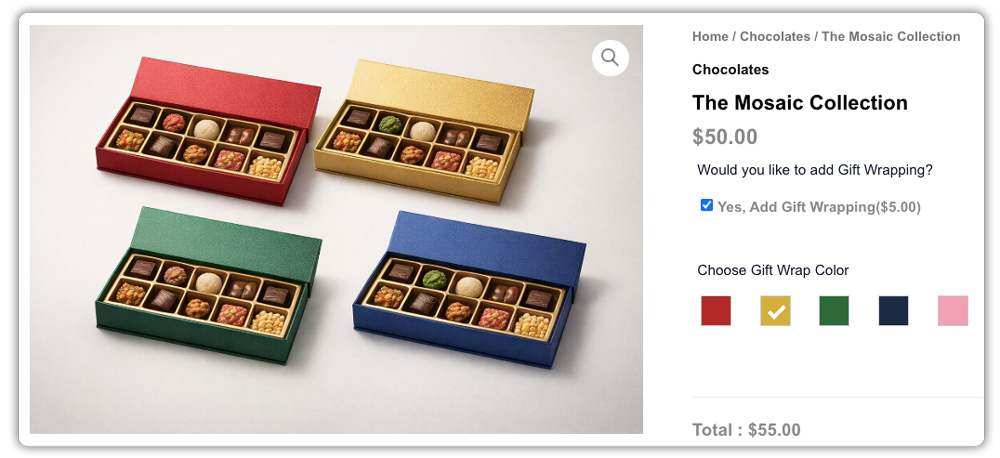
All you need is the Product Addon plugin installed and active on your WooCommerce store. Once that’s done, you’re ready to add visual color options to your product pages.
Create Your Color Swatch Add-On Group
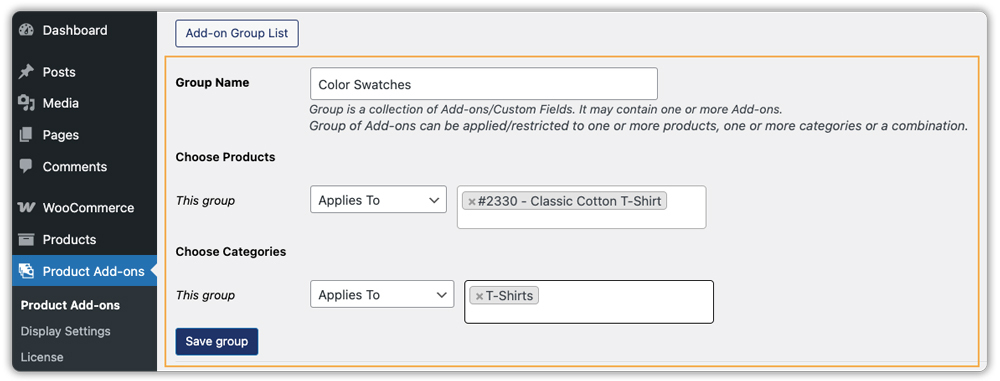
The first step is creating a group to hold your color options. Think of this as a reusable container that can be applied to one product, multiple products, or even entire categories.
From your WordPress dashboard, open the PH Product Add-ons settings and create a new group. Give it a simple, clear name such as Color Swatches. Then decide where you want these color options to appear on a specific product or across similar products. This way, you don’t have to set up the same colors again and again.
Add the Color Swatch Field
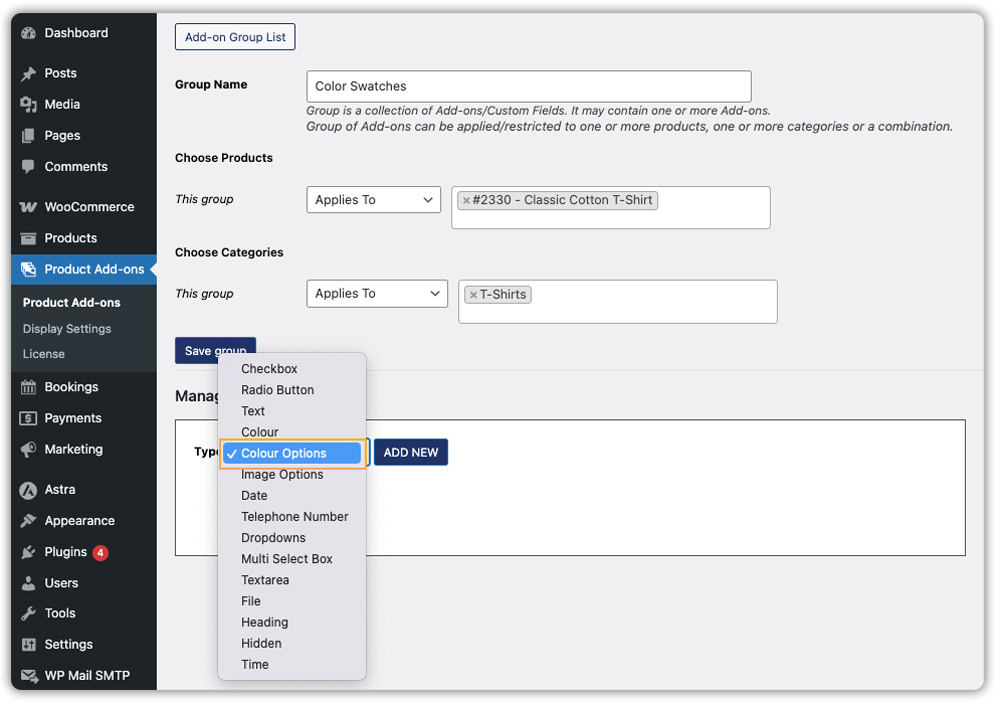
Once the add-on group is created, you can add the actual color selection field.
Inside the group, click Add Field and choose Color Options from the dropdown. This adds a visual color selector to your product page, allowing customers to choose colors by clicking on swatches instead of reading text labels.
Customize Your Color Swatches
Now comes the fun part: adding your colors.
Start by adding your color options. Each swatch can be given a clear name, such as Midnight Blue or Forest Green, and assigned a color using the built-in color picker or RGB color values for accuracy.
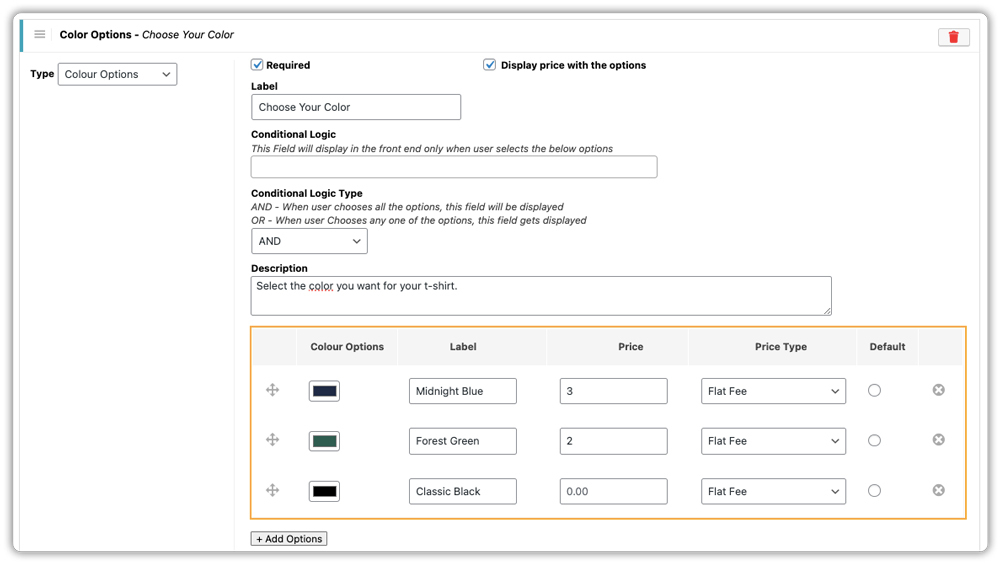
You can also adjust a few simple settings to match your product needs:
- Add a clear label like “Choose a Color.”
- Include a short description if certain colors have special finishes
- Make the color selection required or optional
- Apply an extra charge to specific colors if needed
- Use conditional logic to show colors only when certain options are selected
These settings help keep the product page clean while still offering flexibility.
How Customers Choose Colors
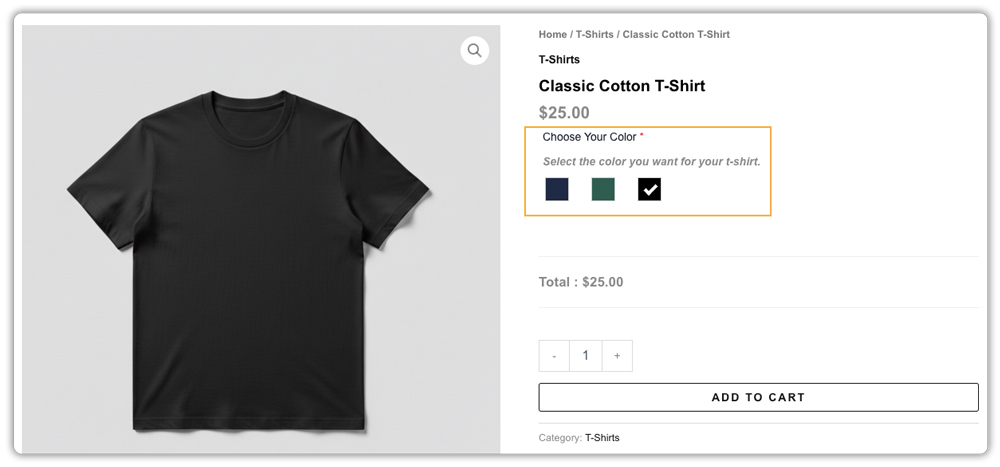
Once everything is set up, customers will see color swatches directly on the product page. They can click on a color, see their choice clearly, and then add the product to the cart with confidence.
Viewing Color Selections in Orders
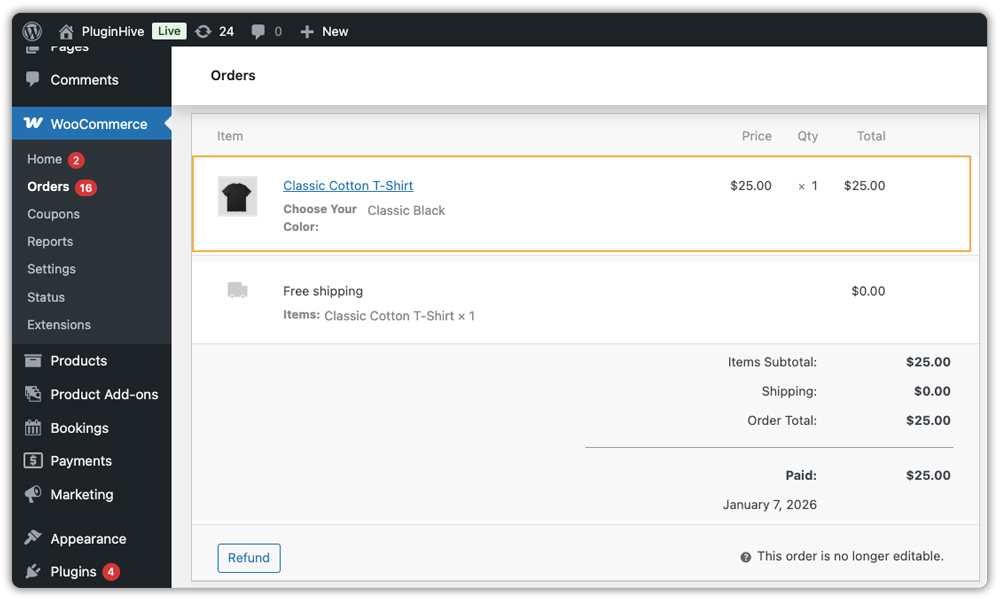
After an order is placed, the selected color shows up in the order details inside WooCommerce. This makes it easy for you to see exactly what the customer chose and prepare the order correctly.
Using product add-ons for color swatches gives you more flexibility than WooCommerce’s default dropdowns. You can reuse setups, combine colors with other custom options, and keep product pages clean and easy to browse.
Real-World WooCommerce Products Where Color Swatches Fit Best
Now that you know how to add color swatches to your products, the next step is understanding where they fit best. While swatches can be used across many stores, they’re especially useful for products where customers expect to see their options before choosing.
Here are common product types in WooCommerce stores where color swatches fit naturally.
| Product Type | How Color Swatches Are Used | Examples |
|---|---|---|
| Apparel & Fashion | Customers compare colors before selecting a size or style | T-shirts, hoodies, dresses, caps, sneakers |
| Home Decor & Furniture | Shoppers match colors to their interior; seeing the shade prevents mismatches | Cushions, curtains, sofas, rugs |
| Accessories & Gadgets | Color reflects personal style; swatches make selection quick and expressive | Phone cases, water bottles, laptop sleeves, headphones |
| Custom & Personalized Products | Color is part of the customization process | Printed mugs, engraved jewelry, custom totes, gift items |
| Packaging & Add-ons | Visual choices improve add-on selection | Gift wrapping, ribbon colors, box types, thank-you cards |
This helps identify where color swatches fit best in your WooCommerce catalog. With the PH Product Add-ons plugin, you can apply them to these products without changing your existing setup.
Conclusion
Color swatches make it easier for customers to understand and choose product options, especially when color plays an important role in buying decisions. Using the PH Product Add-ons for WooCommerce plugin, you can add visual color options to your product pages without reworking your existing setup.
If you’d like help setting this up or tailoring it to your store, you can reach out to the PluginHive support team for guidance.
FAQs
Q. Does WooCommerce have built-in color swatches?
No. WooCommerce shows colors as plain text in dropdown menus by default. To get those nice, clickable color squares, you need a plugin like PH Product Add-ons.
Q. How do I add color swatches in WooCommerce?
It’s simple with a PH Product Add-ons plugin. Install the plugin, create a color options field, pick your colors, and assign them to your products. No coding needed, just a few clicks.
Q. Can I charge extra for certain colors in WooCommerce?
Yes! You can set different prices for different colors. For example, add +$5 for “Rose Gold” while keeping “Matte Black” at the base price. The plugin handles the pricing automatically.
Q. What if a customer wants a color I don’t offer?
Add a “Custom Color” option at the end of your swatches. When selected, you can show an extra field where they can describe their preferred color or upload a reference. This keeps your main options clean while still accepting special requests.
