


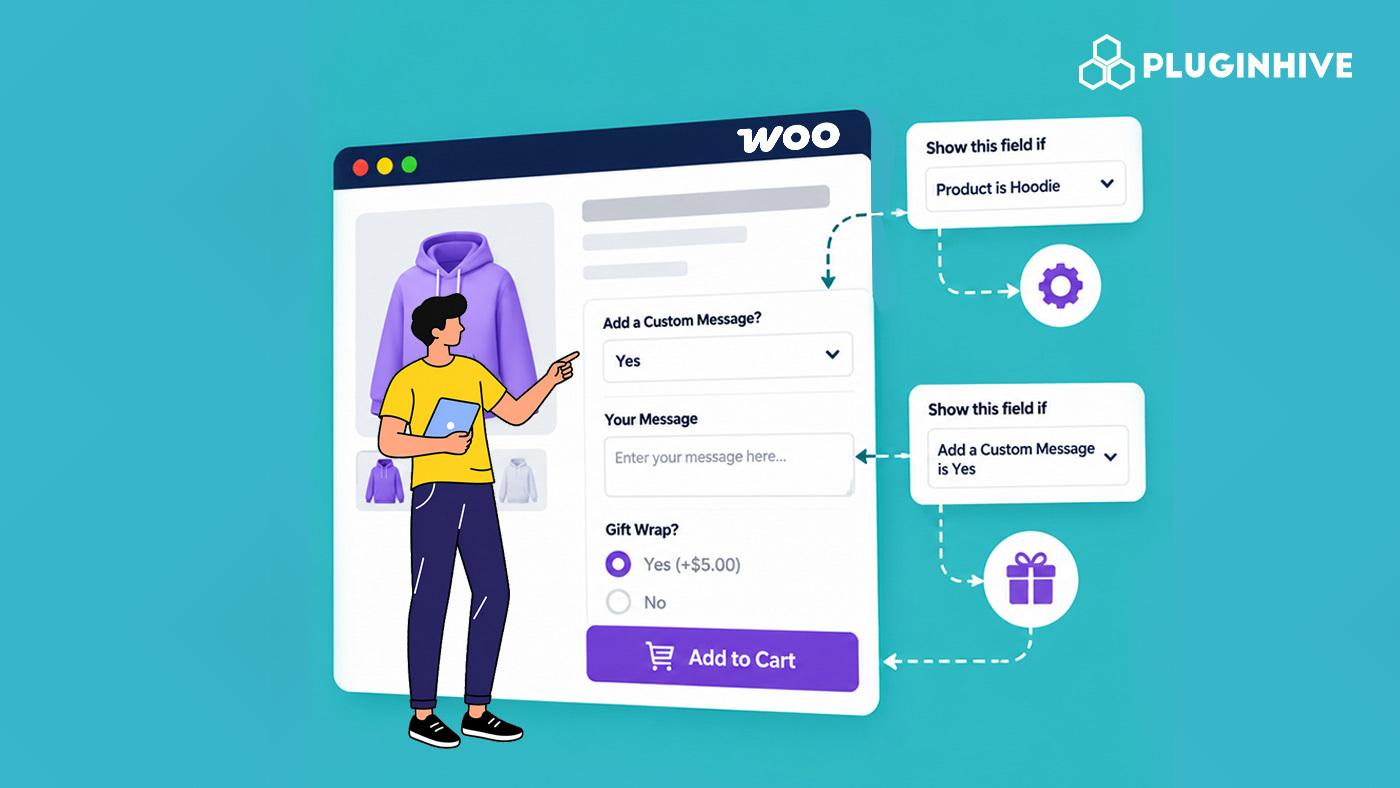
Offering custom product options is a proven strategy to boost your WooCommerce store’s average order value and deliver a highly personalized shopping experience. However, there is a catch: dumping dozens of text boxes, dropdowns, and file upload fields onto a single product page creates visual clutter that overwhelms your shoppers. When customers face form fatigue and cognitive overload just to configure a product, cart abandonment rates skyrocket. As a store owner, you need a way to offer limitless customizations without sacrificing a clean, frictionless storefront.
This is exactly where WooCommerce conditional product fields come to the rescue. By implementing dynamic “If/Then” logic, your product pages adapt in real-time, instantly showing or hiding specific add-on options based on the exact choices a shopper makes. In this guide, we will explore why conditional logic is an absolute game-changer for your conversion rates and walk you through how to set it up seamlessly using the PH Product Add-Ons for WooCommerce plugin.
Table of Contents
- What Are WooCommerce Conditional Product Fields?
- Why Use Conditional Product Fields in WooCommerce?
- Examples of WooCommerce Conditional Product Fields
- How to Add Conditional Product Fields in WooCommerce
- Best Practices for Using WooCommerce Conditional Product Fields
- Conclusion
- FAQs
What Are WooCommerce Conditional Product Fields?
WooCommerce conditional product fields are dynamic input fields such as text boxes, file uploads, date pickers, or radio buttons that display only when triggered by a specific customer action.
This functionality relies on conditional logic (“If/Then” rules):
- IF a customer selects “Add Custom Engraving” (Yes),
- THEN show a text input field (“Enter Your Engraving Text”) and a font selection dropdown.
- IF the customer selects “No”, the engraving fields remain hidden.
By displaying fields contextually, conditional logic keeps product pages clean, intuitive, and distraction-free.
Why Use Conditional Product Fields in WooCommerce?
Showing fewer fields at a time makes a real difference to how customers shop and how smoothly you fulfill orders.
- Shorter-Looking Pages: Shoppers see two or three fields instead of ten, so the page feels quick to complete.
- Fewer Follow-Up Emails: Because the right question appears at the right moment, you get the details you need without chasing customers later.
- Fewer Wrong Entries: When a field is not relevant, customers are not tempted to fill it in anyway.
- One Product Instead of Many: You do not need a separate listing for every version of an item. This is the same idea behind selling personalized products from a single page.
- Tidier Orders: Add-on fields that were left empty or did not apply are hidden from order details, so you only see what the customer chose.
Put together, you spend less time sorting out order details and more time actually making and shipping products.
Examples of WooCommerce Conditional Product Fields
Conditional fields work for almost any product that can be customized. Here are a few common ways WooCommerce stores use them.
| WooCommerce Store Type | First Question | Fields That Appear |
|---|---|---|
| Custom T-Shirt Store | Do you want a custom print? (Yes/No) | Upload your design, print position dropdown, and print size options |
| Bakery | Do you want a message on the cake? (Yes/No) | Message text box and icing color choice |
| Gift Hamper Store | Is this a gift? (Yes/No) | Gift message box, recipient name, and a gift wrap option |
| Photo Frame Store | Choose your frame type (Wooden/Metal) | Wood finish dropdown for Wooden, or color swatches for Metal |
| Furniture Store | Do you need assembly service? (Yes/No) | Preferred assembly date and delivery floor number |
In each case, the extra fields stay hidden on your WooCommerce product page until the customer picks the option that needs them. A shopper who skips the custom print on a T-shirt never sees the upload box, and one who selects a metal frame never sees the wood finishes. Your WooCommerce product pages stay short, and every order arrives with the right details.
How to Add Conditional Product Fields in WooCommerce
Let’s use a personalized notebook as our example. Customers can choose to add a name to the cover, and the name box should appear only if they select Yes. To set this up, first install and activate the PH Product Add-ons for WooCommerce plugin. Once activated, you can create the required fields and configure conditional logic by following the setup guide for PH Product Add-ons.
1. Create a Group of Fields: Go to PH Product Add-ons for WooCommerce > Settings and click Add New. Name it something like “Notebook Options.” A group is simply a set of fields that you can reuse on many products.

2. Choose Where It Shows: Use Applies To to pick the products or categories that should get these fields. Use Does Not Apply To if you want to leave certain items out. If you do not select anything, the group appears on all products.

3. Add the First Question: Create a dropdown labeled “Add a name on the cover?” with the options Yes and No. Mark it as Required so every customer answers it.

4. Add the Follow-Up Field: Create a text box labeled “Name to print.” In its Conditional Logic setting, choose the dropdown and the “Yes” answer, so the box appears only when the customer picks Yes. If you need more than one rule, you can combine them using AND or OR.

5. Set the Price: If the name costs extra, add a fixed amount or a percentage of the product price. Turn on Display price with the options so customers see the cost as they choose.

6. Preview the Product Page: Open the product and select Yes to check that the name box appears. Then select No to confirm it disappears. Finally, add the notebook to the cart and make sure the name shows up at checkout.


Once saved, the same setup works on every product you assigned, with nothing extra to configure.
Best Practices for Using WooCommerce Conditional Product Fields
A few habits keep your fields easy for customers and easy for you to manage.
- Start With One Rule: Get a single yes-or-no question working first. You can add more questions once you are happy with how it looks.
- Keep the First Question Simple: A short Yes or No, or a few clear choices, works better than a long list of options.
- Make Important Follow-Ups Required: If you cannot make the product without a detail, such as the name on the notebook, set that field as required.
- Limit What Customers Can Type: Use the Restrict Special Characters option on text boxes and set the file types you accept on upload fields. This avoids problems at the printing stage.
- Copy, Do Not Rebuild: The Copy icon on the Manage Groups screen duplicates a group, which saves time when a similar product needs the same setup.
These small habits keep your product pages simple for customers and your orders accurate, whatever you sell.
Conclusion
WooCommerce conditional product fields let you collect every detail you need while keeping the product page short and easy to follow. Customers answer only the questions that apply to them, and you receive orders that are clear and complete.
With the PH Product Add-ons for WooCommerce plugin, the setup takes only a few steps and can be reused across products and categories. If you need help configuring it on your store, the PluginHive support team is ready to assist.
FAQs
Q: What are advanced product fields in WooCommerce?
Advanced product fields are extra fields you add to a product page, such as text boxes, dropdowns, checkboxes, date pickers, and file uploads. They let customers share details like a name or a preferred option, and they can carry their own price or appear only when the customer picks a certain choice.
Q: How can I create custom fields for WooCommerce products?
Install a product add-ons plugin like PH Product Add-ons for WooCommerce. Create a group, add the fields you need, and assign the group to your products or categories. No coding is needed.
Q: Which WooCommerce product add-ons plugin is the best?
The best plugin depends on what you sell, but look for flexible field types, conditional logic, and easy pricing options. PH Product Add-ons offers all three, and you can see how it stacks up in this comparison of the best WooCommerce product add-ons plugins.
