


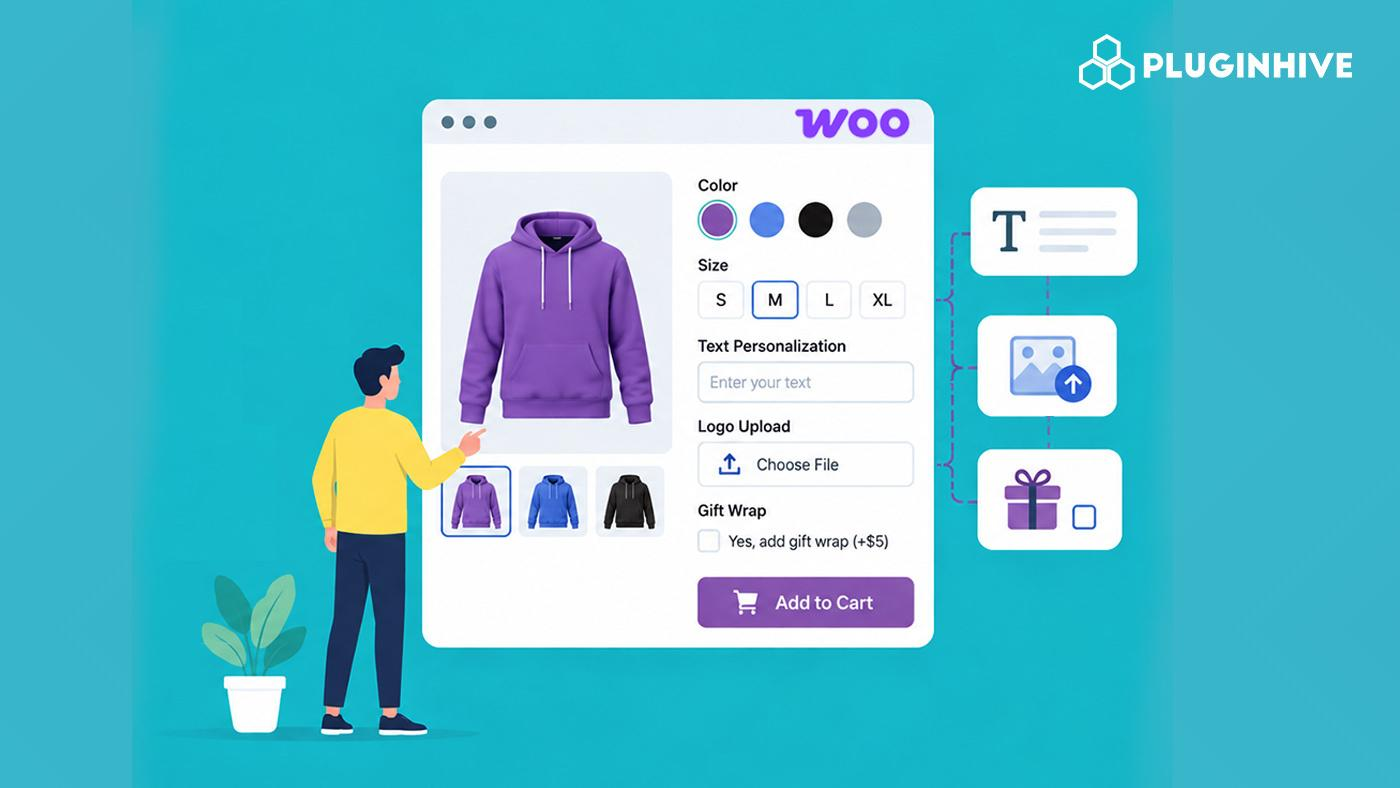
WooCommerce product variations make it easy to sell different versions of the same product, such as different sizes, colors, or materials. However, some variations may require additional information from customers that others do not. WooCommerce custom fields can help you collect this information for specific variations. For example, if you sell a watch in both silicone and metal, you might want to offer a custom text engraving option – but that specific input field should only appear when the customer selects the metal variant. Showing the same field for every variation can make the product page cluttered and less relevant to customers.
By adding custom fields to specific WooCommerce product variations, you can collect the information required for each variation without creating separate products for every customization. In this guide, we’ll show you how to add and configure different custom fields for variations using the PH Product Add-ons for WooCommerce plugin.
On This Page
- Why Add Custom Fields to WooCommerce Product Variations?
- How to Add Custom Fields to WooCommerce Product Variations
- Example Scenarios: Adding Different Custom Fields to Product Variations
- Best Practices for Using Custom Fields with WooCommerce Product Variations
- Conclusion
- FAQs
Why Add Custom Fields to WooCommerce Product Variations?
Adding custom fields at the variation level gives you more control over what customers see and what information you actually need from them. Here’s why it’s worth setting up:
- Cleaner product pages: Customers see only the fields relevant to their selected variation.
- No duplicate products: You can offer variation-specific customization without creating separate products.
- Fewer order mistakes: Relevant fields help customers provide the correct information.
- Better pricing control:You can set different add-on prices for different variations.
- A more personalized shopping experience: Customers feel like the product page is built around their specific choice, not a one-size-fits-all form.
This approach works especially well for stores selling personalized, made-to-order, or configurable products, where different variations naturally call for different information. With the reasons covered, the next section walks through the actual setup process.
How to Add Custom Fields to WooCommerce Product Variations
The PH Product Add-ons for WooCommerce plugin lets you assign custom fields directly to individual product variations, no coding required. Here’s how it works:
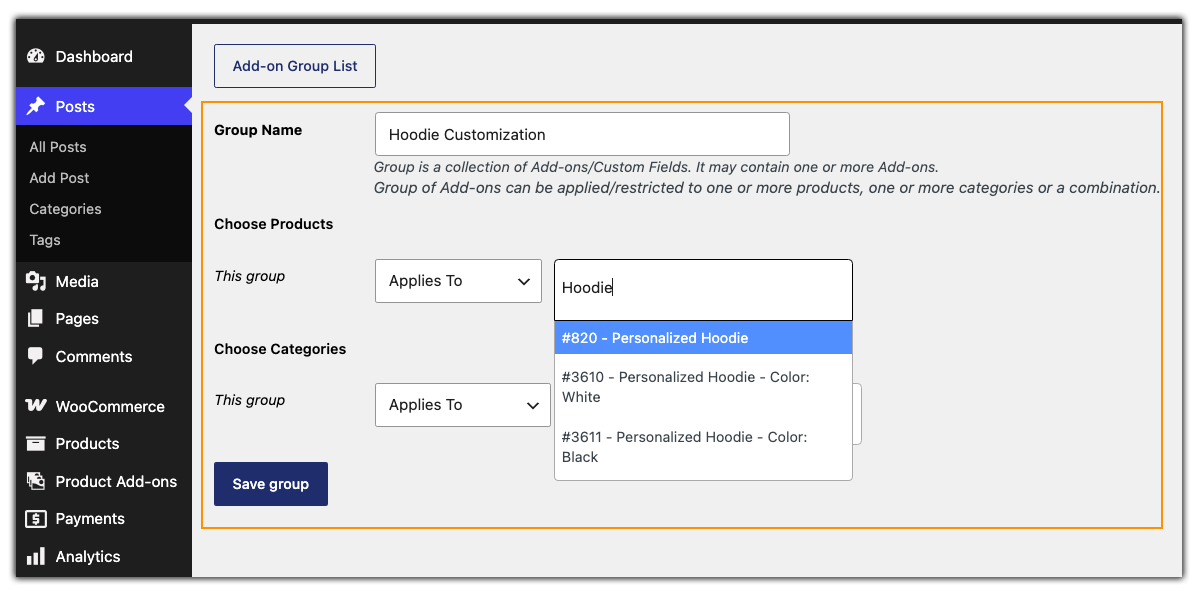
- Create an Addon Group: Go to PH Product Add-ons for WooCommerce from your WordPress dashboard and click Add New. Then, name the group where you’ll build the custom fields you want to use.

- Choose which variation it applies to: In the Choose Products dropdown, pick a specific variation instead of the whole product. Selecting the parent product applies the fields to every variation by default, while selecting one variation limits the group to just that option.
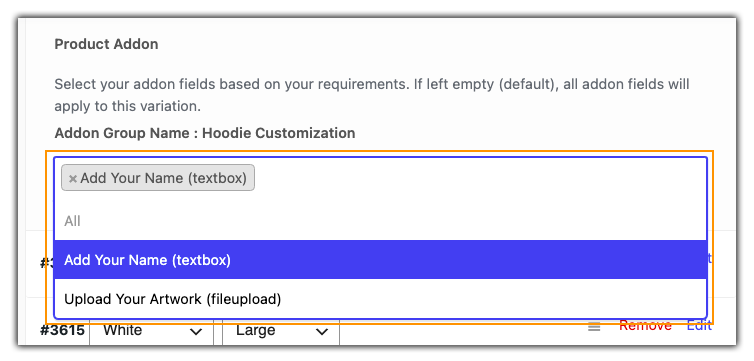
- Customize fields per variation: If you’ve assigned the Addon Group to the parent product, you get the flexibility of assigning different custom fields from that same group to different variations. Open the Variations panel on the Product Edit page to set this up. For example, one variation could show a text box, another a checkbox, and a third an image upload.
Types of Custom Fields You Can Add to WooCommerce Variations
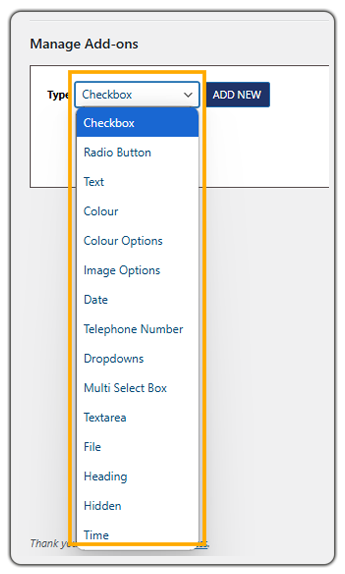
You’re not limited to a single format. The plugin supports a wide range of extra product options, so you can pick whatever suits the information you need. Some of the most commonly used ones include:
- Text and Text Area: For names, short messages, or custom instructions.
- Dropdown and Radio Button: For letting customers choose one option from a list.
- Checkbox and Multi-Select Box: For optional add-ons or multiple selections.
- Color and Color Options: For letting customers pick a shade or finish.
- Image Options: For visual choices, like selecting a print or pattern.
- File Upload: For collecting logos, images, or reference files.
- Date Picker and Time Picker: For scheduling details, like a delivery date.
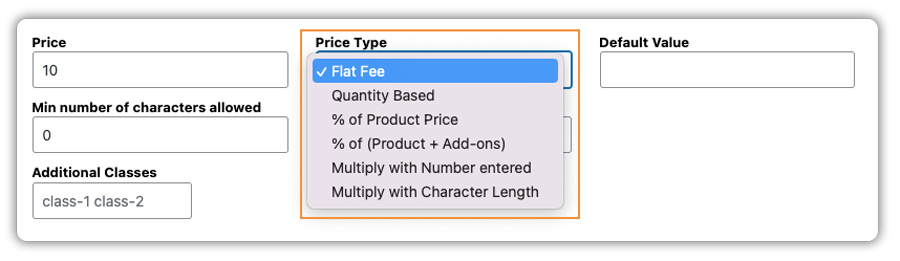
Each field also comes with its own pricing option, so you can charge a flat fee, a percentage of the product price, or a rate based on quantity.
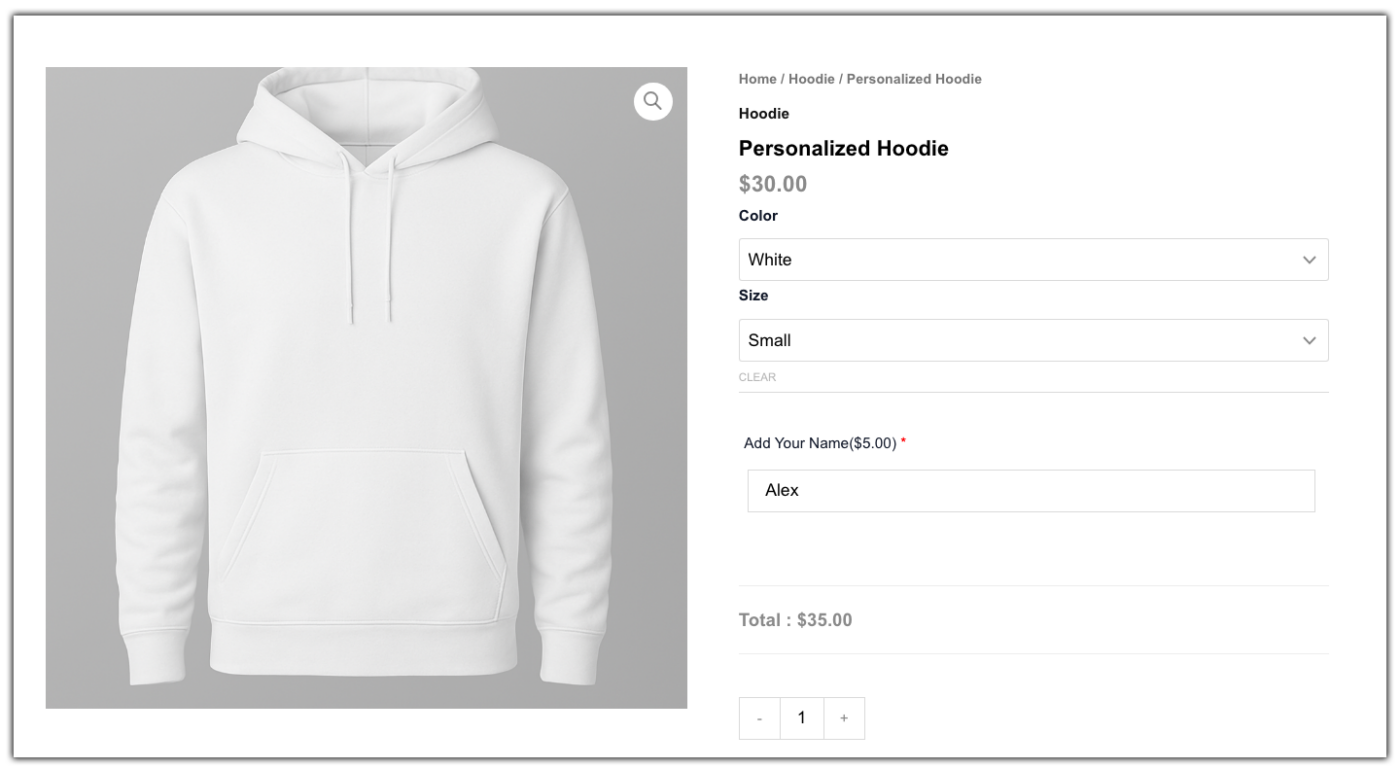
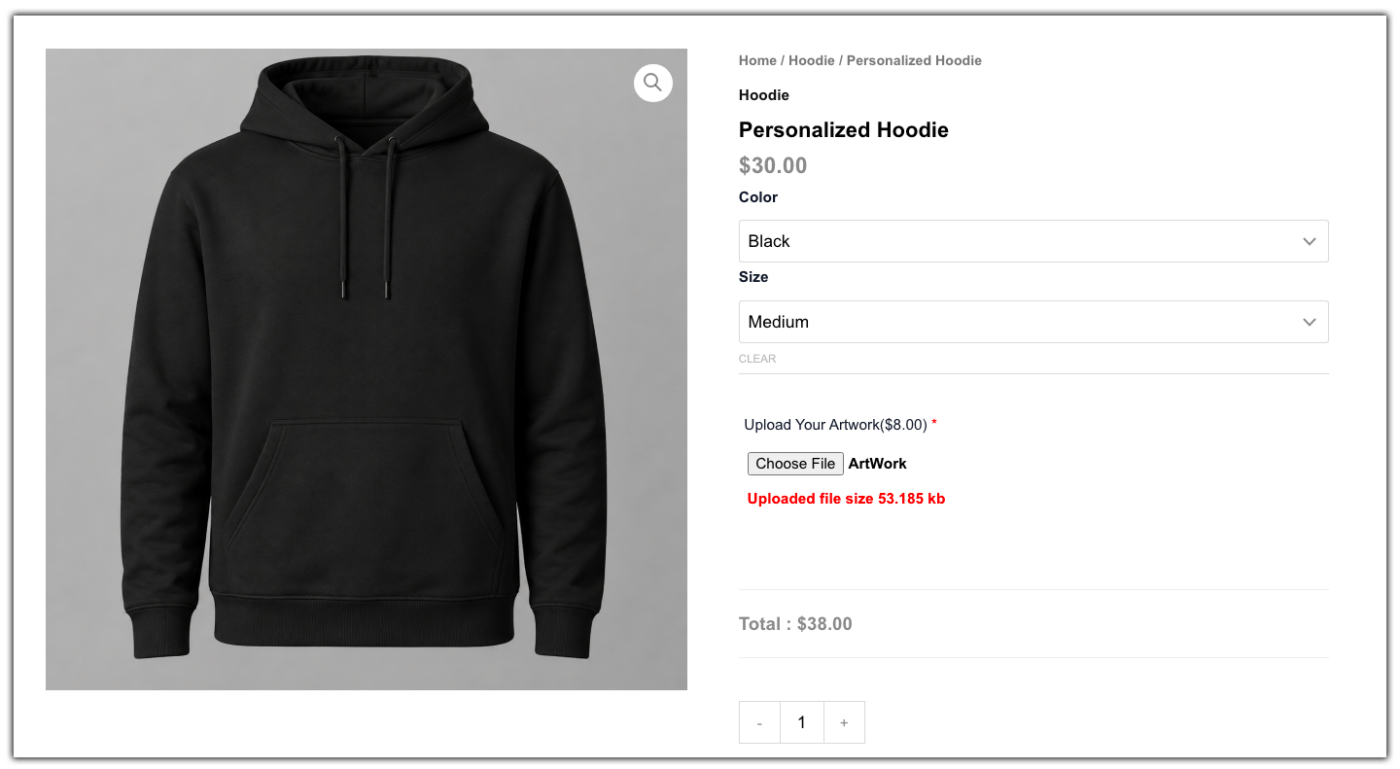
For example, let’s say you sell a hoodie in Black and White. You can show an “Add Your Name” text field for the White variation and an “Upload Your Artwork” field for the Black variation. Customers will only see the field for the variation they select, so you can collect the right information without creating separate products.
With the setup steps and field types covered, the next section looks at how this comes together for real products.
Example Scenarios: Adding Different Custom Fields to Product Variations
The real value of variation-specific custom fields becomes clear when you see how the same feature applies across different kinds of stores. Here’s how a few industries could put it to use:
| Industry | Selected Variation | Custom Field Displayed | Purpose |
|---|---|---|---|
| Apparel | Personalized Hoodie | Text: “Add Your Name” | Collects a name for print, only on the personalized variant. |
| Jewelry | Gold Locket | Text Area: “Engraving Message” | Gathers an engraving message, applicable only to engravable metals. |
| Print Services | Custom Banner | File Upload: “Upload Artwork” | Requires a design file before the item can be added to the cart. |
| Furniture | Custom Upholstered Sofa | Image Options: “Choose Fabric Pattern” | Lets customers pick a fabric visually, only for the customizable variant. |
| Bakery | Vegan Chocolate Cake | Checkbox: “Add Gluten-Free Base” | Offers a dietary add-on that doesn’t apply to standard cakes. |
Across all these examples, the pattern stays the same: the field only appears when its matching variation is selected, and disappears for every other variation of that product. This is what keeps a product page relevant no matter how many variations it has.
Best Practices for Using Custom Fields with WooCommerce Product Variations
A few small habits can help you get more consistent, error-free results once you start assigning custom fields to variations.
- Preview the product page after every change: Switch between variations on the live product page to confirm the right fields show up for the right option. It only takes a minute and catches mistakes before customers see them.
- Keep the number of fields per variation minimal: Ask only for what you genuinely need. A variation with five optional fields can feel overwhelming, while one or two focused fields keep the buying process quick.
- Set “Required” fields strategically: Not every custom input needs to be mandatory. Only enforce “Required” for fields that are essential to fulfilling that variation, such as a file upload before a custom-printed canvas can be purchased.
- Layer in conditional logic: Take your setup a step further by nesting conditions. If a variation shows a “Include a Gift Box” checkbox, you can set the “Gift Message” text area to appear only after that box is checked, keeping the initial view minimal.
- Double-check pricing on variation-specific fields: If different variations carry different add-on costs, verify the price shown matches what’s configured, especially after editing a group that’s shared across multiple products.
Following these practices keeps your product pages easy to navigate and your order details accurate, no matter how many variations or customization options your store offers.
Conclusion
Adding custom fields to specific WooCommerce product variations gives you a way to collect exactly the information each variation needs, without cluttering the product page or duplicating products. With PH Product Add-ons for WooCommerce, this setup takes just a few clicks – no coding required. If you run into any questions while setting it up, PluginHive support is ready to help.
FAQs
Q: How do I set up product variations in WooCommerce?
Go to Product data > Variations on the product edit page, and generate variations from your product attributes, like size or color. Each variation can then have its own price, stock, and custom fields.
Q: How can I customize WooCommerce product variations?
Along with setting different prices and stock, you can add variation-specific custom fields using PH Product Add-ons for WooCommerce, so each variation shows only the inputs relevant to it.
Q: How can I add custom fields to products in WooCommerce?
WooCommerce doesn’t support this natively. The PH Product Add-ons for WooCommerce plugin lets you add custom fields, like text, checkboxes, or file uploads, to specific products or individual variations, no code required.
