


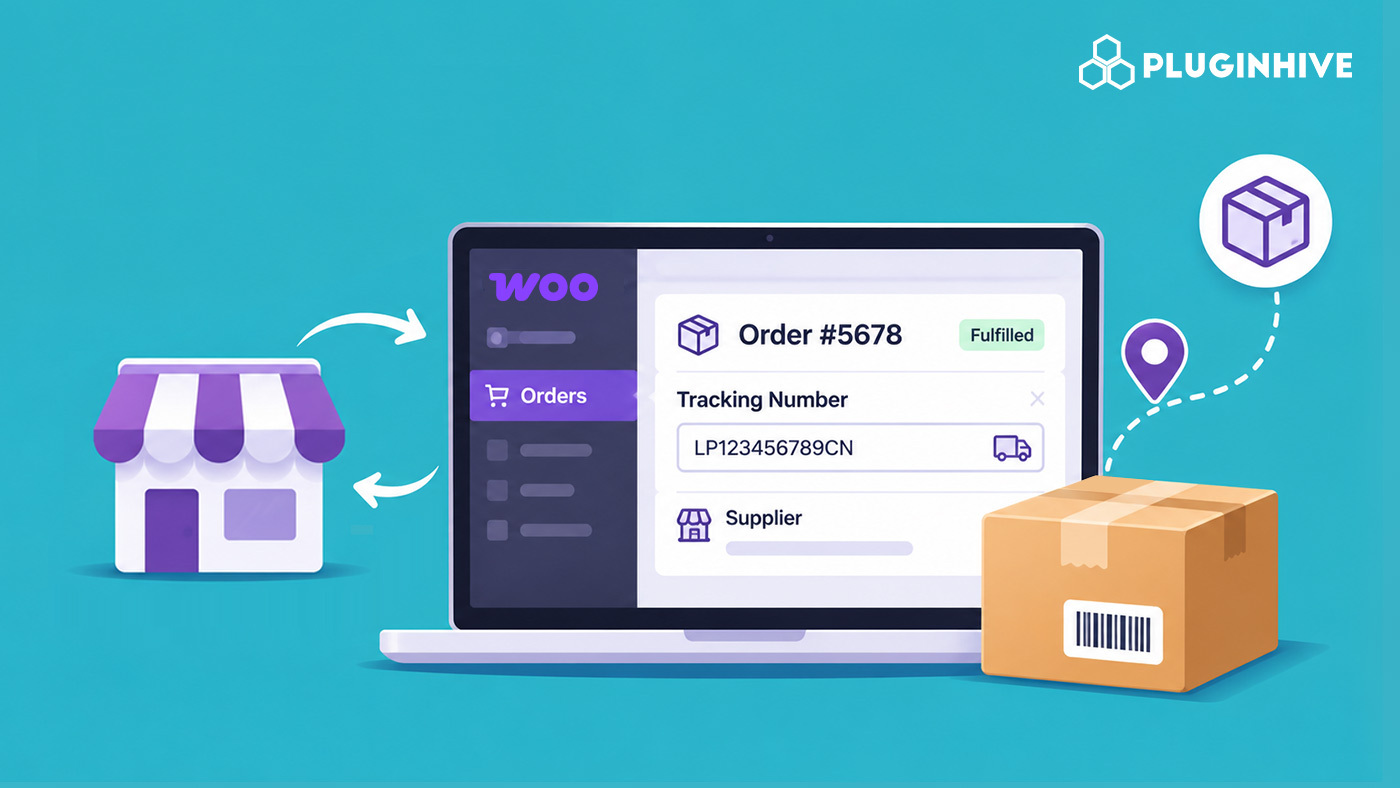
WooCommerce dropshipping supplier tracking is easy to overlook until a customer asks, “Where’s my order?” Your supplier has already shipped it, but the tracking number is sitting in their email or dashboard, not in your store. The Shipment Tracking Pro for WooCommerce plugin helps you add those numbers to your orders and share them with customers.
In this article, you’ll learn how to collect tracking details from your suppliers, add them to WooCommerce orders, and keep your customers updated.
On This Page
- Common Order Tracking Challenges in WooCommerce Dropshipping
- Supplier Tracking Management for WooCommerce Dropshipping
- Best Practices for Managing Supplier Tracking in WooCommerce
- Conclusion
- FAQs
Common Order Tracking Challenges in WooCommerce Dropshipping
Let’s say you run a WooCommerce dropshipping store with a few suppliers, and orders are coming in every day. Here’s what you’re likely dealing with.
- Tracking numbers reach you in different ways. One supplier emails you, another sends a spreadsheet, and a third expects you to log in to their portal.
- Every supplier uses different couriers. Each courier has its own tracking link, so tracking them is hard.
- Adding numbers one order at a time takes up your day. It only gets worse as you get more orders.
- Customers don’t know their order has shipped. So they email you to ask.
- Orders stay in “Processing” even after they’ve shipped. Your order list stops showing what’s actually happening.
None of this needs a complicated fix. You just need a simple routine for getting tracking numbers from your suppliers into your store.
Supplier Tracking Management for WooCommerce Dropshipping
The routine has three parts: get the details from your supplier, add them to the right order, and share them with your customer. WooCommerce Shipment Tracking Pro works with the tracking details your suppliers send you.
Collecting Tracking Details from WooCommerce Dropshipping Suppliers
Start by asking every supplier to send the same four details for each shipped order:
- Your WooCommerce order number
- The courier name
- The tracking number
- The shipping date
For example, if your supplier ships order 1045 with UPS, you need one line with 1045, UPS, the tracking number, and the shipping date. Getting these in the same format from every supplier makes the next step much easier.
Next, add the couriers your suppliers use to the plugin. Go to WooCommerce Plugins > PH Shipment Tracking Pro for WooCommerce > Order Tracking and click Add Carrier. You can pick from 85+ built-in carriers.

If a courier isn’t on the list, you can add it as a custom carrier using its tracking link. The setup guide walks you through it.
Adding Supplier Tracking Numbers to WooCommerce Orders
Once you have the details, there are three ways to add them to your orders.
1. Add tracking to one order at a time
This works well when you only get a few orders a day.
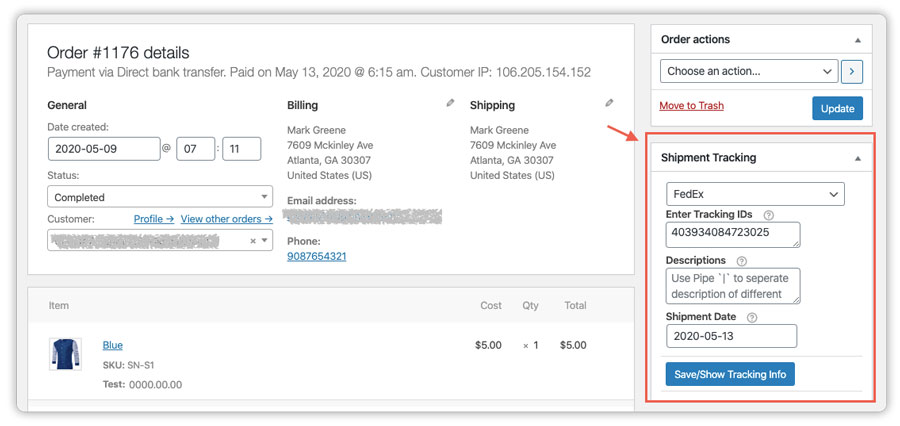
- Open the order in WooCommerce.
- In the Shipment Tracking section, choose the carrier.
- Enter the tracking number and the shipment date.
- Click Save/Show Tracking Info.
2. Add tracking to many orders with a CSV file
If your suppliers send spreadsheets, this is the quickest way. Put the order number, carrier, tracking number, and shipping date in a CSV file. The plugin comes with a sample file, so you can see exactly how it should look.
Then open the plugin’s import page and choose your file. Click Update file and import, and the tracking details are added to each order. If you enter Completed as the order status in your file, those orders are marked as completed, and your customers get an email with their tracking details. Here’s the full guide on importing tracking details via CSV.

3. Import tracking automatically
If your supplier can upload a file to a server, the plugin can pick it up through FTP or SFTP. You can also schedule the import, so new tracking details are added without you doing anything. Here’s how to import tracking details automatically via FTP.

Sharing Shipment Tracking Information with WooCommerce Customers
Once the tracking is on the order, the next step is making sure your customer sees it. The plugin gives you a few ways to do that.
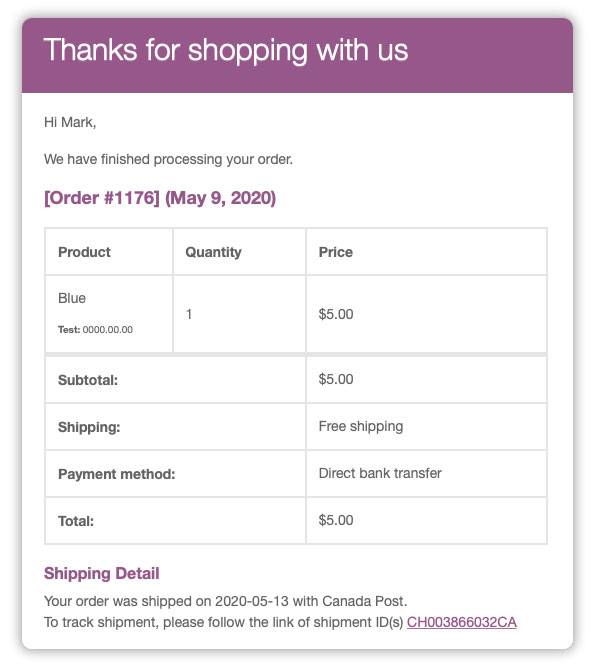
- Order completion email: The email includes the carrier name, tracking number with a link, and the shipping date.
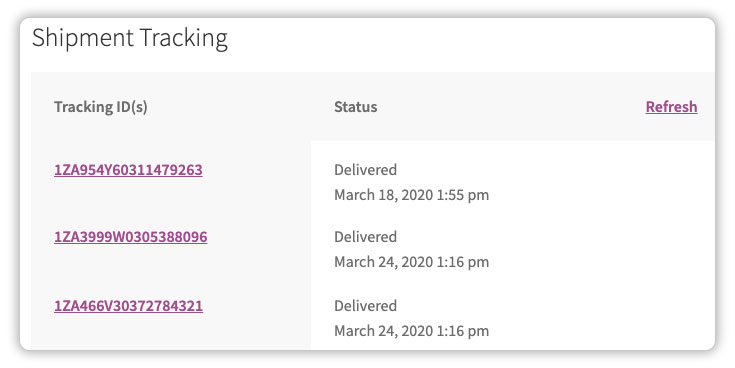
- My Account page: Customers can see their tracking details under My Account > Orders when they log in.
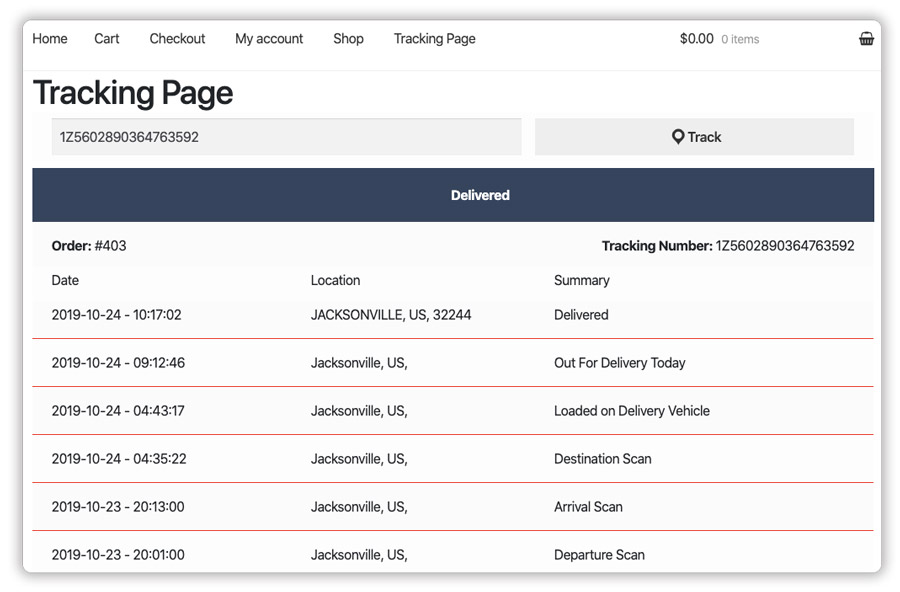
- Tracking page on your store: Customers enter their order number and email to check their shipment without leaving your site.
- Custom tracking message: Add your own note along with the tracking details. See how to customize tracking details.
- Live tracking updates: For supported carriers, customers can see live tracking and get emails when their order is in transit, out for delivery, or delivered. This needs the carrier’s account details added in the plugin, so check if it works for the carriers your suppliers use.
Giving customers this information up front means fewer “where’s my order?” emails. Here’s more on how shipment tracking improves customer satisfaction.
Best Practices for Managing Supplier Tracking in WooCommerce
Getting the most out of supplier tracking comes down to a few habits that are easy to set up from day one.
- Ask every supplier for the same format: When all your suppliers send the same details in the same layout, you don’t have to rework each file before adding it.
- Always include the order number: It tells the plugin which order a tracking number belongs to. If you use custom order numbers,
Read how Shipment Tracking Pro works with Sequential Order Numbers Pro. - Add your couriers before you start: If a courier is missing from the plugin, the tracking link won’t work for that order.
- Try one order first: Marking orders as completed sends emails to customers, so test with a single order before you upload a big file.
- Set the right expectations: Dropshipped orders can take longer to arrive. A short custom message with the tracking details tells customers what to expect.
A little setup here saves you from chasing suppliers and answering the same questions again and again.
Conclusion
Keeping up with supplier tracking is a big part of running a smooth WooCommerce dropshipping store. Get the same details from every supplier, add them to your orders, and let Shipment Tracking Pro share them with your customers. If you need help setting it up, contact PluginHive Support.
FAQs
Q: Does WooCommerce allow dropshipping?
Yes. WooCommerce is a flexible platform, and nothing stops you from running a dropshipping store on it. You list the products, your supplier ships them, and you manage the orders and customer updates from your store.
Q: Is WooCommerce good for dropshipping?
Yes. WooCommerce offers flexible store management and supports plugins for inventory, order fulfillment, and shipment tracking.
Q: How do you fulfill dropshipping orders?
When a customer places an order, you pass the order details to your supplier, and the supplier packs and ships it. Once they send you the tracking details, you add them to the WooCommerce order so your customer can follow the delivery.
