


Every WooCommerce store shipping with FedEx Freight needs a Bill of Lading (BOL). This document identifies the goods being transported, their quantity, and the shipment’s destination. It also serves as a record for the shipper, carrier, and receiver. For WooCommerce stores shipping heavy or palletised orders, preparing this document manually for every shipment can take time. Store owners may need to log in to the FedEx portal and enter order and shipping details again.
WooCommerce does not generate FedEx Freight Bills of Lading by default. This guide explains what a FedEx Freight BOL is, what you need to generate one, and how to print it directly from WooCommerce orders.
On This Page
- What Is a FedEx Freight Bill of Lading?
- What WooCommerce Store Owners Need to Print a FedEx Freight BOL
- What Information Appears on the WooCommerce FedEx Freight BOL?
- Common WooCommerce FedEx Freight BOL Printing Problems and Fixes
- Managing WooCommerce Freight Shipments After Printing the FedEx BOL
- Conclusion
- FAQs
What Is a FedEx Freight Bill of Lading?
A Bill of Lading is a legal shipping document that records the type, quantity, and destination of goods being transported. It accompanies the shipment and is used by the shipper, carrier, and receiver.
FedEx Freight provides less-than-truckload (LTL) shipping services for heavy shipments that do not require an entire truck. These shipments are often transported on pallets rather than as individual parcels. For FedEx Freight shipments, the Bill of Lading serves as the freight shipping document instead of a standard parcel shipping label. Orders weighing more than 150 lb can qualify for FedEx Freight shipping, with shipments supported up to 15,000 lb.
What WooCommerce Store Owners Need to Print a FedEx Freight BOL
WooCommerce does not include built-in support for FedEx Freight rate calculations or BOL generation. You need a shipping solution that connects your store with your FedEx Freight account.
The WooCommerce FedEx Shipping Plugin with Print Label supports FedEx Freight shipping. It allows you to configure freight services, display live freight rates at checkout, and generate Bills of Lading from WooCommerce orders.
Before generating a BOL, complete the FedEx plugin setup and check the following settings:
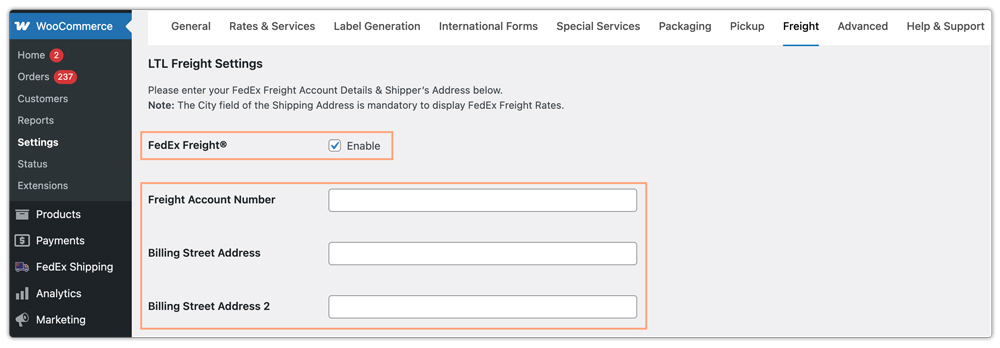
- Enable FedEx Freight: Enable FedEx Freight in the plugin’s LTL freight settings. Enter your FedEx Freight account details and configure the shipper address. The freight account number and address must match your account details.
- Set the Freight Class: Set a default freight class in the plugin’s general settings. You can also assign freight classes to individual products.
- Configure Accessorial Services: Enable applicable accessorial services, such as Liftgate Delivery, based on your shipping requirements. The plugin will include the applicable charges in the freight rates displayed at checkout.

- Display Freight Services: Choose the FedEx Freight services you want to offer at WooCommerce checkout. The plugin displays the services accordingly when the cart contains freight-eligible products.

Once an order is placed, you can generate the WooCommerce FedEx BOL directly from the corresponding order.

What Information Appears on the WooCommerce FedEx Freight BOL?
When you generate a FedEx Freight BOL from a WooCommerce order, the plugin uses the available order and shipping information to populate the document.
The BOL includes:
- Ship-from address
- Ship-to address
- Carrier name
- Customer order information
- Carrier information
- Order value
You can also select the type of Bill of Lading you want to generate.
The plugin supports two document types:
- VICS Bill of Lading: A standardised document developed by the Voluntary Inter-Industry Commerce Standards association and commonly used in general merchandise retail.
- FedEx Freight Straight Bill of Lading: A FedEx Freight-specific BOL format.
Choose the document format based on the requirements of your shipment and the receiving party.
Common WooCommerce FedEx Freight BOL Printing Problems and Fixes
You may occasionally encounter issues while generating or printing a FedEx Freight BOL from WooCommerce. The following table covers common problems and their possible solutions.
| Problem | Likely Cause | How to Fix It |
|---|---|---|
| Print Label does not generate a BOL | Incorrect label size or image type | Set Print Label Size to PAPER_LETTER and image type to PDF. |
| BOL generation fails | Incorrect freight account number or shipper address | Verify your FedEx Freight account details and LTL shipper address. |
| No freight rates appear at checkout | Freight is disabled, freight class is missing, or the cart does not meet the weight requirement | Enable FedEx Freight, configure a default freight class, and check the cart weight. |
| Additional charges appear after pickup | Incorrect freight class, weight, or dimensions | Update product-level freight classes and ensure product measurements are accurate. |
| Parcel and freight products are in the same order | FedEx may process them as separate shipments | Consider placing them in separate orders or using custom boxes for smaller items. |
Pay particular attention to freight classes. An incorrect freight class can result in additional charges if FedEx reclassifies the shipment after inspecting its weight and dimensions.
Managing WooCommerce Freight Shipments After Printing the FedEx BOL
Generating the Bill of Lading is only one part of managing freight shipments. WooCommerce store owners may also need to arrange pickups, share tracking information, and keep customers updated about deliveries.
The FedEx Shipping Plugin for WooCommerce with Print Label also supports:
- WooCommerce FedEx pickup scheduling: Schedule FedEx pickups for WooCommerce shipments directly through the plugin.
- Shipment tracking: Provide customers with automated WooCommerce shipment tracking details.
- Multiple-package freight shipments: Generate freight documents for orders containing multiple packages.
If your store also uses other freight carriers, PluginHive offers dedicated WooCommerce solutions:
- WooCommerce ODFL Freight Shipping Plugin: Supports Old Dominion Freight Line shipping and Bill of Lading generation.
- WooCommerce TForce Freight Shipping Plugin: Supports freight shipping and label generation for heavy and palletised shipments.
Conclusion
Managing WooCommerce FedEx freight shipments involves more than arranging transportation. Accurate shipping details, proper documentation, and timely communication all contribute to a smoother shipping process. WooCommerce store owners can simplify these tasks by configuring their freight shipping requirements, maintaining accurate product information, and generating the required shipping documents directly from their orders.
If you need assistance configuring shipping or managing carrier integrations in WooCommerce, feel free to contact PluginHive support.
FAQs
Q. Can I show estimated delivery dates for FedEx Freight in WooCommerce?
Yes. FedEx Freight provides transit times that you can display at checkout. For greater flexibility, such as adding cut-off times, holidays, and custom delivery rules, you can use the Estimated Delivery Date Plugin for WooCommerce.
Q. How can I add signature requirements to my FedEx shipments?
FedEx offers several signature options: Indirect, Direct, and Adult Signature Required. To learn how to enable this, visit: WooCommerce FedEx Signature on Delivery.
Q. Does FedEx Freight support residential deliveries?
Yes, but FedEx applies a Residential Delivery Surcharge. In WooCommerce, make sure the system correctly detects the customer’s address type so it includes the appropriate surcharge in the rate.
Q. Can I ship both parcel and freight items in the same WooCommerce order?
It’s possible, but FedEx may treat them separately. Most merchants choose to restrict mixing freight-eligible items with normal products to avoid incorrect rate calculations or multiple shipments.
Q. Can I include liftgate charges in WooCommerce FedEx Freight rates?
Yes. The WooCommerce FedEx plugin supports freight accessorial options such as Liftgate Delivery. You can enable the applicable options so their charges are included in the rates presented to customers at checkout.
