



Running a hotel, guest house, or vacation rental often means relying on third-party booking platforms to bring in guests. Platforms like Booking.com and Airbnb can help increase visibility, but they usually charge commissions ranging from 15% to 20% per reservation, depending on your agreement and location. Over time, those fees add up, taking a noticeable share of your revenue.
To reduce those costs, many accommodation owners are turning to direct bookings through their own websites. Using WooCommerce, it’s possible to sell accommodations online without paying high commissions, while still giving guests a smooth and reliable booking experience. This guide explains how hotel bookings work in WooCommerce and shows how you can set up your site to start accepting reservations directly.
Table of Contents
- Challenges in Managing Manual Hotel Bookings on WooCommerce
- Automate Your Accommodation Business Using WooCommerce Bookings
- Common WooCommerce Booking Mistakes to Avoid for Accommodation Stores
- Conclusion
- FAQs
Challenges in Managing Manual Hotel Bookings on WooCommerce
WooCommerce can be used to sell accommodation and accept payments, but problems arise when hotel bookings are handled manually. Without a dedicated booking system, WooCommerce treats rooms like regular products and doesn’t manage dates, availability, or overnight stays on its own. As a result, many store owners rely on manual processes to fill in the gaps.
Over time, this approach creates several challenges.
Common Challenges
- Double bookings and availability errors: Since dates aren’t blocked automatically, the same room can be booked for overlapping stays.
- No real-time date selection for guests: Customers can’t instantly see which dates are available, leading to back-and-forth emails or messages.
- Manual calendar updates: Staff must update availability manually after every booking, which takes time and is easy to forget.
- Payments not clearly tied to reservations: Customers may complete payments, but staff must manually match each order to the correct room and dates.
- More work during busy seasons: Handling peak periods manually increases the risk of mistakes, missed bookings, and delayed confirmations.
- Customer frustration and cancellations: Slow responses and unclear booking details can lead to lost trust and cancelled reservations.
Handling hotel bookings manually may work at first, but it quickly becomes harder to manage as demand grows. To avoid these issues, many accommodation owners turn to automation. The next section explains how the Bookings and Appointments for WooCommerce by PluginHive helps streamline the entire process.
Automate Your Accommodation Business Using WooCommerce Bookings
Accommodation bookings are easier to manage when your WooCommerce store handles dates, pricing, and availability automatically. This removes the need for manual calendars and gives you a more reliable way to manage reservations as bookings increase.
A solution like the Bookings and Appointments for WooCommerce plugin adds accommodation-specific booking features directly to WooCommerce, allowing you to manage rooms, guests, pricing, and availability from one place.
Before you start, make sure the booking plugin is installed and activated on your WooCommerce site. To follow along easily, you can refer to this basic setup guide .
Here’s how to automate hotel bookings in your WooCommerce store.
- Defining the stay duration and booking rules
You can set minimum and maximum stay durations based on how your business operates. For example, you may require a minimum number of nights during peak seasons. Enabling the Charge Per Night option displays clear check-in and check-out fields and calculates prices accurately for overnight stays.

- Managing availability without manual calendars
The system updates availability automatically as guests place bookings. You can block specific dates for maintenance, personal use, or seasonal closures and control how far in advance guests can book. Once all rooms of a type are booked for certain dates, the system removes those dates from availability.

- Using per-night and flexible pricing rules
With per-night pricing enabled, WooCommerce calculates the booking total based on check-in and check-out dates. You can create simple pricing rules to adjust rates for seasons, weekends, longer stays, or special events, and the system applies the correct price automatically

You can also charge based on the number of guests using the Booking Participants feature.
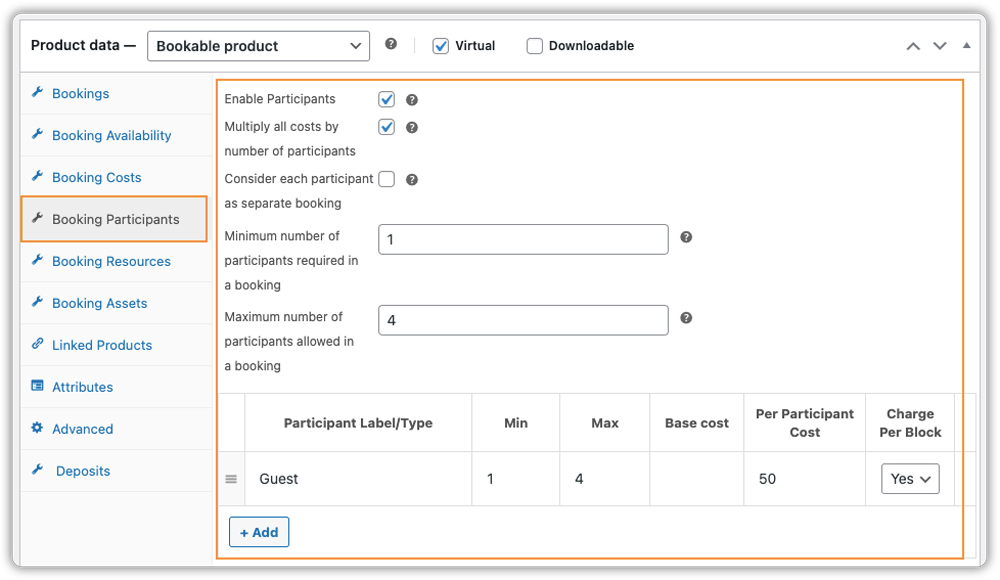
- Handling multiple rooms of the same type
If you have multiple identical rooms, you don’t need to create separate listings for each one. You can set how many rooms are available for that product, and the Bookings and Appointments for WooCommerce plugin automatically tracks availability. When all rooms are booked for specific dates, the system blocks further bookings.

For more control, individual rooms can also be managed using booking assets, allowing you to track availability at the room level when needed.
- Offering extras during booking
Optional add-ons such as breakfast or airport transfers can be offered during checkout. This can be done using the plugin’s Resource feature or the PH Product Add-Ons for WooCommerce plugin, which allows guests to customise their stay.

- Guest communication and booking emails
The system sends automated emails for booking confirmations, arrival reminders, cancellations, and follow-ups after checkout. These emails can be customised with your branding and include important details like check-in instructions, WiFi information, and parking guidelines.
By automating accommodation bookings in WooCommerce, you reduce manual work and offer guests a smoother booking experience.
Real-World Accommodation Booking Use Cases with WooCommerce
Let’s say there’s a small hotel that wants guests to book rooms directly from its website. The hotel lists each room type on its WooCommerce store and sets basic rules like check-in and check-out dates, per-night pricing, and availability.
Guests visit the site, choose a room, select their dates, and see the total price instantly. They can add extras like breakfast if needed and complete the booking online.

Once the booking is confirmed, availability updates automatically and the guest receives a confirmation email. The hotel owner can view and manage the booking from the WooCommerce dashboard.

Now that you’ve seen how hotel bookings work in WooCommerce, the next step is making sure everything runs smoothly. In the next section, we’ll look at common booking mistakes to avoid so you don’t run into issues after going live.
Common WooCommerce Booking Mistakes to Avoid for Accommodation Stores
Even with a booking plugin in place, small setup oversights can lead to guest confusion or operational problems. Avoiding these common mistakes early helps ensure your hotel bookings run smoothly.
- Not testing bookings before going live: Always place a test booking yourself before accepting real guests. Check date selection, checkout, confirmation emails, and make sure the booking appears correctly in your dashboard.
- Unclear timezone information: If guests book from different countries, unclear check-in and check-out times can confuse. You can enable timezone conversion in the plugin so guests see times in their local timezone on the website.
- Skipping buffer time between bookings: Back-to-back bookings leave no time for cleaning or preparation. Adding buffer time helps your team get rooms ready and avoids delays for arriving guests.
- Poor or vague room descriptions: Short or unclear descriptions lead to guest questions and complaints. Clearly mention room size, bed type, maximum guests, amenities, and the view so guests know what to expect.
- Unclear cancellation rules: If cancellation policies aren’t clear, guests may dispute refunds. Always explain your policy clearly and configure it in the booking settings so availability is updated automatically when a booking is cancelled. This saves manual work and avoids misunderstandings.
Paying attention to these basics helps prevent booking issues and keeps guests informed. A simple, well-tested setup makes WooCommerce accommodation bookings easier to manage.
Conclusion
Automating bookings makes selling accommodation online with WooCommerce much easier. With the Bookings and Appointments for WooCommerce plugin, you can manage room availability, pricing, guest details, and payments from one place while offering guests a smooth and reliable booking experience.
If you need help with setup or have specific booking requirements, the PluginHive support can guide you through the process and ensure everything works correctly.
FAQs
Q. Can I use WooCommerce for a hotel with 50+ rooms?
Yes. WooCommerce can handle large hotels when used with the Bookings and Appointments for WooCommerce plugin. You can manage multiple room types and set how many rooms are available for each type. For larger properties, you can also manage rooms individually using the Assets features if needed.
Q. Does WooCommerce support hotel-style check-in and check-out dates?
By default, WooCommerce does not. However, with the Bookings and Appointments for WooCommerce by PluginHive, you can enable per-night bookings. This shows clear check-in and check-out fields and allows same-day check-out and check-in.
Q. Can I manually add bookings for phone or walk-in guests?
Yes. You can create manual bookings from the admin dashboard. Simply select the room, choose dates, enter guest details, and optionally send a payment link so the guest can confirm the booking online.
Q. Can I charge a security deposit for vacation rentals in WooCommerce?
Yes. You can collect a security deposit or partial payment by integrating the PH Deposits for WooCommerce plugin. This allows you to charge a fixed amount or a percentage upfront and collect the remaining balance later or on arrival.
