



Selling standard, boxed items in WooCommerce is simple, but it gets tricky when your products don’t fit a one-size-fits-all package. If you sell custom lengths of fabric, coffee beans by the gram, liquids by the litre, or cables by the foot, a flat price per product won’t work. WooCommerce only lets customers buy in whole numbers- one t-shirt, two mugs, three hats- but when a shopper needs exactly 3.5 meters of silk or 250 grams of spices, you need a way to calculate the cost based on their exact measurement.
This is where WooCommerce price per unit pricing comes in. In this guide, we’ll cover what unit pricing means, why it matters for measurement-based products, and how to set it up on your store using the PH Product Add-ons for WooCommerce plugin, no custom code required.
On This Page
- What Is WooCommerce Price Per Unit?
- Why Use Unit Pricing in WooCommerce?
- Can WooCommerce Calculate Price Per Unit?
- How to Add WooCommerce Price Per Unit
- WooCommerce Price Per Unit Examples
- Best Practices for WooCommerce Unit Pricing
- Final Thoughts
- FAQs
What Is WooCommerce Price Per Unit?
WooCommerce price per unit pricing means charging customers based on how much of something they order, rather than a flat price for the whole product. A unit can be a meter, a kilogram, a litre, or even a single sheet of paper.
Instead of listing “Cotton Fabric – $50” on your WooCommerce store and hoping that covers whatever length someone needs, you’d set a rate like “$8 per meter” and let the customer tell you how many meters to add to their cart.

Why Use Unit Pricing in WooCommerce?
Unit pricing in WooCommerce helps both you and your customers in a few clear ways:
- Pricing accuracy: You charge customers for the exact amount they order, with no rounding up or forcing them into fixed pack sizes.
- Better customer experience: If a customer only needs 1.5 meters of wire, making them buy 2 meters adds friction and can cost you the sale. Unit pricing lets them order exactly what they need.
- Cleaner product catalog: Instead of creating separate listings for every possible size (100g, 200g, 500g, 1kg), you keep one product page with a single input field. This keeps your store easier to browse and manage.
- Better fit for bulk and wholesale orders: B2B buyers often need custom quantities. Unit pricing handles these non-standard orders without extra setup.
Together, these make unit pricing a practical fit for any WooCommerce store selling by length, weight, volume, or area.
Can WooCommerce Calculate Price Per Unit?
Not right out of the box. Default WooCommerce is built strictly for selling standard, single items. It only allows customers to increase their total order amount by clicking the built-in quantity selector, rather than giving them a place to type in a custom measurement. This is different from WooCommerce product variations, which handle fixed options like size or color, not custom, typed-in amounts.
To accept those custom inputs, you just need a little extra help. PH Product Add-ons for WooCommerce plugin makes this incredibly easy by letting you add a simple text box right on your product pages. Your shoppers just type in the exact number they need, and the plugin instantly does the math for them before they even hit the cart! Let’s look at how to get this working on your store.
How to Add WooCommerce Price Per Unit
Setting up unit pricing with the PH Product Add-ons for WooCommerce plugin is straightforward. Once the plugin is installed and activated, you can create a number field and use it to calculate the price based on the customer’s input.
Here is how to set it up in four easy steps:
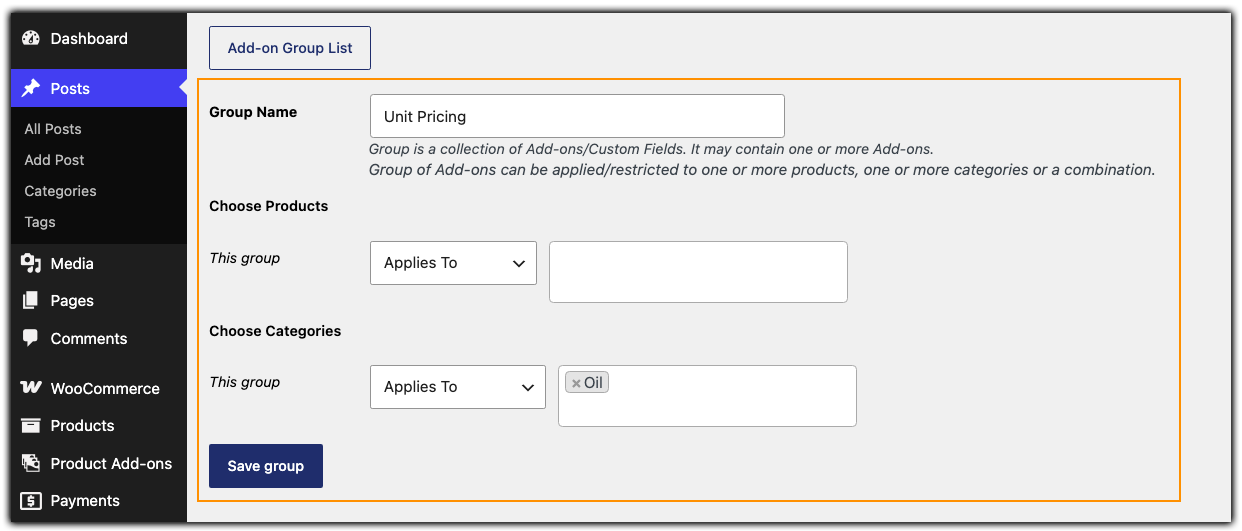
- Create a New Add-on Group: Once you install and activate the plugin, go to the ‘Product Add-ons’ menu in your WordPress dashboard and add a new group. Name it something clear, like “Measurement Inputs/Unit Pricing”

- Assign it to Your Products: Choose exactly where you want this pricing to appear. You can assign it to a specific product or apply it to an entire category and save the group.
- Add a Number Field: Click to add a new field and choose the Text Field (Number type). This creates the box where your customers will type their measurements.
- Configure the Pricing Rules: Give the field a clear label based on the product, such as “Enter required quantity.” Next, type in your base unit price. Finally, change the Price Type dropdown to Multiply Cost by the Number Entered.
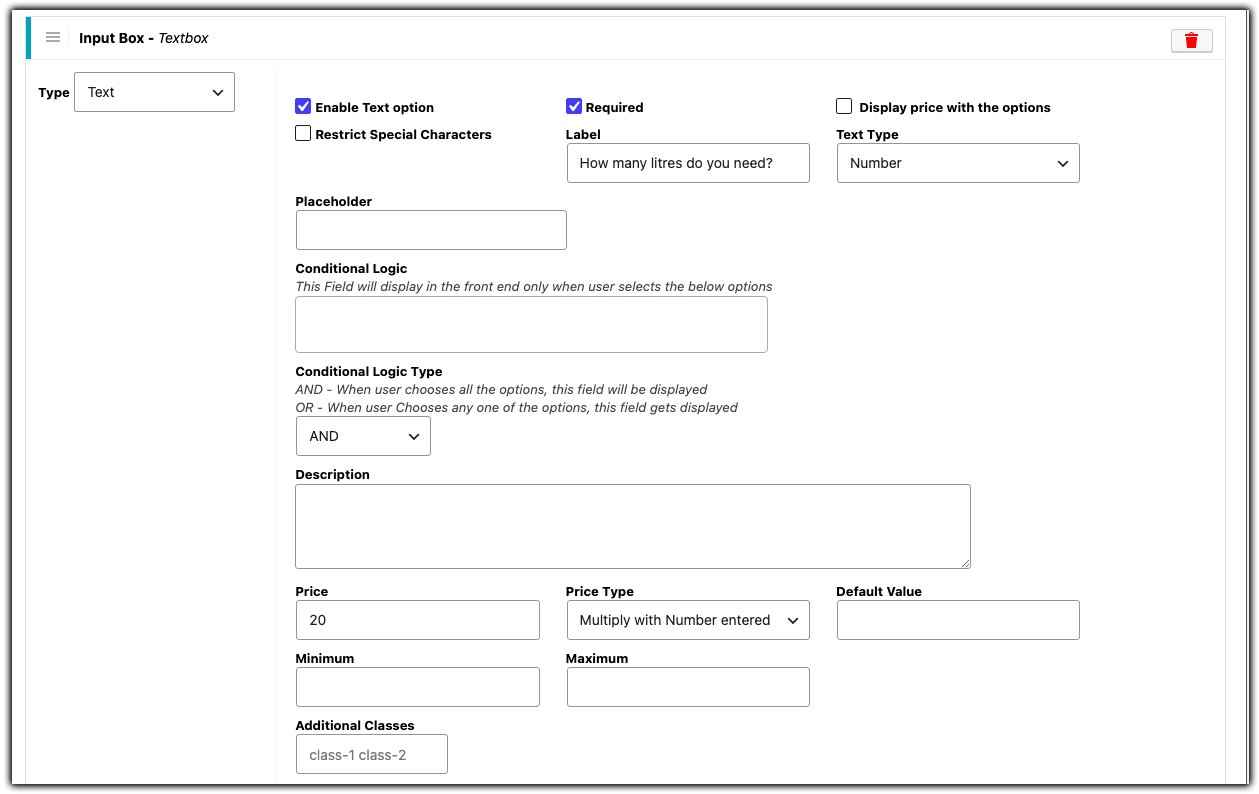
Make sure you check the “Required” box so customers have to enter a measurement before buying. Save your settings, and the product page will now show a field where customers enter their quantity, and the price updates automatically as they type.
Example: Sell Olive Oil by the Litre
Suppose you sell olive oil for $20 per litre. Instead of offering fixed bottle sizes, customers can enter the exact amount they need, such as 5 litres.
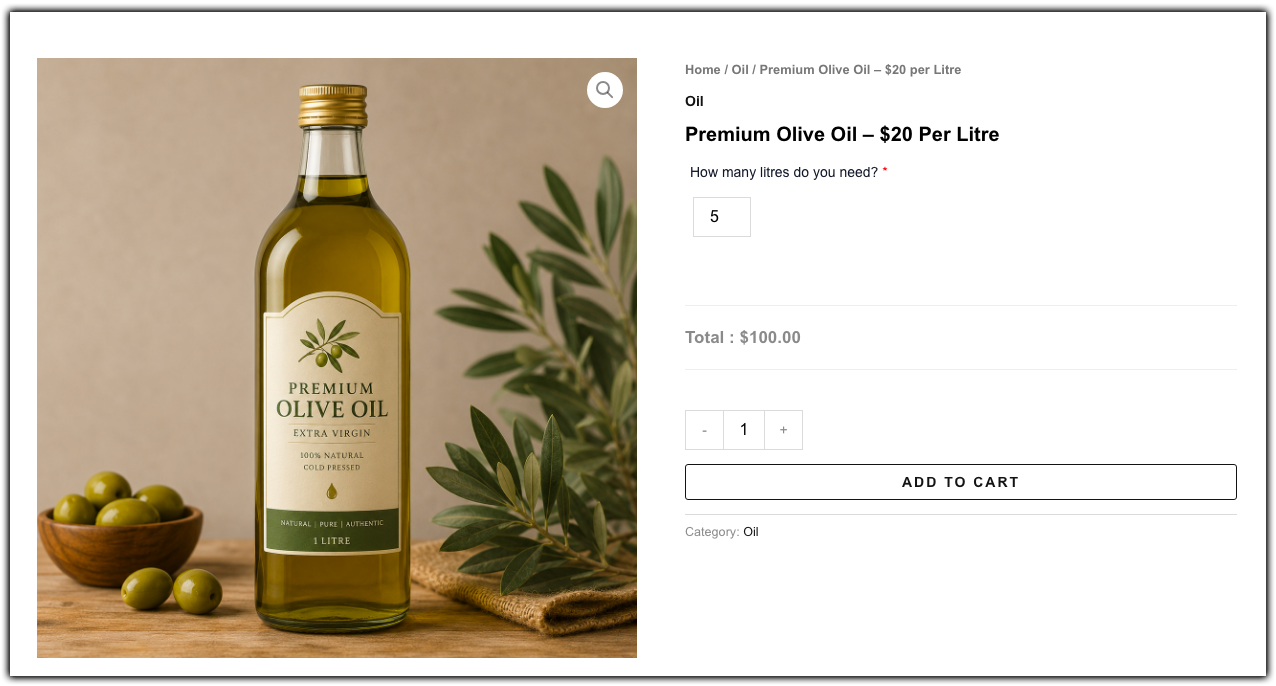
If a customer enters 5, the total is calculated as 5 × $20 = $100. This gives customers the flexibility to order the quantity they need and see the correct price before adding the product to their cart.
A quick note on shipping: This setup works well if your shipping rates are flat or don’t change with quantity. If you want shipping to scale with the unit ordered, for example, higher shipping for 20 meters of fabric versus 2 meters, use the WooCommerce Measurement Price Calculator with Table Rate Shipping Pro instead. It works out the total measurement based on how much the customer orders, and charges shipping accordingly.
WooCommerce Price Per Unit Examples
Unit pricing works well for many products that are sold by measurement. Here are a few common examples:
- Flooring and Tiles: Sell hardwood, carpet, or tiles by the square foot.
- Landscaping Supplies: Sell topsoil, mulch, or gravel by the cubic yard or ton.
- Hardware and Construction: Sell PVC pipes, chains, or steel tubing by the foot.
- Food and Groceries: Sell tea, grains, or candies by the ounce or kilogram.
- Specialty Liquids: Sell paint, cleaning supplies, or oils by the litre or millilitre.
The same pricing approach can be used for almost any product where customers need to purchase a specific amount rather than a fixed quantity.
Best Practices for WooCommerce Unit Pricing
To make unit pricing easier for customers, keep these tips in mind:
- Use clear labels: Include the unit directly in the field name, such as “Enter weight in kg” instead of simply “Enter weight.”
- Set minimum and maximum limits: Set limits when you need to control the smallest or largest quantity customers can order.
- Hide the default quantity field: If customers are entering a custom measurement, hiding the standard WooCommerce quantity field can help avoid confusion.
- Keep units consistent across your store: Don’t mix per-meter pricing on one product with per-centimeter pricing on another; it confuses customers and complicates your own reporting.
Clear instructions and sensible limits make unit-based pricing easier to understand and help prevent ordering and pricing errors.
Final Thoughts
WooCommerce doesn’t support price per unit out of the box, but you don’t need custom development to add it. With the PH Product Add-ons for WooCommerce plugin, you can set a rate per unit on any product and let customers enter exactly how much they need, whether that’s meters of fabric, grams of coffee, or litres of paint.
If you’d like help setting this up for your own store, reach out to PluginHive support, and the team can walk you through it
FAQs
Q: What Is Price Per Unit in WooCommerce?
Price per unit means pricing a product based on a specific unit, such as a meter, kilogram, litre, or square foot.
Q: Does WooCommerce Support Price Per Unit by Default?
No. WooCommerce supports a fixed product price and standard quantity. To calculate prices based on custom units or measurements, you need an additional plugin such as PH Product Add-ons for WooCommerce.
Q: How do I sell by weight in WooCommerce?
You can sell products by weight, such as kilograms, grams, or pounds, using the setup covered in this guide. For a detailed walkthrough, see our complete guide to selling by weight in WooCommerce.
