


Running a WooCommerce rental store means managing more than a typical product sale. Customers need to specify dates, choose accessories, request delivery windows, or acknowledge a damage policy, and the default WooCommerce product fields do not capture any of that information. Without the right options on your product page, that information gets missed. As a result, your team ends up chasing it down later.
WooCommerce product addons let you collect everything you need directly at the product level before checkout. This article shows you how to set that up using the PH Product Add-ons for WooCommerce plugin.
On This Page
- Why Add Extra Options to Your WooCommerce Rental Store?
- Types of WooCommerce Extra Options for Rental Products
- How to Add Extra Options to WooCommerce Rental Products
- Real-World Use Cases for a WooCommerce Rental Business
- Best Practices for WooCommerce Extra Product Options
- Conclusion
- FAQs
Why Add Extra Options to Your WooCommerce Rental Store?
Default WooCommerce product pages are built for straightforward purchases. A customer picks a variant, sets a quantity, and checks out. However, rental products don’t work that way. Without the right fields in place, critical information simply doesn’t get captured at checkout, and that creates real problems:
- Incomplete orders: Customers check out without a rental date, delivery address, or accessory selection, leaving your team to chase details before anything can be fulfilled.
- Undocumented add-ons: Customers and store owners often discuss optional services like insurance or damage waiver informally rather than selecting and recording, making invoicing and disputes harder to resolve.
- Pricing confusion: When add-ons aren’t selectable upfront, their costs aren’t reflected in the order total, leading to unexpected follow-up charges.
- Manual back-and-forth: Without structured input at the product level, rental details end up being managed over email or phone, adding overhead to every order.
Adding extra options to your WooCommerce rental products solves each of these at the source before the order is placed.

Types of WooCommerce Extra Options for Rental Products
PH Product Add-ons for WooCommerce supports a wide range of field types. Here’s what’s available and where each one fits in a rental context:
- Date Picker – Capture rental start date, return date, or both using a built-in calendar selector.
- Time Picker – Collect delivery time, pickup window, or appointment slot for time-sensitive rentals.
- Dropdown – Offer a single-selection list for rental duration, equipment size, or service tier.
- Checkbox and Checkbox Groups – Let customers opt into multiple add-ons independently – delivery, insurance, accessories, each with its own price.
- Radio Buttons – Handle either/or choices like pickup vs. delivery or standard vs. priority service.
- Text Area – Collect open-ended input: delivery address, special instructions, event details, or venue notes.
- Input Field – Accept text, numbers, or email for guest count, reference number, or contact details.
- File Upload – Allow document uploads, such as a driver’s licence for vehicle rentals or a permit for event equipment.
You can set any field as mandatory, and conditional logic lets you show or hide fields based on prior selections, keeping the form focused and relevant to each customer’s rental configuration.
How to Add Extra Options to WooCommerce Rental Products
Setting up PH Product Add-ons for WooCommerce is straightforward. Once the plugin is installed and activated, go to your WordPress Dashboard → Product Add-ons → Add New to create your first add-on group.

From there, you build out the fields you need for your rental product. Here’s the basic flow:
Create a new add-on group
Give it a clear label that reflects its purpose – “Rental Details” or “Delivery Preferences” works well. This group is the container for all the fields your customer will see on the product page.
Assign it to products or categories
Use the Applies To option to select which products or categories this group should appear on. Assign it at the category level, and every product in that category picks it up automatically – no need to repeat the setup per product.

Add your fields: Click Add Field and select the field type – date picker, time picker, dropdown, checkbox, radio button, text area, input field, or file upload. Each field has a label, an optional description, and a required/optional toggle.

Set pricing for priced add-ons: Enter a flat fee or percentage for add-ons like insurance or delivery. For number input fields, select Multiply with Number entered as the price type, so the add-on price multiplies by whatever number the customer enters. The cart total updates in real time.
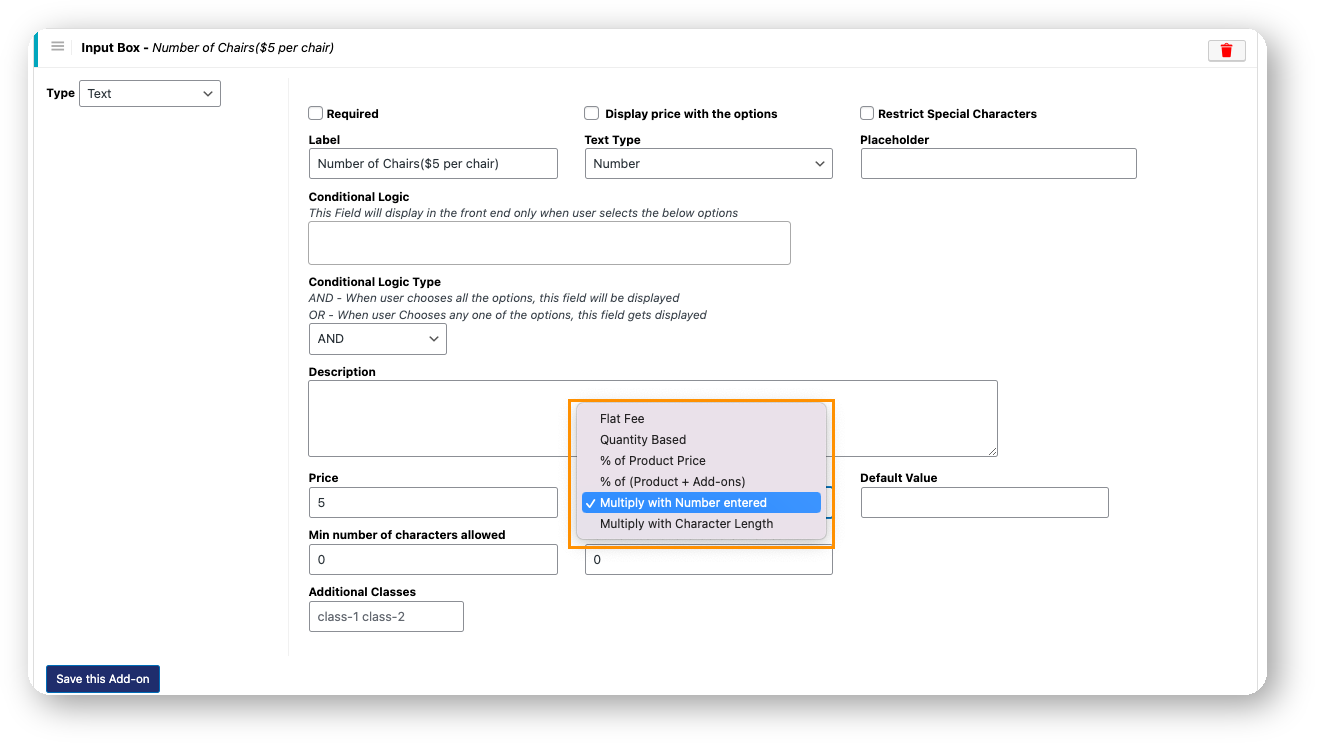
Configure conditional logic: If a previous selection should control certain fields, for example, showing a delivery address field only when “Delivery” is chosen, use the conditional logic settings to control visibility.

Save and preview. Publish or update the product and check the frontend. Confirm that the required fields block checkout when empty and that priced add-ons update the cart total correctly.
For a full walkthrough with screenshots and field configuration details, refer to the PH Product Add-ons setup guide.
Example: Party Equipment Rental Product
A party equipment rental product can use a date picker for the event date, number fields for chair or table quantities, and checkbox options for add-ons like decoration setup, lighting equipment, or delivery service. A text area can collect venue instructions or event timing details. This allows customers to configure the entire rental setup during checkout without additional communication.

Real-World Use Cases for a WooCommerce Rental Business
WooCommerce extra product options work across every rental category. Here’s how different businesses put them to use:
Note: PH Product Add-ons is compatible with Bookings and Appointments for WooCommerce. If your store also needs to manage availability, time slots, and capacity alongside collecting rental preferences, using both plugins together gives you a complete rental management setup.
- Equipment Rental: Collect rental dates, delivery address, and optional add-ons like operator hire or safety kits via checkboxes. A hidden field can silently apply a mandatory damage waiver to every order. See the equipment rental setup guide for reference.
- Vehicle and Bike Rental: Use date and time pickers for pickup and return, a file upload for driver’s licence, and a radio button for pickup vs. delivery. Check the bike rental and motorbike rental setup guides for detailed configuration.
- Event and Party Supply Rental: Capture event date, venue address and optional add-ons like staffing or extended hire duration. The event space rental guide walks through a full end-to-end setup.
- Accommodation and Property Rental: Add check-in/check-out date pickers, guest count input, and priced add-ons for meals or transfers. Refer to the WooCommerce hotel booking guide for a complete accommodation setup.
- Sports and Outdoor Gear Rental: Use dropdowns for size and experience level, a date picker for the rental period, and a text area for special requests. The bicycle rental guide is a useful reference for time-based gear rentals with availability management.
In each case, the rental-specific information can’t be handled by standard WooCommerce product variations. IRental businesses need flexible, configurable input fields that travel with the order from the product page through to fulfilment
Best Practices for WooCommerce Extra Product Options
Configuring your fields correctly is only half the work. How you structure and manage them determines whether rental orders come in complete or still need manual handling. These practices keep your setup lean and your fulfilment smooth.
- Mark only essential fields as required: Only require what you genuinely cannot fulfil without a rental start date, licence upload for vehicle rentals, or guest count for accommodation. Leave everything else optional to avoid unnecessary drop-offs at checkout.
- Write labels that tell customers exactly what to do: “Select rental start date” is clearer than “Date.” “Upload a copy of your driving licence (JPG or PDF)” is clearer than “File upload.” Specific labels reduce hesitation and cut down on support queries.
- Collect deposits at the time of rental booking: For high-value equipment or event rentals, requiring full payment upfront can put customers off. Pairing PH Product Add-ons with PH Deposits for WooCommerce lets customers pay a partial amount at checkout and settle the balance closer to the rental date.
- Handle delivery logistics for dispatched rentals: If your rental business ships items to customers, such as camera gear, outdoor equipment, or party supplies, you need accurate shipping rates and label printing at checkout. PluginHive’s WooCommerce Shipping Plugins for carriers like FedEx and UPS let you display live rates and print labels directly from your WooCommerce dashboard.
- Review your rental forms periodically: Fields you added at launch may no longer reflect how customers place orders. Remove or consolidate options that are consistently left blank to keep the product page focused.
Getting your WooCommerce extra product options right from the start reduces back-and-forth on every order. Combined with the right supporting plugins, your rental store can handle everything from deposit collection to delivery dispatch without manual intervention.
Conclusion
Default WooCommerce fields aren’t built for rentals. Adding WooCommerce extra product options through PH Product Add-ons for WooCommerce puts the right fields directly on your product pages – date pickers, delivery inputs, priced add-ons, file uploads, so every order arrives complete and ready to fulfil. If you need help configuring your rental product setup, reach out to PluginHive Support.
FAQs
Q. Can I add paid addons to WooCommerce Rental Products?
Yes. Using WooCommerce Product Addons, you can add paid options such as insurance, delivery services, accessories, and setup charges to rental products.
Q.Can I add extra options to only specific WooCommerce rental products?
Yes. With PH Product Add-ons, you can assign add-on groups to individual products or entire product categories. Fields you create for vehicle rentals, for example, won’t appear on your equipment rental products unless you assign them there.
Q. Can I use WooCommerce Product Addons alongside a bookings plugin?
Yes. PH Product Addons for WooCommerce is compatible with the Bookings and Appointments for WooCommerce plugin, allowing you to add extra options and services to your WooCommerce booking and rental products.
