



Running a WooCommerce store often means selling products that need more than a simple “Add to Cart” click. You often ask customers for extra details like custom text, design files, preferences, or special instructions. This is common if you sell personalized products, services, or made-to-order items. The real challenge is collecting this information in a way that feels natural and doesn’t interrupt the buying flow.
When you look for a solution, two options usually come up: using WooCommerce product add-ons or collecting details through Google Forms. Both allow you to gather customer input, but they lead to very different experiences during checkout and order processing. In this article, you’ll see how each option works, where the differences matter in day-to-day store management, and which approach makes more sense as your WooCommerce store grows.
Table of Contents
- Understanding Two Approaches to Collecting Data in WooCommerce
- WooCommerce Product Add-Ons vs Google Forms: Key Differences
- How to Add Product Add-Ons to Your WooCommerce Store
- Real-World Use Cases for WooCommerce Product Add-Ons
- Conclusion
- FAQs
Understanding Two Approaches to Collecting Data in WooCommerce
Before looking at features, it’s important to understand what you’re really choosing between. These are not two similar tools, but two different ways of collecting extra product details from customers.
Google Forms for WooCommerce
This approach uses Google Forms, which is a general-purpose form builder. Since it’s not built for eCommerce, you usually end up using it as a workaround.
The process typically looks like this:
- You create a form to collect customization details.
- You add the form link to your product description or send it after purchase.
- A customer clicks the link and gets taken to a Google page.
- The customer fills out the form and submits it.
- You receive the response in an email or spreadsheet.
- You then find the matching order in WooCommerce and add the details manually.
This creates a disconnected process. Your orders stay in WooCommerce, while customer inputs live elsewhere. You become the link between two separate systems, checking details and making sure nothing gets missed.
WooCommerce Product Add-Ons
This is using a plugin built specifically for WooCommerce. Instead of sending customers google form, you collect all required details on the product page itself.
Here’s how it works:
- You add extra fields such as text boxes, dropdowns, or file uploads.
- These fields appear directly on your product page.
- Customers choose their options before clicking “Add to Cart.”
- If an option adds an extra cost, the price updates instantly.
- When the product goes into the cart, the customization goes with it.
All details flow automatically through the cart, checkout, order details, and invoices. You don’t need to match responses or follow up later.
While both methods can capture customer inputs, the way they fit into your store workflow is not the same. One keeps everything connected, while the other relies on manual steps. In the next section, we’ll look at these differences more closely and see how they affect your daily store operations.
WooCommerce Product Add-Ons vs Google Forms: Key Differences
Now that you’ve seen how both approaches work, it’s easier to compare them in practical terms. The real differences show up in everyday store operations, not just in how information is collected. Below is a side-by-side look at how each approach affects common parts of running a WooCommerce store.
Key Differences at a Glance
| Area | Google Forms | WooCommerce Product Add-Ons |
|---|---|---|
| Checkout Flow | Customer leaves the store or fills a form after checkout | Customer enters details before adding the product to the cart |
| Customer Experience | Feels separate from the buying process | Feels like part of the purchase |
| Order Handling | Details collected outside WooCommerce | Details attached directly to the order |
| Manual Work | Requires matching forms with orders | No manual matching needed |
| Pricing Changes | Extra charges are handled separately or manually | Prices update automatically based on selections |
| Scalability | Gets harder to manage as orders increase | Works smoothly as order volume grows |
| Brand Consistency | Redirects customers to an external page | Keeps customers inside the store |
One approach adds steps after the sale. The other handles everything during the sale. That’s the difference that matters most. In the next section, we’ll look at why many store owners choose product add-ons as their long-term approach and how they add them to their WooCommerce stores.
How to Add Product Add-Ons to Your WooCommerce Store
Adding product add-ons is usually simpler than store owners expect. There’s no need for custom code or technical setup. Most store owners use a plugin that works inside WooCommerce.
A common approach is to use a tool like the PH Product Add-Ons for WooCommerce plugin, which lets store owners add customization options directly to product pages.
Key Features of PH Product Add-ons
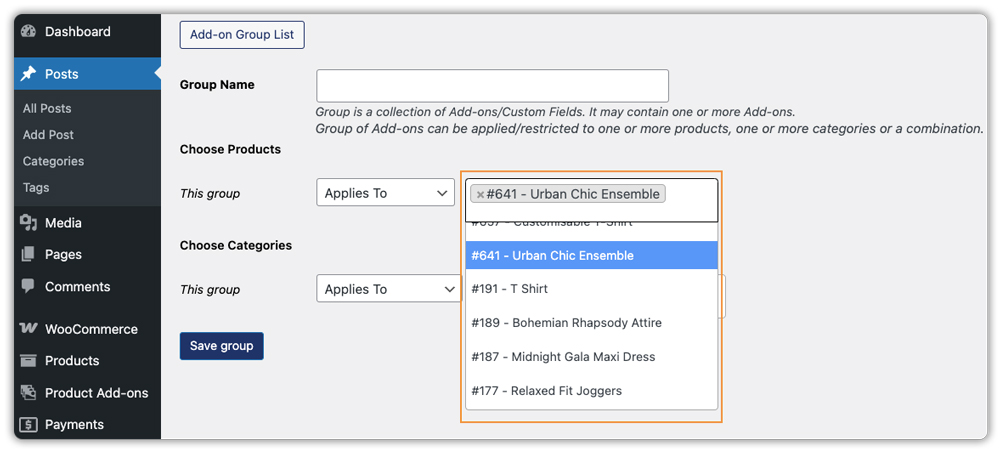
- Global and product-level add-ons: Apply add-ons across multiple products or customize individual product pages

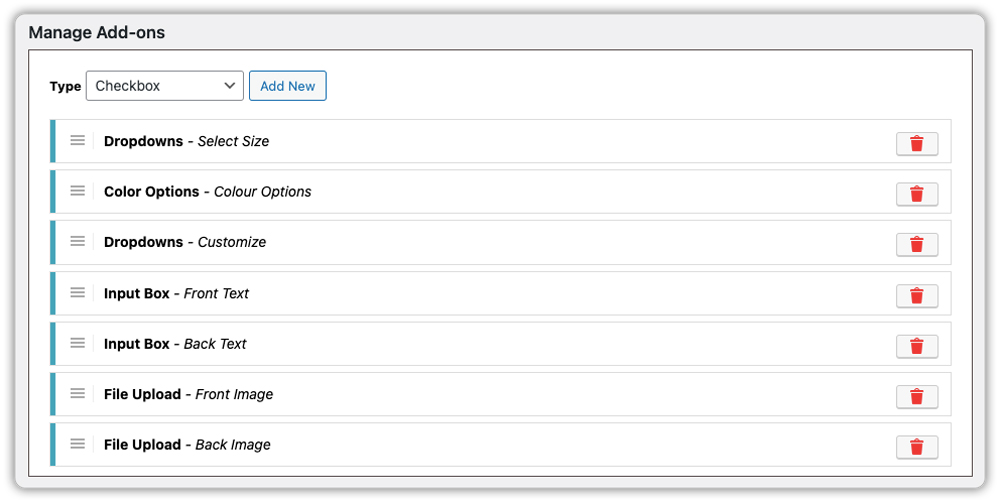
- Multiple field types: Text fields (short and long), dropdowns, radio buttons, checkboxes, date pickers, file uploads, and custom price fields
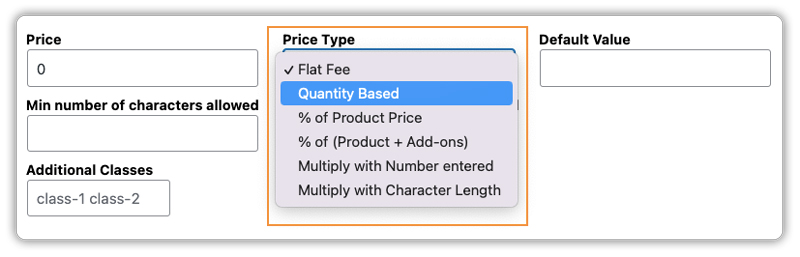
- Flexible pricing options: Set flat fees, percentage-based pricing, quantity-based pricing, or character-based pricing for text fields.
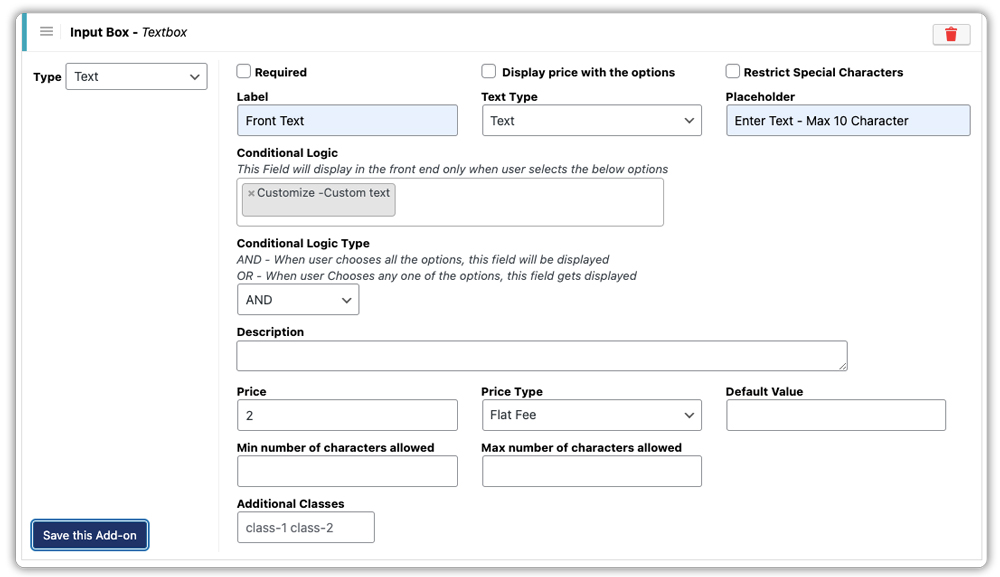
- Conditional logic: Show or hide specific fields based on customer selections, creating intelligent product pages that adapt to customer needs.
- Price display customization: Live price updates on the product page as customers make selections
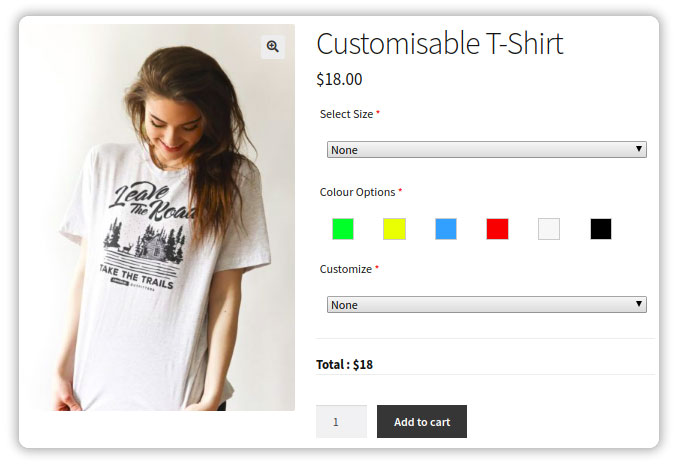
Once added, customers see these options while choosing the product. They select what they need, see the price update if applicable, and complete the purchase. All selections appear in cart, checkout, order emails, and admin order details.
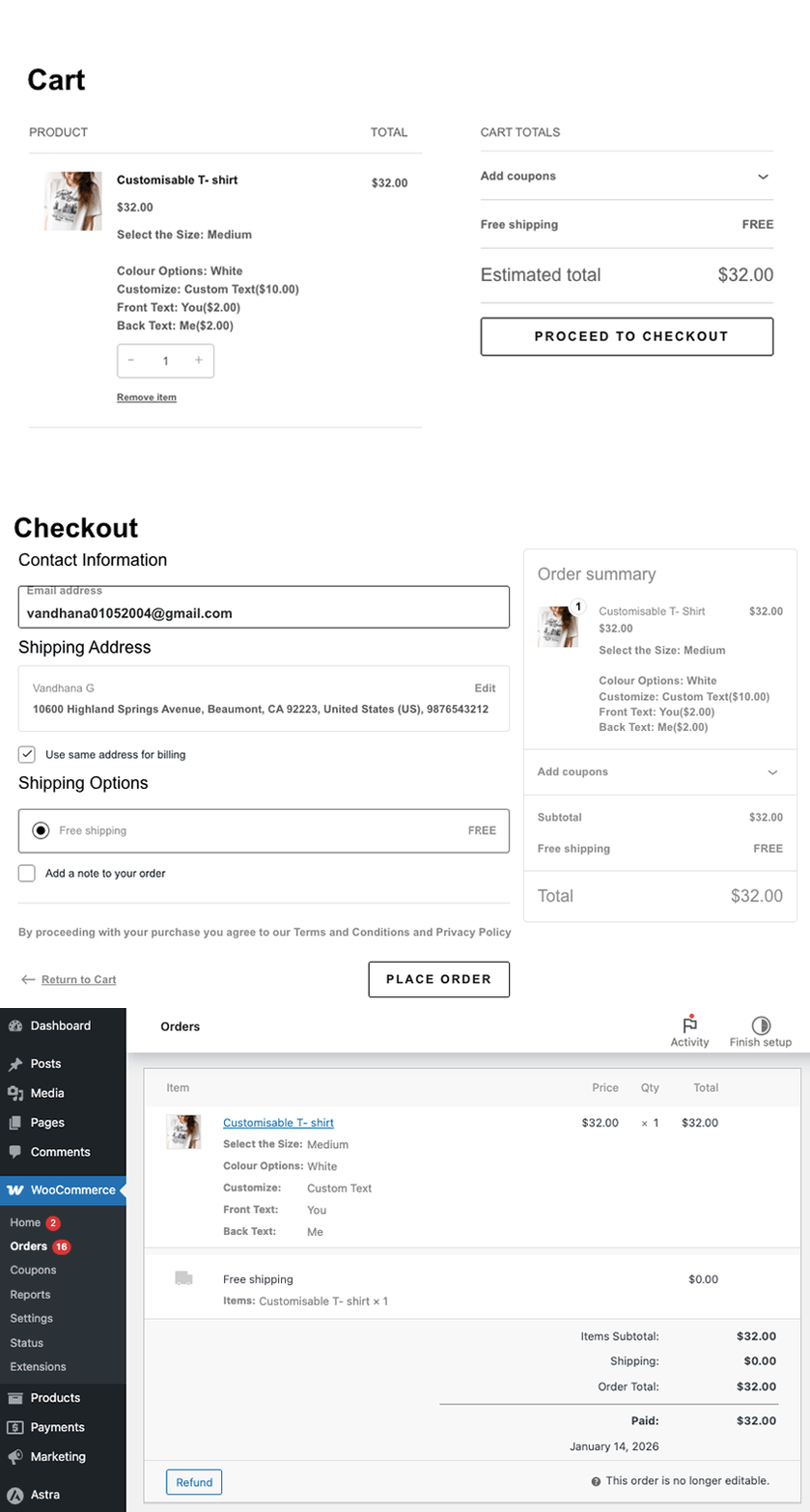
Note: For detailed setup instructions, refer to the PH Product Add-Ons for WooCommerce setup guide.
This approach becomes easier to understand when you see it applied to actual products. In the next section, we’ll look at real-world examples of how store owners use product add-ons instead of external forms.
Real-World Use Cases for WooCommerce Product Add-Ons
Seeing product add-ons in real situations makes the difference clearer. Below are common business scenarios where store owners replace Google Forms with product add-ons to keep customization, pricing, and order details inside the WooCommerce flow.
| Business Type | Challenge with Google Forms | Solution with Product Add-Ons |
|---|---|---|
| Personalized Jewelry | Customers forget to submit engraving text, causing delays | Required text field on the product page ensures details are entered before Add to Cart |
| Custom Apparel & Printing | Logo files sent via email or links get mismatched | File upload field attaches the design directly to the order |
| Gift & Hamper Shops | Extra items need manual invoices after checkout | Paid checkboxes update the price instantly before checkout |
| Tech & Configuration Products | Long forms overwhelm customers | Conditional fields show options only when relevant |
| Boutique Bakeries | Delivery dates tracked separately cause errors | Date picker collects pickup or delivery date during purchase |
In each case, product add-ons keep everything inside WooCommerce. Customers complete customization while buying, and store owners receive clear, complete orders without extra follow-ups. Whether you run a print-on-demand store or sell digital products, product add-ons work across multiple industries.
Conclusion
Choosing the right way to collect product information is essential for scaling a WooCommerce store. While Google Forms can work as a short-term fix, they often create a disconnected customer experience and add manual work. Using PH Product add-ons for WooCommerce plugin keeps customization, pricing, and order details inside WooCommerce, making orders easier to manage and reducing errors as your store grows.
If you need help setting up product add-ons in your WooCommerce store, the PluginHive support team is ready to assist. Contact PluginHive support to get your customization workflow running smoothly and start capturing every sale without the hassle of external forms.
FAQs
1. Can I use Google Forms for free with WooCommerce?
Yes, Google Forms is free to use. However, it works separately from WooCommerce. This means you need to manually match each form response with the correct order, which becomes time-consuming as your store grows.
2. What’s better than Google Forms for WooCommerce?
For most stores, the PH Product Add-ons for WooCommerce plugin is a better option. They collect customer details directly on the product page and attach them to the order automatically, removing the need for manual follow-ups.
3. How do I add a form to my WooCommerce product page?
You can add a Google Form by embedding it or linking to it in the product description. However, this sends customers outside the buying flow. Using the PH Product add-ons for WooCommerce plugin keeps everything on the product page and inside WooCommerce.
4. Will product add-ons slow down my WooCommerce store?
In most cases, no. Product add-ons are built to work within WooCommerce’s normal checkout flow and are usually more efficient than handling customer details through external forms and follow-ups.
