


Shipping costs can vary significantly depending on how many products a customer orders. A flat shipping rate may work for a small order, but it can leave you covering extra costs when customers purchase several items. On the other hand, setting a high flat rate can make smaller orders less appealing.
WooCommerce quantity-based shipping lets you charge shipping based on the number of items in the cart. In this guide, we’ll explain how quantity-based shipping works, when to use it, and how the PH Table Rate Shipping Pro Plugin for WooCommerce can help you create flexible shipping rates for different order quantities.
On This Page
- What Is WooCommerce Quantity-Based Shipping?
- When Should You Use Quantity-Based Shipping?
- How to Set Up Quantity-Based Shipping in WooCommerce
- Best Practices for WooCommerce Quantity-Based Shipping
- Conclusion
- FAQs
What Is WooCommerce Quantity-Based Shipping?
Quantity-based shipping ties delivery cost to how many items are in the cart, rather than the order’s total weight or price. A customer buying 2 units pays one rate, and a customer buying 20 units of the same product pays a rate that reflects the larger quantity.
While WooCommerce’s default Flat Rate setting does allow for basic per-item charges using math formulas (such as 10 + ( 2 * [qty] )), this built-in method is highly rigid. It forces you to write complex formulas and, more importantly, it cannot handle tiered shipping slabs. If you want to charge $5 for 1-5 items, $8 for 6-10 items, or offer free shipping once a customer adds 15 items to their cart, default WooCommerce simply won’t cut it. To build flexible, tiered quantity-based rules without wrestling with complicated math formulas, you need an advanced solution like the PH Table Rate Shipping Pro Plugin for WooCommerce.
Why Use Quantity-Based Shipping in WooCommerce?
Item count is often a better cost signal than weight or price, especially for stores that sell in packs or units. Here’s what quantity-based rules bring to the table:
- Reflects actual packing effort: Handling 10 items usually costs more than handling 1, even if the total weight doesn’t change dramatically. Quantity-based rates track that reality directly.
- Rewards bulk buyers fairly: Lower per-item shipping costs at higher quantities give customers a reason to add more to their cart.
- Keeps checkout predictable: Rates that scale sensibly with order size build more trust than a flat number that feels arbitrary for large orders.
Knowing why quantity-based shipping helps is one thing. The next step is figuring out whether it’s the right shipping strategy for your specific store.
When Should You Use Quantity-Based Shipping?
Quantity-based shipping isn’t the right fit for every store. It tends to work best under these conditions:
- Products sold in packs or individual units: Stores selling items like candles, screws, or stationery, where customers regularly order more than one, benefit most from rates tied to item count.
- Packaging cost that scales per unit: If each additional item adds a real cost to pack and ship, quantity-based rates capture that more accurately than a flat fee.
- Products that are similar in size and weight: When most items in your catalog don’t vary much in weight, item count becomes a simpler and more predictable basis for shipping than setting up weight tiers.
- Wholesale or B2B order patterns: Stores where order sizes vary widely between customers need a rate structure that adjusts automatically instead of one flat number for every order.
If your catalog is mostly single-item purchases or shipping cost barely changes with quantity, weight-based or flat-rate shipping is likely a better starting point.
How to Set Up Quantity-Based Shipping in WooCommerce
The PH Table Rate Shipping Pro Plugin for WooCommerce lets you build quantity-based shipping rules directly inside WooCommerce, no custom code needed.
Before you begin: Install and activate the PH Table Rate Shipping Pro Plugin for WooCommerce, then go to WooCommerce → Settings → Shipping to access the plugin settings. For a full walkthrough, refer to the Setup guide
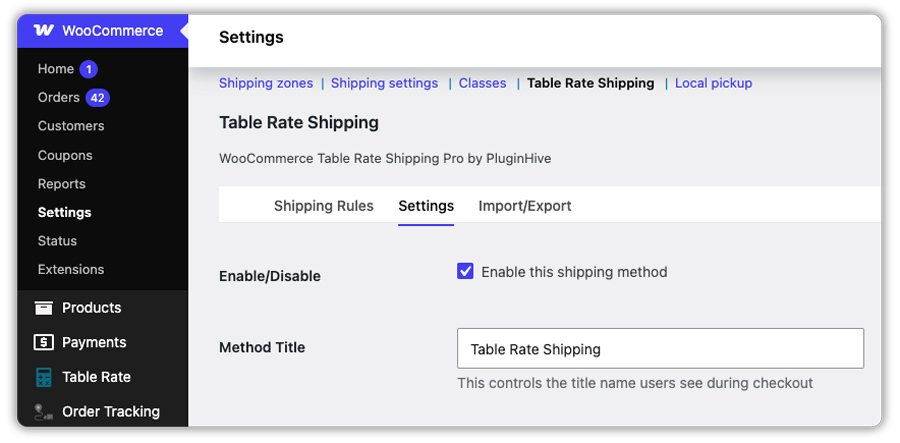
Here’s how to get it set up:
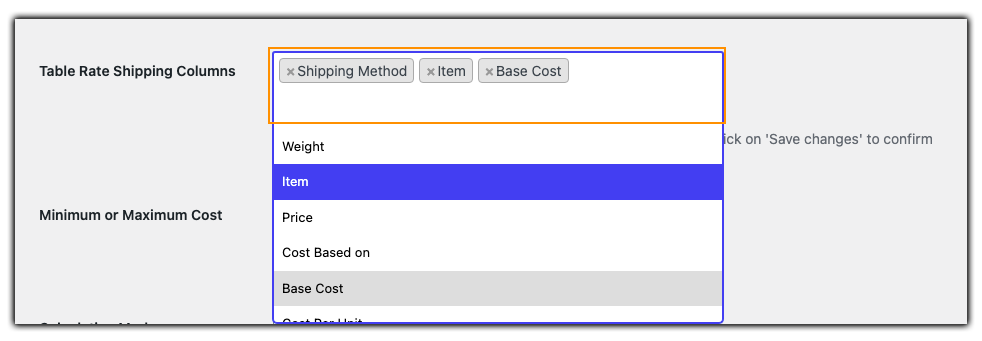
Choose what you want to base the rate on: In the plugin’s settings, select Item as the basis for your shipping rules. You’ll also set a Method Title here – this is the label customers see at checkout, so keep it clear (for example, “Bulk Order Shipping” or “Standard Delivery”) and a Base Cost, which is the starting shipping charge for that rule.
Create your quantity-based rules: In the rate matrix, define your item ranges and the shipping cost for each range. Here’s a simple example you can use to test this in your store:
| Item Range | Shipping Cost |
|---|---|
| 1 – 5 items | $6.00 |
| 6 – 15 items | $10.00 |
| 16 – 30 items | $15.00 |
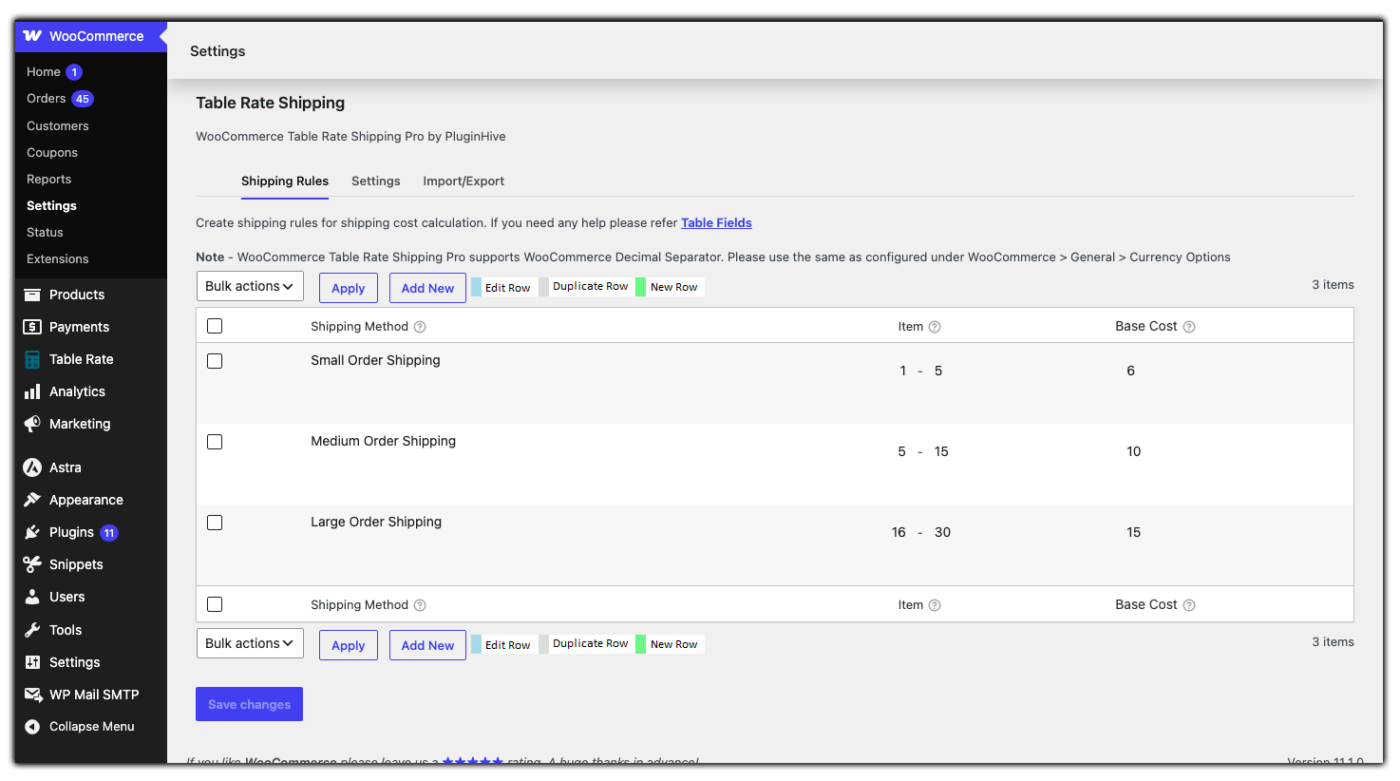
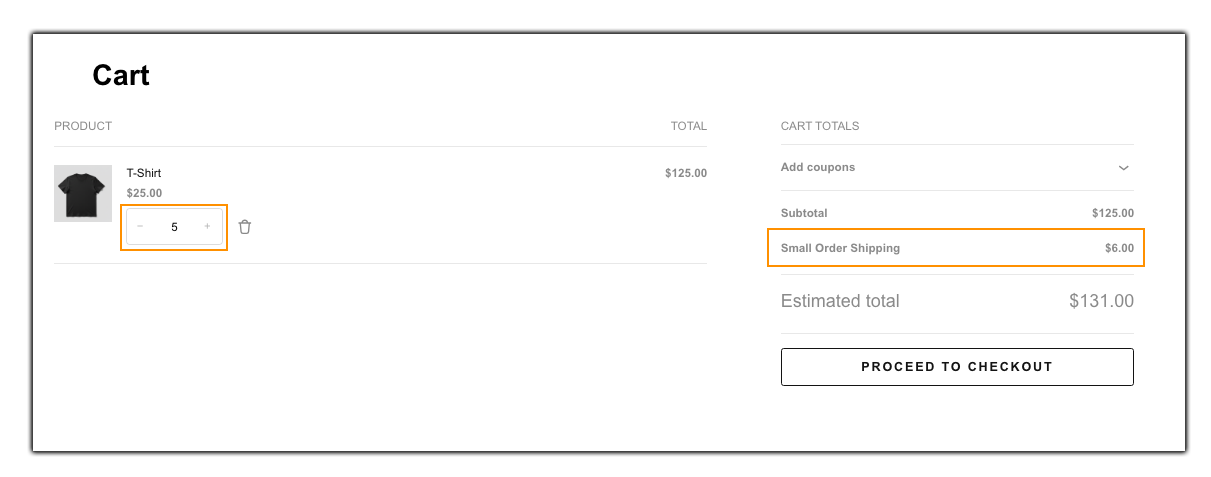
Each range is a separate row in the matrix. When a customer’s cart quantity falls within a certain range, that rate automatically appears in the cart and checkout.
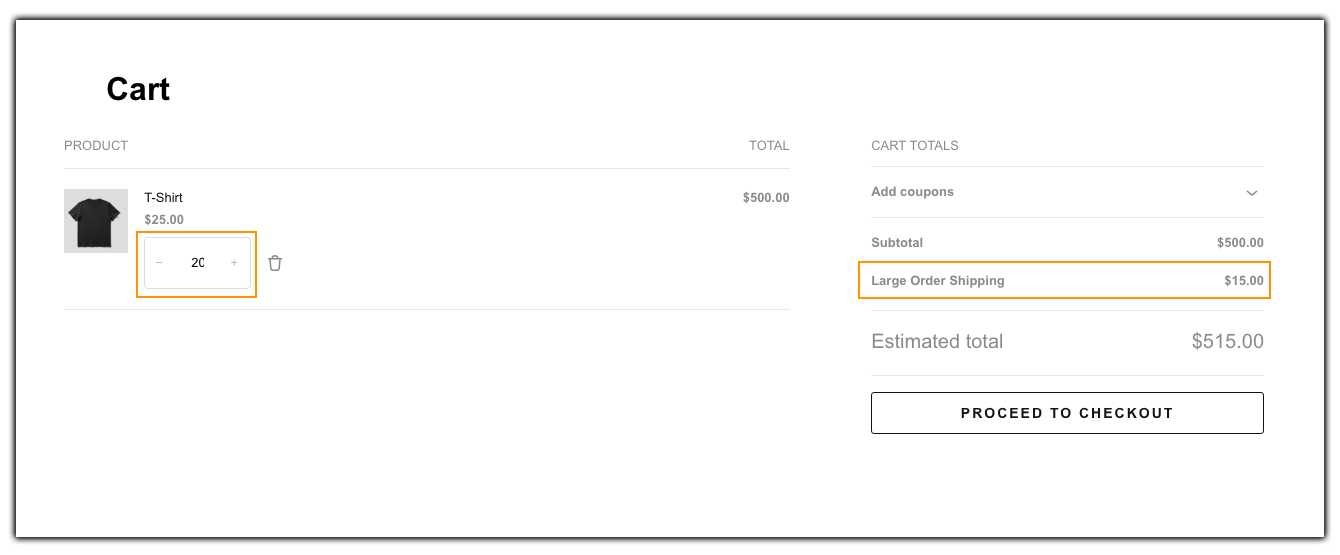
Offer Free Shipping or Scale Costs for Larger Orders
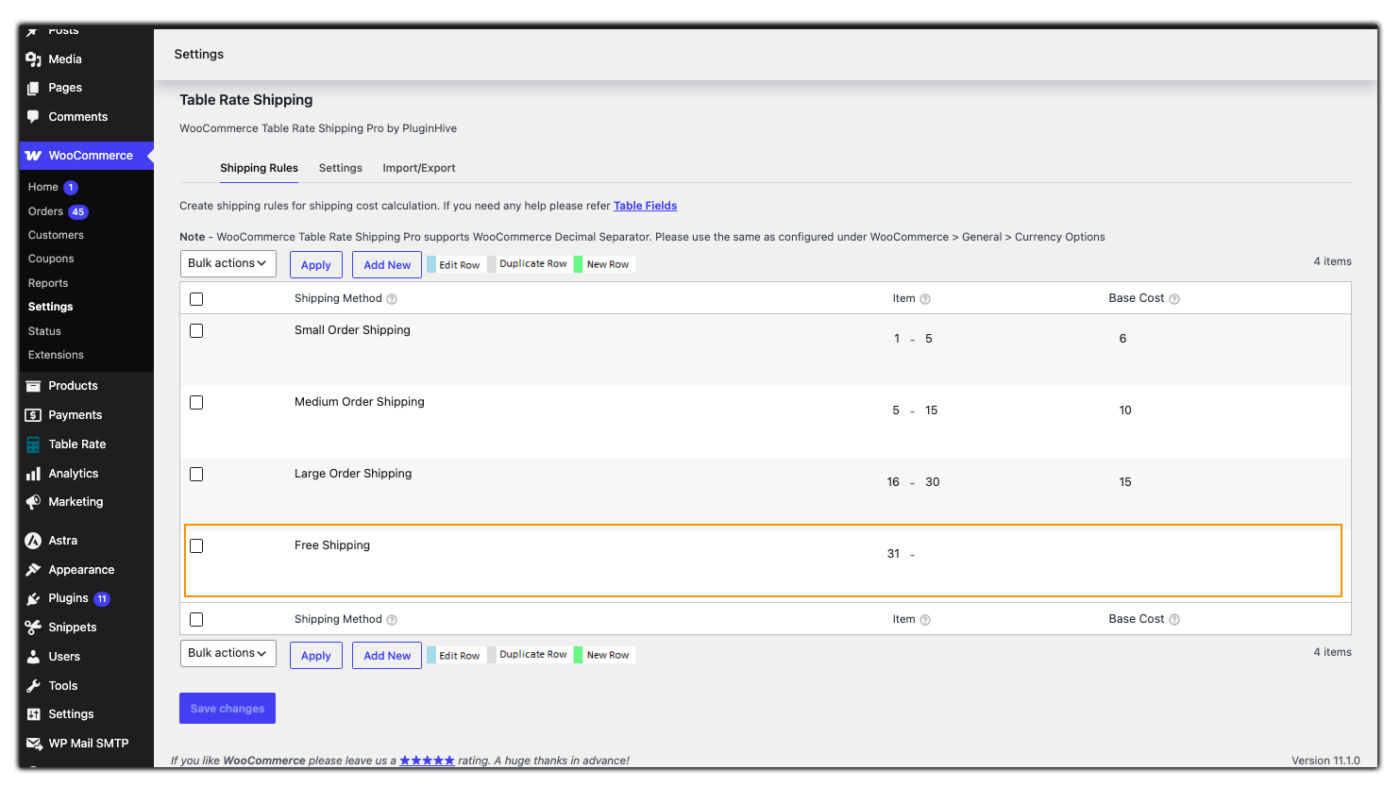
Once your basic tiers are set, you can easily control the shipping rates for larger orders. Just enable the Cost Based On and Cost/Unit columns in your settings, and choose between these two approaches:
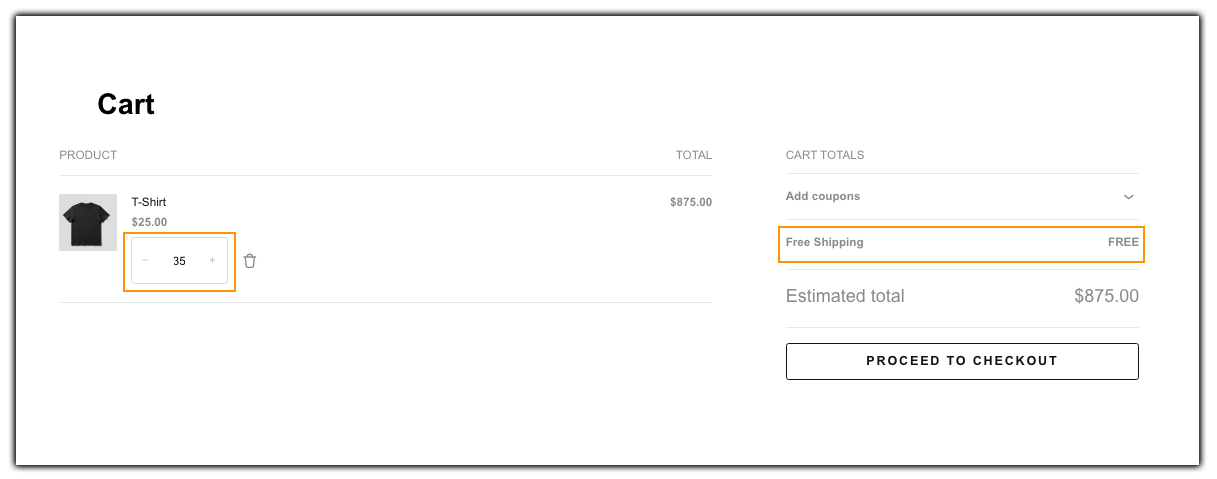
- Make it free: Add a new row starting at your chosen threshold (say, Item Min 31, no upper limit), and set Base Cost to $0. Once the cart crosses that count, shipping shows as free.
- Reduce the rate instead: Keep a Base Cost for the slab, set Cost Based On to Item, and add a low Cost Per Unit for items beyond it. For example, $10 base for the first 30 items plus $0.50 per item after that means a 35-item order costs $12.50, less per item than the standard tiers.
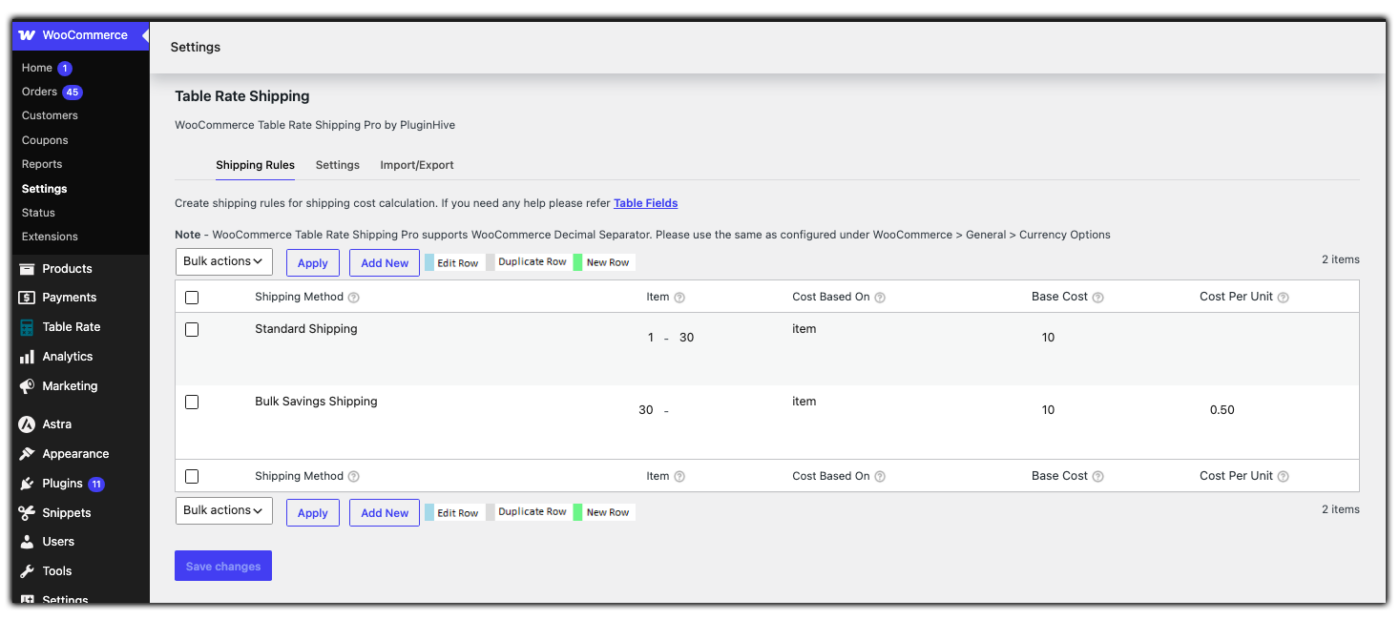
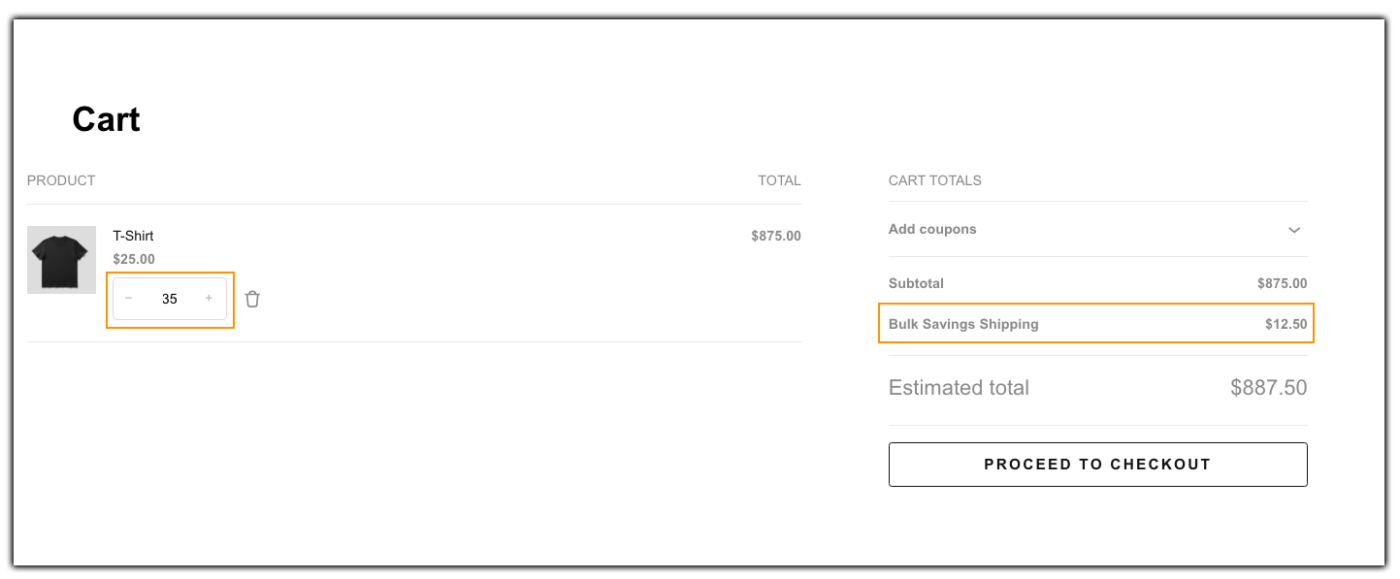
Free shipping is the stronger incentive, but make sure your margins can absorb it on bulk orders. Scaling the rate down keeps you covered while still rewarding larger carts.
Combine Quantity with Product Category and Other Conditions
Shipping needs often change depending on what’s in the cart, not just how many items there are. The plugin lets you combine your Item-based rule with a Product Category or Shipping Class condition, so bulk orders of one type of product can follow a different rate than bulk orders of another.
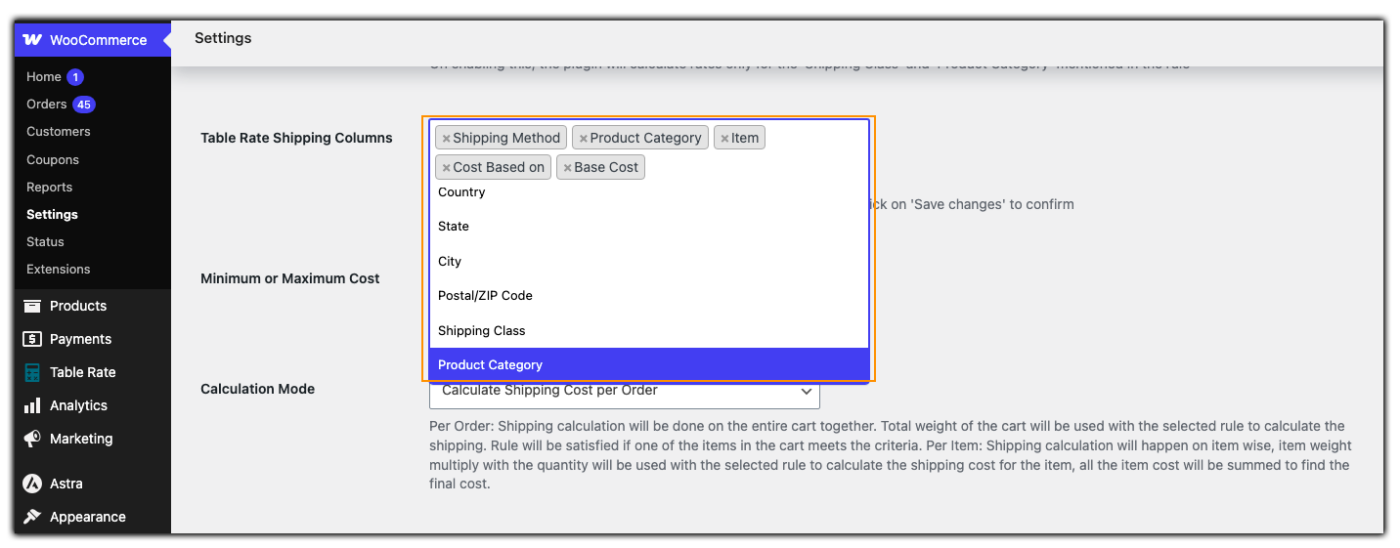
For example, a store selling both lightweight accessories and bulky home goods can set one quantity-based rule for the accessories category and a separate one for home goods, since the packing cost per item isn’t the same for both. You can also layer in shipping zones on top of this, so the same quantity rule applies differently for domestic and international orders.
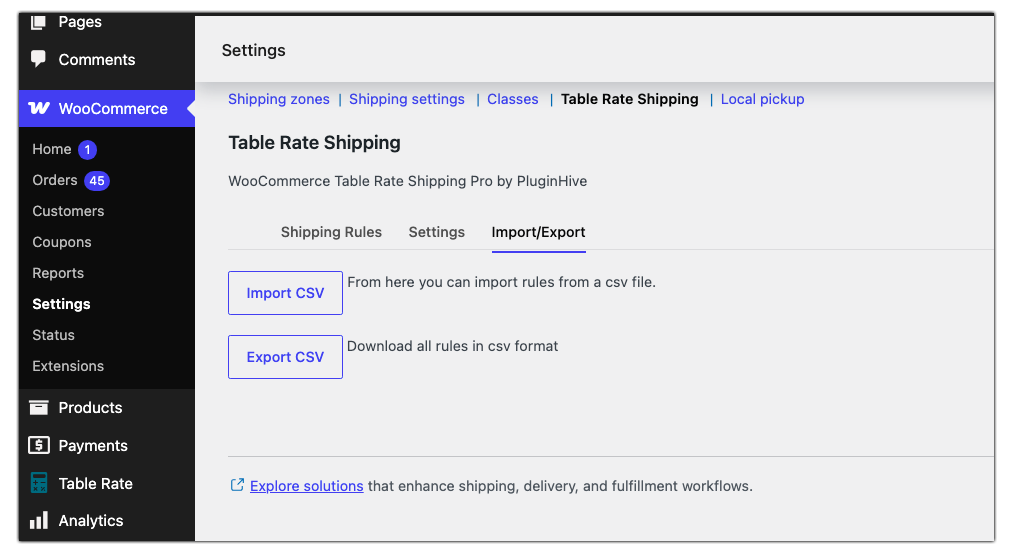
If you have many quantity tiers to add across categories, the plugin’s CSV import lets you load them all at once instead of entering each row manually.
Best Practices for WooCommerce Quantity-Based Shipping
A few setup habits keep quantity-based shipping accurate as your catalog and order volumes grow:
- Test every quantity tier before launch: Add different quantities to a test cart and confirm the rate at each threshold matches what you expect.
- Keep tier ranges simple: A handful of clear quantity brackets is easier for you to maintain and easier for customers to understand than dozens of narrow ranges.
- Label shipping methods clearly: Use a Method Title customers recognize, like “Bulk Order Shipping,” instead of a generic label.
- Avoid unnecessary rule stacking: Quantity-based logic works well on its own for pack-based products. Only combine it with weight or price conditions when your business genuinely needs that extra layer.
- Revisit rates periodically: As packaging or handling costs change, update your Item ranges and Cost Per Unit values so they still reflect what shipping actually costs you.
Following these best practices helps you keep quantity-based shipping accurate, predictable, and aligned with your actual shipping costs.
Conclusion
Quantity-based shipping gives you a more accurate way to price orders when item count, not weight or price, drives your real shipping cost. The PH Table Rate Shipping Pro Plugin for WooCommerce lets you build these rules through the Rate Matrix without any custom code, and combine them with other conditions as your store’s needs change. If you run into questions while setting up your rules, PluginHive Support is available to help.
FAQs
Q: Does WooCommerce support quantity-based shipping by default?
No. WooCommerce’s built-in shipping options are limited to flat rate, free shipping, and local pickup. Quantity-based rules require a plugin like the PH Table Rate Shipping Pro Plugin for WooCommerce.
Q: Can I combine quantity-based rules with weight or price-based rules?
Yes. The Rate Matrix lets you base a rule on Item, Weight, or Price individually, or combine conditions like shipping class and item count in the same rule row.
Q: Can I offer free shipping after a customer reaches a certain quantity?
Yes. You can set up a quantity-based free shipping rule so orders above a chosen item count qualify automatically.
Q: Is there a limit to how many quantity tiers I can create?
No practical limit. The plugin supports large rule sets, and CSV import lets you add many tiers at once instead of entering them manually.
