


Shipping with Royal Mail on your WooCommerce store doesn’t have to be complicated. Whether you’re just getting started or looking for a better way to manage your shipping rates, the PH Royal Mail Shipping with Tracking for WooCommerce plugin makes it straightforward.
One of its most useful features is the ability to choose how your orders are packaged and rated at checkout. This article walks you through the three Royal Mail packing methods available in the plugin, so you can pick the one that best fits your store and start shipping with confidence.
Table of Contents
- Why Packaging Methods Matter for WooCommerce Royal Mail Shipping Rates
- WooCommerce Royal Mail Packing Methods Explained
- Which Royal Mail Packing Method Is Right for Your WooCommerce Store?
- How to Set Up Royal Mail Packing Methods in WooCommerce
- Best Practices for Configuring Royal Mail Packaging in WooCommerce
- Conclusion
- FAQs
Why Packaging Methods Matter for WooCommerce Royal Mail Shipping Rates
Royal Mail charges differently depending on the size and weight of what you’re sending – a small envelope costs far less to ship than a medium parcel. So when a customer places an order, your store needs to show the right rate for what’s actually being shipped.
That’s where the packaging method comes in. It tells the plugin how to review the items in an order and calculate the correct Royal Mail rate to display at checkout.
Choose the right one for your store, and everything falls into place – your customers see accurate shipping costs, and what you charge matches what you actually pay Royal Mail.
WooCommerce Royal Mail Packing Methods Explained
The PH Royal Mail Shipping with Tracking for WooCommerce provides three packing methods under the Packing Process setting. Here’s what each one does.
Calculate Shipping Based on Total Order Weight
This method adds up the weight of every item in the cart and calculates one shipping rate based on the combined total. It’s the simplest method to set up – you just need to make sure every product has a weight value in WooCommerce. No box dimensions needed.

This works well if:
- Your products are similar in size and shape (e.g., clothing, books, cosmetics)
- You ship most orders in a single standard package
- You want a quick, low-maintenance setup
Watch out for:
- Doesn’t factor in dimensions, so bulky but lightweight items may be underpriced
- May not be accurate enough for stores with a wide variety of product sizes
Pack Items Individually
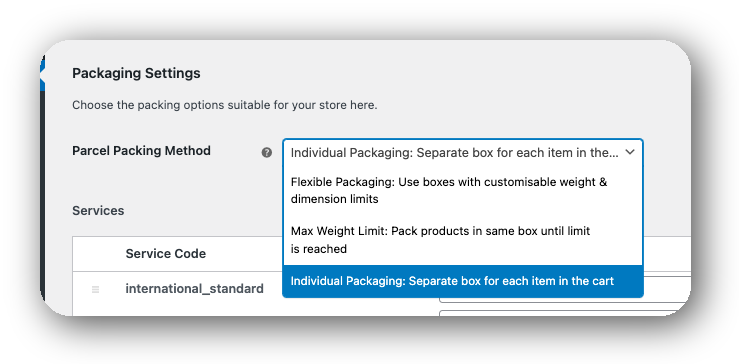
This method calculates a separate shipping rate for each item in the cart. Every product is treated as its own shipment. If a customer orders three items, the plugin calculates three separate rates and adds them together.
This works well if:
- You sell large, fragile, or bulky items that genuinely ship in separate boxes
- You want to make sure you never undercharge on multi-item orders
Watch out for:
- Customers buying multiple items may see higher-than-expected shipping costs
- Not suitable if you regularly pack several products together into one parcel
Pack into Boxes with Weights and Dimensions
This is the most accurate method. The plugin uses both weight and dimensions to automatically classify each order into the correct Royal Mail package tier – letter, large letter, small parcel, medium parcel, or large parcel. You set a Max Package Weight, and the plugin handles classification from there.

This works well if:
- You sell products that vary in size and weight across your catalogue
- Accurate rates are a priority, and your product data is complete
- You want automatic classification without setting rates manually
Watch out for:
- Relies on accurate product weight and dimension data; missing values will produce wrong rates
- Takes slightly more time to configure, but it is worth it for most stores
Which WooCommerce Royal Mail Packing Method Is Right for Your Store?
Not sure which method fits your store? Here’s a simple way to decide:
| WooCommerce Store Type | Recommended Method |
|---|---|
| Sells similar-sized products (e.g., apparel, books) | Total Order Weight |
| Sells large or fragile items that ship separately | Pack Items Individually |
| Sells a mix of products in different sizes | Pack into Boxes with Weights and Dimensions |
| Just starting and want a simple setup | Total Order Weight |
| Wants the most accurate rates possible | Pack into Boxes with Weights and Dimensions |
For most WooCommerce stores, Pack into Boxes with Weights and Dimensions is the most reliable choice as long as your product weight and dimension data are complete.
How to Set Up Royal Mail Packing Methods in WooCommerce
After installing and activating the PH Royal Mail Shipping plugin, navigate to WooCommerce → Settings → Shipping → Royal Mail. Under the Packaging Settings section, you’ll find the three methods listed. Select the one that matches your store’s needs and save your settings.
Once that’s done, head to the Shipping Services section and enable the Royal Mail services you want to offer your customers at checkout – such as 1st Class, 2nd Class, Tracked 24, or Special Delivery. Only the services you enable will be visible to your customers.
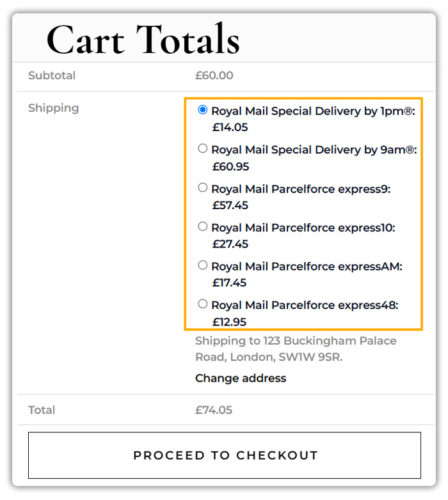
After that, test your setup by adding a few products to a cart and checking the rates displayed at the cart and checkout.
Best Practices for Configuring Royal Mail Packaging in WooCommerce
A few simple habits when setting up the plugin will save you a lot of time down the line.
- Complete your product weight and dimension data: Missing weight or dimensions is the most common reason rates don’t show correctly at checkout. Fill these in for every product before configuring your packaging method.
- Set a realistic Max Package Weight: If you’re using the box packing method, set this to the heaviest box you’d actually send. Set it too low, and orders may split into multiple packages unexpectedly.
- Disable parcel types you don’t use: If you never ship in letter format, turn it off. Keeping only the relevant parcel types active makes checkout cleaner and less confusing for your customers.
- Use Debug Mode when rates look off: If the rates at checkout don’t look right, enable Debug Mode in the plugin settings. It shows exactly what the plugin is calculating, so you can quickly spot where things are going wrong. The troubleshooting guide covers the most common causes.
Get these basics right from the start, and your Royal Mail shipping setup will run smoothly from day one.
Conclusion
The right WooCommerce Royal Mail packing method comes down to what you sell and how you ship. Total order weight suits simple, consistent product ranges. Individual packing works for items that ship separately. Box packing with dimensions gives you the most accurate rates across a mixed catalogue. Configure it correctly with the PH Royal Mail Shipping with Tracking plugin, and your checkout rates will reflect your actual shipping costs every time. Need help with your setup? Contact PluginHive support.
FAQs
Q: Can Royal Mail provide packaging?
Yes, Royal Mail offers packaging supplies such as boxes, envelopes, and mailing bags. You can also use your own packaging.
Q: What are the packaging requirements for Royal Mail?
Parcels must be securely packed, properly sealed, and meet the size and weight limits of the chosen Royal Mail service.
Q: How do I pack a parcel for Royal Mail?
Use suitable packaging, protect the item with padding if needed, seal the parcel securely, and attach the shipping label clearly.
