


Not every product in your WooCommerce store has the same shipping cost. For example, shipping a small accessory may cost less than delivering a bulky piece of furniture or a fragile gift. Applying the same shipping rate to all these products can lead to overcharging customers or covering the extra shipping costs yourself.
WooCommerce shipping based on product category lets you set different shipping rates for different types of products. In this guide, you’ll learn how to set it up using the PH Table Rate Shipping Pro Plugin for WooCommerce, explore practical examples, and learn a few tips for managing your shipping rates.
On This Page
- Why Set WooCommerce Shipping Rates by Product Category?
- What You Need to Get Started
- How to Set Up WooCommerce Shipping Based on Product Category
- Real-World Examples of WooCommerce Shipping Based on Product Category
- Best Practices for Setting Shipping Rates by Product Category
- Conclusion
- FAQs
Why Set WooCommerce Shipping Rates by Product Category?
Products in the same category usually share a similar size, weight, and packaging needs. Pricing shipping by category lets you reflect that without setting a rate for every single product. Here’s what it gives you:
- Rates that match real costs: A category of heavy or oversized products can carry a higher rate than a category of small items.
- Special handling for certain categories: Fragile goods, next-day-only products, or items that ship from a different location can each follow their own rule.
- Less setup work: One rule covers every product in a category, even if the category holds hundreds of products.
- Clearer checkout: Customers see a shipping cost that makes sense for what they’re buying.
WooCommerce’s built-in methods (flat rate, free shipping, and local pickup) work with shipping zones and shipping classes, but they have no option to set rates by product category. If you’re still weighing your options, our guide on table rate vs flat rate vs free shipping will help you choose.
What You Need to Get Started
Before you create any rules, make sure you have the following in place:
- Product categories: Create your categories under Products → Categories in WooCommerce and assign each product to the right one.
- The PH Table Rate Shipping Pro Plugin: Install and activate the plugin on your store. For a full walkthrough of its settings, see the setup guide.
- A shipping rate for each category: Decide what you want to charge for every category before you start.
How to Set Up WooCommerce Shipping Based on Product Category
Once the plugin is active, you’ll build your category rules in its Rate Matrix. Here’s how:
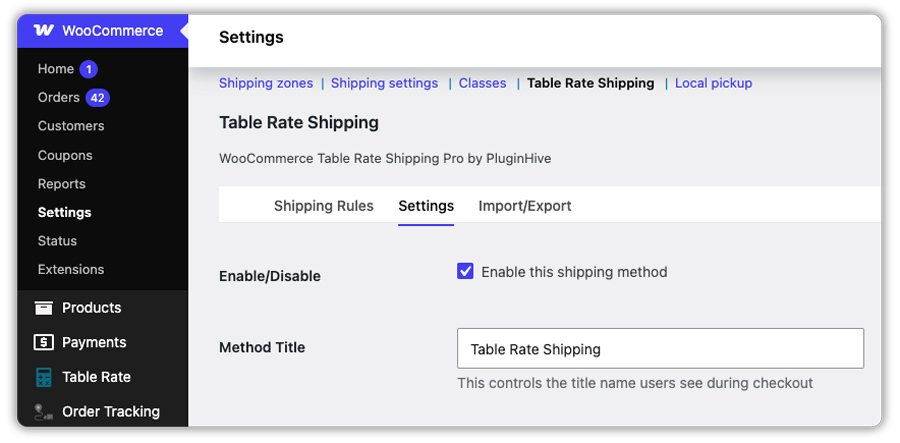
Step 1: Open the plugin settings and enable the method: Go to WooCommerce → Settings → Shipping → Table Rate Shipping. Enable the shipping method so the plugin’s rates show up on the cart and checkout pages.
Step 2: Add Product Category to the matrix: Use the Table Rate Shipping Columns setting to add Method Title, Product Category, and Base Cost. The Method Title is the label customers see at checkout (for example, “Standard Shipping”), and the Base Cost is the shipping charge for that rule.

Step 3: Choose how the cart is calculated: Set the Calculation Mode to Calculate shipping cost per category. When a cart contains products from more than one category, the plugin works out the cost for each category and adds them together.

Step 4: Create a rule for each category: Open the Shipping Rules tab, click Add New, and enter the Method Title, Product Category and Base Cost. Here’s a sample setup you can use to test:
| Method Title | Product Category | Base Cost |
|---|---|---|
| Standard Shipping | Furniture | $40.00 |
| Standard Shipping | Accessories | $5.00 |
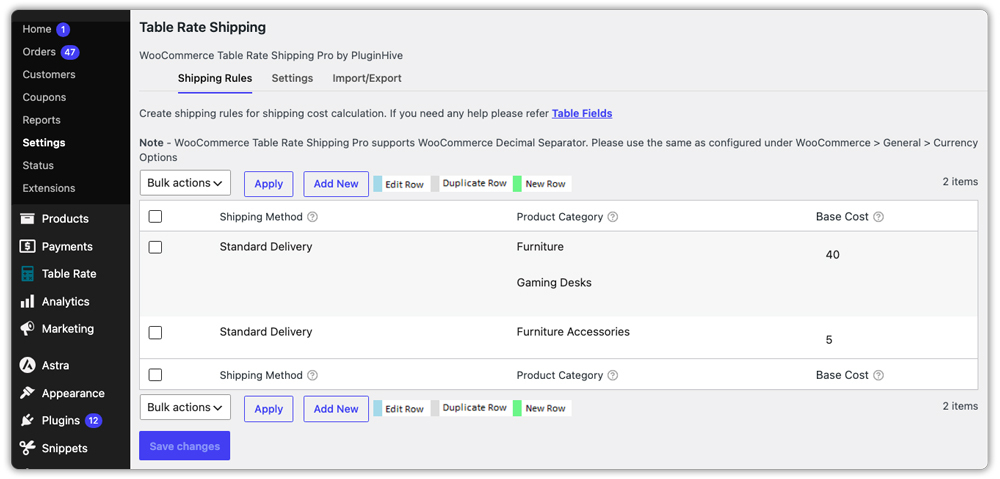
You can add more than one category to a single rule if they share the same rate. The Any Product Category and Rest of the Product Categories options help you cover everything else without creating a rule for each category.
Step 5: Test it on the cart page. Add a product from one category and check the rate, then add products from both categories. With the sample rules above, a cart with one furniture item and one accessory shows $45.00.

Combine Product Category with Other Shipping Conditions
Category-based rules don’t have to work alone. In the Rate Matrix, you can add columns like Weight, Price, Item, Shipping Class, Country, State, or Postal/ZIP Code and combine them with Product Category in the same rule. For example, you can charge a different rate for a category only when the cart crosses a certain weight, or only when the order ships to a particular country. To see how these conditions work on their own, check our guides on weight-based shipping and quantity-based shipping.
Real-World Examples of WooCommerce Shipping Based on Product Category
Category-based shipping looks different depending on what you sell and how your products ship. Here’s how the plugin handles the most common scenarios store owners run into:
| Store Type | Shipping Challenge | How the Plugin Handles It |
|---|---|---|
| Furniture and accessories store | Large items and small add-ons are often bought together in one cart | One rule per category, with the Calculation Mode set to per category – each category’s cost is added and shown as a single total |
| Gourmet or gift store | One category can only ship next-day, while other products can go standard or next-day | A “Next Day Shipping” rule for that category and “Standard Shipping” rules for the rest – every product is priced with the right method |
| Home decor store | Wants free shipping on one category while charging for the rest | A rule for that category with a Base Cost of $0 – other categories keep their normal rates |
| Store with a large catalogue | Many categories and new ones added regularly | The rest of the Product Categories cover anything without its own rule, and CSV import loads many rules at once |
| Store shipping to multiple countries | Heavy categories cost more to ship abroad than at home | Product Category combined with Country, State or Postal/ZIP Code columns – each category gets the right rate for each destination |
The PH Table Rate Shipping Pro Plugin for WooCommerce handles all of these from a single Rate Matrix – you build the rules once, and they apply automatically on every order.
Best Practices for Setting Shipping Rates by Product Category
A few setup choices keep category-based WooCommerce shipping accurate as your store grows. Pairing these tips with shipping discount strategies can also help you stay competitive without losing margin.
- Check your category assignments: A rule only applies to products in that category, so make sure every product sits in the right WooCommerce category.
- Use a catch-all rule: Add a rule with Rest of the Product Categories so products from newly created categories still get a shipping rate.
- Pick the calculation mode on purpose: Changing the Calculation Mode can change the total shipping cost, so confirm it matches how you want mixed carts handled.
- Name your methods clearly: Use Method Titles like “Standard Shipping” or “Next Day Shipping” instead of internal labels customers won’t understand.
- Test mixed carts: Check every category on its own, then in combination, on your WooCommerce cart and checkout pages before you go live.
- Use CSV import for large catalogs: If you have many categories, import and export your rules through CSV instead of adding each row by hand.
These small checks help you avoid surprises at checkout and keep your shipping rates in line with your actual costs.
Conclusion
Setting up WooCommerce shipping based on product category lets you charge for what each type of product actually costs to ship, instead of relying on one rate for everything. The PH Table Rate Shipping Pro Plugin for WooCommerce makes this possible through simple category rules in the Rate Matrix. If you need help with a specific shipping scenario, PluginHive Support is happy to help.
FAQs
Q: Does WooCommerce support shipping rates by product category by default?
No. WooCommerce’s built-in shipping methods work with zones and shipping classes, not product categories. You need a plugin like the PH Table Rate Shipping Pro Plugin for WooCommerce to set rates by category.
Q: What happens when a cart has products from more than one category?
With the Calculation Mode set to Calculate shipping cost per category, the plugin calculates the cost for each category and adds them together.
Q: Can I offer free shipping for just one category?
Yes. Create a rule for that category and set the Base Cost to $0. For more on this scenario, see our guide on free shipping for only some products.
Q: Can I combine product categories with weight, price or destination?
Yes. You can add columns such as Weight, Price, Item, Country or Shipping Class to the Rate Matrix and combine them with Product Category in the same rule.
