


Running FedEx, UPS, USPS, and DHL from the same WooCommerce checkout only works well if every carrier is quoting on the same, accurate picture of how an order is actually packed. Get the box configuration wrong, and every carrier returns a rate based on the wrong assumption, consistently wrong across all of them, just in different ways. This guide explains how WooCommerce box packing works in the Multi-Carrier Shipping Plugin for WooCommerce, the three packing methods available, and how to configure them correctly for a multi-carrier setup.
On This Page
- The Three Parcel Packing Methods in the Multi-Carrier Plugin
- Why the Right Packing Method Matters More With Multiple Carriers
- How to Configure Box Packing in WooCommerce
- Real-World WooCommerce Use Case
- Conclusion
- FAQs
The Three Parcel Packing Methods in the Multi-Carrier Plugin
In the Multi-Carrier Shipping Plugin for WooCommerce settings, three parcel packing methods are available, each sending a different picture of the shipment to every connected carrier.
| Packing Method | How It Works | Best For |
|---|---|---|
| Pack Items Individually (Default) | Each product is treated and rated as its own separate package. | Stores where products genuinely ship one per package, or rarely combine. |
| Pack Into Boxes With Weights and Dimensions (Recommended) | Combines products into your configured box sizes before requesting a rate. | Most stores; reflects how orders are actually packed and shipped. |
| Weight-Based | Calculates shipping purely on the order’s total weight. | Stores with fairly uniform, dense products where weight is a reliable proxy for size. |
Notably, the box packaging method is the recommended option because it is the one most likely to reflect the actual physical package a carrier will scan and bill, rather than an approximation based on individual products or total weight alone.
Why the Right Packing Method Matters More With Multiple Carriers
With a single carrier plugin, an inaccurate packing method produces one wrong rate. With a multi-carrier setup showing FedEx, UPS, USPS, and DHL side by side, the same inaccuracy gets multiplied across every carrier. Because each carrier prices dimensional weight slightly differently, the size of the error will not even be consistent between them.
- Pack Items Individually can overstate cost across all carriers for any order where multiple items would actually ship together in one box.
- Weight-Based calculation can understate cost across all carriers for bulky, lightweight items where dimensional weight matters more than actual weight.
- Pack Into Boxes gives each carrier the closest approximation of the real package, which is why comparing FedEx against UPS against USPS only makes sense once this is configured accurately.
In other words, the value of showing customers multiple carrier rates side by side depends entirely on those rates being calculated from the same accurate shipment data. Otherwise, the comparison itself can be misleading, even if each number looks plausible.
How to Configure Box Packing in WooCommerce
Install and activate the Multi-Carrier Shipping Plugin for WooCommerce. To configure the plugin in your store, visit the Plugin setup guide.
To configure Multi-Carrier Boxes, follow these steps:
Enter Accurate Product Weight and Dimensions First
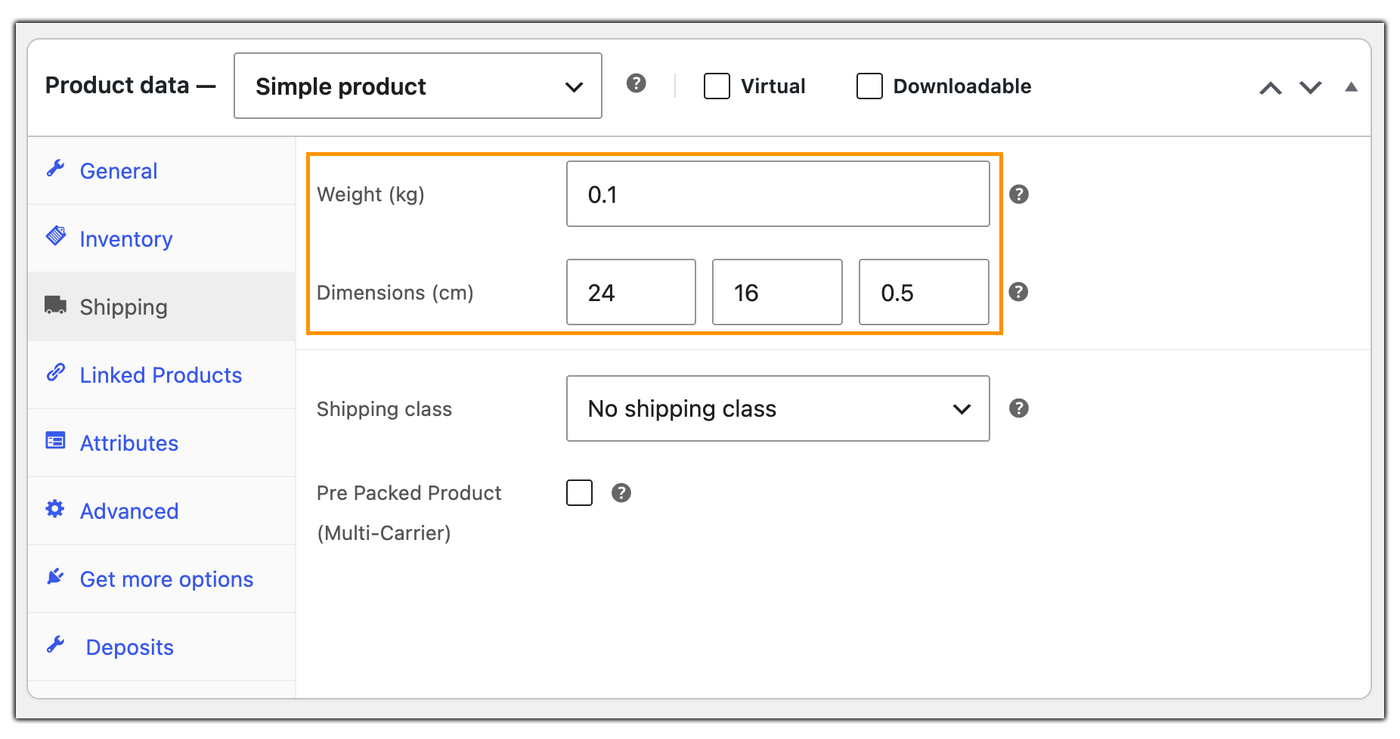
Regardless of which packing method you select, every method depends on accurate product weight and dimensions being entered under Product Data > Shipping in WooCommerce. This is the foundation all three methods build on.
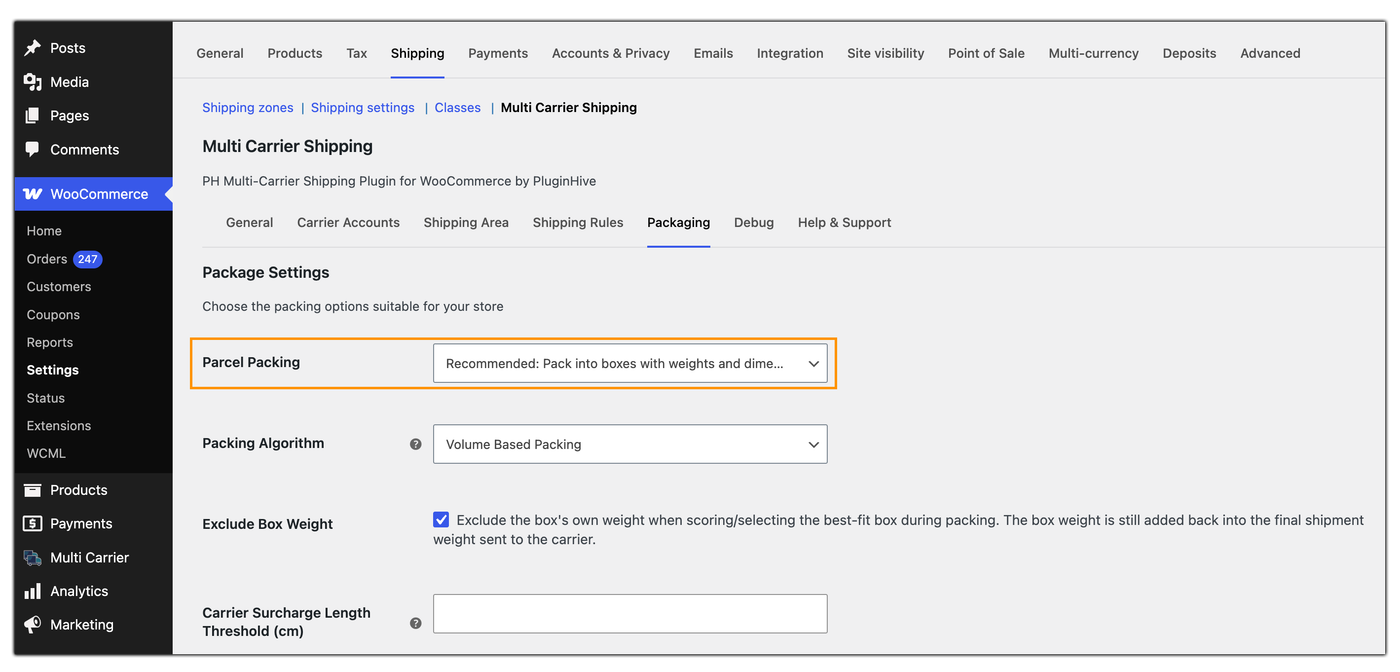
Select Pack Into Boxes With Weights and Dimensions
In this step, select box packaging as the packing method. Once selected, the available carrier boxes will be displayed.
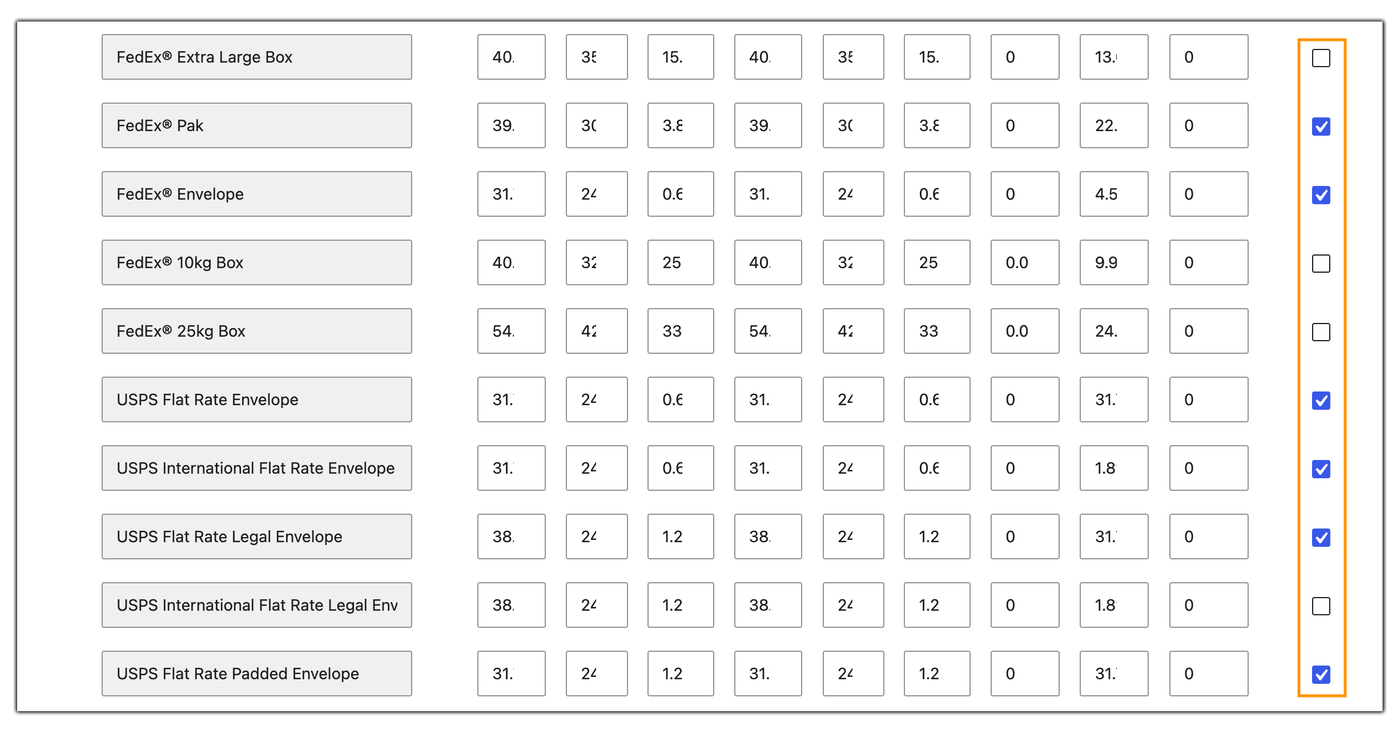
Select the carrier boxes you want to use for your shipments.
You can also add a custom box by entering your own box name and dimensions.
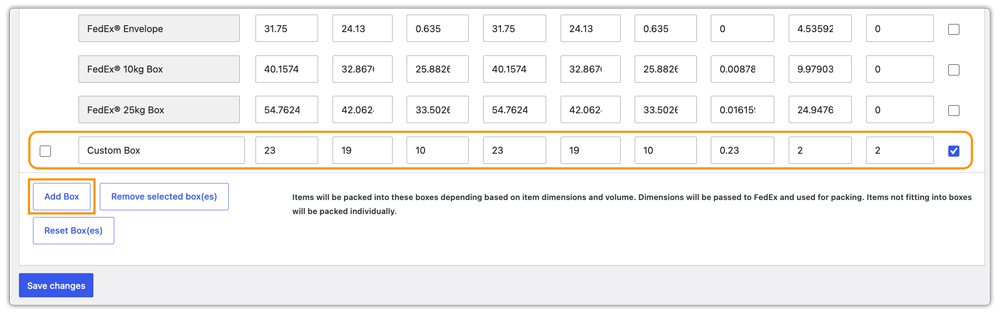
Add a single product to the cart and check the shipping rates shown by each carrier. Then, repeat the test with a multi-item combination that reflects a common order.
Real-World WooCommerce Use Case
A WooCommerce store selling kitchen gadgets wanted to offer customers a choice between FedEx and USPS at checkout. The store was already using its own boxes to pack multiple kitchen gadgets together, but it needed a way to calculate shipping rates based on those actual box sizes and compare both carriers.
The store started using the Multi-Carrier Shipping Plugin for WooCommerce to display live FedEx and UPS rates based on its actual packaging setup. Since customers commonly ordered two or three small gadgets together, using the correct box dimensions was important for getting accurate shipping rates.
How the Store Configured It
The store selected box packaging in the plugin’s settings and selected the carrier boxes that matched the boxes used for its regular orders. For products that did not have weight or dimensions entered, the store also updated the missing product data in WooCommerce.
The Result
- FedEx and UPS rates were calculated based on the actual boxes used to pack orders.
- Customers could compare live shipping rates from both carriers at checkout.
- Multi-item orders were packed and rated as combined shipments instead of treating each product as a separate package.
- The store could offer both FedEx and UPS without changing its existing packaging process.
Conclusion
Accurate box packing helps ensure that multiple carriers calculate shipping rates based on how orders are actually packed. For most stores, box packaging is the most practical option. Keep product dimensions and weights accurate, configure the box sizes you actually use, and test different order combinations to ensure the rates are calculated correctly.
Need help configuring box packing for your multi-carrier setup? The PluginHive support team is here.
FAQs
Q. Can I create custom shipping rules in my WooCommerce store based on weight, price, or quantity?
Yes. The WooCommerce Table Rate Shipping Pro Plugin lets you create shipping rules based on factors such as weight, quantity, price, destination, and other conditions.
Q. Can I hide specific shipping methods from customers?
Yes. The PH Hide Shipping Methods & Rate Adjustment for WooCommerce lets you hide shipping methods based on conditions such as cart value, weight, destination, or products.
Q. Can I display estimated delivery dates across my WooCommerce store?
Yes. The Estimated Delivery Date Plugin For WooCommerce lets you display estimated delivery dates or delivery timeframes on product pages, cart pages, checkout, and other relevant locations.
Q. Can I configure shipping for individual vendors in a WooCommerce marketplace?
Yes. The PH Multi Vendor Shipping Addon for WooCommerce supports shipping configurations for multi-vendor stores using platforms such as Dokan, WCFM, and WC Vendors.
Q. Can I add my own box sizes in the Multi-Carrier Shipping Plugin?
Yes. You can add custom boxes by entering the box name and its dimensions, allowing the packing configuration to reflect the boxes your store actually uses.
