



When you ship to customers across different areas, a single shipping rate for an entire state or country may not always reflect the actual cost of delivery. Some ZIP codes may be nearby and inexpensive to serve, while others may be farther away or fall into areas with higher delivery costs. Setting different rates by ZIP code lets you charge more accurately based on where the order needs to go.
WooCommerce allows you to create shipping zones based on ZIP or postal codes, but its default options can be limiting when you need more detailed pricing rules. In this guide, we’ll look at how ZIP code based shipping works in WooCommerce, when to use it, and how to set it up using both WooCommerce’s built-in settings and the PH Table Rate Shipping Pro Plugin for WooCommerce.
On This Page
- How Does WooCommerce Shipping Based on ZIP Code Work?
- Why Use ZIP Code Based Shipping in WooCommerce?
- WooCommerce ZIP Code Shipping: Default Method vs Table Rate Rules
- How to Set Up WooCommerce Shipping Based on ZIP Code
- Examples of WooCommerce ZIP Code Based Shipping Rules
- Best Practices for WooCommerce ZIP Code Shipping
- Conclusion
- FAQs
How Does WooCommerce Shipping Based on ZIP Code Work?
WooCommerce uses shipping zones to determine which shipping methods and rates should be shown to customers based on their delivery address. ZIP or postal code is one of the options you can use to define these zones.
You can limit a shipping zone to specific ZIP codes by entering individual codes, a list of codes, a range, or a wildcard. When a customer enters their shipping address at checkout, WooCommerce checks the ZIP or postal code and displays the shipping methods assigned to the matching zone. This works in much the same way as creating shipping zones based on a country or state.
Why Use ZIP Code Based Shipping in WooCommerce?
Using ZIP codes for shipping gives you more flexibility than applying the same rate across an entire state or country. It can be especially useful when delivery costs vary from one area to another.
- Accurate local delivery pricing: If you handle local deliveries yourself, you can use WooCommerce shipping zones to charge a lower rate for nearby ZIP codes and a higher rate for locations that take more time or fuel to reach.
- Fairer remote area pricing: Some ZIP codes may cost more to serve because of distance or carrier surcharges. You can apply a higher rate to those areas without increasing shipping costs for everyone else.
- Better city-level pricing: Customers in the same state, or even the same city, may have different delivery costs. ZIP code-based rules let you set rates that better match each location.
- Fewer failed deliveries: If you don’t deliver to certain areas, you can exclude those ZIP codes from your shipping setup and avoid accepting orders you cannot fulfill.
With ZIP code-based shipping, you can make your WooCommerce shipping rates more closely match your delivery areas and costs. The next step is understanding what you can do with WooCommerce’s built-in shipping settings and where you may need more flexibility.
WooCommerce ZIP Code Shipping: Default Method vs Table Rate Rules
WooCommerce’s built-in shipping zones let you set a flat rate for a specific group of ZIP or postal codes, using individual codes, ranges, or wildcards. Our WooCommerce Shipping Zones guide covers this setup in detail.
The gap shows up once you need ZIP code to work alongside other conditions, like weight or cart value, in the same rule. Here’s how the two approaches compare:
| Feature | WooCommerce Shipping Zones | PH Table Rate Shipping Pro Plugin |
|---|---|---|
| ZIP/postcode based shipping | Yes | Yes |
| Individual codes, ranges, wildcards | Yes | Yes |
| Combine ZIP code with weight | No | Yes |
| Combine ZIP code with cart value | No | Yes |
| Combine ZIP code with item quantity | No | Yes |
| Multiple conditions in one rule | Limited | Yes |
| Managing complex rule sets | Requires multiple zones | Single rate matrix |
Once you know which side of that table fits your store, setting it up is straightforward, and that’s what we’ll walk through next.
How to Set Up WooCommerce Shipping Based on ZIP Code
There are two ways to set this up, and which one you need depends on how much control you’re after.
For a Simple ZIP-Based Rate in WooCommerce
If you just need a basic ZIP-based rate, use WooCommerce’s default shipping zones: create a shipping zone, limit it to specific ZIP codes, and attach a shipping method with a flat rate to it.
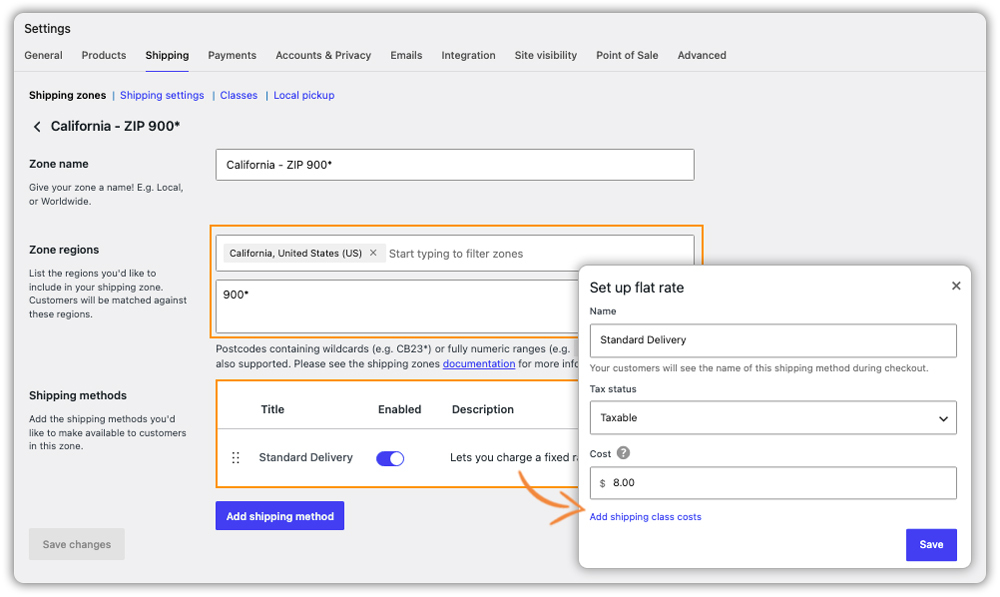
WooCommerce then matches customers to that zone automatically at checkout.
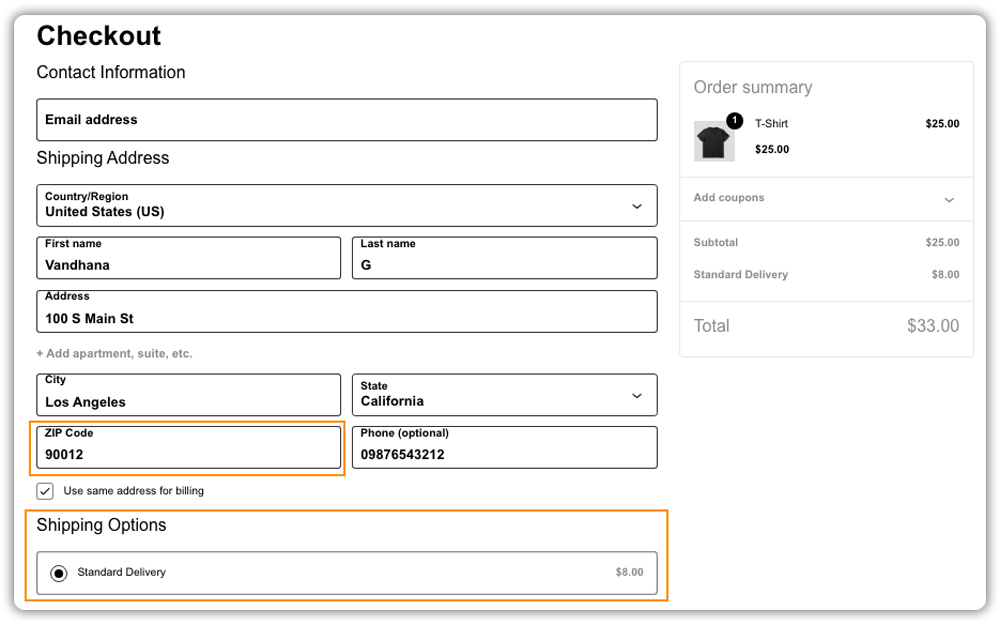
For More Control Over WooCommerce Shipping Rates
If you need more control, here’s how to set it up with the PH Table Rate Shipping Pro Plugin for WooCommerce:
Before you begin, install and activate the plugin, then go to WooCommerce > Settings > Shipping to access its settings. For a full walkthrough, refer to our setup guide.
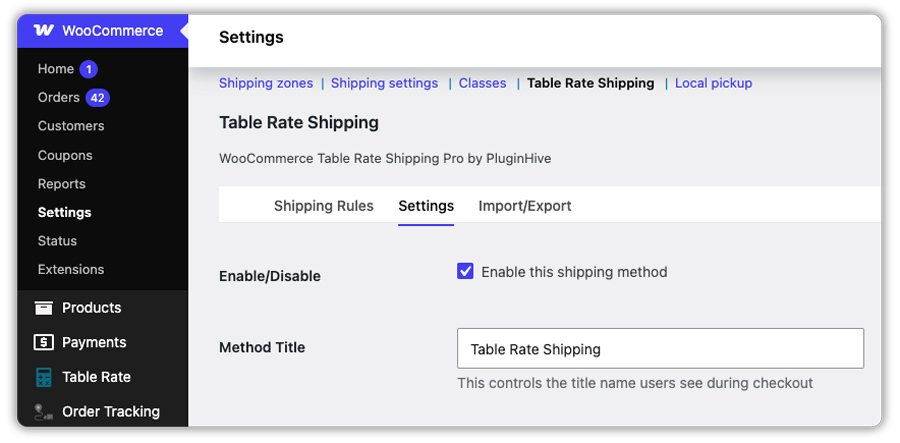
Setting Up Your First ZIP Code Rule
- Choose ZIP/Postcode as the basis for your shipping rule: In the plugin’s settings, use the Table Rate Shipping Columns to bring the Postal/ZIP code column into your rate matrix. You can also set a Method Title, which is the shipping option customers see at checkout, and a Base Cost, which is the starting shipping charge for the rule.
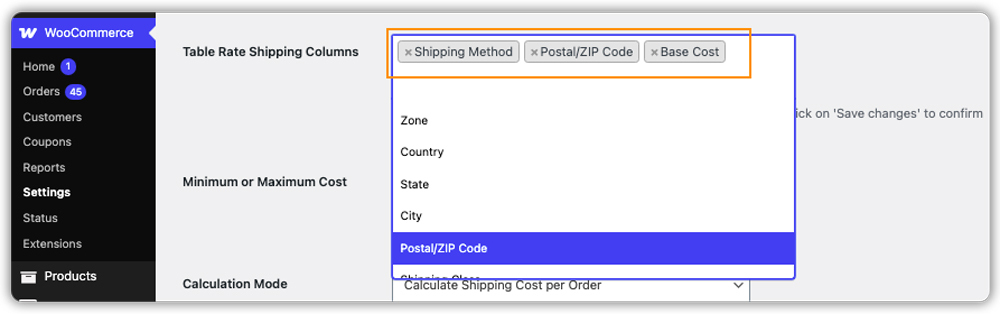
- Enter your ZIP codes and set the Base Cost: Enter the specific ZIP codes you want to target, or use a wildcard such as 900* to cover a range of ZIP codes in one rule. Then, set the Base Cost, which is the flat shipping charge applied when a customer’s ZIP code matches the rule.
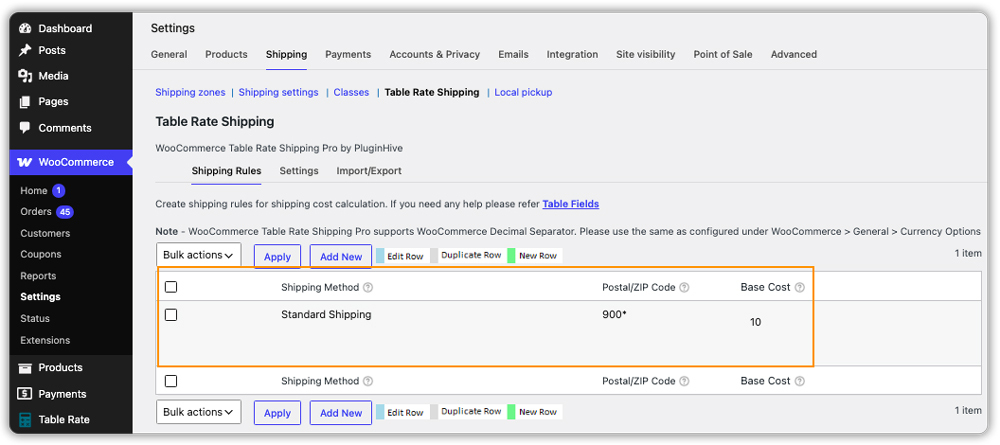
You can add more ZIP code rules in the same way to cover different delivery areas and rates.
Combining ZIP Code with Other Conditions
- Add other conditions to the same rule if needed: Besides ZIP code, a rule can also check weight, cart price, item quantity, shipping class, product category, or destination zone. For example, here, we’ve combined ZIP code and weight to set the shipping rate.
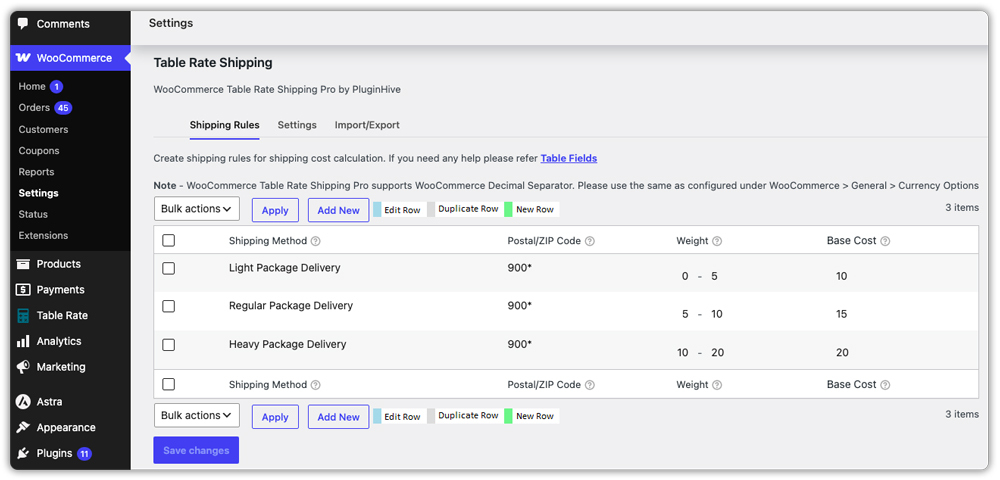
- Use Cost Per Unit for weight- or quantity-based rates: If you’re combining ZIP code with weight or item count, the Cost Per Unit field lets the rate scale per kg or per item instead of staying flat.
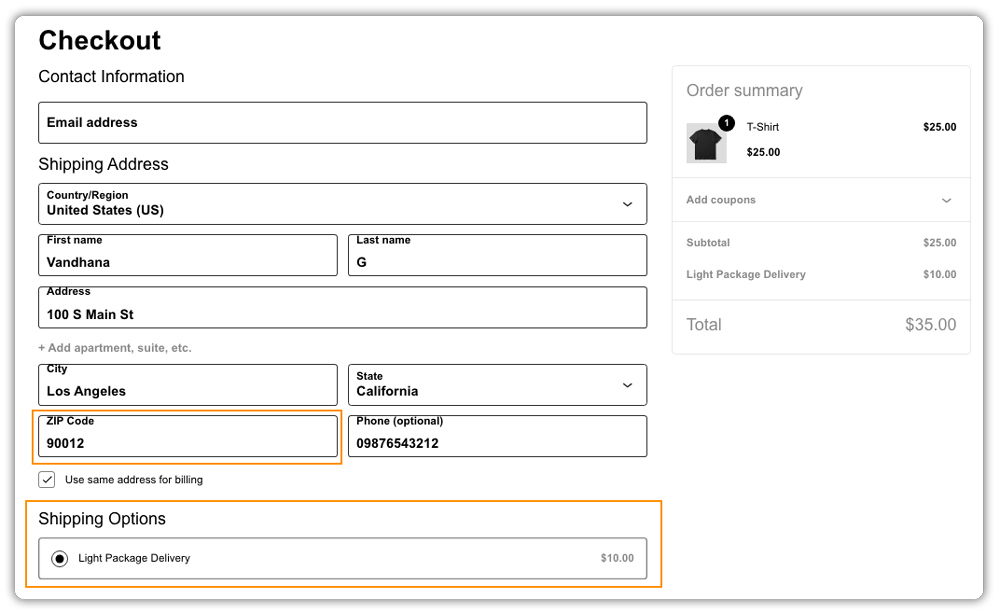
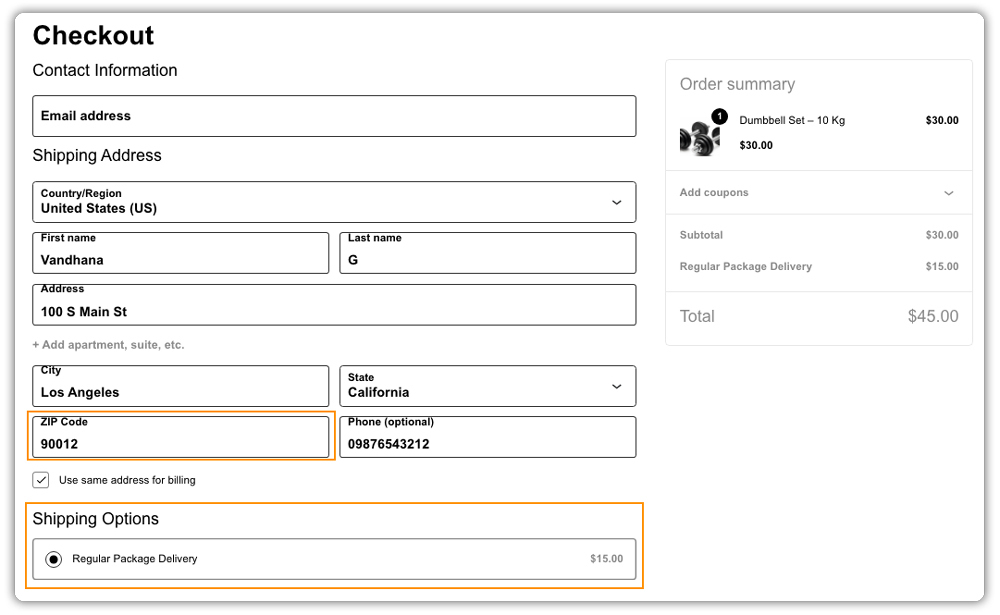
- Save your rules: Once saved, the plugin checks the customer’s address against your matrix and shows the matching rate automatically at checkout. For example, the same ZIP code (90012) gets a different shipping rate based on the order weight, as shown below.
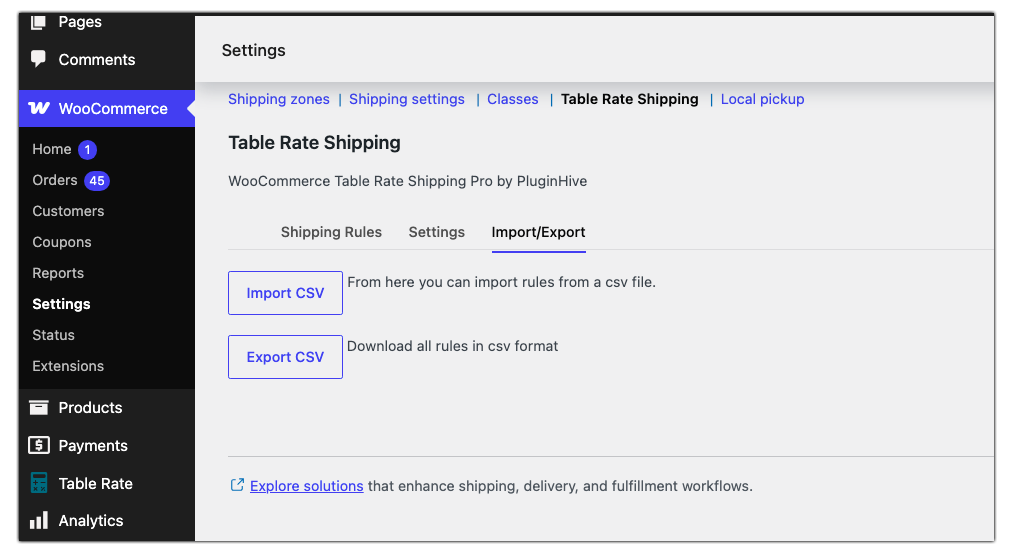
If you’re managing a long list of ZIP codes, you can also import your entire rule set using a CSV file instead of entering each row by hand. With your rules in place, it helps to see what they look like in practice.
Examples of WooCommerce ZIP Code Based Shipping Rules
You can use ZIP code-based shipping in WooCommerce in different ways depending on your delivery areas and pricing. Here are a few common examples:
- Local flat rate: Charge $5 flat for ZIP codes starting with 100 (Manhattan area), and $12 for everywhere else in the same state.
- Remote area surcharge: Add a $10 base cost for ZIP codes in a specific rural range, on top of your standard rate, to cover higher delivery costs.
- ZIP code plus weight: Charge $8 for orders under 5 kg going to ZIP codes starting with 9*, and $15 for orders over 5 kg to the same ZIP codes.
- Free local delivery: Offer free shipping for a defined set of nearby ZIP codes once the cart total crosses a minimum amount, while charging a flat rate everywhere else.
These are just a few examples of WooCommerce ZIP code-based shipping. You can create different rules based on your store’s delivery areas and shipping requirements.
Best Practices for WooCommerce ZIP Code Shipping
A few setup choices make ZIP-based shipping easier to manage as your store grows:
- Use wildcards wherever possible: Typing out every ZIP code in a large area is slow and error-prone. A wildcard like 60* covers a whole range in one line.
- Test with real addresses: Place a few test orders using ZIP codes from different rules to confirm the right rate shows up.
- Keep rules organized: As your rule list grows, use clear method titles so you can tell rules apart at a glance.
- Review rates periodically: Carrier costs and fuel surcharges change. Revisit your ZIP-based rates every few months to make sure they still reflect your actual costs.
- Use CSV export as a backup: Keep a saved copy of your rule set so you can restore it quickly if needed.
Following these practices can help keep your WooCommerce ZIP code shipping setup accurate and easy to manage.
Conclusion
ZIP code-based shipping lets you price deliveries with real precision instead of relying on one flat rate for an entire region. WooCommerce’s built-in settings can handle basic ZIP code zones, but once you want to combine ZIP codes with weight, price, or quantity, the PH Table Rate Shipping Pro Plugin for WooCommerce gives you that flexibility without the extra manual work of building dozens of separate zones. If you need help configuring your setup, PluginHive support is available to assist.
FAQs
Q: What is a shipping postcode?
It’s the ZIP or postal code on the customer’s delivery address. WooCommerce uses it to match the order to a shipping zone and apply the right rate.
Q: Why does WooCommerce say “No shipping options are available for this address”?
This usually means the customer’s address doesn’t match any of your shipping zones, or the zone it matches doesn’t have a valid shipping method attached. Checking your zone’s ZIP code, state, or country settings usually resolves it.
Q: Can I use wildcards for ZIP codes in WooCommerce?
Yes. Both WooCommerce’s native zone settings and the PH Table Rate Shipping Pro Plugin for WooCommerce support wildcards, such as 90* to match a whole range of codes.
