


Shipping zones are how WooCommerce decides which shipping methods to show at checkout, and getting them right is the foundation of any working USPS setup. A misconfigured zone means customers in certain regions see no shipping options, or worse, they see incorrect ones. This guide walks through how WooCommerce shipping zones work and how to set them up correctly for USPS.
On This Page
- What Are WooCommerce Shipping Zones?
- How USPS Fits Into WooCommerce Shipping Zones
- Setting Up USPS Shipping Zones in WooCommerce
- Conclusion
- FAQs
What Are WooCommerce Shipping Zones?
A WooCommerce shipping zone is a geographic area — a country, a region, a set of states, or a postcode range — that determines which shipping methods are available to a customer at checkout. When a customer enters their delivery address, WooCommerce matches it against your configured zones and displays the shipping methods assigned to the matching zone.
Every WooCommerce store also has a catch-all zone called Locations not covered by your other zones. Any customer whose address doesn’t match a specific zone falls here. If this zone has no shipping methods assigned, those customers see no shipping options at checkout, which means they can’t complete their order.
How USPS Fits Into WooCommerce Shipping Zones
USPS is a US-based carrier that offers domestic services for shipments within the United States and international services for shipments sent overseas. The PH USPS Shipping Plugin for WooCommerce with Print Label connects your WooCommerce store to the USPS API and displays live shipping rates at checkout.
The plugin also integrates with WooCommerce Shipping Zones, allowing you to offer different USPS services for different shipping regions. This means your shipping zone configuration directly controls which USPS shipping methods customers see during checkout.
By setting up shipping zones correctly, you can automatically display the right USPS services for the right customers based on their shipping destination. Let’s see how to configure USPS shipping zones in WooCommerce.
Setting Up USPS Shipping Zones in WooCommerce
Before configuring shipping zones, install and activate the PH USPS Shipping Plugin for WooCommerce with Print Label and connect your USPS account in the plugin settings.
If you haven’t configured the plugin yet, refer to the WooCommerce USPS Shipping Setup Guide.
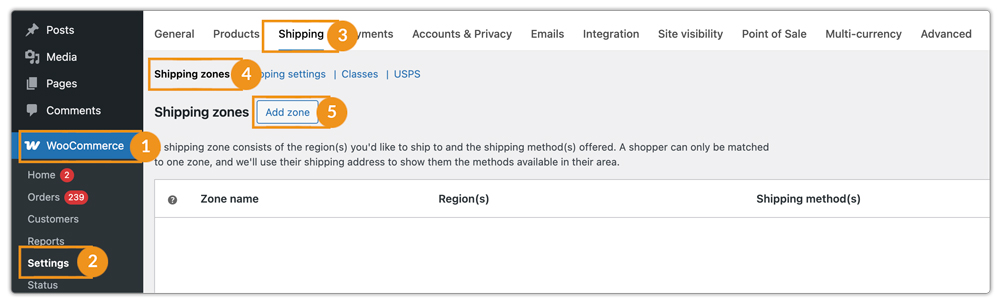
Navigate to WooCommerce → Settings → Shipping → Shipping Zones. Here, you can create new shipping zones by clicking on Add Zone or edit existing ones based on the regions you want to serve.
Edit the desired shipping zone, click Add Shipping Method, and select USPS Shipping from the list, as shown in the image.

Once added, you can edit the USPS shipping method and select the required USPS services for that specific shipping zone.

Customers whose shipping addresses fall within that zone will see only the USPS services you’ve enabled for that zone (provided the services are available for their destination).

Disable the same USPS services in the plugin’s Global Settings if you’re configuring them through WooCommerce Shipping Zones. Enabling the same services in both places can result in duplicate shipping options being displayed at checkout.
Conclusion
WooCommerce shipping zones are the backbone of any working USPS checkout setup. Get the zones right, and USPS rates appear automatically for the right customers at the right time. Miss a zone, and customers can’t check out at all. The PH USPS Shipping Plugin for WooCommerce with Print Label plugs into any zone you configure, and live rates handle the rest.
Need help setting up your USPS shipping zones? The PluginHive support team is here.
FAQs
Q. Can I hide USPS services for certain zones or cart conditions?
Yes. The PH Hide Shipping Methods & Rate Adjustment for WooCommerce lets you show or hide specific USPS services based on conditions — on top of your zone configuration.
Q. Can I combine USPS live rates with flat-rate shipping in a WooCommerce zone?
Yes. Add both the USPS plugin and WooCommerce’s built-in Flat Rate method to the same zone. Customers will see both at checkout. For more advanced conditional rules, the PH Table Rate Shipping Pro Plugin for WooCommerce lets you layer flat-rate rules on top of live USPS rates.
Q. Can WooCommerce marketplaces configure USPS zones per vendor?
Yes. The PH Multi-Vendor Shipping Plugin for WooCommerce calculates USPS rates separately per vendor based on each vendor’s origin ZIP code, working within your existing zone configuration.
Q. Can I display shipping rates from more than one carrier in WooCommerce?
Yes. You can display live shipping rates from multiple carriers at checkout using the Multi-Carrier Shipping Plugin for WooCommerce. The plugin lets you connect multiple shipping carriers and present their available services and real-time rates to customers.
