


Running a service business on WooCommerce without a proper booking system creates more problems than you’d expect. Customers call to check availability, you manually block off time, and somewhere in between, a double booking happens, costing you time and credibility.
That’s where the Bookings and Appointments for WooCommerce plugin by PluginHive comes in. It turns your store into a fully functional WooCommerce appointment booking system where customers pick their slot, confirm their booking, and you get notified automatically. This guide walks you through everything you need to get it up and running.
Table of Contents
- Why Time-Slot Appointments Work Better for Service Businesses
- Prerequisites for WooCommerce Appointment Booking
- How to Create Time Slot Booking in WooCommerce
- Key Features to Manage WooCommerce Booking Time Slots
- Common Use Cases for WooCommerce Appointment Booking
- Tips to Optimize Your WooCommerce Time Slot Booking System
- Conclusion
- FAQs
Why Time-Slot Appointments Work Better for Service Businesses
Most service businesses don’t need full-day bookings; they need specific time windows that don’t overlap. Managing this manually through calls or emails is time-consuming and leaves too much room for error. A proper WooCommerce time slot booking system puts the entire process on autopilot.
Here’s what changes when you switch to time-slot booking:
- Customers see real-time availability and book on their own, without contacting you
- Confirmed slots are blocked instantly – no risk of double bookings
- Automated confirmations and reminders reach customers without any effort from your side
- Your store accepts appointment booking round the clock, even when you’re offline
- You spend less time managing schedules and more time serving customers
For WooCommerce-based businesses where every appointment matters, such as clinics, salons, coaching practices, and fitness studios, this shift makes a measurable difference.
Prerequisites for WooCommerce Appointment Booking
Before you start, make sure these are in place. Having clarity here saves time during setup.
- An active WooCommerce store with at least one service to offer as a bookable product
- The Bookings and Appointments for WooCommerce plugin is installed and activated
- Your working hours, appointment duration, and any days or times you don’t take bookings
With these ready, head to the detailed setup guide for a complete configuration walkthrough before diving into the steps below.
How to Create Time Slot Booking in WooCommerce
Once the plugin is active, go to WooCommerce → Products → Add New, set the product type to Bookable Product, name your service, and set your price.
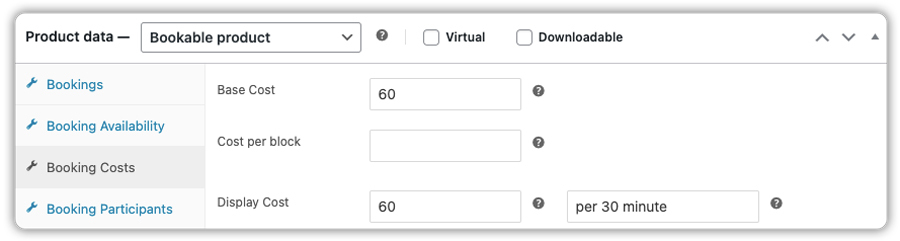
From here, four key settings shape how your WooCommerce booking time slots work.
Choose How Your Slots Are Structured
This determines the shape of each appointment. For a fixed-duration service like a 1-hour consultation, you set a fixed block duration, and the calendar displays individual start times for customers to choose from.
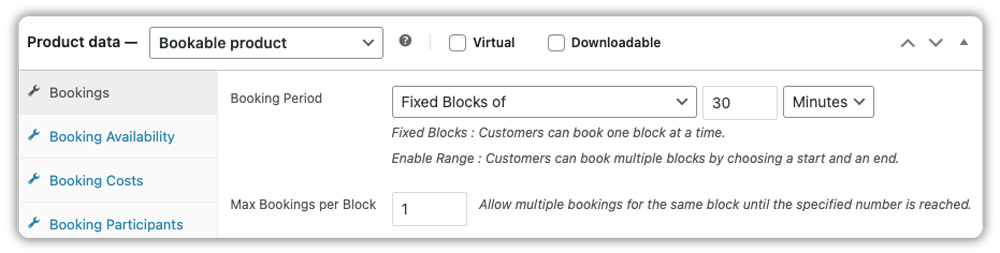
If the session length varies, the flexible option lets customers pick both a start and an end time. You can configure these differently for different services on the same store.
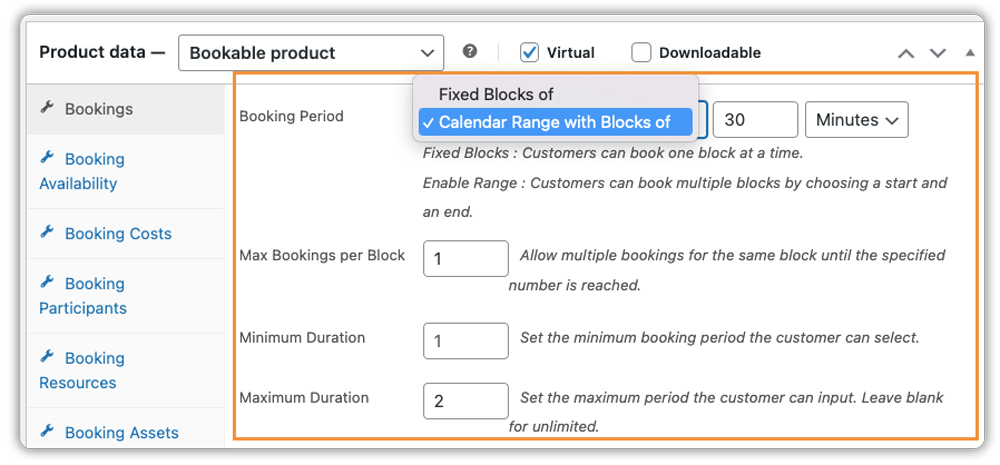
Define When You’re Available
Set your daily opening and closing times, say, 9:00 AM to 6:00 PM and the plugin builds your available slots automatically within that window.
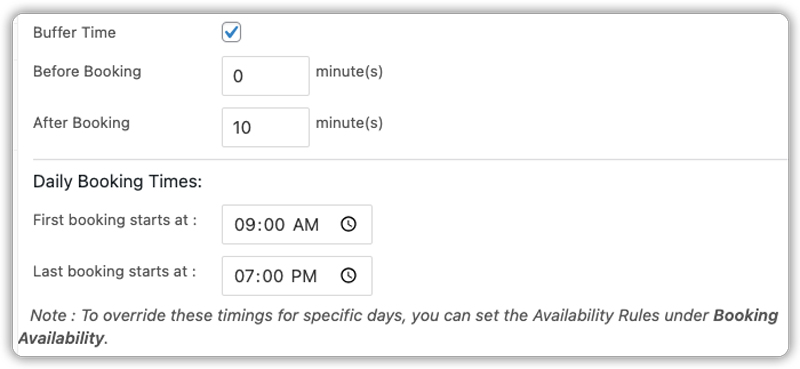
Under the Availability tab, block out days and times you don’t work, whether that’s weekends, public holidays, or a regular lunch break. The booking calendar reflects all of this in real time.

Add Buffer Time Where Needed
If you need time between appointments to prepare or reset, buffer time handles that automatically. Set a gap before or after each booking, and no new slot will appear until that gap has passed. It’s a small setting that keeps your day from feeling rushed.
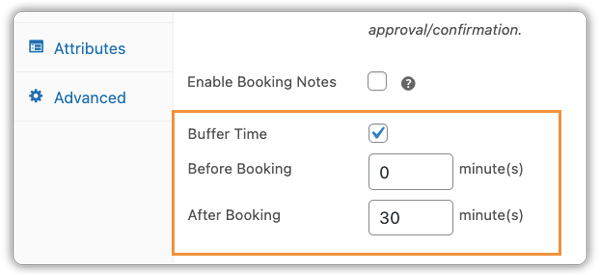
Control How Many Bookings Each Slot Accepts
For one-on-one services, set the limit to 1. For group sessions, set the maximum number of participants. Once that number is reached, the slot closes automatically on the calendar.
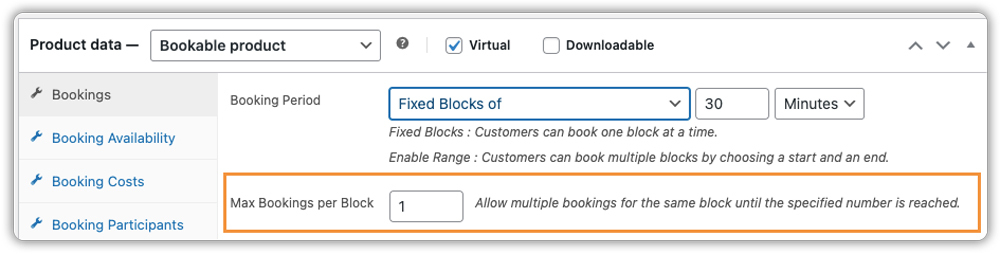
Once these settings are configured, publish your product and test the booking flow from your store’s front end to make sure everything works as expected.
For example, if you offer a consultation service priced at $60 for 30 minutes, with availability from 9:00 AM to 6:40 PM, the booking calendar will automatically display available time slots throughout the day.

As shown above, customers can select a date, view all available time slots, and choose a convenient option like 11:00 AM. Once selected, the booking details and price are clearly displayed before proceeding to book.
Key Features to Manage WooCommerce Booking Time Slots
The Bookings and Appointments for WooCommerce plugin gives you more than just a calendar. These features help you manage your booking time slots professionally on a day-to-day basis.
- Staff management: create profiles for each team member, set their individual availability, and let customers choose who they want to book with
- Booking approval: review and confirm appointments manually before they’re finalised, useful for premium or high-demand services
- Email notifications and reminders: customers receive automatic confirmations, and reminders go out before the appointment to reduce no-shows
- Calendar sync: confirmed bookings sync automatically to Google Calendar, Microsoft Outlook, or iCalendar, so your schedule stays accurate without manual updates
- Manual bookings: place bookings on behalf of walk-in or phone customers directly from your WooCommerce dashboard
These features work together to give you full control over your WooCommerce appointment booking without adding to your daily workload.
Common Use Cases for WooCommerce Appointment Booking
WooCommerce time slot booking works across a wide range of service businesses. Here’s how different types of stores use it:
| Business Type | How They Use It |
|---|---|
| Salons and spas | Fixed slots per service with individual staff availability |
| Medical and dental clinics | Separate bookable products per doctor with approval enabled |
| Coaching and consulting | Hourly sessions with Google Calendar sync |
| Fitness studios | Group class slots with participant limits per session |
| Photography studios | Fixed session durations with buffer time between shoots |
| Online tutoring and consultations | Time-slot sessions with automated email reminders |
Each of these businesses has a different setup, but they all rely on the same core Bookings and Appointments for WooCommerce plugin that shows accurate availability, blocks confirmed slots, and keeps scheduling organised without manual work.
Tips to Optimize Your WooCommerce Time Slot Booking System
Once your WooCommerce time slot booking is live, a few smart adjustments can make it run even better:
- Set a last-minute booking cutoff: prevent customers from booking a slot that starts within the next hour or two, giving yourself time to prepare
- Limit how far ahead customers can book: a 30 to 60-day booking window keeps your calendar focused and manageable
- Collect customer details at booking: allow customers to add notes or share preferences during booking. For more advanced input fields and customization, you can extend this using the PH Product Add-ons for WooCommerce plugin.
- Accept deposits at booking: with PH Deposits for WooCommerce, you can collect a partial payment upfront and the remaining balance closer to the appointment date, making it easier for customers to commit
- Automate Zoom links for online sessions: if you offer virtual consultations or online classes, the Zoom Integration with Bookings and Appointments for WooCommerce automatically creates and sends a meeting link to customers when they book, with no manual scheduling involved
Conclusion
Time slot-based booking gives your service business the structure it needs to run without constant manual effort. With the Bookings and Appointments for WooCommerce plugin by PluginHive, you get a complete WooCommerce appointment booking system, slot configuration, availability rules, staff management, calendar sync, and automated notifications all working together inside your existing store.
As your business grows, the plugin grows with it. Whether you need to support more staff, manage higher booking volumes, or expand to new services, you have the tools to do it without starting over. If you need help setting up this in your WooCommerce store, the PluginHive support team is ready to assist you with configuration and guidance.
FAQs
- How to create recurring appointments in WooCommerce?
Using the PH Recurring Bookings add-on along with the Bookings and Appointments for WooCommerce plugin, you can set repeating availability for specific days and time slots without any manual effort. - Can customers book multiple non-adjacent sessions in WooCommerce?
Yes, you can allow customers to book multiple non-adjacent sessions in WooCommerce using the Bookings and Appointments for WooCommerce by PluginHive, along with the Multiple Non-Adjacent Bookings add-on. It lets customers select multiple time slots across different dates in a single booking. - How to manage appointments across multiple vendors on a marketplace?
The Dokan Bookings Integration for WooCommerce allows each vendor to create and manage their own bookable products and availability independently from their dashboards.
