



Running an online store today often means offering more than just products; many WooCommerce store owners now provide virtual appointments, consultations, and classes. Whether you’re a fitness coach, tutor, or service provider, managing these sessions smoothly is essential to keep customers happy and operations efficient.
That’s where integrating Zoom with WooCommerce Bookings comes in. With the right setup, you can automate meeting links, send reminders, and manage all your online sessions directly from your store. This not only saves time but also creates a professional experience for your clients. In this article, we’ll explore how to boost your WooCommerce bookings using Zoom integration with the Bookings and Appointments for WooCommerce plugin.
Table of Contents
- Benefits of Zoom Integration with WooCommerce Bookings
- Integrate Zoom with Your WooCommerce Store
- Real-World Use Case
- Tips to Boost WooCommerce Bookings with Zoom
- Conclusion
- FAQs
Benefits of Zoom Integration with WooCommerce Bookings
Integrating Zoom with your WooCommerce store makes managing online appointments, consultations, and classes much easier for store owners. It automates many manual tasks, reduces scheduling errors, and creates a seamless experience for your customers.
- Automatic Meeting Link Generation: Every booking automatically generates a unique Zoom meeting link, eliminating the need to create links manually for each appointment. This saves time and reduces the risk of errors.
- Improved Customer Experience: Customers receive automated emails with their Zoom links and booking details. This makes the process smoother, more professional, and helps build trust with your clients.
- Staff and Host Alignment: Meetings are automatically assigned to the correct staff member, who is designated as the meeting host or alternate host on Zoom, ensuring seamless hand-offs.
- Reduced No-Shows and Confusion: Automated reminders and calendar sync help reduce missed appointments. Customers are less likely to forget sessions, allowing you to focus on delivering services rather than handling scheduling issues.
- Professional and Streamlined Workflow: Combining Zoom with your WooCommerce store keeps your workflow smooth. From booking to meeting execution, everything happens in a centralized system, giving your business a more professional appearance.
Now that you know the benefits of integrating Zoom, let’s explore how you can connect Zoom to your WooCommerce store and start managing your online bookings efficiently.
Integrate Zoom with Your WooCommerce Store
Connecting Zoom with your WooCommerce store makes managing online appointments and virtual classes much easier. With the Bookings and Appointments for WooCommerce plugin and Zoom Integration, the process is almost automatic, with no complicated steps required.
Note: To get started, make sure the Bookings and Appointments for WooCommerce plugin and the Zoom add-on are installed, activated, and configured correctly. You can follow this quick setup guide for the bookings plugin and Zoom integration.
Zoom Integration in Action
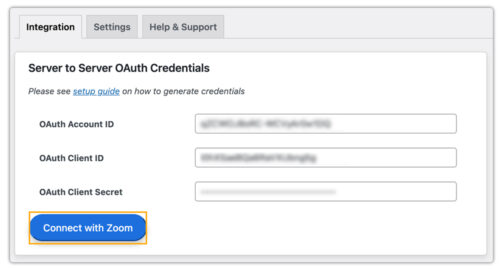
The plugin allows you to link your Zoom account directly to your store.
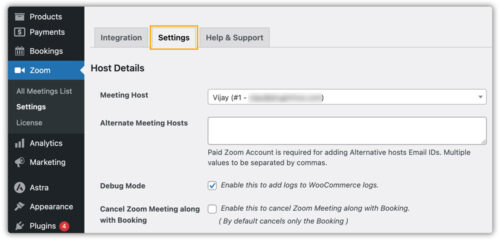
After linking, you can choose the session host, the typical duration for your meetings, and other preferences.
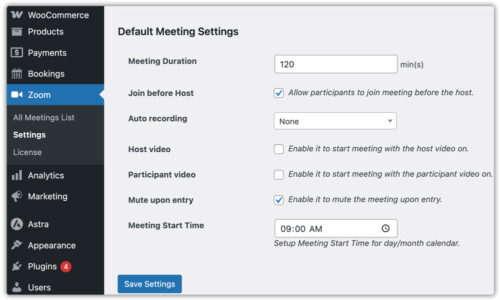
By default, these options are used for every service, yet you can customize them for individual offerings such as webinars or coaching sessions.
Within Product Settings, you can turn any service, class, or consultation into a bookable product.
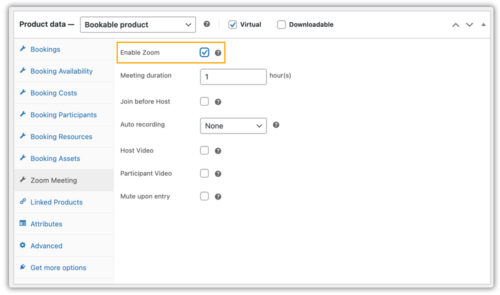
Here’s how it works for your customers:
- A customer selects a service, picks a suitable date and time, and completes checkout.
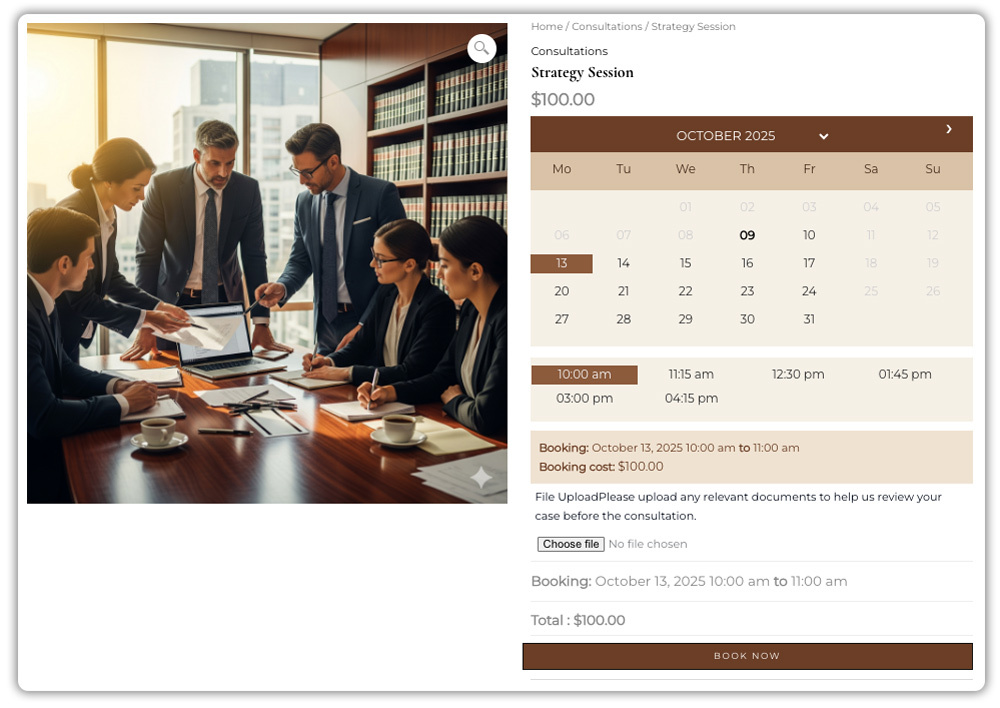
- Once the booking is confirmed, a Zoom meeting is automatically created for the session.

- Customers receive an email with all the meeting details, including date, time, and the Zoom link.

This integration supports flexible scheduling. You can offer one-on-one sessions, group workshops, or classes, all managed seamlessly within WooCommerce. Customers can choose the timing that works best for them, and your staff can manage multiple sessions without hassle.
With Zoom integrated into WooCommerce, managing online sessions becomes simple, professional, and stress-free, allowing you to focus on delivering great services rather than handling the technical details.
Real-World Example: Managing WooCommerce Appointments with Zoom
Let’s say you own a WooCommerce store offering online fitness classes, consultations, or coaching sessions. Managing bookings, sending Zoom links, and coordinating with staff can be challenging without the right setup.
The Challenges You Will Face:
- Manually creating Zoom meeting links for each booking.
- Sending booking confirmations and reminders to customers.
- Ensuring the right staff member hosts each meeting.
- Manage booking cancellations easily, ensuring nothing gets missed.
- Handling group sessions and participant limits efficiently.
How It Can Be Solved:
With the Bookings and Appointments for WooCommerce plugin and Zoom Integration, these challenges are handled automatically:
- Zoom meeting links are generated for every booking without manual work.
- Customers receive emails with all their session information and Zoom links, plus reminders so they never miss a meeting.
- Each booking is assigned to the correct staff member as host or alternate host.
- When a booking is cancelled, the Zoom meeting is updated automatically.
- Flexible settings allow easy management of one-on-one or group sessions.
With this setup, your WooCommerce store can run online bookings smoothly, reduce manual work, and provide a professional and seamless experience for both your staff and customers.
Tips to Boost WooCommerce Bookings with Zoom
Integrating Zoom with your WooCommerce store makes online bookings easier, but there are several strategies you can use to get the most out of this setup. These tips will help you save time, reduce no-shows, and provide a professional experience for your customers.
- Send Automated Reminders: Use the plugin’s built-in email notifications to send reminders 24 hours and 1 hour before the session. This reduces missed appointments and keeps your schedule organized.
- Record Sessions for Customers: Enable auto-recording in Zoom for important consultations. Customers who miss a live session can access the recording, improving customer satisfaction.
- Keep Staff Aligned: Ensure each booking is assigned to the correct staff member. The staff member becomes the Zoom host or alternate host, keeping meetings smooth and professional.
- Integrate Zoom with Calendar Sync: Automatically sync bookings with calendars (Google Calendar, Outlook). This prevents double-booking, improves staff planning, and ensures smooth operations.
- Regularly Review and Adjust Settings: Monitor bookings, Zoom meeting settings, and staff availability. Adjust default meeting settings or product-specific rules to optimize efficiency and customer experience.
By following these tips, WooCommerce store owners can maximize the benefits of Zoom integration, ensuring smoother appointments, happier customers, and a more professional online service experience.
Conclusion
Integrating Zoom with your WooCommerce store makes managing online appointments and classes much easier. With the Bookings and Appointments for WooCommerce plugin and the Zoom add-on, you can automate meeting links, assign hosts, handle group sessions, and send reminders effortlessly.
This setup saves time, reduces missed appointments, and ensures a smooth experience for your customers. If you need any help setting up the plugin, the PluginHive support team is ready to assist you.
Frequently Asked Questions (FAQ)
Q1. What prerequisites or Zoom license do I need to integrate Zoom with WooCommerce bookings?
A. To set up the integration properly, you’ll need WooCommerce, the Bookings and Appointments for WooCommerce plugin, and the Zoom Add-on. You’ll also need a Zoom account (Pro or higher is recommended for longer meeting durations) and valid Zoom API credentials, including the OAuth Client ID and Client Secret.
Q2. What happens if I update my Zoom API keys or remove a Zoom host from my account?
A. If you update your Zoom API credentials or remove a Zoom host, make sure to update the details in the plugin settings. This ensures the integration remains active and recognizes the latest API settings.
Q3. Will the Zoom meeting link be sent automatically to the customer after booking on WooCommerce?
A. Yes. When the integration is set up correctly, the plugin automatically creates a Zoom meeting and sends the meeting link in the booking confirmation email to the customer. This ensures a seamless experience without any manual effort.
Q4. If I cancel or delete a booking, will it also cancel the associated Zoom meeting?
A. Yes. The plugin includes an option called “Cancel Zoom meeting along with booking.” When enabled, any cancelled booking in WooCommerce will automatically cancel its linked Zoom meeting, keeping your schedule and communication consistent.
Q5. Does the WooCommerce Zoom integration support group meetings or classes?
A. Yes. You can configure “Max Bookings per Block” to allow multiple participants in a single time slot. Setting this number higher than one automatically turns your booking into a group meeting, perfect for classes, workshops, or group consultations.
