



How to Set Up PH GLS Europe Shipping for WooCommerce
This step-by-step guide explains how to set up the PH GLS Europe Shipping for WooCommerce plugin to connect your GLS account, generate shipping labels directly from your WooCommerce orders, enable shipment tracking, and much more. You can follow the complete setup process or jump to a specific section based on your requirements.
In This Guide
- Download, Install, and Activate the Plugin
- Activate the Plugin License
- Connect Your GLS Account
- Navigate to Plugin Settings
- Add Shipper Address Details
- Verify Your Product Settings
- Configure GLS Shipping Services
- Configure Packaging Settings
- Configure Label Settings
- Printing GLS Shipping Labels
- How to Set Up GLS International Shipping
- Set Up GLS Shipment Tracking
- Advanced Settings
1. Download, Install, and Activate the Plugin
After purchasing the PH GLS Europe Shipping for WooCommerce plugin, download the ZIP file from your PluginHive account.
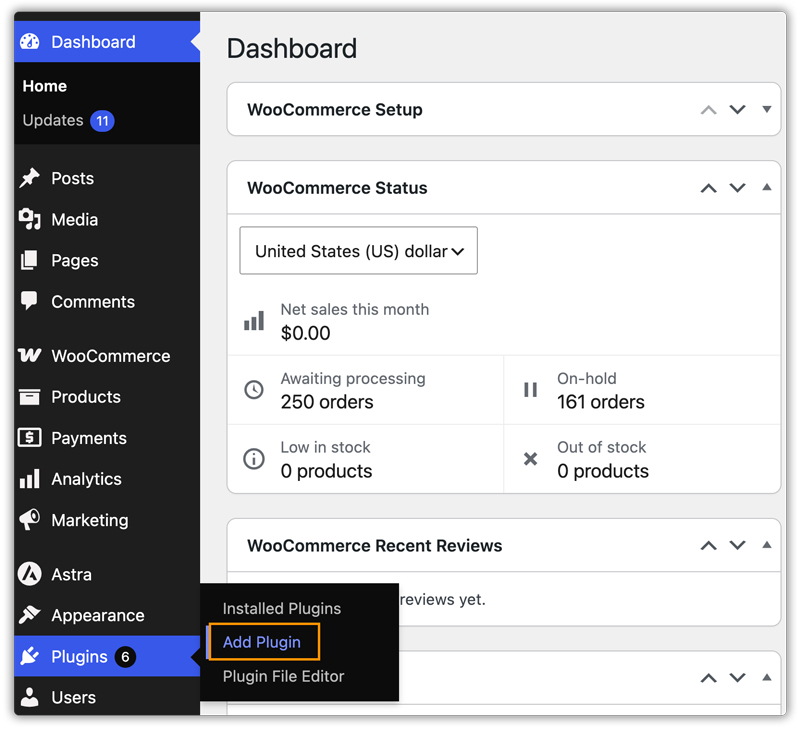
- Log in to your PluginHive account and go to My Account > API Downloads. Download the plugin ZIP file. Log in as the WordPress Admin of your online store and navigate to Plugins > Add Plugin in your WordPress dashboard.
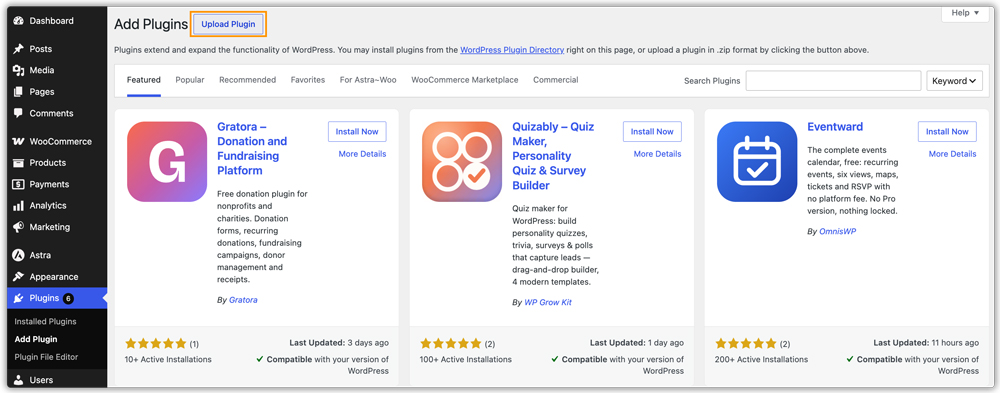
- Click Upload Plugin.
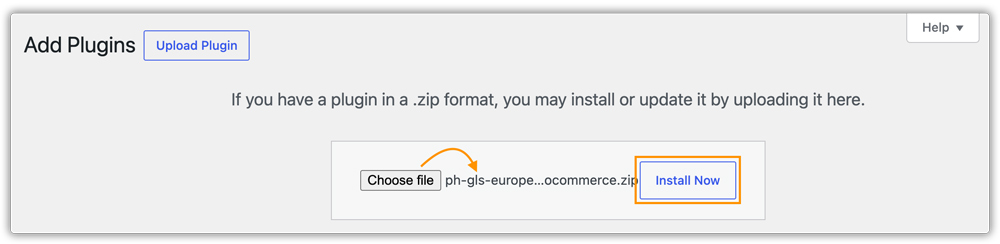
- Select the downloaded ZIP file and click Install Now.
- Once installation is complete, click Activate Plugin.

2. Activate the Plugin License
After installing and activating the plugin, you must activate your license to unlock all plugin features, including label generation.
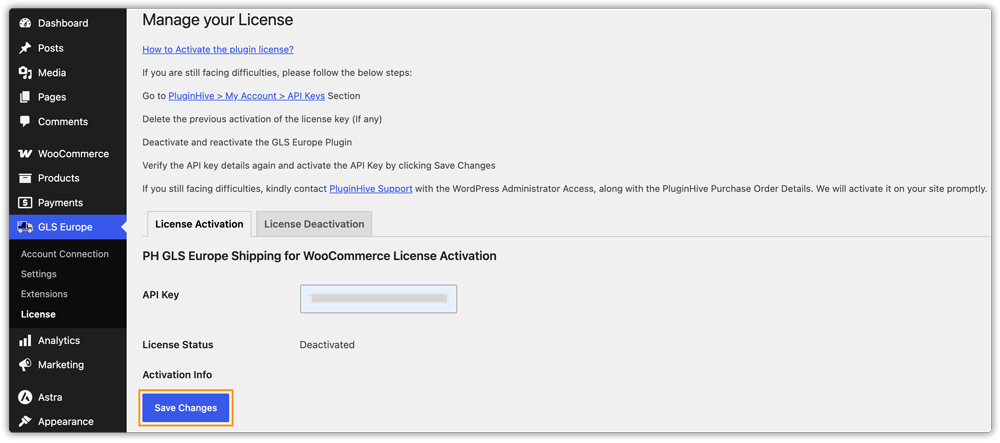
Log in to your PluginHive account and go to My Account > API Keys. Copy your Product Order API Key. Then, in your WordPress dashboard, go to GLS > License.
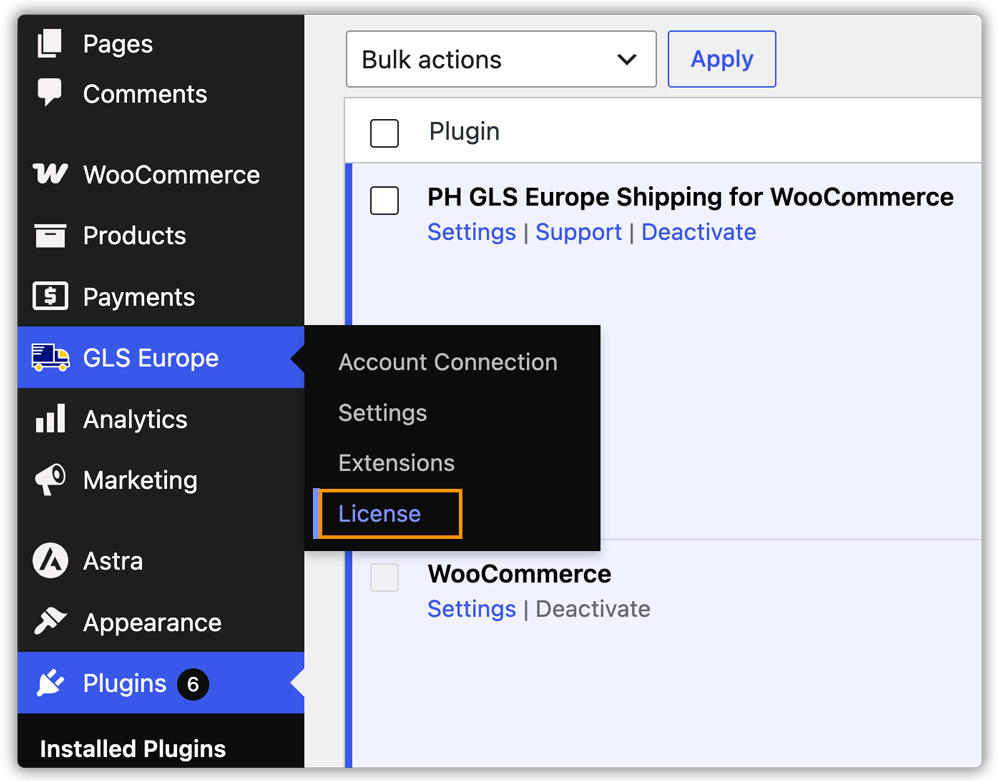
Under License Activation, enter your Product Order API Key and click Save Changes.
Once activated, the API Key Status will display Activated, confirming that the plugin is fully licensed.
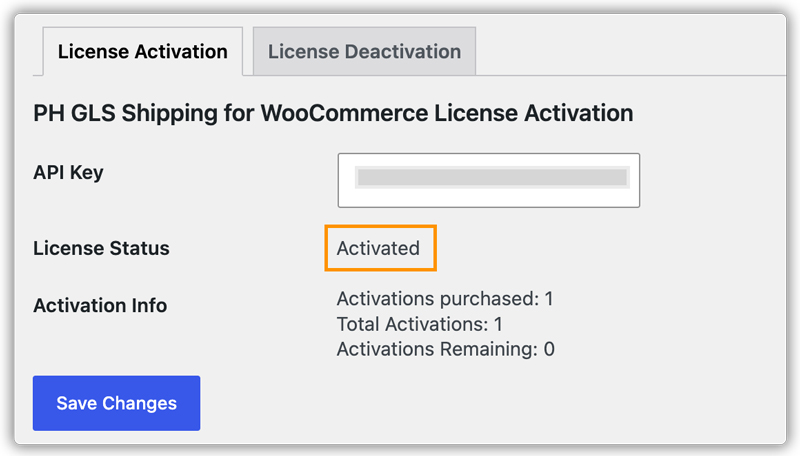
An active plugin license is required for label generation and all premium features. Renew your license before it expires to avoid disruptions to your GLS shipping workflow.
3. Connect Your GLS Account
Before connecting the plugin, make sure you have an active GLS business account for one of the supported origin countries: Germany, Ireland, France, Austria, Belgium, Switzerland, Denmark, or Luxembourg. If you don’t have an account yet, visit the official GLS website to learn how to become a GLS business customer.
To connect your account, you need five details:
- Country of Origin: The country linked to your GLS account.
- Account Number: Your GLS Customer ID.
- Contact ID: Your GLS shipper ID.
- API Key: Your GLS API ID.
- API Secret: Your GLS API Secret.
The following sections explain where to find each detail.
To obtain your Account Number and Contact ID, contact your local GLS customer support team or your GLS account manager. If you already have access to the YourGLS business portal, you can also find these details in the User Settings.
Get Your API Key and API Secret
You create these in the GLS developer portal by registering an app.
Step 1: Sign In to the GLS Developer Portal
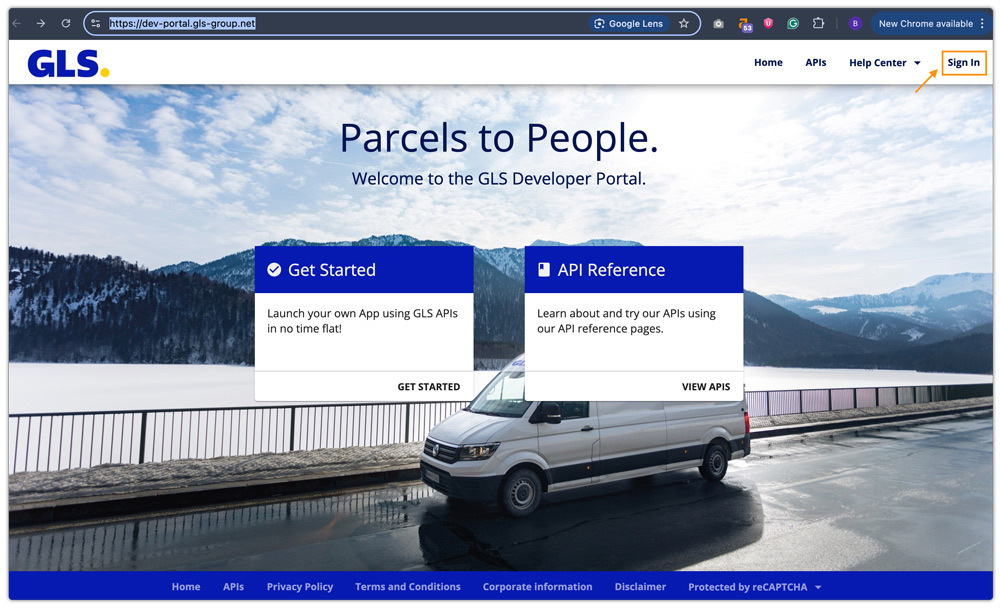
- Go to the GLS Developer Portal and click Sign In.
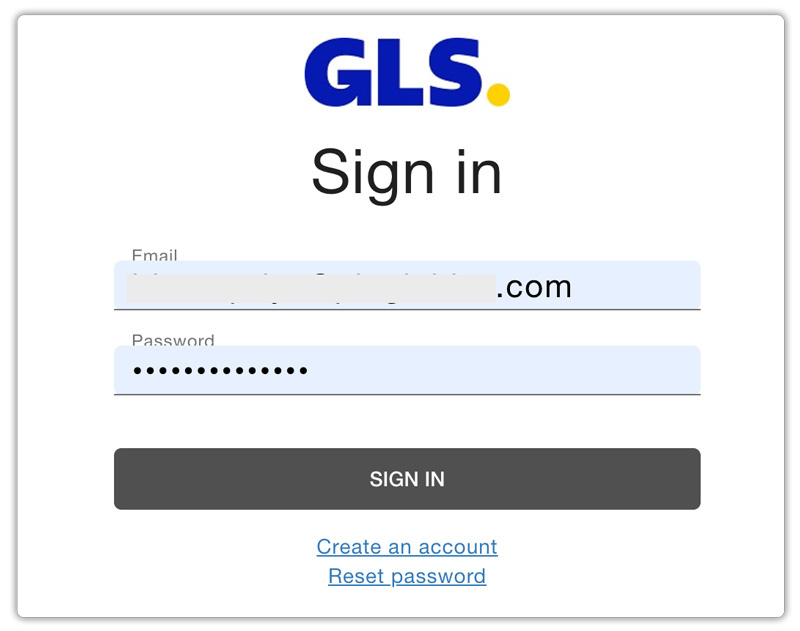
- Enter your email and password and click SIGN IN. If you don’t have a developer portal account yet, click Create an account and create one.
Step 2: Create an App
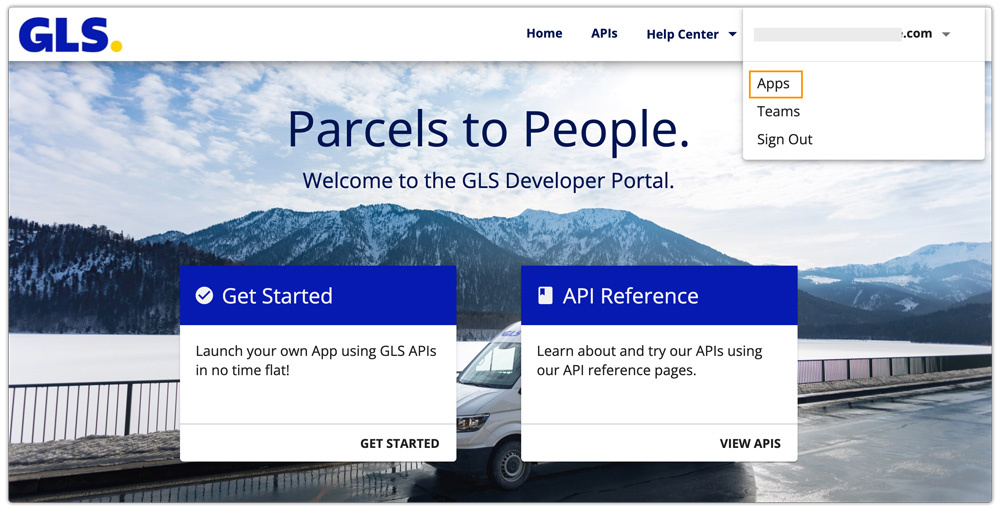
- After signing in, click your email address in the top-right corner and open Apps.
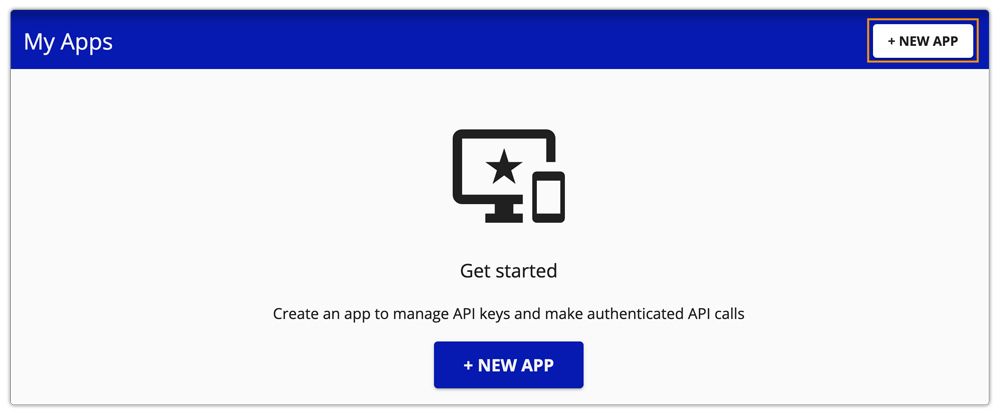
- Click + NEW APP.
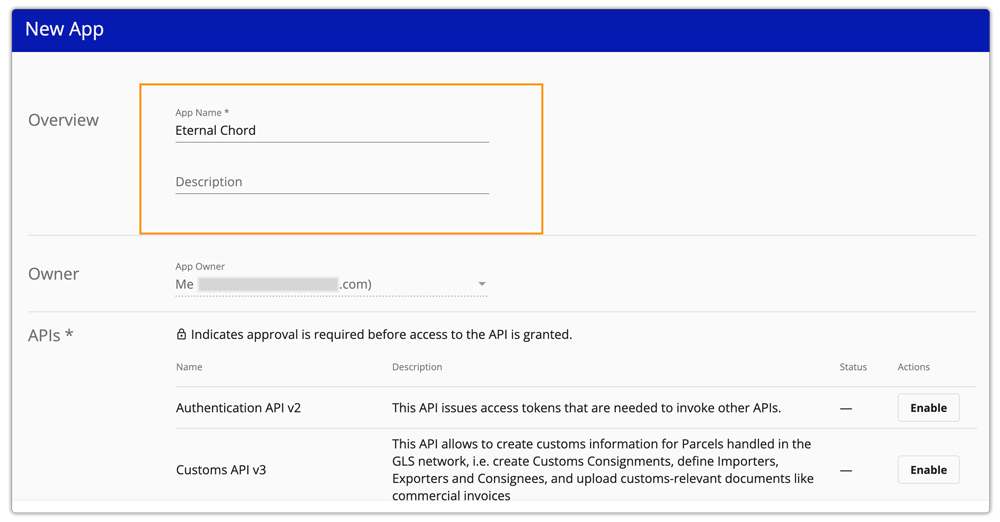
- Enter an app name, such as your store or company name, and add a description if required.
- In the API list, select Enable or Request for:
- Authentication API v2
- ShipIT-Farm API v1
- Track and Trace V1
- Click Save.
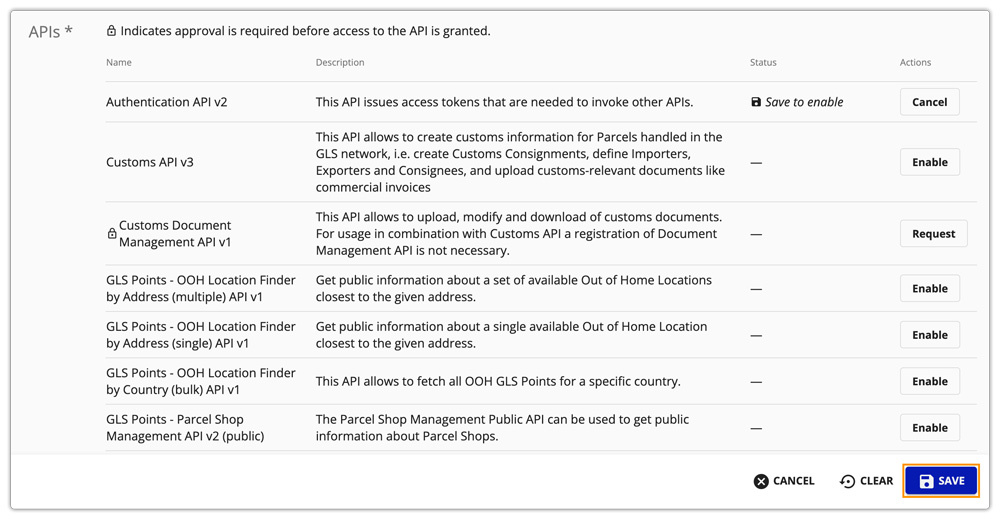
The portal now generates an App ID for your app. Copy it because GLS needs it to authorize your app for the ShipIT-Farm API.
Your API credentials only work once GLS authorizes your app. Contact your GLS contact person (sales representative or IT customer support) and tell them you want to use the GLS ShipIT-Farm API with a third-party WooCommerce plugin. Send them the team email address you used to register on the developer portal, the App ID generated in the portal, and your Contact ID from Section 3. Wait for GLS to confirm the activation before you continue.
Step 3: Copy Your API Key and API Secret
- Once GLS confirms, go back to Apps in the developer portal and open your app.
- There, you can find the API Key and API Secret.
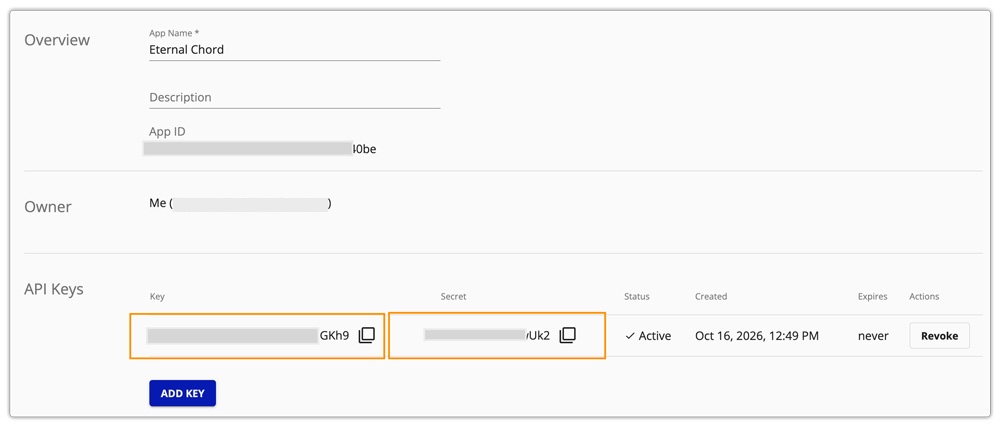
Now that you have all the required credentials, you can connect your GLS account with the plugin.
Connect GLS to the Plugin
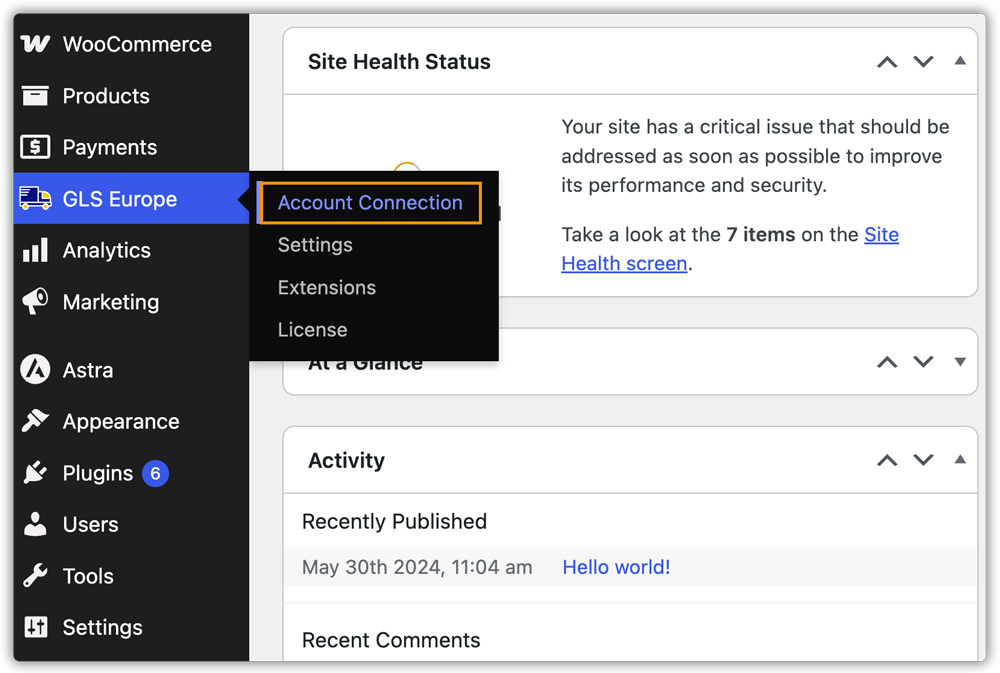
In your WordPress dashboard, go to GLS Europe> Account Connection.
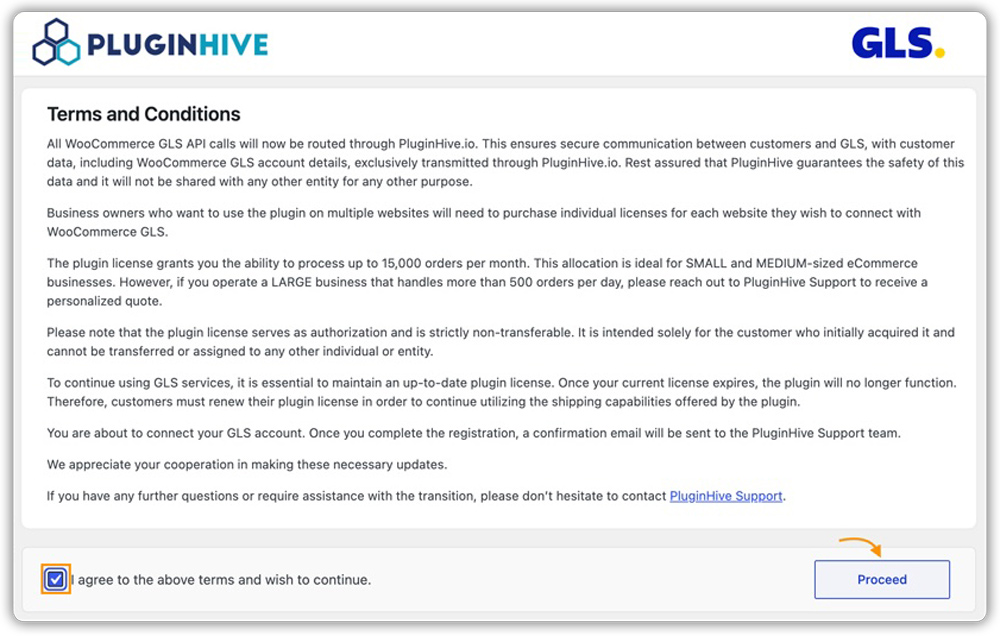
Read the Terms and Conditions on the connection page, tick the agreement checkbox, and click Proceed.
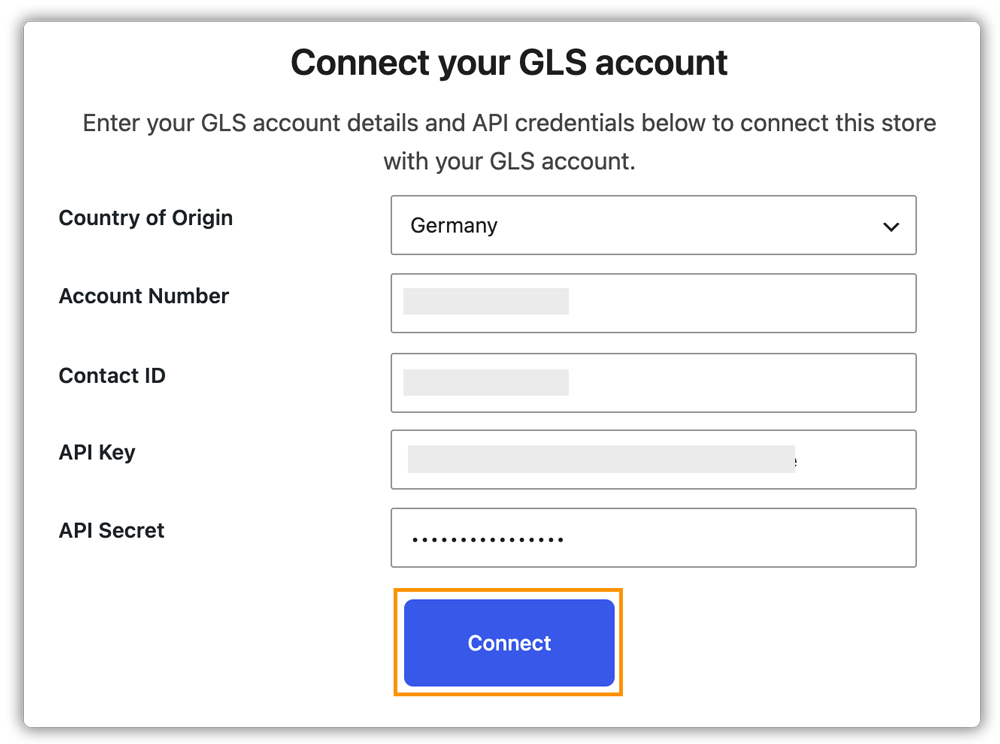
On the next screen, enter your GLS account credentials:
- Country of Origin: Select the country associated with your GLS account: Germany, Ireland, France, Austria, Belgium, Switzerland, Denmark, or Luxembourg.
- Account Number: Enter your GLS Account Number provided by GLS.
- Contact ID: Enter your GLS Contact ID provided by GLS.
- API Key: Enter your GLS API Client ID from the GLS developer portal.
- API Secret: Enter your GLS API Client Secret from the GLS developer portal.
Click Connect. The plugin submits your credentials to PluginHive’s carrier registration service and polls the service until it confirms the token.
Once connected, a success confirmation is displayed. Your GLS account is now linked to the plugin.
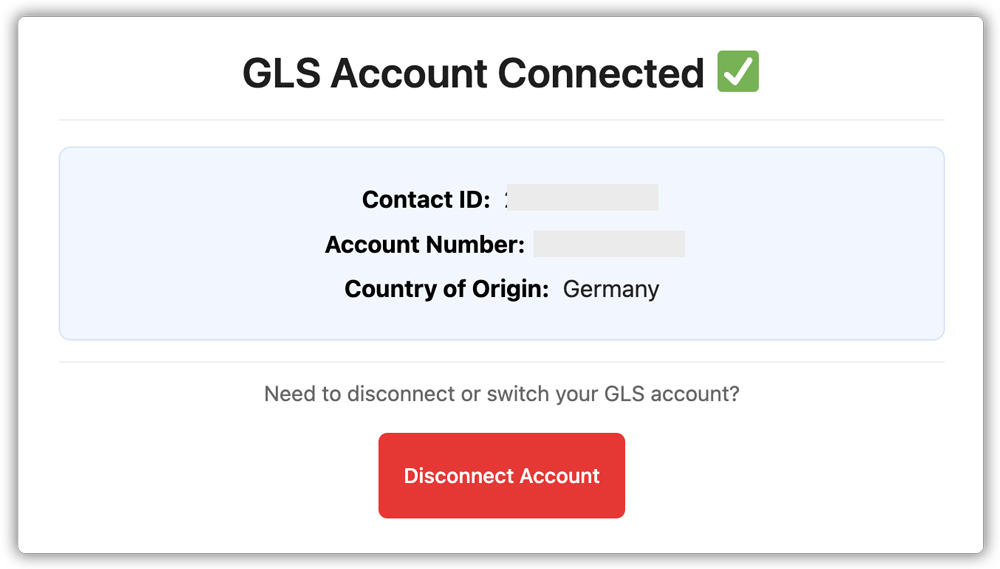
To disconnect your account at any time, go to GLS Europe > Account Connection and click Disconnect. You can reconnect by following the same steps.
4. Navigate to Plugin Settings
Once you activate the plugin and connect your GLS account, you can access the plugin settings in three ways.
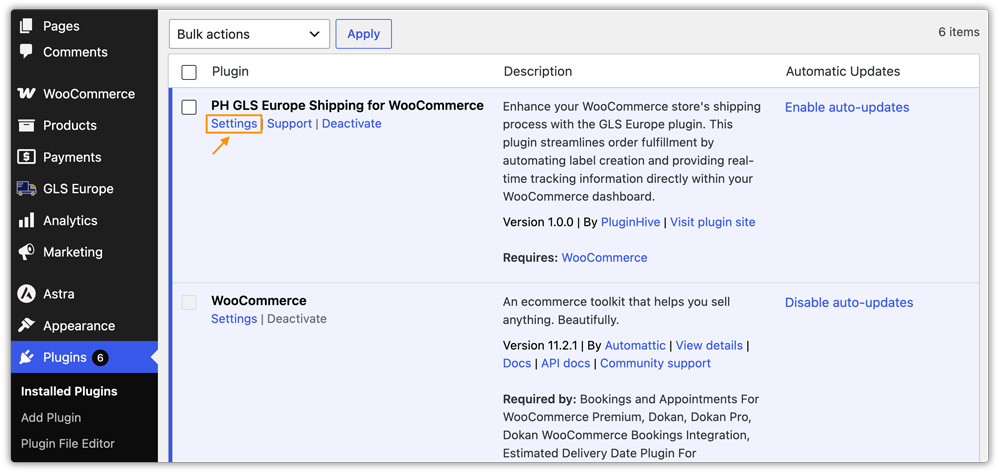
Navigate to Plugins > Installed Plugins > Settings under PH GLS Europe Shipping for WooCommerce.
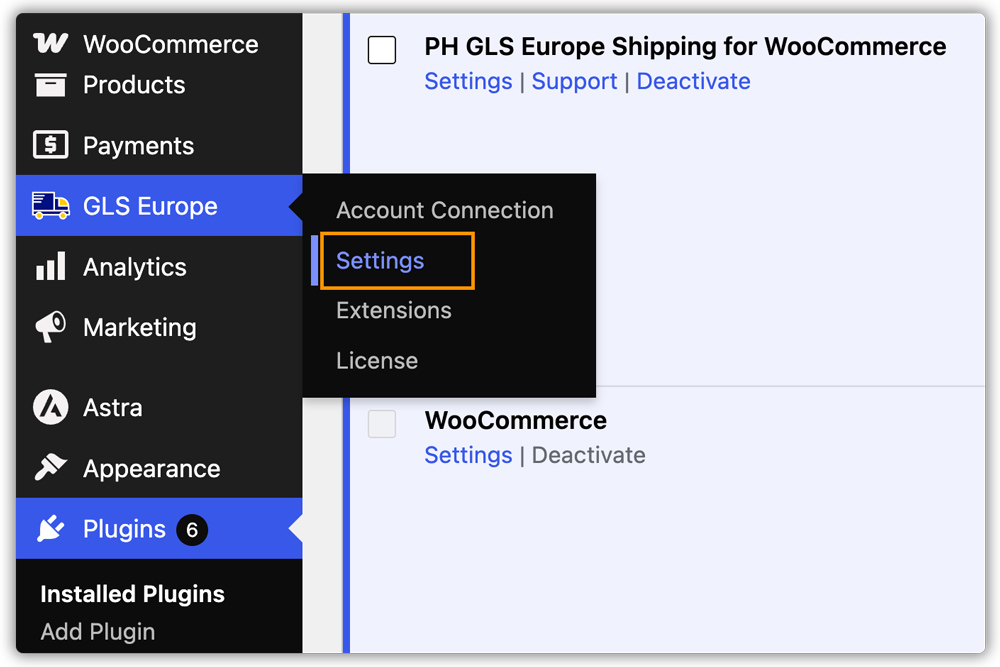
Or, navigate to GLS Europe > Settings in the dashboard, as shown in the image.
Or, navigate to WooCommerce > Settings > Shipping > GLS Europe.
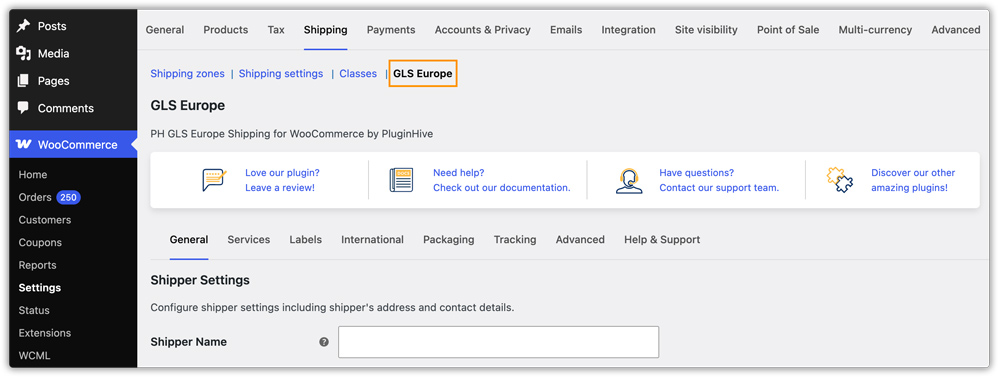
The plugin settings are organised across the following tabs:
- General
- Services
- Labels
- International
- Packaging
- Tracking
- Advanced
- Help & Support
5. Add Shipper Address Details
Go to WooCommerce > Settings > Shipping > GLS Europe > General. Enter the address from which your orders will be dispatched. This can be your store address, warehouse, or any dispatch location.
- Shipper Name: The name associated with your GLS account. Used for label printing. Required (3–40 characters).
- Company Name: Your company name as it should appear on shipments.
- Email: Your contact email address (maximum 50 characters).
- Phone Number: Your contact phone number. Sent to GLS with your address for shipment communication. Maximum 15 characters; may contain numbers, +, -, (, and ).
- Shipper Address Line 1: Primary street address of the shipment origin. Required (maximum 40 characters).
- Address Line 2 (Optional): Additional address information, such as a floor or unit number (maximum 40 characters).
- City: Shipment origin city. Required (maximum 40 characters).
- State / Province: State or province of the shipment origin. Optional (maximum 40 characters).
- Postal Code: Shipment origin postal code. Required (4–10 characters; letters, numbers, spaces, and hyphens accepted, for example, Irish Eircodes).
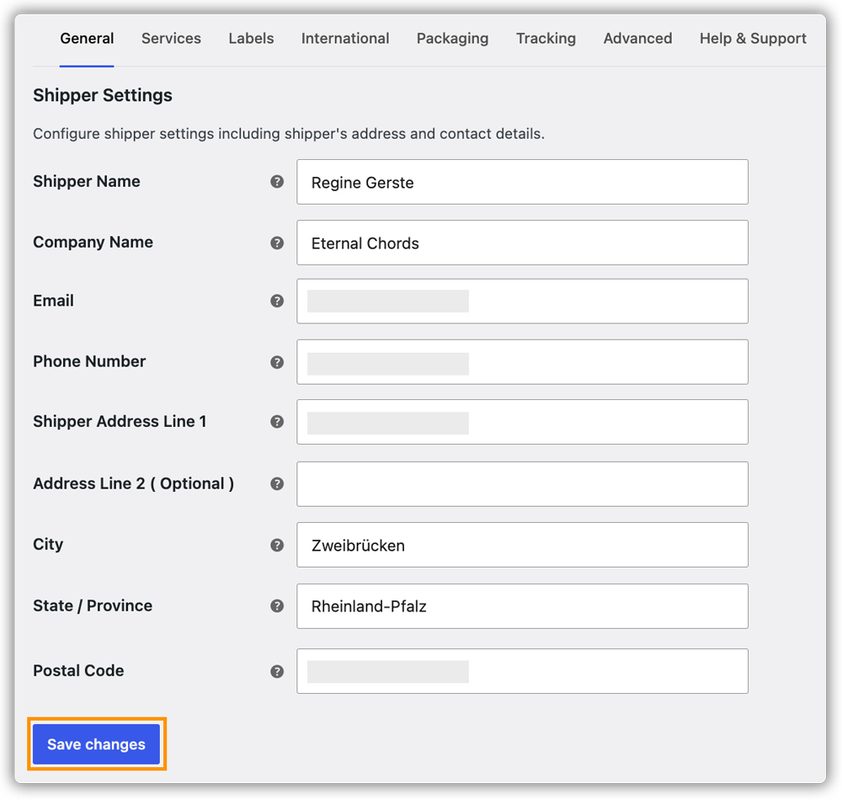
Click Save Changes after filling in all required fields.
6. Verify Your Product Settings
To generate valid GLS labels, your products must have correct weight values set in WooCommerce.
Add Product Weight and Dimensions
- Go to WooCommerce > Products and open the product you want to configure.
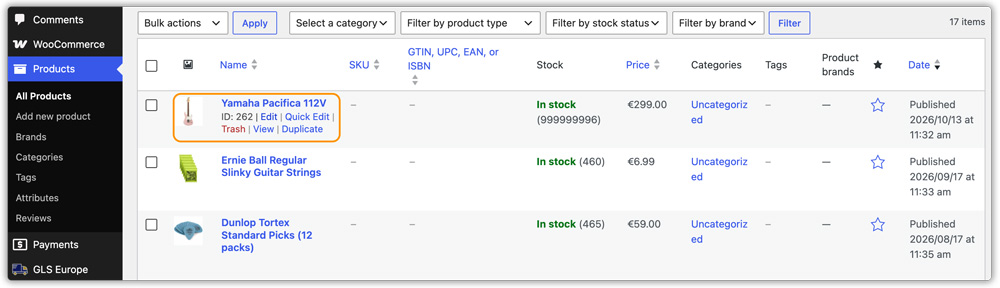
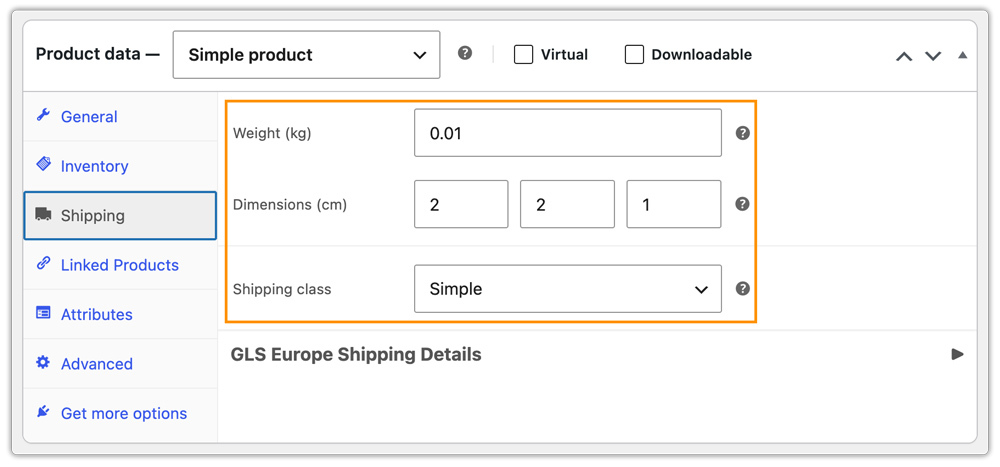
- Under Product Data, click the Shipping tab and enter the product’s weight and dimensions (Length, Width, Height).
- Assign a Shipping Class if applicable.
Add GLS Shipping Details at Product Level
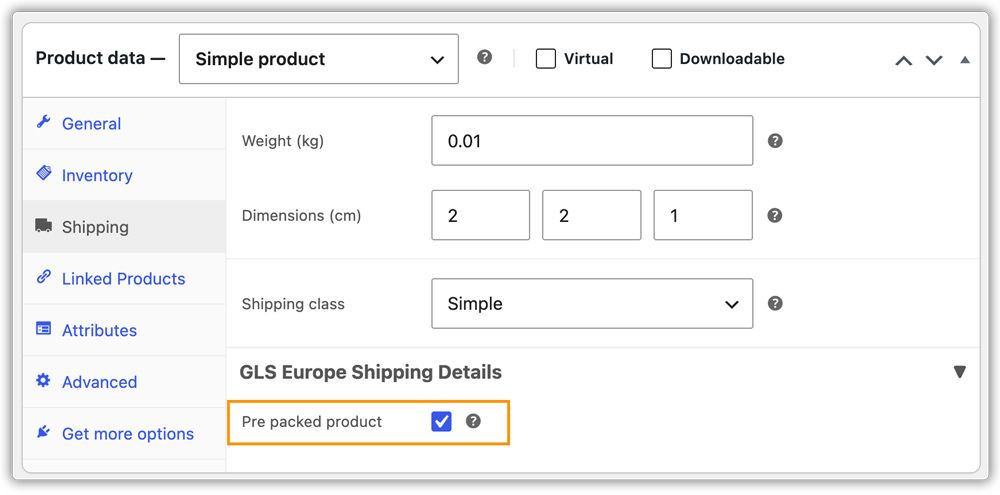
In the same Shipping tab, scroll down to the GLS Europe Shipping Details section.
Pre-Packed Product: Enable this option if the item ships in its own pre-packed box. The plugin treats it as an individual package and does not combine it with other items, regardless of the packaging method selected in the plugin settings.
Set Product Weight and Dimensions Unit
GLS expects weights in kilograms. Make sure your WooCommerce weight unit is set correctly:
- Go to WooCommerce > Settings > Products.
- Under the Measurements section, set the Weight Unit to kg. If you set it to pounds, the plugin will automatically convert the weight, but using kg is recommended to avoid discrepancies.
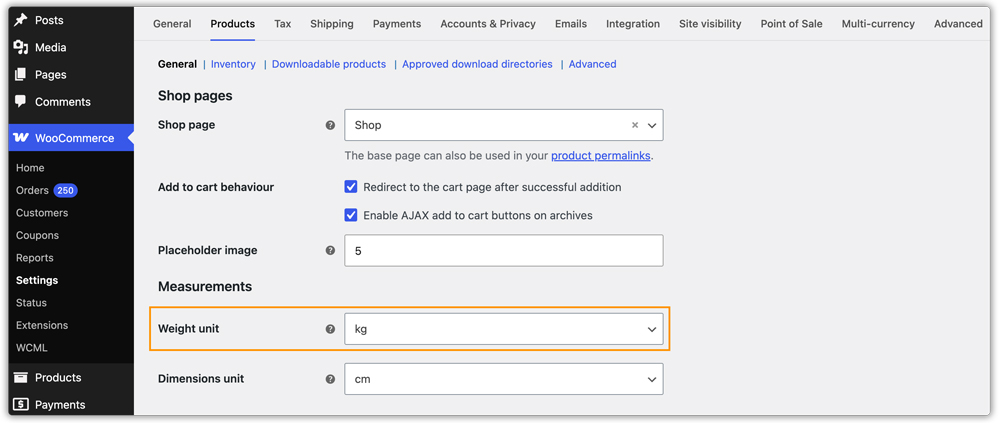
GLS requires a minimum package weight of 100 g (0.1 kg) and a maximum of 40 kg per package. Products below the minimum are automatically adjusted up; packages above the maximum are split across multiple boxes.
Set Minimum Product Weight
To ensure every product meets GLS’s minimum weight requirement, go to WooCommerce > Settings > Shipping > GLS Europe > Packaging and set the Minimum Product Weight value.
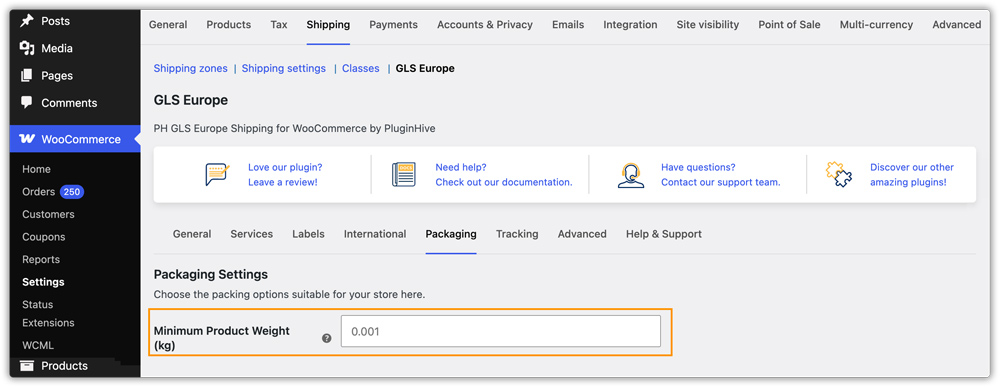
If a product has no weight configured, or its weight is below the minimum set here, the minimum value is used automatically before the package details are sent to GLS.
7. Configure GLS Shipping Services
Go to WooCommerce > Settings > Shipping > GLS Europe > Services. The plugin supports two GLS shipping services:
- GLS Parcel: GLS’s standard parcel delivery service.
- GLS Express: GLS’s express delivery service for faster delivery.
Enable the services you want to offer.
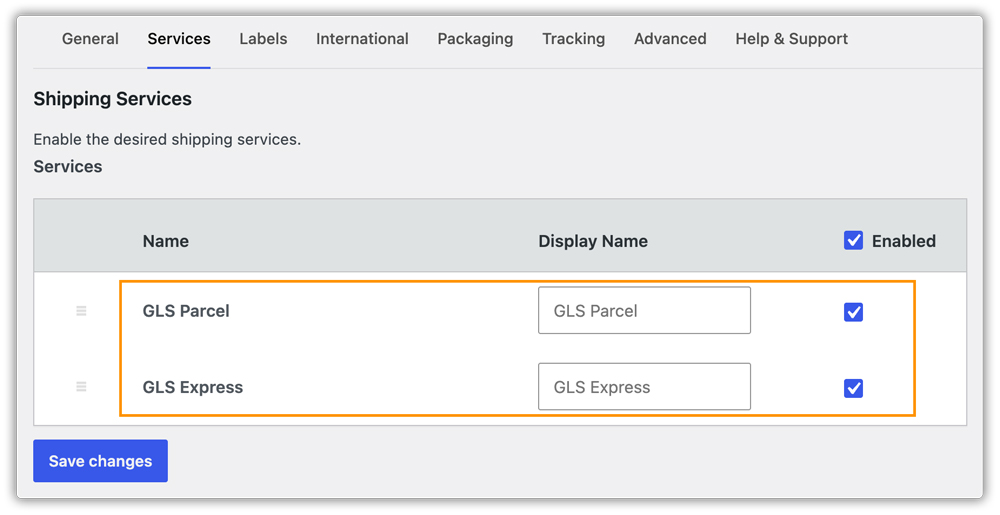
You can set a custom Display Name for each service. Services can be reordered by dragging rows to control the order in which they appear.
GLS does not provide a live rate calculation API. Shipping rates at checkout are handled through WooCommerce’s native Flat Rate. You can also use the PH Table Rate Shipping Pro Plugin for WooCommerce to configure shipping rates based on conditions. The Services tab controls which services are available for label generation on the order edit page.
8. Configure Packaging Settings
Go to WooCommerce > Settings > Shipping > GLS Europe > Packaging. This tab controls how cart items are grouped into packages before shipping labels are generated.
You will find two packaging methods:
- Individual Packaging
- Weight-Based Packaging
Let’s understand each method.
Individual Packaging: Separate Box for Each Item in the Order
Each item in the order is packed into its own separate box, and a separate label is generated for each product.
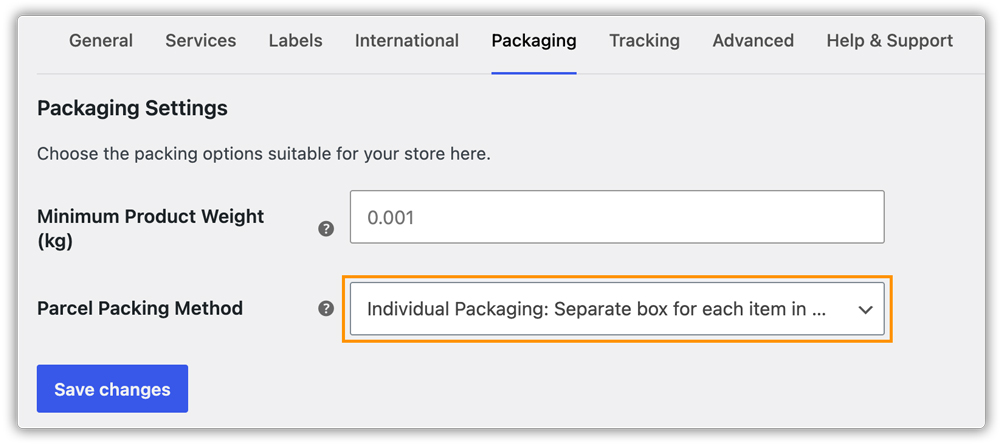
Example: If a customer orders 2 units of a product, each unit ships in its own box and two separate labels are generated.
Max Weight Limit: Pack Products in the Same Box Until the Limit Is Reached (Default)
Items are packed together into a single box until the maximum weight limit is reached, then a new box is started. This is the default packing method and requires only product weights; no dimensions are needed.
In this packaging method, you may also need to configure the following settings:
- Box Weight: The weight of the empty box in your store’s configured weight unit. The default is 0.
- Max Package Weight: The maximum total weight (items + box weight) allowed per package. The default is 10 kg. GLS accepts up to 40 kg per package.
- Max Package Quantity: The maximum number of items allowed per package. Set to 0 for no item count limit.
- Packing Process: Pack heavier items first (descending order) or pack lighter items first (ascending order).
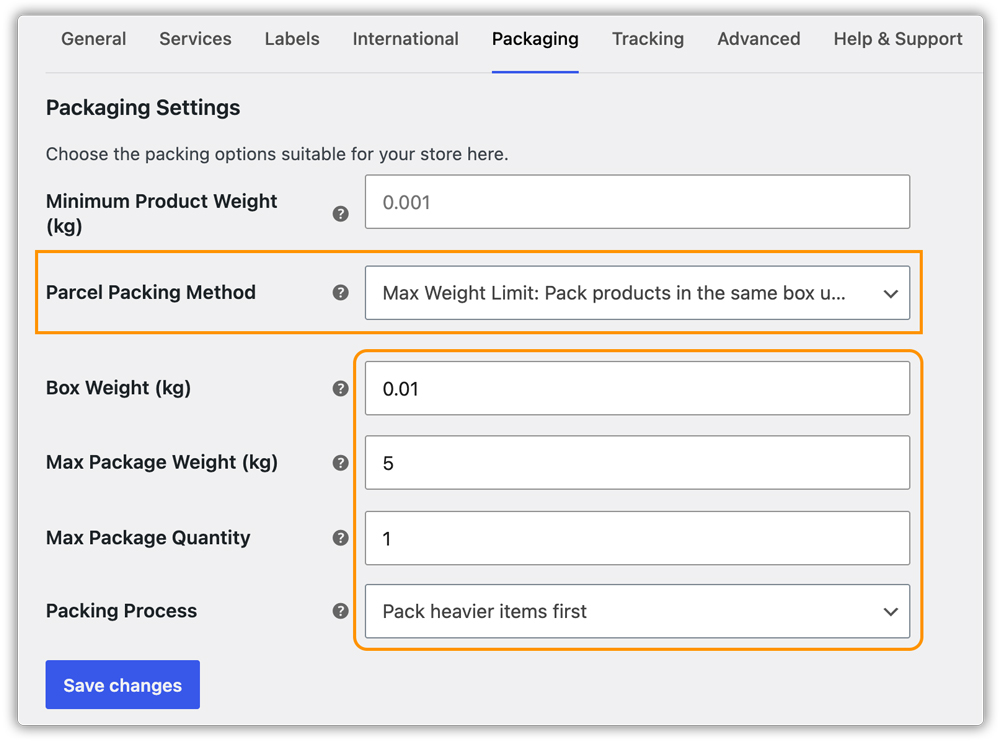
Example: If a customer orders three products weighing 4 kg, 3 kg, and 2 kg, and the maximum package weight is set to 6 kg, the first and second products cannot fit in the same package because their combined weight is 7 kg. Instead, the first and third products can be packed together in one package (4 kg + 2 kg = 6 kg), while the second product is packed separately in another package (3 kg).
9. Configure Label Settings
To configure the label settings, go to WooCommerce > Settings > Shipping > GLS Europe > Labels. This tab controls the label format and the default service used when generating labels from the order edit page.
Set the Label Format
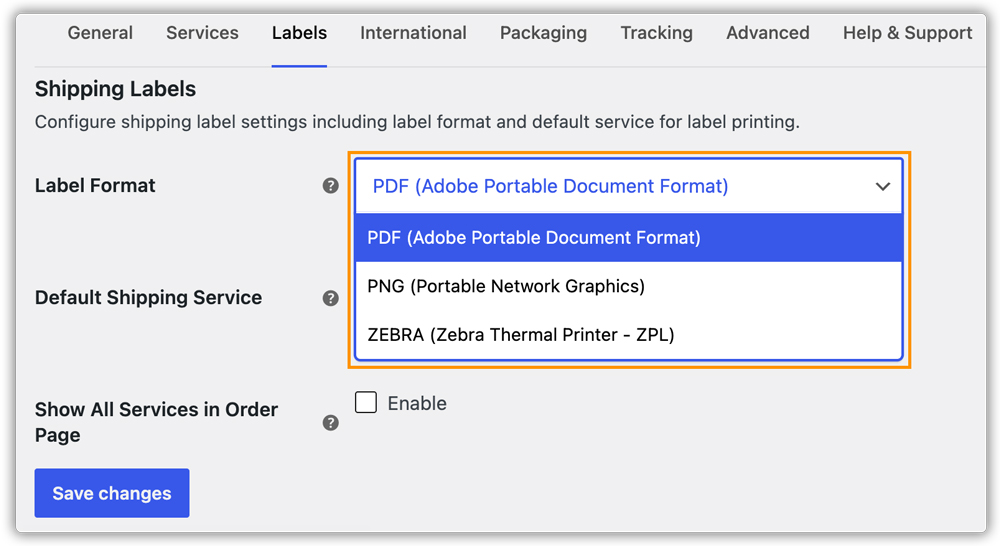
Choose the file format for generated GLS shipping labels from the Label Format dropdown:
- PDF (Default): Adobe Portable Document Format. A standard format suitable for laser and inkjet printers.
- PNG: Portable Network Graphics. A high-quality image format for standard printers.
- ZEBRA (ZPL): Zebra Thermal Printer format (ZPL_300). Designed for Zebra thermal label printers.
Default Shipping Service
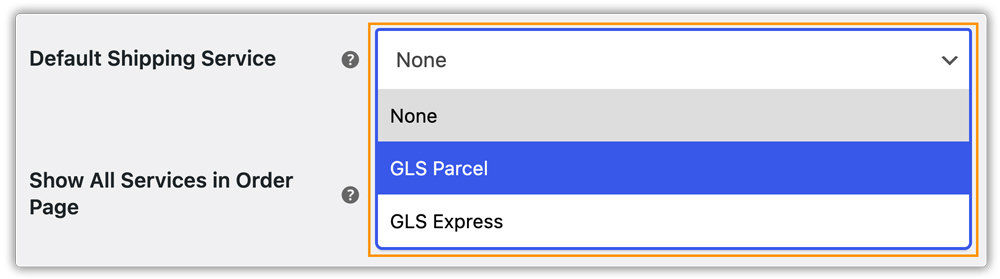
Select the GLS service that will be pre-selected in the Create Shipment dropdown on the order edit page. This saves time during manual label creation by skipping the service selection step each time.
Show All Services in Order Page
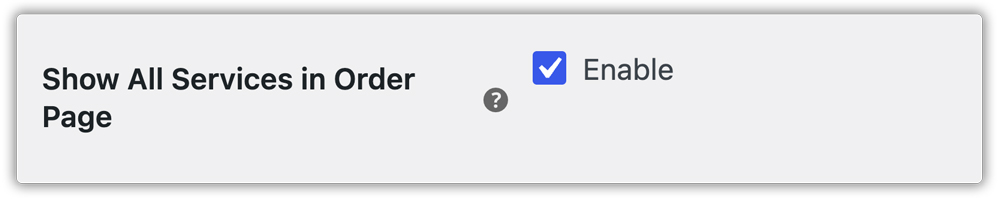
Enable this option to display all available GLS services in the Create Shipment dropdown on the order edit page, not just the services enabled in the Services tab. This is useful when you want to use a different service for label generation than what customers see at checkout.
Click Save Changes.
10. Printing GLS Shipping Labels
Once an order is placed, generate and print the GLS shipping label directly from the WooCommerce order edit page.
Printing Your First GLS Label
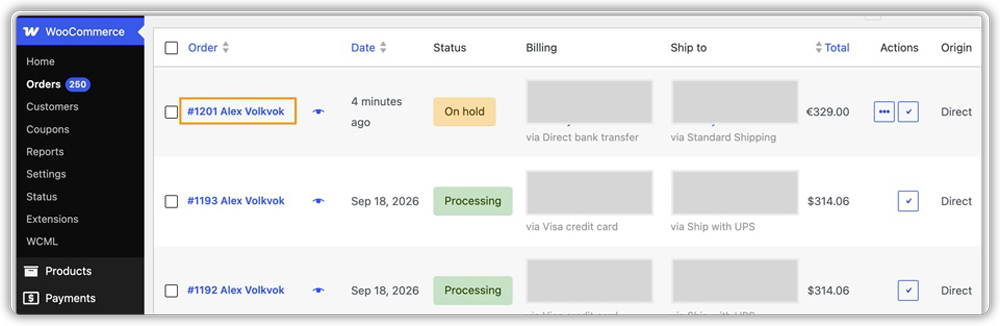
Go to WooCommerce > Orders and open the relevant order.
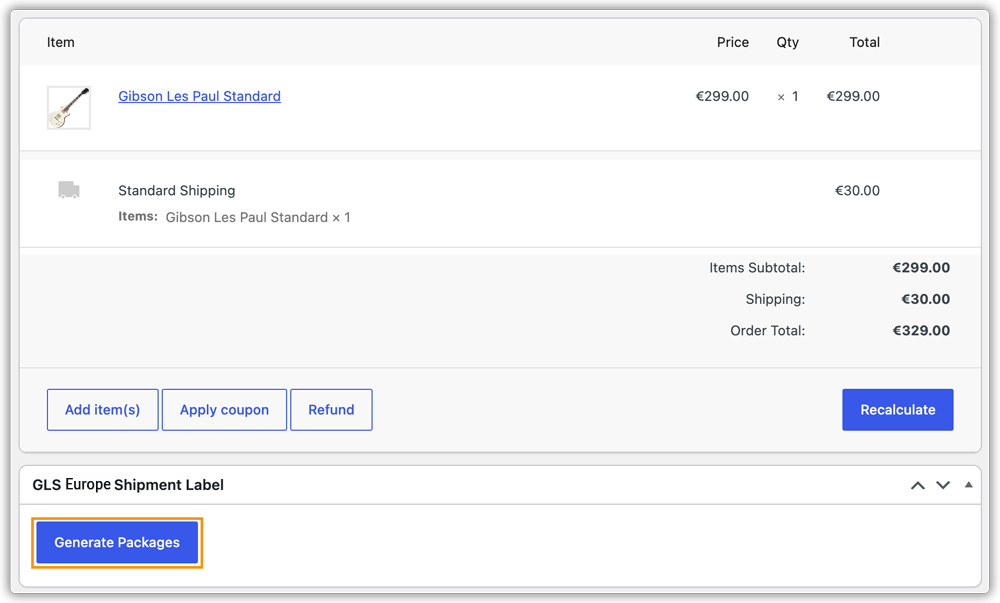
In the GLS Shipment Label metabox on the order edit page, click Generate Packages. The plugin creates packages based on your Packaging settings.
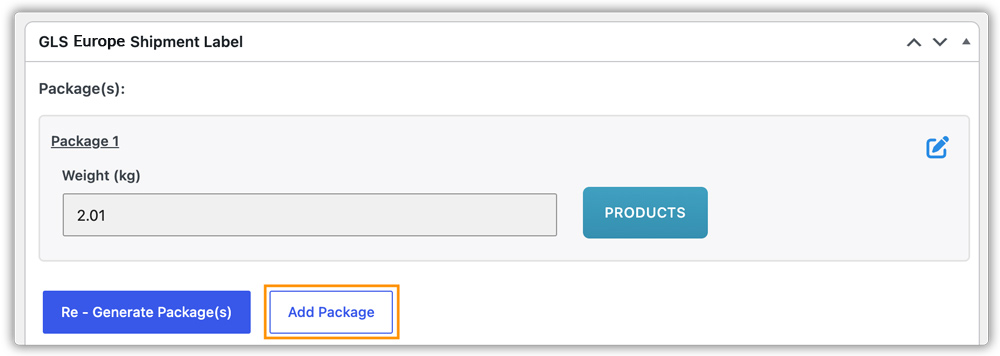
Add, Edit, and Delete Packages
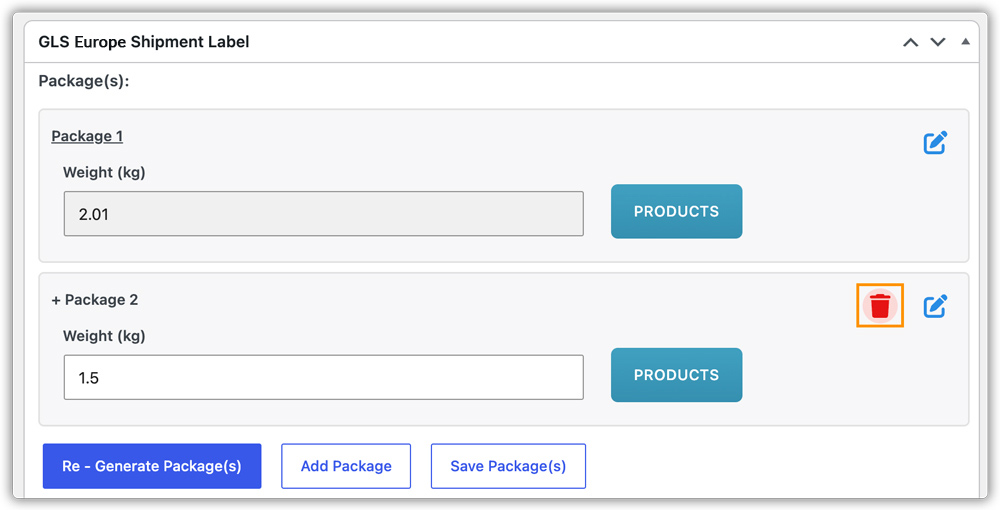
Once packages are generated, the package view appears on the order edit page. You have the following options before creating the shipment.
- Edit Package: Click the edit icon next to a package to modify its weight or the products assigned to it.

- Add Package: Click Add Package to create an additional package for the order. Enter the weight for that package.
Assign products by clicking the Product tab and selecting Save. Click Save Package(s) to save the newly created package. All products must be assigned to a package before creating the shipment.
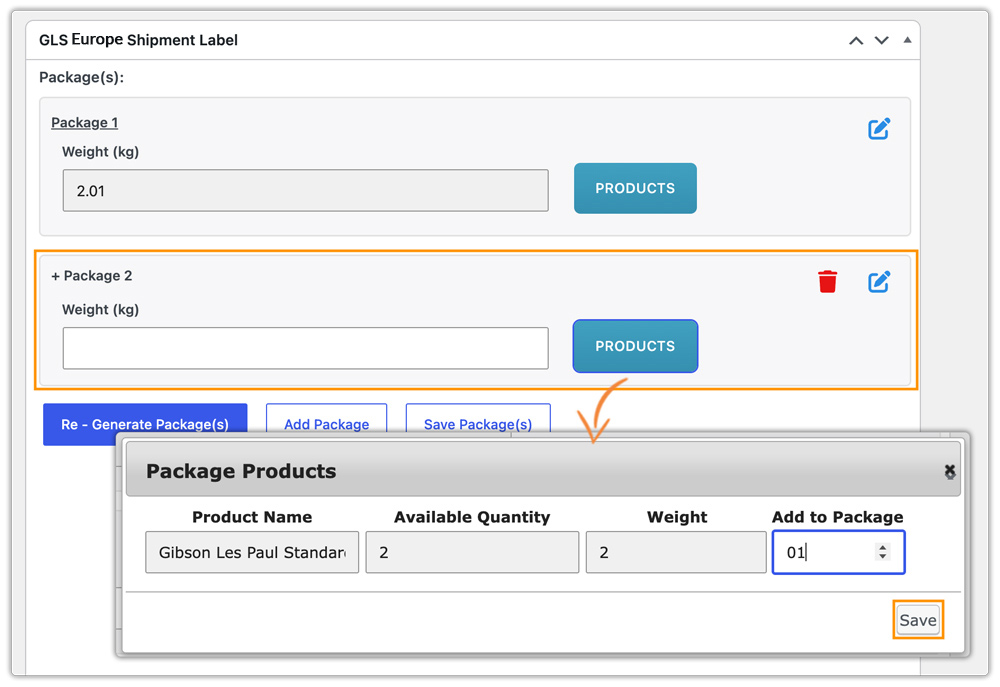
- Delete Package: Click the delete icon to remove a package you no longer need.
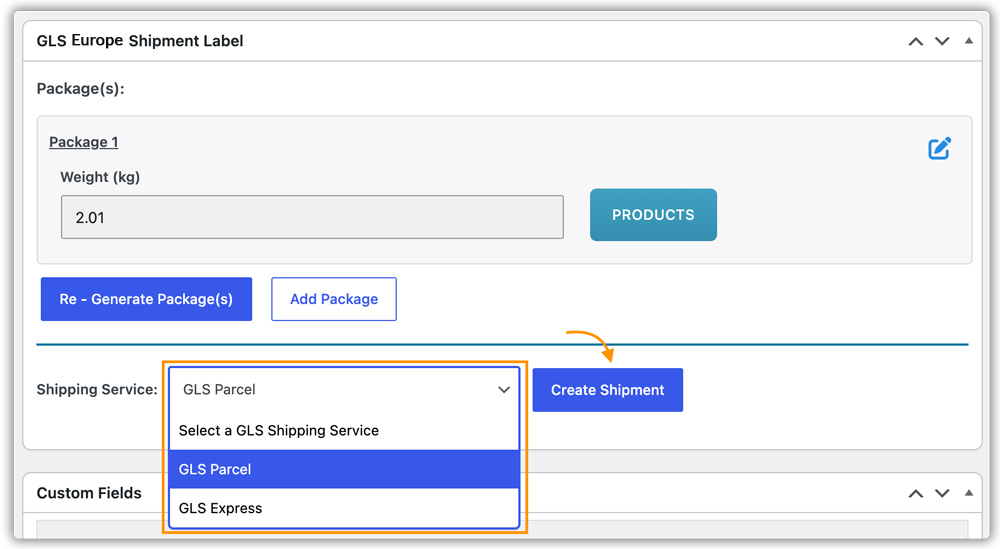
Once you have finalised the packages and confirmed that all required details are correct, select the GLS service from the dropdown and click Create Shipment. The plugin sends the shipment request to GLS and generates the shipping label.
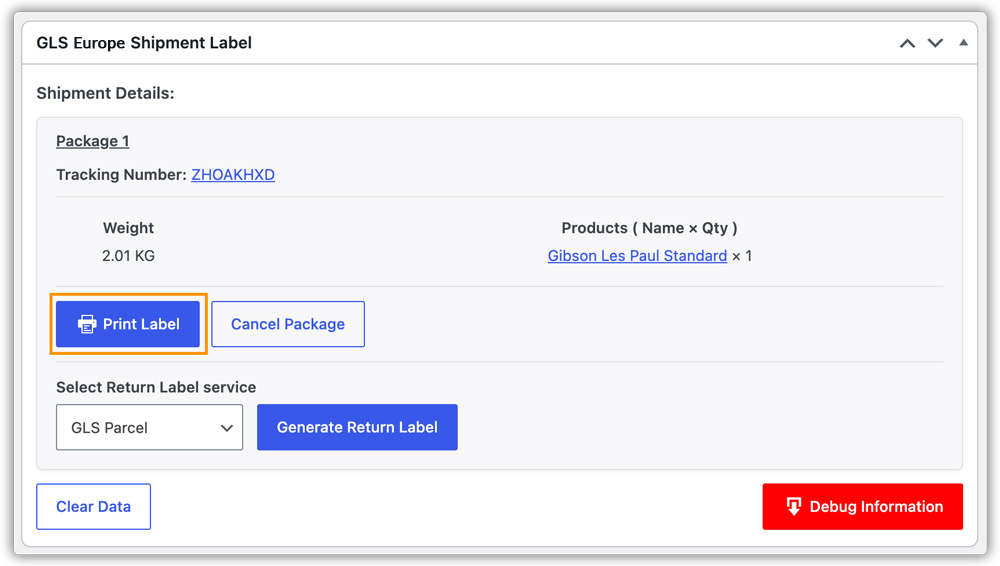
Once the label is ready, click Print Label to download and print it.
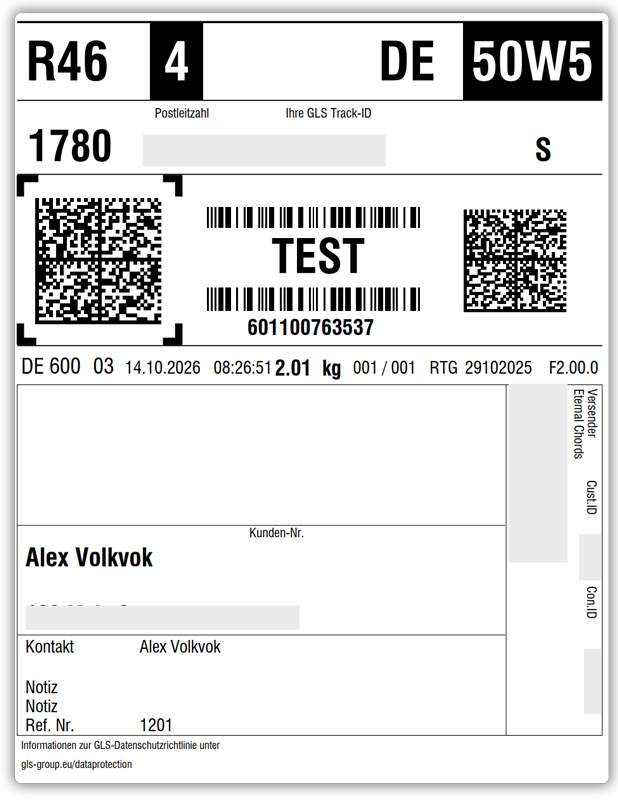
Here is the generated label.
Print GLS Return Label
After you generate an outbound label for an order, you can generate a return label from the same metabox on the order edit page.
Open the order and scroll to the GLS Shipment Label metabox. Under the existing shipment, select the service and click Generate Return Label.
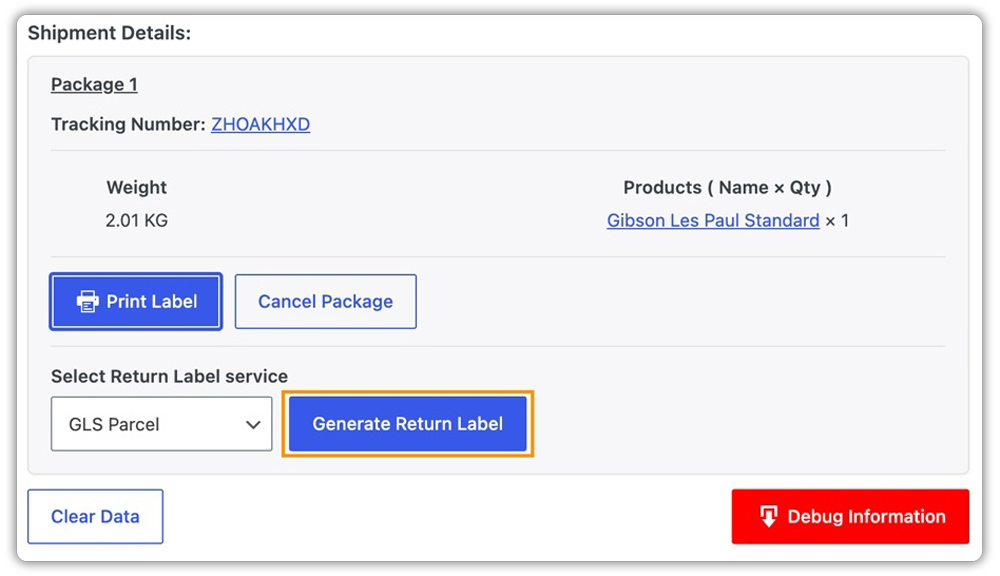
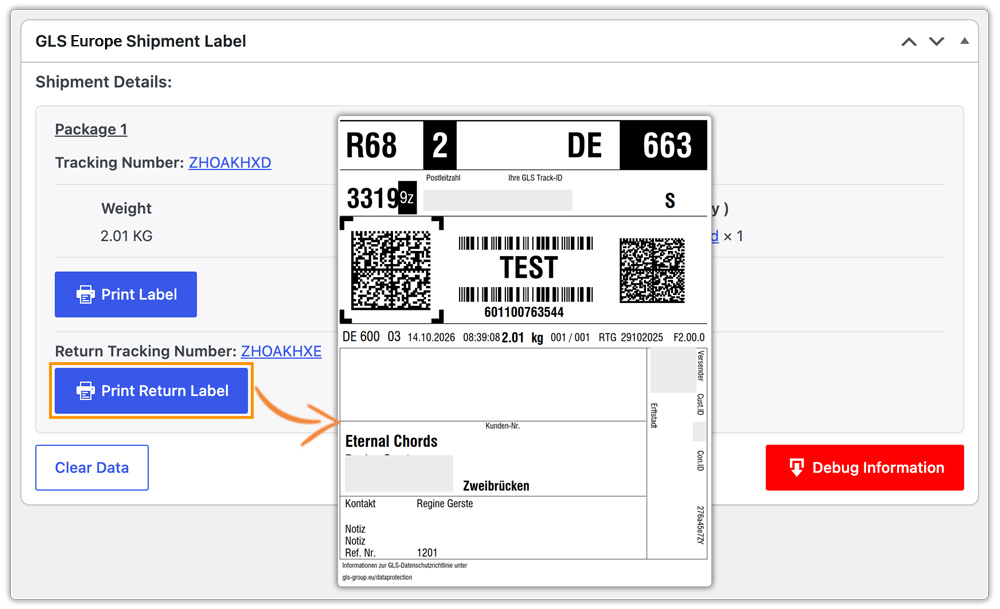
Once generated, the return tracking number appears. Click Print Return Label to download and print it.
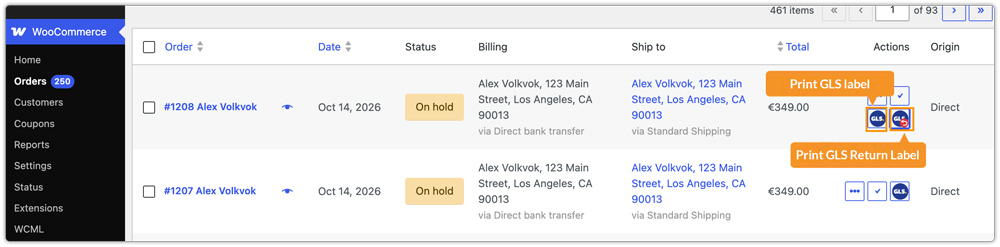
You can also print the labels directly from the WooCommerce > Orders list by clicking the icon at the end of the relevant order row. This option is available once a label or return label has been generated.
Clear Label Data
If you need to remove all label data from an order, click the Clear Data button in the GLS Shipment Label metabox. This removes the label information from WooCommerce only; it does not cancel the actual shipment with GLS.
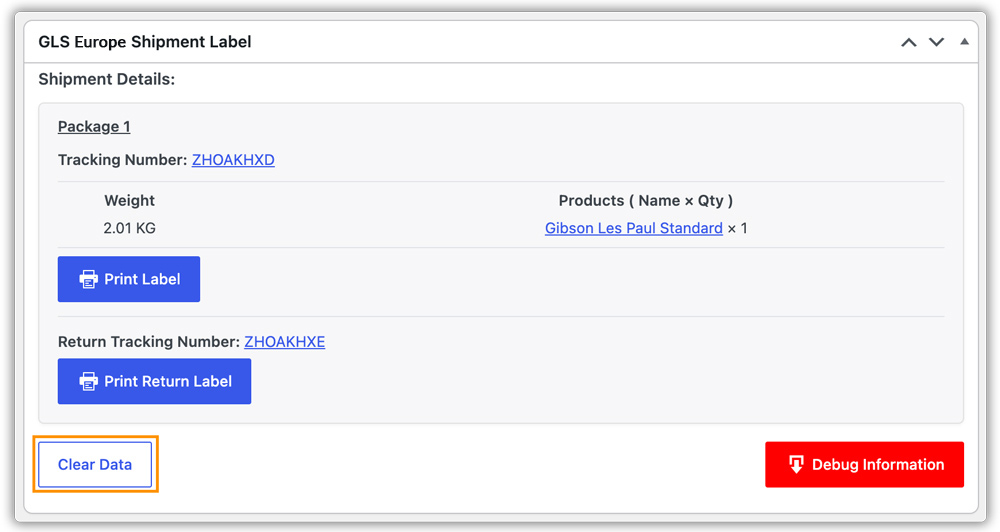
Shipment cancellation is not supported through the plugin because GLS does not provide this service through its API. To cancel an actual shipment, contact GLS directly. The Clear Data option only removes the stored shipment data from WooCommerce; it does not cancel the shipment with GLS.
Bulk Label Printing for Multiple Orders
The plugin supports bulk label generation and printing, allowing you to create and download labels for multiple orders at once. Before doing this, make sure you have set a default service under Labels > Default Shipping Service.
Go to WooCommerce > Orders and select all the orders for which you want to generate labels.
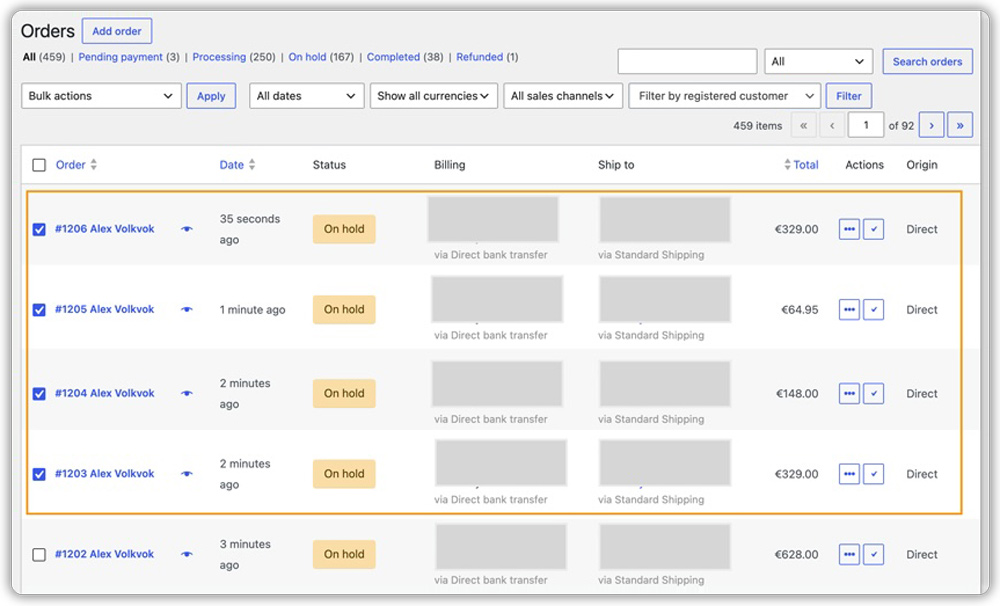
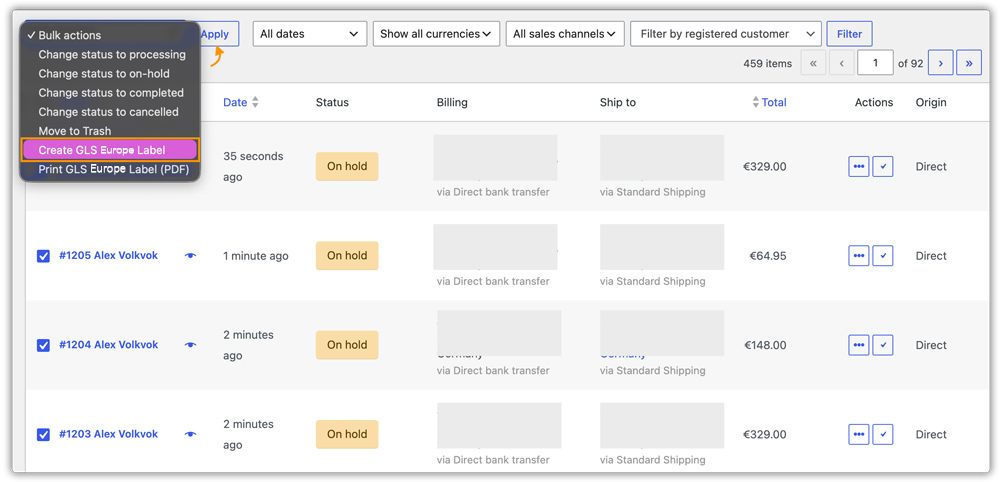
From the Bulk Actions dropdown, select Create GLS Europe Label and click Apply. The plugin creates a shipment for each selected order.
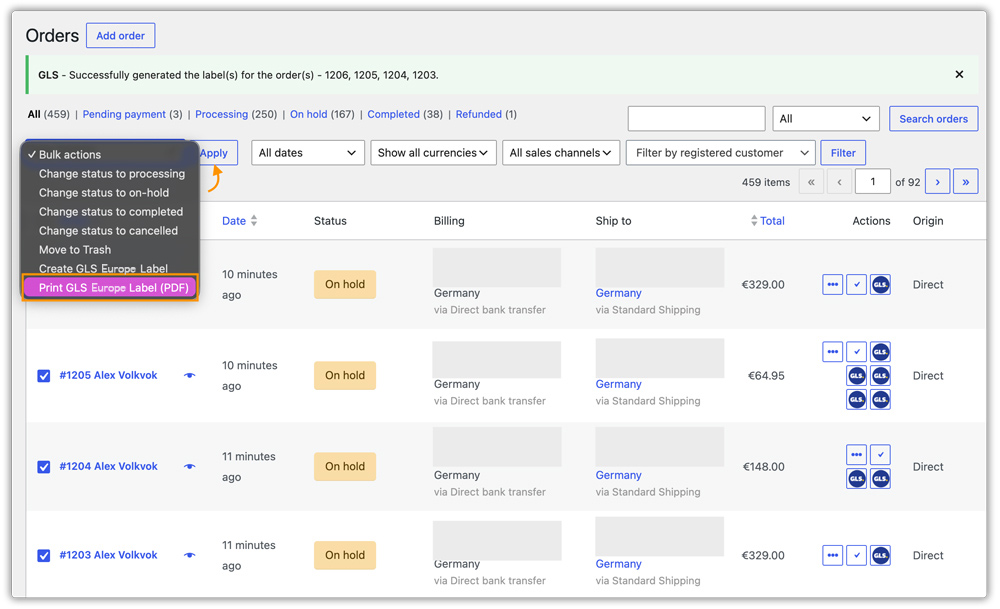
Select the same orders again, choose Print GLS Europe Label (PDF) from Bulk Actions, and click Apply.
The plugin merges all generated labels into a single PDF for download.
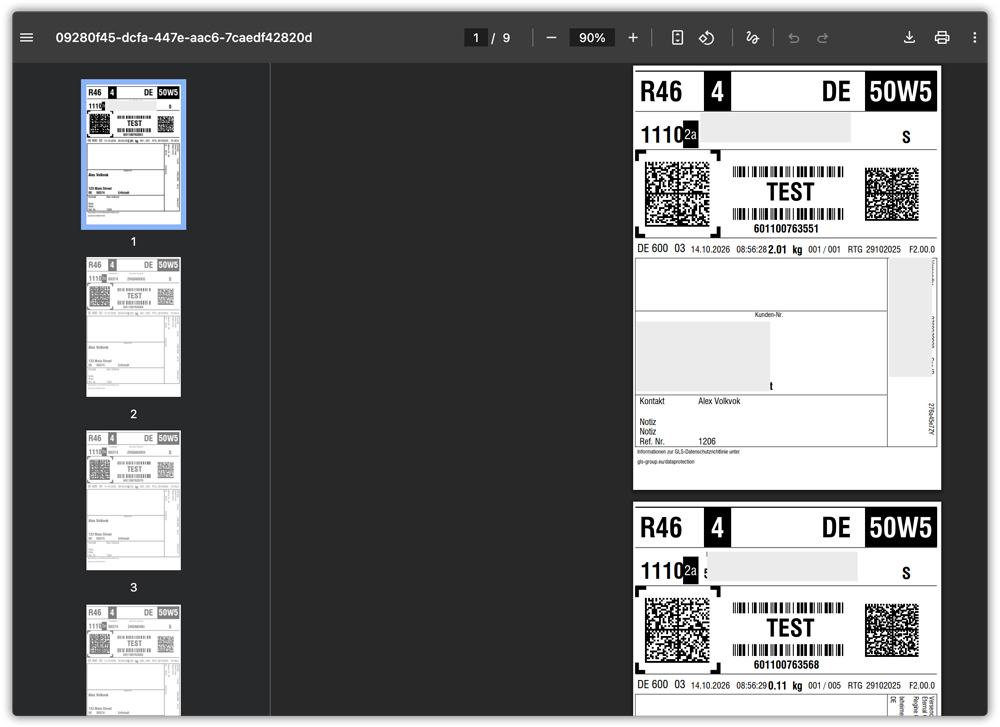
Bulk PDF printing is only available for labels generated in PDF format. Labels generated in PNG or ZEBRA format are skipped during bulk PDF printing; a notice will indicate which orders were skipped.
11. How to Set Up GLS International Shipping
For shipments crossing commercial zones (for example, from an EU country to a non-EU country), configure the international customs settings in the International tab. Go to WooCommerce > Settings > Shipping > GLS Europe > International.
Select Incoterm
Select the International Commercial Term (Incoterm) that determines which party, the exporter (shipper) or the importer (recipient), is responsible for paying duties, taxes, and customs clearance fees. The following options are available:
- 10 – DDP: Delivered Duty Paid. The exporter pays all duties, taxes, and clearance fees.
- 18 – DDP with VAT IOSS/VOEC: DDP with VAT collected via the Import One-Stop Shop (IOSS) or VOEC scheme.
- 20 – DAP (Default): Delivered At Place. The importer pays duties, taxes, and clearance fees.
- 30 – DDP, exporter pays clearance; importer pays taxes: Split responsibility — the exporter handles clearance, and the importer pays taxes.
- 40 – DAP cleared: The exporter pays clearance fees; the importer pays taxes and duties.
- 50 – DDP, clearance fee only (low value): For low-value shipments where only the clearance fee applies.
- 91 – External Broker Clearance: Customs clearance is handled by an external broker.
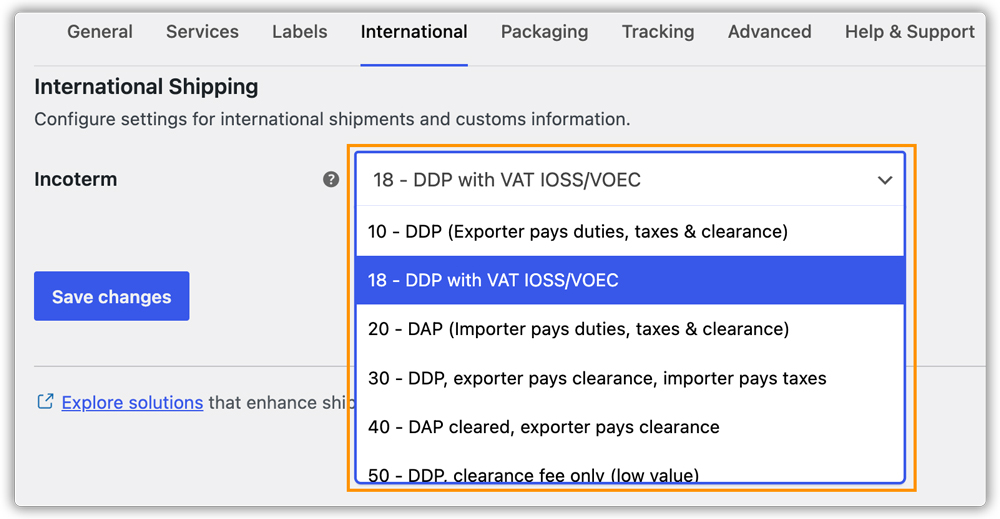
Click Save Changes.
12. Set Up GLS Shipment Tracking
The plugin generates a GLS tracking number with every shipping label.
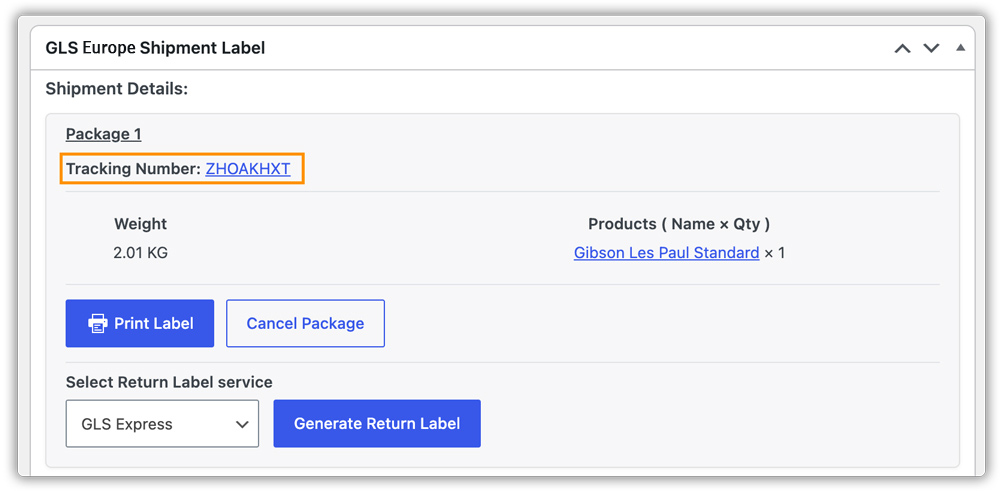
For further tracking configuration, go to WooCommerce > Settings > Shipping > GLS Europe > Tracking.
Disable Tracking Notification for Customers
By default, the plugin includes shipment tracking information in the WooCommerce Order Completed email sent to customers. Enable the Disable Tracking Notification for Customers option to exclude tracking information from these emails.
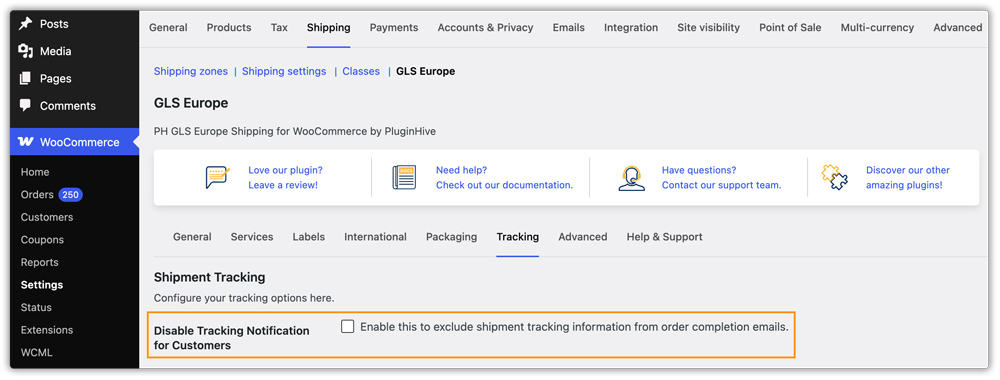
When this option is disabled (the default), customers receive an email with their GLS tracking number and a clickable link to the GLS Track & Trace page.
Hide Tracking in My Account
Enable Hide Tracking in My Account to prevent tracking information from appearing on the customer-facing My Account > Orders page. Customers will not see tracking numbers or shipment details in their account order history.

When you disable this option (the default), customers can view their GLS tracking number and tracking link from My Account > Orders.
Customise the Tracking Message
You can personalise the tracking information shown to customers using the following fields:
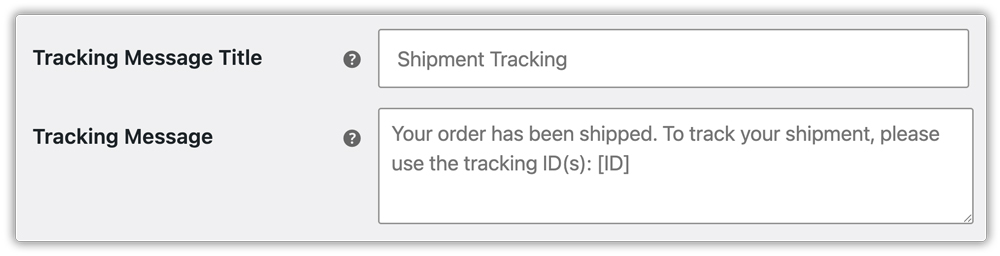
- Tracking Message Title: The heading shown above the tracking section in order completion emails and on the My Account page. The default placeholder is Shipment Tracking.
- Tracking Message: The message body sent to customers alongside their tracking number. Use
[ID]as a placeholder. It is automatically replaced with the actual GLS tracking number(s) when the email is sent. The default message is: “Your order has been shipped. To track your shipment, please use the tracking ID(s): [ID].”
Live Tracking
The plugin offers a Live Tracking feature that fetches real-time shipment status directly from the GLS Track & Trace API. To enable live tracking, tick the Live Tracking checkbox in the Tracking tab. You can also set a Live Tracking Header, the heading displayed above the live tracking status section.
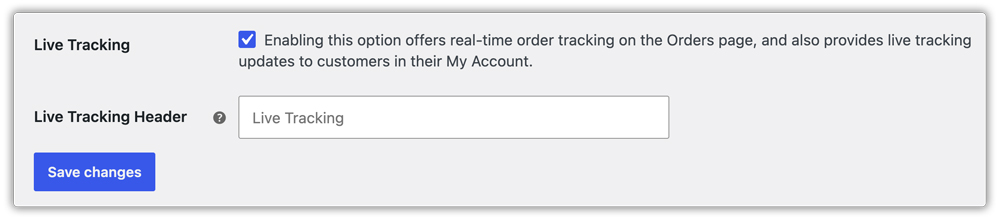
When enabled:
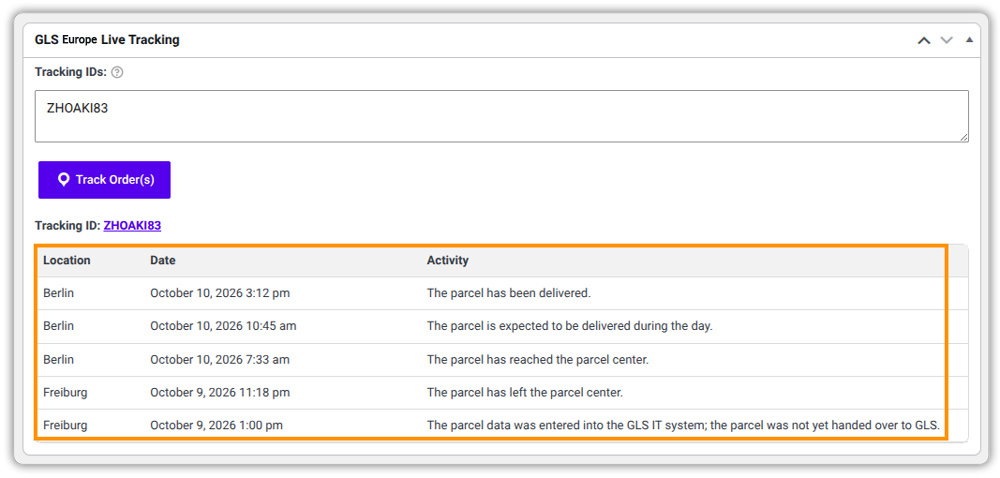
- Admin Order Page: The latest GLS shipment status is displayed on the order edit page, allowing admins to see the current tracking status without visiting the GLS website.
- Customer My Account: Live tracking status updates are shown to customers on the My Account > Orders page, so they can follow their shipment in real time.
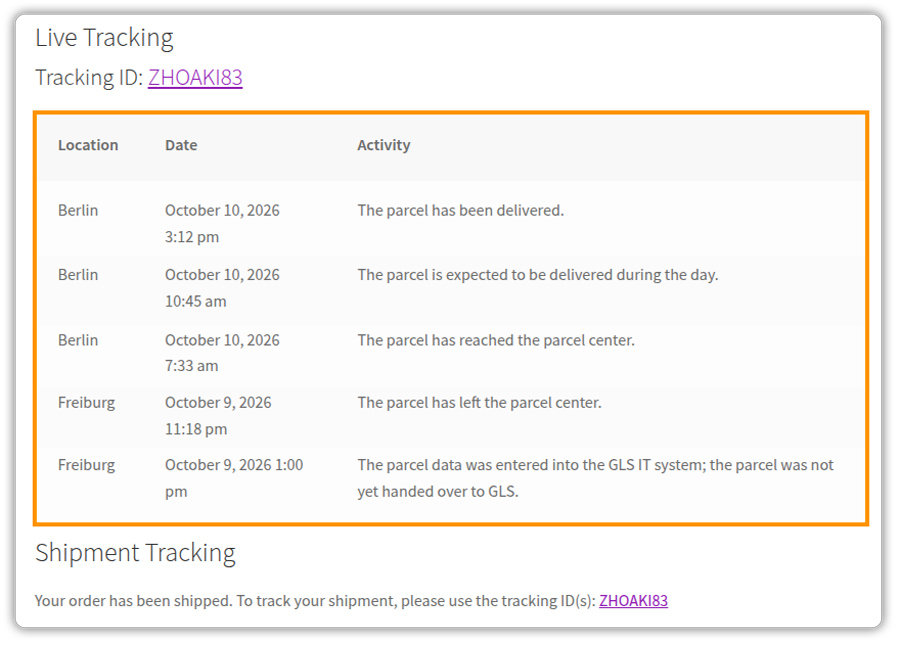
GLS provides the following live tracking statuses:
- Pickup Planned
- In Pickup
- Not Picked Up
- Pre-Advice Received
- In Transit
- Out for Delivery
- Delivered (Parcel Shop)
- Delivered
- In Warehouse
- Delivery Failed
- Canceled
- Completed
13. Advanced Settings
In the plugin’s Advanced settings, you can enable Debug Mode to troubleshoot API and shipping issues. Go to WooCommerce > Settings > Shipping > GLS Europe > Advanced.
Debug Mode
Enable Debug Mode to record detailed API request and response information for troubleshooting.
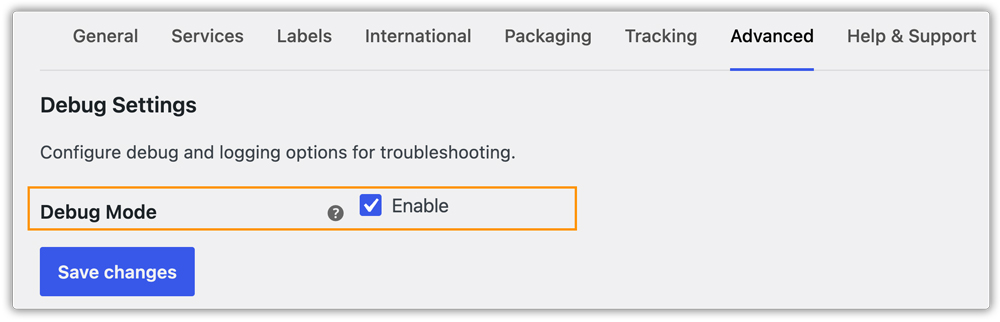
When you enable Debug Mode, the plugin provides two ways to access debugging information:
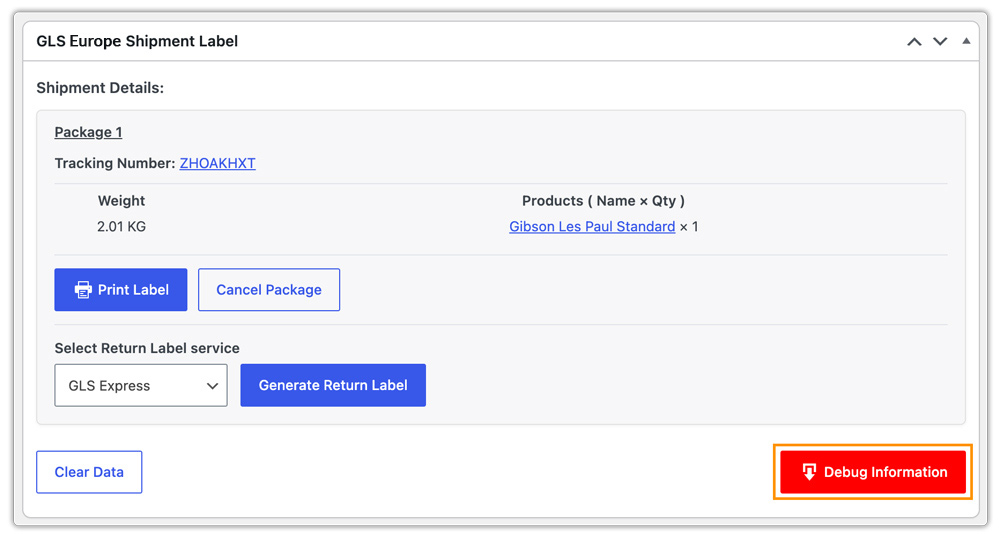
- Download Debug Info: A Download Debug Info button appears on the WooCommerce order edit page. Click it to download the debug log for a specific order and investigate order-related shipping issues.
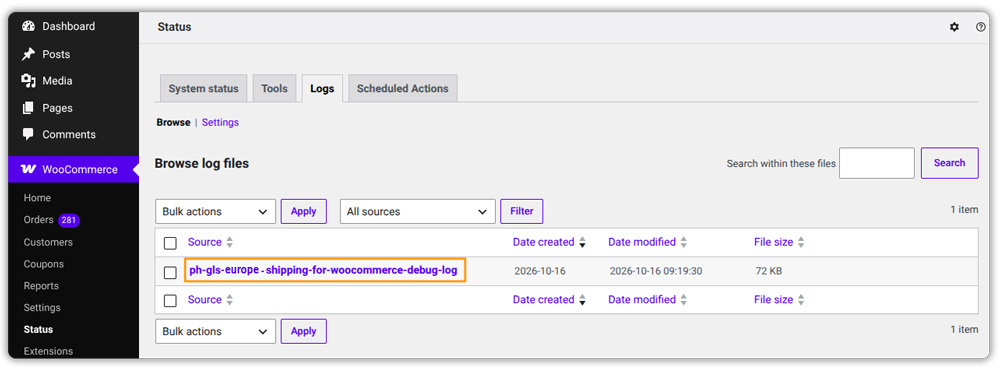
- WooCommerce Logs: The plugin records API request and response details in WooCommerce logs. To view them, go to WooCommerce > Status > Logs and select the relevant GLS Shipping log file. Use these logs to investigate API errors, connectivity issues, and label generation failures.
Debug Mode logs API requests and responses. Disable it on your live store once troubleshooting is complete to avoid storing sensitive API response data unnecessarily.
Need Help?
If you have any questions about setting up the PH GLS Europe Shipping for WooCommerce plugin or run into any issues, reach out to the PluginHive support team. We are happy to help you get everything configured correctly.