


Shopify Order Fulfilment Made Easy with Touchless Label Printing
In this article, we’ll walk you through how to set up Touchless Label Printing using the QZ Tray and PH MultiCarrier Shipping Label app on both Windows and Mac OS.
This powerful feature allows you to automatically print shipping labels and fulfill orders in a single click, streamlining your fulfillment process and saving valuable time. Whether you’re shipping domestically or internationally, this setup works seamlessly with carriers like FedEx, UPS, DHL Express, USPS, and Amazon Shipping.
On This Page
- Why Automate Shipping Label Printing?
- Configure QZ Tray & Printing Labels on Windows
- Configure QZ Tray & Printing Labels on Mac
- Real-World Use Case: Barcode-Based Touchless Fulfilment
- Ready to Streamline?
Why Automate Label Printing?
- Fully Automated Workflow: Instantly generates, prints, and fulfills orders in one seamless step, eliminating manual effort and saving time.
- Faster Order Processing: Speeds up fulfillment operations, making it ideal for handling high order volumes efficiently.
- Reduced Risk of Errors: Automation ensures accuracy in label generation and order fulfillment, minimizing common manual mistakes.
- Improved Team Efficiency: Frees up staff from repetitive tasks, allowing them to focus on customer service and business growth.
- Seamless Thermal Printer Integration: Works directly with your default thermal printer via QZ Tray, ensuring consistent and reliable label printing.
Configuring QZ Tray & Printing Labels on Windows with the PH MultiCarrier Shipping Label app
Prerequisite:
- Install the PH MultiCarrier Shipping Label app on your Shopify store.
- Plan Requirement: PluginHive does not enable Touchless Label Printing by default. PluginHive offers this feature only on Enterprise and higher custom plans, and they must explicitly activate it for your store. If you want to use it, contact PluginHive support with your requirements to request activation.
- Configure your thermal printer correctly and set it as the default printer on your Windows system.

Follow the steps below to set up automated (touchless) label printing on your Windows system using QZ Tray and the PH MultiCarrier Shipping Label app
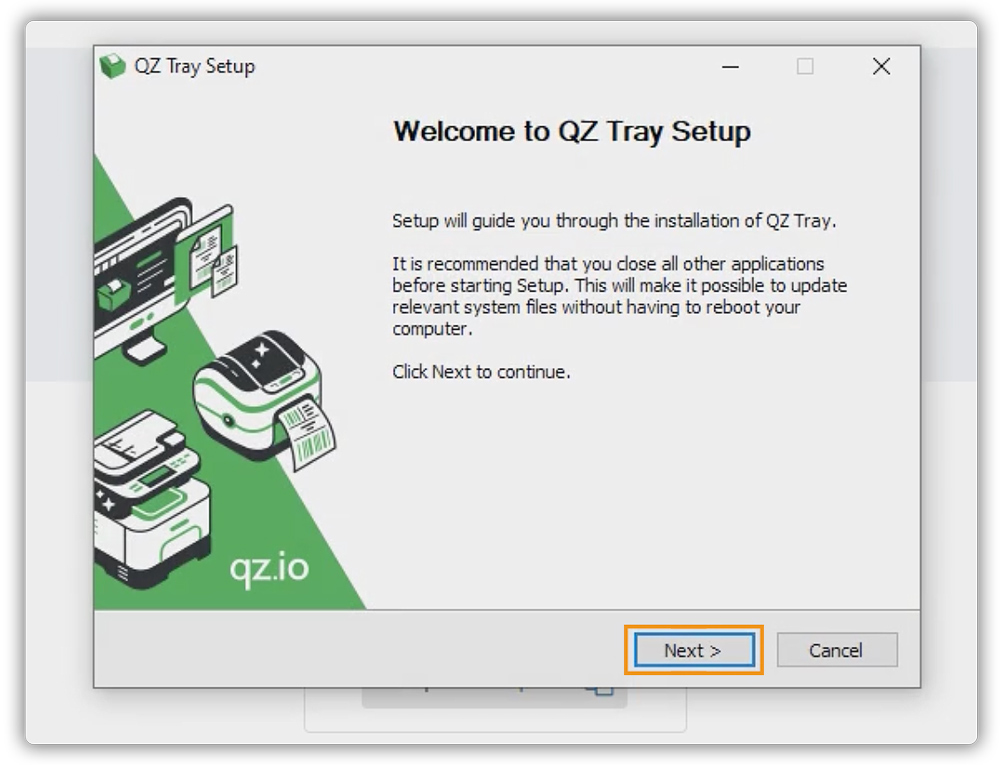
1. Download and Install QZ Tray
- Visit the Official QZ Tray website and download the installer compatible with your Windows system.

- Run the downloaded file and follow the on-screen installation instructions.
- During installation, grant all requested permissions to ensure QZ Tray functions correctly.
2. Generate Certificate and Key from the PH MultiCarrier Shipping Label app
- Log in to your Shopify store and open the PH MultiCarrier Shipping Label app.
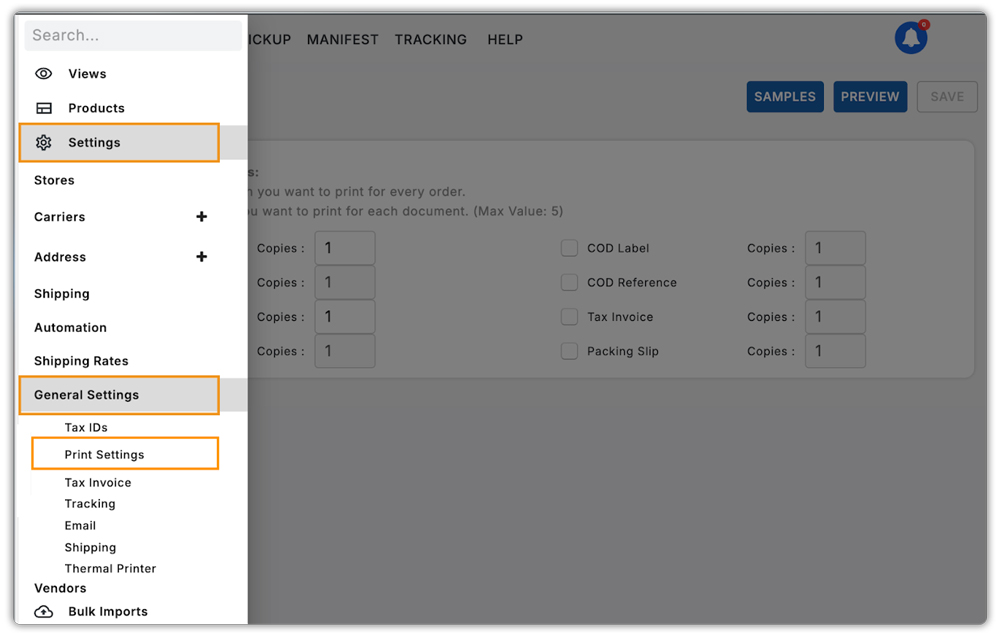
- Navigate to: Settings > General Settings > Print Settings (Alternatively, you can use the search bar to find “Print Settings”)
- Enable the Touchless Printing option and click Save.

- Click on Generate Certificate and Key to download a ZIP file containing your digital certificate and private key.

3. Add the PH MultiCarrier Shipping Label app’s Digital Certificate to QZ Tray
- Locate the downloaded ZIP file (usually in your Downloads folder) and extract its contents. The extracted folder will contain the following files:
- Digital-certificate.txt
- private-key.pem

- Go to your Windows System Tray (bottom-right corner of the taskbar), right-click on the QZ Tray icon.
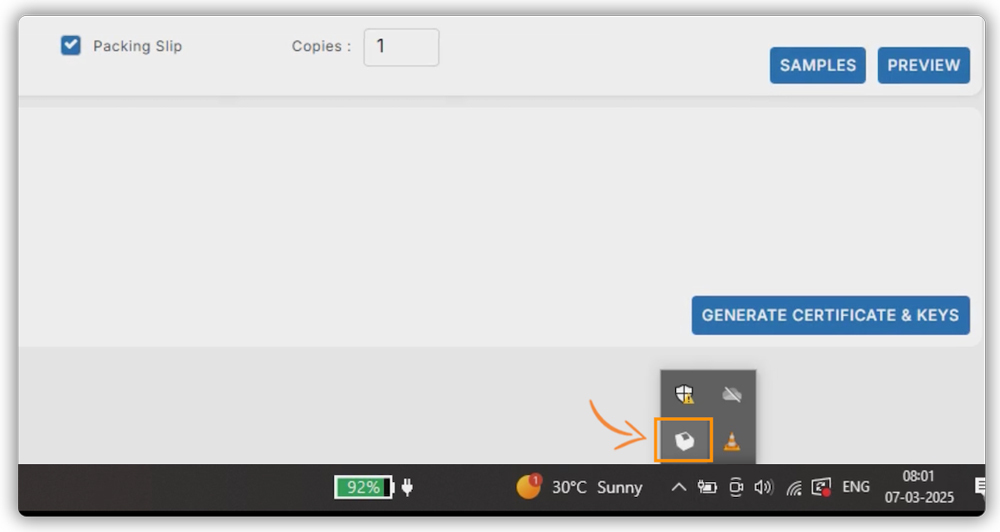
- Select Advanced > Site Manager.

- In the Site Manager window, click the “+” icon to add a new certificate.
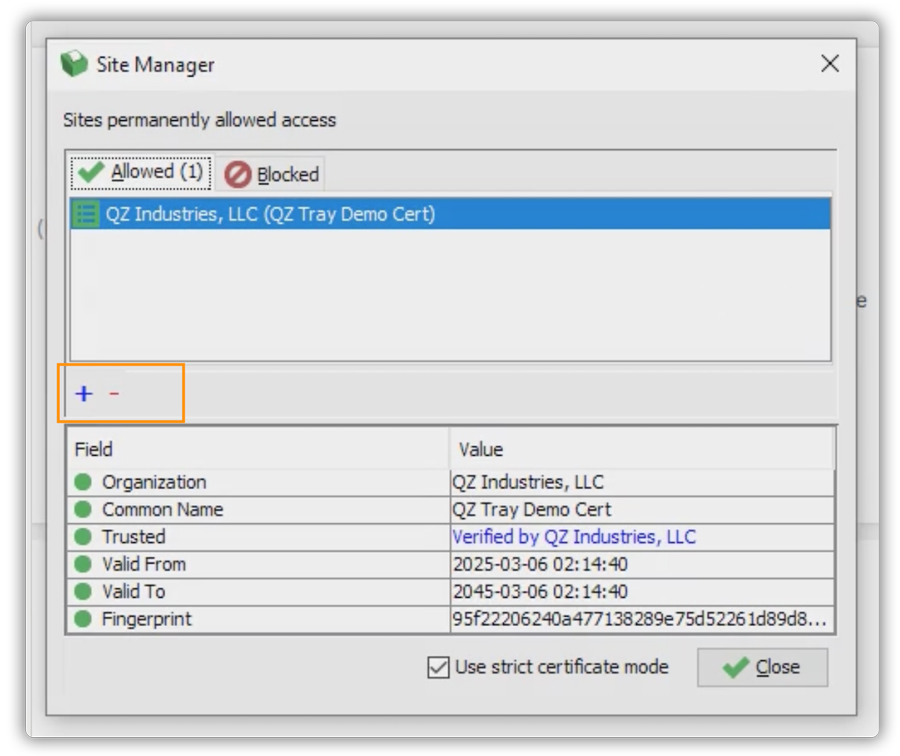
- Click Browse, navigate to the extracted folder, and select digital-certificate.txt.

- When prompted, grant all necessary permissions to complete the setup.

- Once added, you should see PluginHive listed in the QZ Tray Site Manager, confirming the certificate has been successfully installed.

4. Shipping Label Printing from the PH MultiCarrier Shipping Label app Using QZ Tray
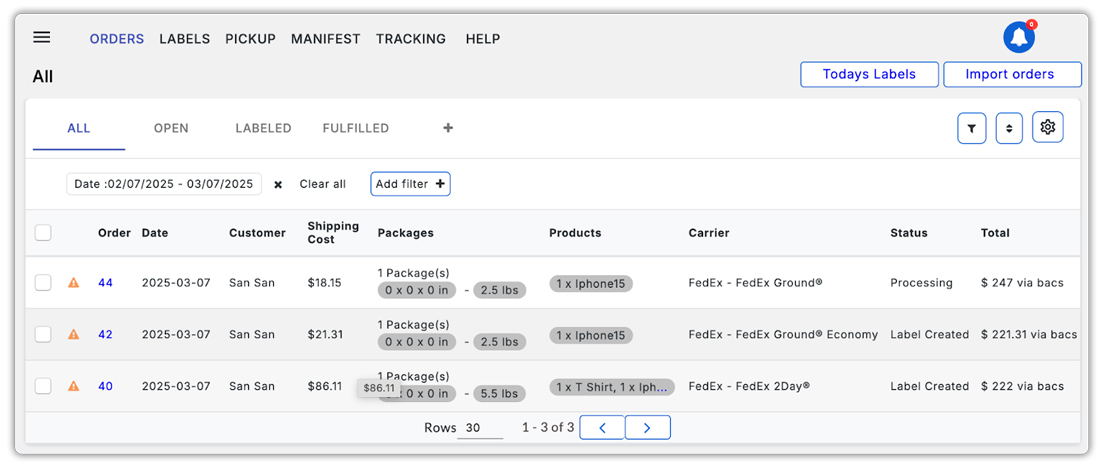
- Open the PH MultiCarrier Shipping Label app in your Shopify Store and go to the Orders section.
- Click on the desired Order Number to open the Order Summary Page.

- Review the order details in the order summary page and update the shipping information if necessary.

- Click on the “Generate Label & Fulfill” option.
- The system will automatically:
- Generate the shipping label,
- Print the label using your default printer,
- And fulfills the order, all in a single step, as shown below.

Configuring QZ Tray & Printing Labels on Mac with PH MultiCarrier Shipping Label app
Similar to the configuration on Windows, you can set it up on Mac as well. Follow the instructions below to complete the setup.
Prerequisite:
- Install the PH MultiCarrier Shipping Label app on your Shopify store.
- Plan Requirement: Touchless Label Printing is not enabled by default. This feature is available only for Enterprise and higher custom plans and must be explicitly enabled for your store. If you’re interested, contact PluginHive support with your requirements to get it activated.
- Make sure your thermal printer is installed, working correctly, and set as the default printer on your Mac.

Follow the steps below to set up automated (touchless) label printing on your Mac using QZ Tray and the PH MultiCarrier Shipping Label app.
1: Download and install QZ Tray (Mac)
- Go to the Official QZ Tray website and download the installer compatible with your macOS version.

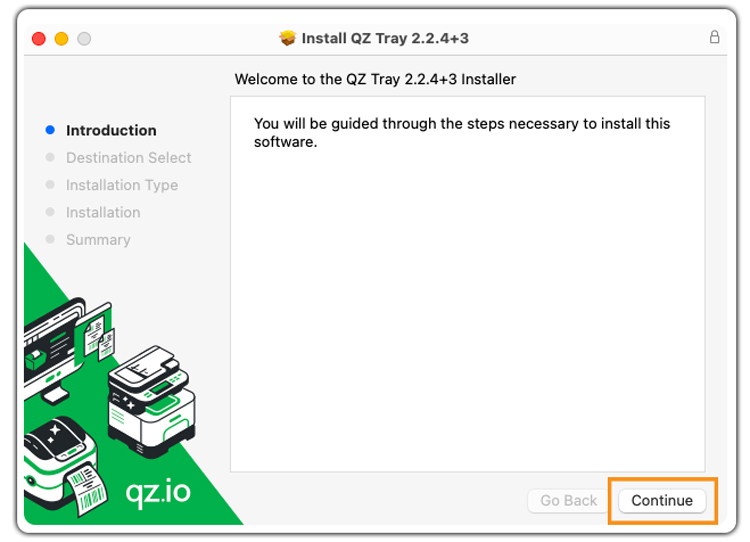
- Run the installer and follow the setup wizard.
- During installation, grant the required permissions so QZ Tray can function without issues.
2: Get the Certificate and Key from the PH MultiCarrier Shipping Label app
- Log in to your Shopify store and open the PH MultiCarrier Shipping Label app
- Navigate to: Settings > General Settings > Print Settings (Alternatively, you can use the search bar to find “Print Settings”)

- Enable the Touchless Printing option and click Save.

- Click on Generate Certificate and Key to download a ZIP file containing your digital certificate and private key.

3: Import the digital certificate into QZ Tray
- Locate and unzip the downloaded file (found in your Downloads folder by default). The extracted folder will contain the following files:
- Digital-certificate.txt
- private-key.pem

- Open the QZ Tray menu from your macOS menu bar.
- Right-click the QZ Tray icon in the Mac menu bar.
- Go to Advanced > Site Manager.

- In the Site Manager window, click the “+” icon to add a new certificate.

- Browse to the unzipped folder and select digital-certificate.txt.

- When prompted, grant all necessary permissions to complete the setup.
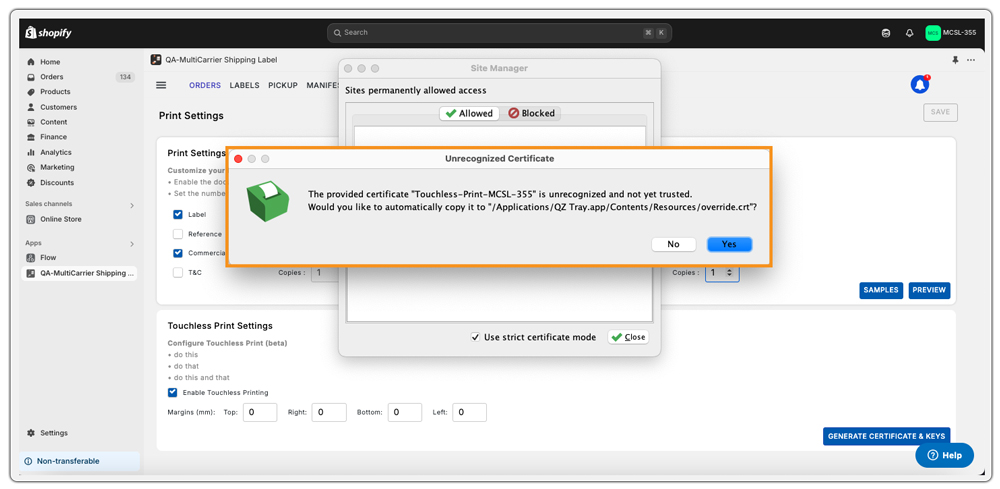
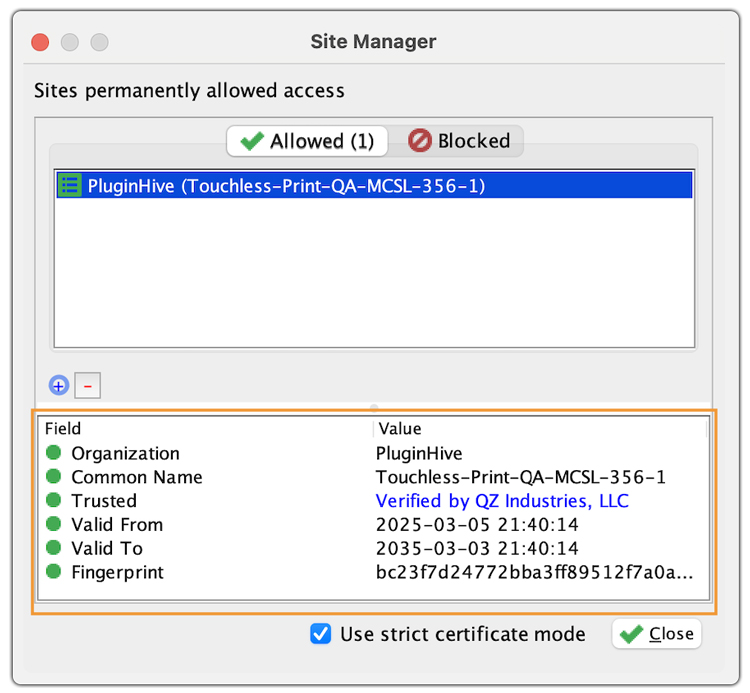
- Once complete, you’ll see PluginHive listed in the QZ Tray Site Manager, confirming the certificate is active.
4. Print Shipping Labels from the PH MultiCarrier Shipping Label app Using QZ Tray
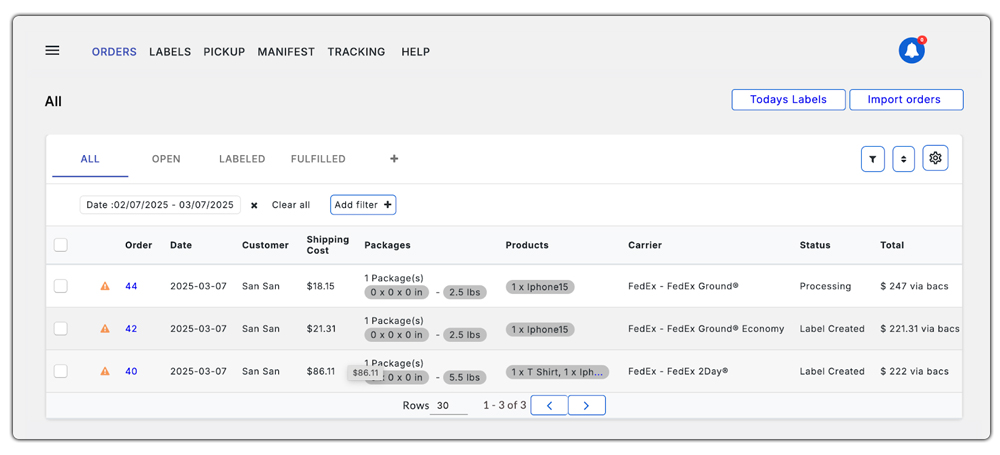
- Open the PH MultiCarrier Shipping Label app in your Shopify Store and go to the Orders tab.
- Click on the desired Order Number to open the Order Summary Page.
- Review shipping information and make updates if needed.

- Click on the Generate Label & Fulfill option.
- The system will automatically:
- Create the shipping label,
- Print the label using your default printer,
- And automatically fulfils the order, all in a single step, as shown below.

Real-World Use Case: Barcode-Based Touchless Fulfilment
How Rugged Radios Simplified Order Processing
- Rugged Radios had a specific fulfillment requirement where Shopify Order IDs are printed as barcodes on each package. Their warehouse team needed a fast, error-free workflow that allowed them to scan a barcode and complete the entire shipping process with minimal interaction.
- They wanted a system where scanning the barcode would immediately bring up the correct order without manually searching for it and allow fulfillment in a single action.
How Touchless Printing Solves This
To address this, PluginHive developed a tailored enhancement using the PH MultiCarrier Shipping Label app with Touchless Label Printing. By introducing an Order Search function that works in conjunction with the customer’s barcode scanning process.
Here’s how the workflow operated:
- A single package is labelled with a barcode representing one Shopify Order ID.
- When the barcode is scanned, the Order Summary page for that specific order automatically opens in the PH MultiCarrier Shipping Label app.
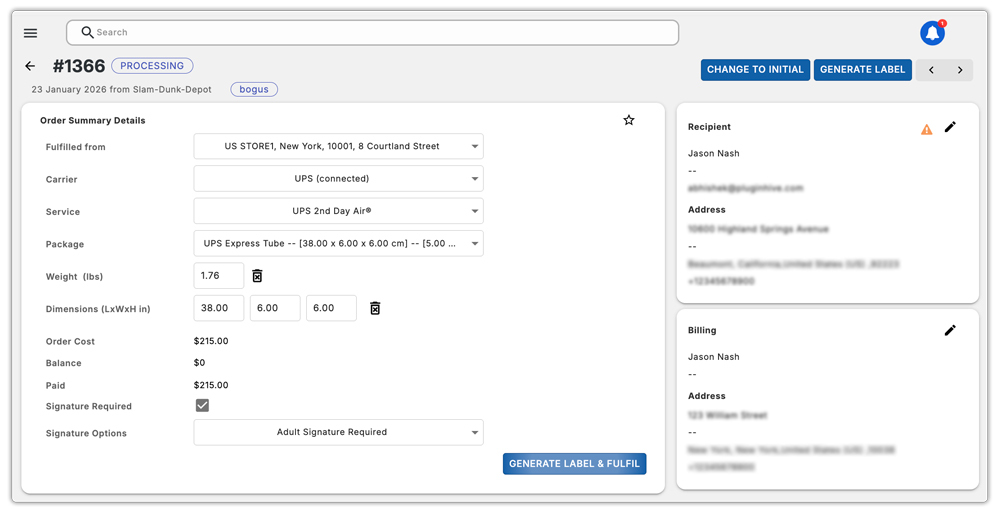
- The warehouse staff simply clicks “Generate Label & Fulfill.”
- With one click, the system instantly:
- Generates the shipping label
- Fulfills the Shopify order
- Sends the label directly for printing
All of this happens seamlessly through eliminating manual steps and reducing handling time.
For businesses like Rugged Radios, Touchless Label Printing transforms barcode scanning into a one-click fulfillment process, significantly reducing errors, speeding up operations, and improving overall warehouse efficiency.
Ready to Streamline?
By configuring Touchless Shipping Label Printing with QZ Tray and the PH MultiCarrier Shipping Label app, Shopify merchants not only save time but also improve their shipping process. With just a single click, you can generate the label, print it instantly, and fulfil the order, reducing manual effort, minimizing errors, and accelerating order processing. It’s a simple yet powerful way to boost efficiency and focus on growing your business.