


Not every customer in your WooCommerce store should see the same shipping options. A Subscriber who receives free shipping as part of a membership shouldn’t see the same checkout options as a guest user. Likewise, a Shop Manager placing internal orders doesn’t need the same delivery methods shown to regular customers.
By default, WooCommerce displays the same shipping methods to everyone. To control which shipping methods appear for specific users, you can use the PH Hide Shipping Methods & Rate Adjustment for WooCommerce plugin.
This guide explains how role-based shipping restrictions work and how to configure them in WooCommerce.
On This Page
- What Are WooCommerce User Roles?
- Why Restrict Shipping Methods by User Role in WooCommerce?
- Common WooCommerce User Role Shipping Scenarios
- How to Set Up Role-Based Shipping Rules in WooCommerce
- Real-World Use Case
- Conclusion
- FAQs
What Are WooCommerce User Roles?
Every registered user in WooCommerce is assigned a role. User roles determine what permissions a user has in your store, and, with the right plugin, which shipping methods they can view during checkout.
WooCommerce includes some of the roles, such as administrator, editor, author, contributor, subscriber, customer, vendor, and shop manager. Most shoppers are automatically assigned the Customer role when they register. Subscribers may receive special benefits such as free shipping, while Shop Managers or Vendors typically handle internal or marketplace operations.
The PH Hide Shipping Methods & Rate Adjustment for WooCommerce plugin detects the logged-in user’s role during checkout and applies the shipping rules you configure for that role. Guest users (users who are not logged in) can also be targeted separately.
Why Restrict Shipping Methods by User Role in WooCommerce?
Showing every shipping method to every user can create confusion and lead to unnecessary shipping costs. Here are a few common issues:
- Subscribers who qualify for free shipping may still see unnecessary paid shipping methods
- Customers who should not receive free shipping may still see and select it
- Shop Managers placing internal orders may see retail-only express delivery options
- Vendors in a marketplace setup may see shipping methods intended only for end customers
- Guest users may gain access to shipping perks meant only for logged-in members
Using conditional shipping rules based on user roles ensures each user only sees the shipping methods relevant to them.
Common WooCommerce User Role Shipping Scenarios
- Free Shipping for Subscribers Only: If free shipping is a membership perk for Subscribers, you can create a rule that shows free shipping only for the Subscriber role while hiding it for Customers and guest users.
- Hide Express Delivery for Shop Managers: Shop Managers handling internal stock transfers usually don’t require premium delivery services. You can hide express shipping methods for the Shop Manager role and display only standard delivery options.
- Show Different Shipping Methods for Customers and Subscribers: Customers may only see standard shipping methods, while Subscribers can additionally access discounted or free shipping options as part of their membership benefits.
- Restrict Shipping Methods for Guest Users: You can hide member-exclusive shipping methods from guest users and display them only to logged-in users.
How to Set Up Role-Based Shipping Rules in WooCommerce
First, install and activate the PH Hide Shipping Methods & Rate Adjustment for WooCommerce plugin.
To configure the plugin on your WooCommerce store, refer to the setup guide: Setting Up Hide Shipping Methods & Rate Adjustment for WooCommerce.
Important: Before creating rules, make sure the users you want to target already have the correct role assigned. Go to Users → All Users in your WordPress dashboard and verify the Role column.
Now, go to PH Method Rules → Hide Shipping Methods tab in the plugin and create a new rule. Give the rule a clear name, such as: “Hide Free Shipping: Customer Role”. This helps keep your rules organised when multiple conditions are configured.
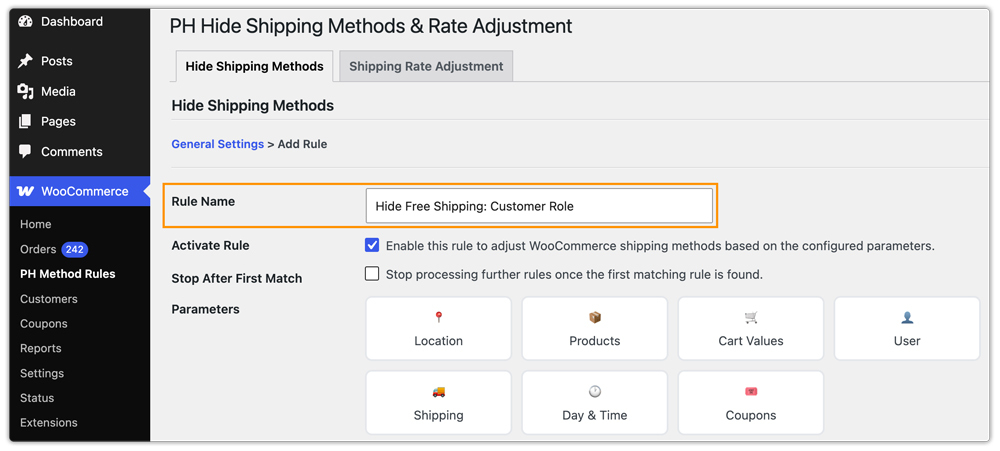
If you want to adjust shipping charges instead of hiding methods completely, you can use the Shipping Rate Adjustment tab instead.
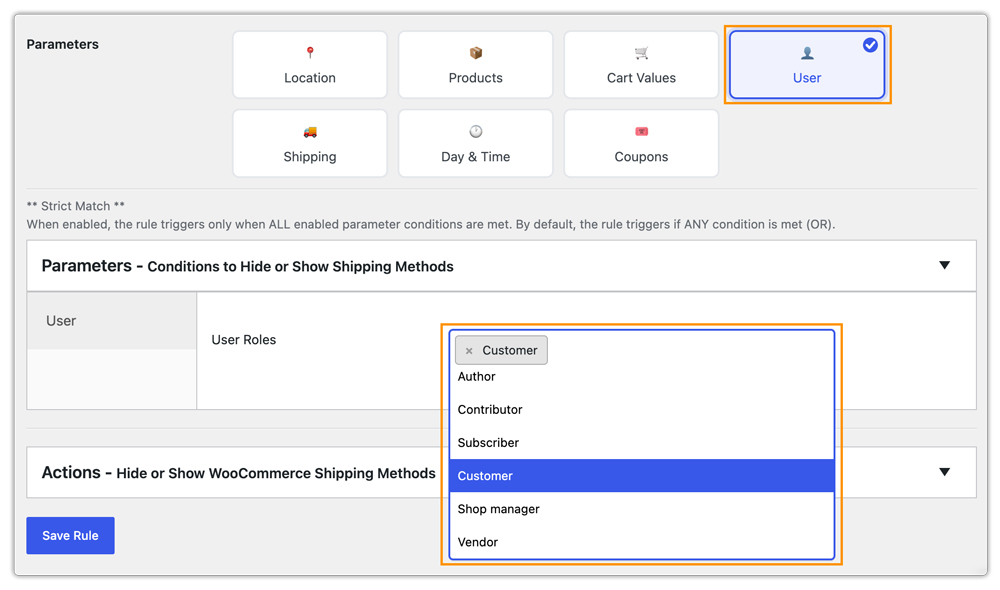
Next, under the Conditions section:
- Select User Role
- Choose Customer from the dropdown
This tells the plugin to apply the rule only when a logged-in Customer reaches checkout.
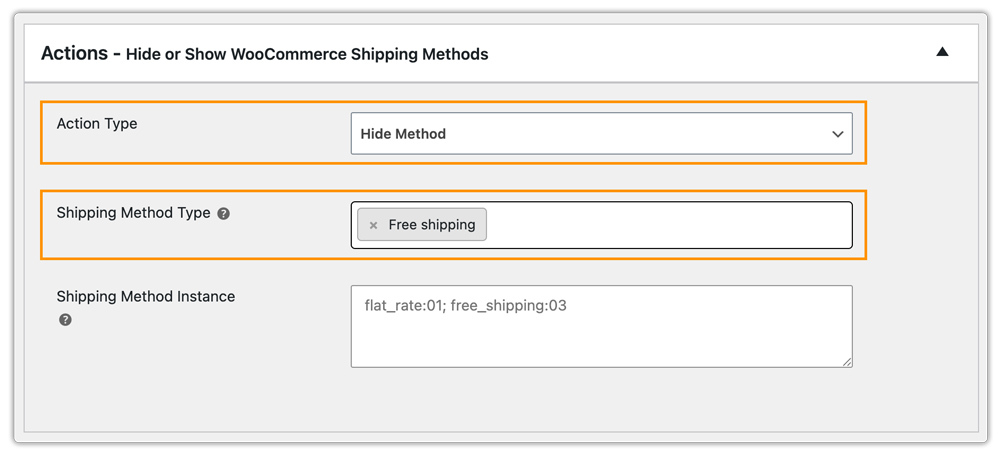
Under the Hide or Show WooCommerce Shipping Methods section:
- Select Hide Shipping Methods
- Choose Free Shipping
Once configured, Free Shipping will no longer appear for Customers during checkout. Other user roles, such as Subscribers, will continue seeing Free Shipping normally if no restriction applies to them.
After saving the rule:
- Log in using a Customer account and verify that Free Shipping is hidden
- Then log in as a Subscriber or another user role and confirm that Free Shipping is still visible
Always test both role-based scenarios before applying the rule to your live store.
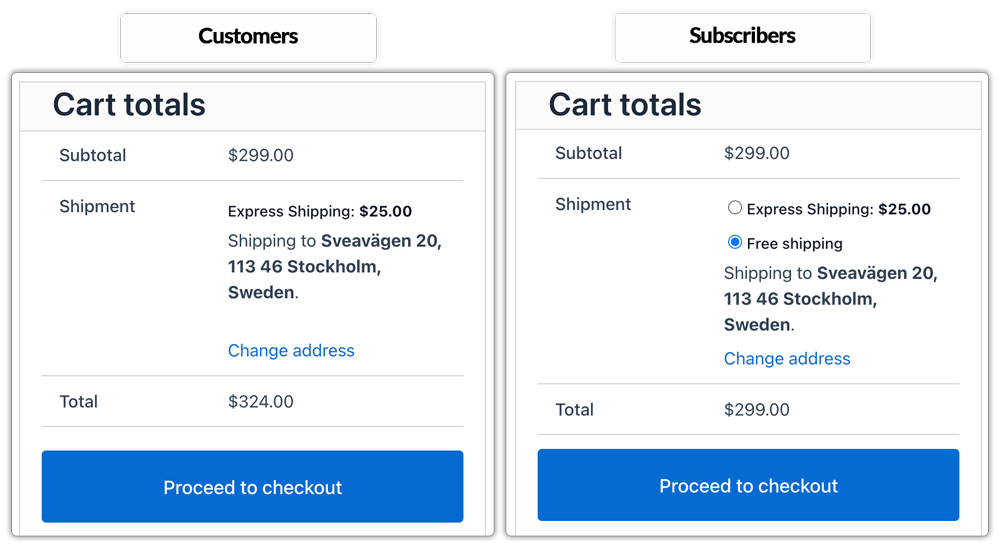
Real-World Use Case
A WooCommerce store running a paid membership program offered free shipping as an exclusive Subscriber benefit. The problem was that Free Shipping was appearing for all logged-in users, including regular Customers who were not part of the membership program. This resulted in unexpected shipping losses because non-members were using a perk they had not paid for.
The store owner needed a way to restrict Free Shipping without modifying shipping zones or adding custom code.
How the Plugin Helped
They installed the PH Hide Shipping Methods & Rate Adjustment for WooCommerce plugin and created a simple rule: Hide Free Shipping when User Role = Customer. That was it. Subscribers continued seeing Free Shipping as intended, while Customers only saw standard paid shipping methods.
The Result
- Free Shipping became exclusive to Subscribers
- Unintended free shipping usage stopped immediately
- Shipping costs became predictable
- No developer or custom coding was required
Conclusion
Restricting shipping methods by user role in WooCommerce helps create a cleaner and more controlled checkout experience. Instead of showing the same shipping options to every user, you can display only the methods relevant to specific roles, which helps reduce confusion and create a more efficient WooCommerce shipping setup for different customer types.
If you need help configuring role-based shipping rules in WooCommerce, feel free to reach out to PluginHive support.
FAQs
Q. Does WooCommerce support restricting shipping methods by user role by default?
No. WooCommerce shows the same shipping methods to all users by default. To create role-based shipping restrictions, you need the PH Hide Shipping Methods & Rate Adjustment for WooCommerce plugin.
Q. Can I target multiple user roles in one shipping rule?
Yes. The plugin allows you to apply the same shipping restriction to multiple user roles within a single rule.
Q. Can I show different live carrier shipping rates to different user roles?
Yes. You can use the WooCommerce Shipping Services Plugin together with role-based shipping restrictions to display different live carrier services for Customers, Subscribers, Vendors, or guest users.
Q. Can I combine flat-rate shipping rules with role-based shipping restrictions?
Yes. The PH Table Rate Shipping Pro Plugin for WooCommerce lets you create custom flat-rate or table-rate shipping rules, while the Hide Shipping plugin controls which users can view those shipping methods.
