


If you’ve ever tried to charge different shipping rates for heavy equipment versus lightweight accessories or wanted to use FedEx for some products and Australia Post for others, you already understand the problem that Shopify Shipping Profiles solve.
By default, Shopify applies one set of shipping rules to everything in your store. That works fine when your catalog is simple. But the moment your products vary in weight, value, fragility, or fulfillment location, a single shipping setup starts breaking down. You end up either overcharging customers or eating shipping costs yourself.
Shipping profiles fix this by allowing you to attach specific shipping rules, zones, rates, and carrier services to products. This guide walks you through everything: what shipping profiles are, how they work, and how to set them up.
In This Article:
- What Is a Shopify Shipping Profile and Why Is It Important?
- Shopify Shipping Profile Types and Carrier-Calculated Shipping Requirements
- How to Set Up Shopify Shipping Profiles
- Conclusion
- FAQ’s
What Is a Shopify Shipping Profile and Why Is It Important?
A Shopify Shipping Profile is a set of shipping rules assigned to a specific group of products. Each profile can have its own:
- Shipping zones
- Shipping rates
- Fulfillment locations
- Carrier services such as FedEx, UPS, and Australia Post
This allows you to apply different shipping settings to different products rather than using the same shipping rules across your entire store.
Shipping profiles are useful when products have different shipping requirements. For example, you can charge higher rates for heavy items, use different carriers for specific products, or set warehouse-specific shipping rules. This ensures Shopify displays accurate shipping options and costs at checkout based on the products in the customer’s cart.
Shopify Shipping Profile Types and Carrier-Calculated Shipping Requirements
Shopify offers two types of shipping profiles:
1. General Shipping Profile
This is the default profile included with every Shopify store. All products are assigned to this profile unless you move them to a custom profile. It acts as the default shipping setup for products.
2. Custom Shipping Profiles
Custom profiles let you create separate shipping rules for specific products. Each custom profile can have its own shipping zones, rates, fulfillment locations, and carrier services. For example, you might create one profile for heavy freight items, another for international orders, and another for fragile products.
Requirement for Carrier-Calculated Shipping Rates
If you want to display live carrier rates from services such as FedEx, UPS, or Australia Post, your Shopify plan must support carrier-calculated shipping.
This feature is included with the Shopify Advanced plan, Shopify Plus, and the Grow plan with annual billing. Merchants on the Basic plan can request it from Shopify Support for an additional fee.
For live rates, you can also use the solution by PluginHive to display these rates.
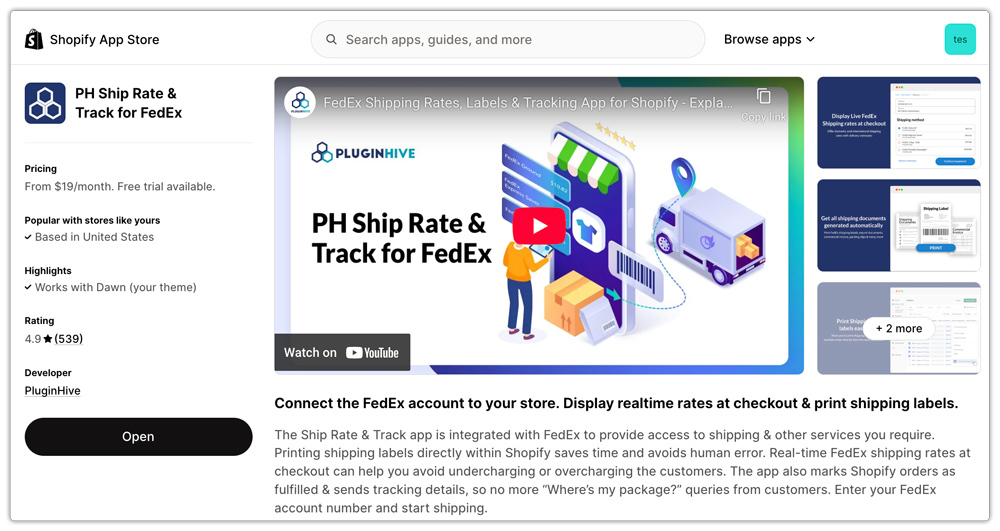
- Use the PH Ship, Rate, and Track for FedEx app to display FedEx rates, print labels, schedule pickups, and track shipments.
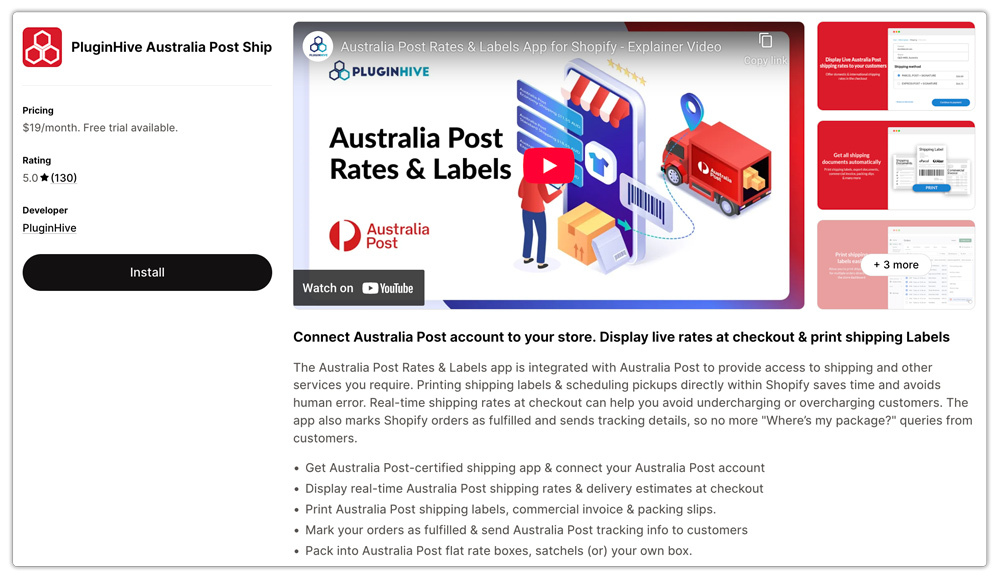
- Use the PluginHive Australia Post Ship app to access Australia Post rates and shipping services.
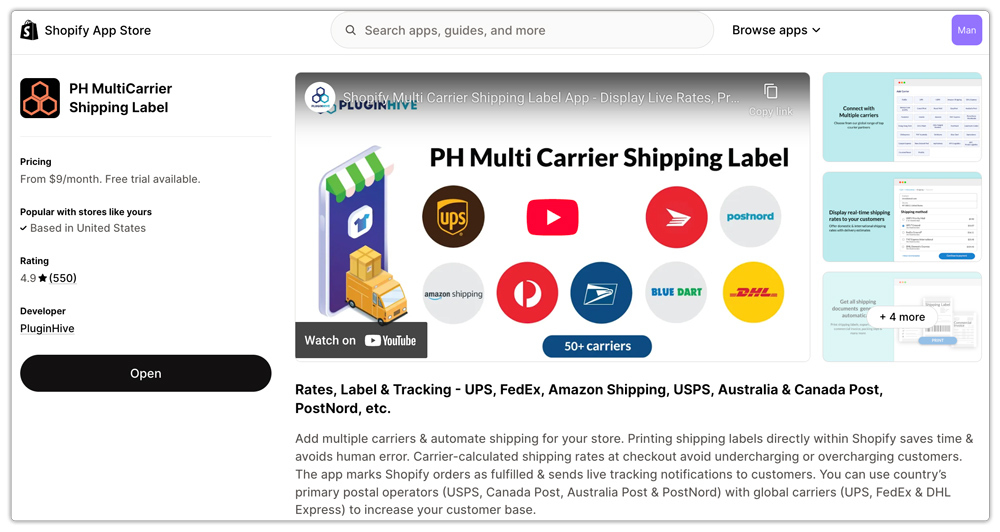
- Use the PH Multi-Carrier Shipping Label app to connect multiple carriers, including FedEx, UPS, DHL, and Australia Post, in a single solution.
How to Set Up Shopify Shipping Profiles
Head over to:
Shopify Admin → Settings → Shipping and Delivery
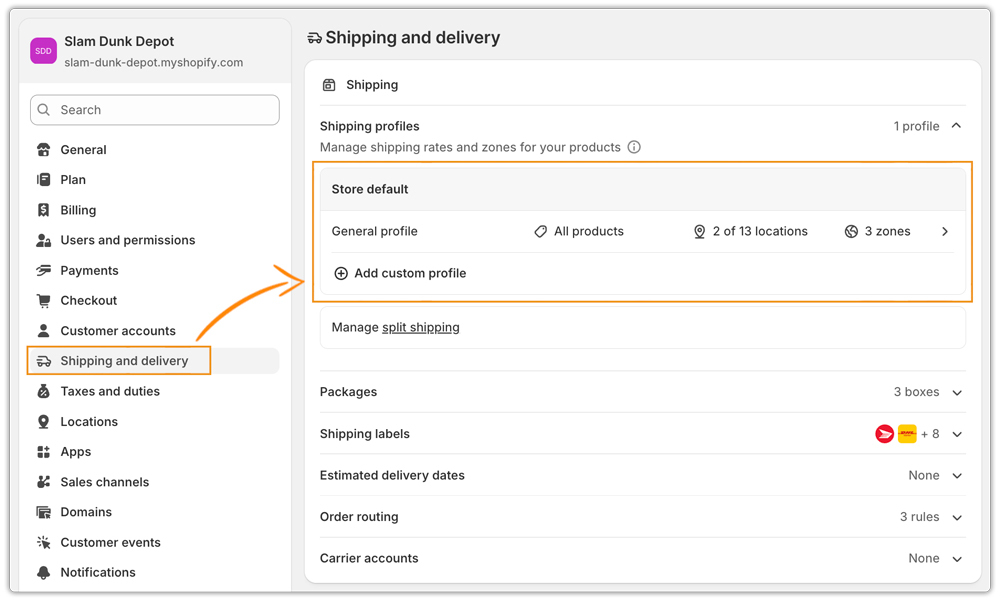
Under the Shipping Profiles section:
Click General Profile to edit your default shipping setup. This profile contains all products by default that are not assigned to a custom shipping profile.
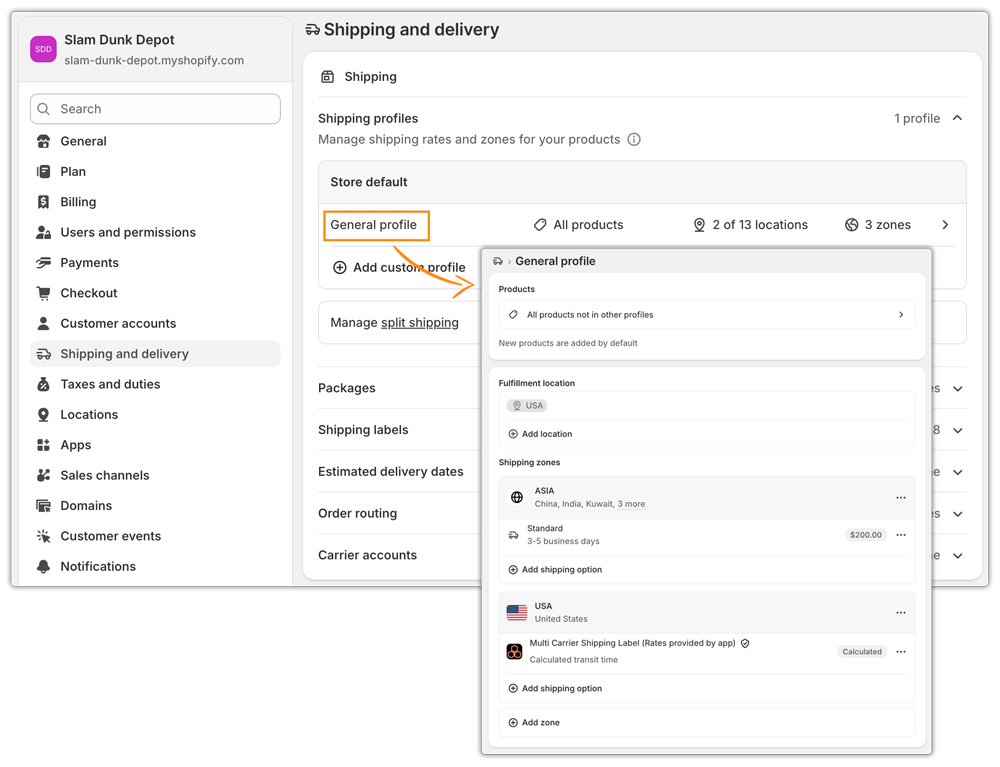
Within the General Profile, you can configure fulfillment locations and create shipping zones for different regions.
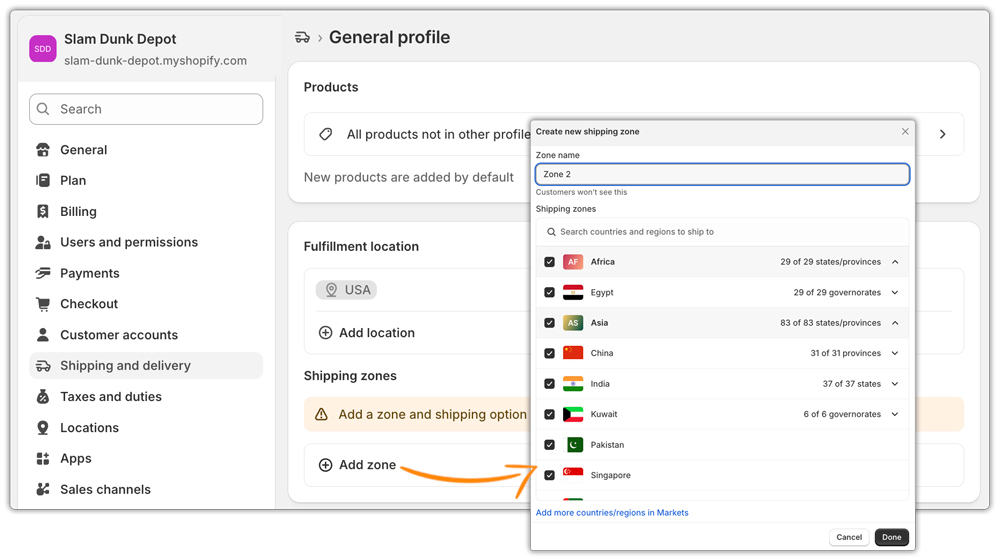
After configuring your shipping zones, click Add shipping option to set the shipping rates for each zone based on your business requirements.

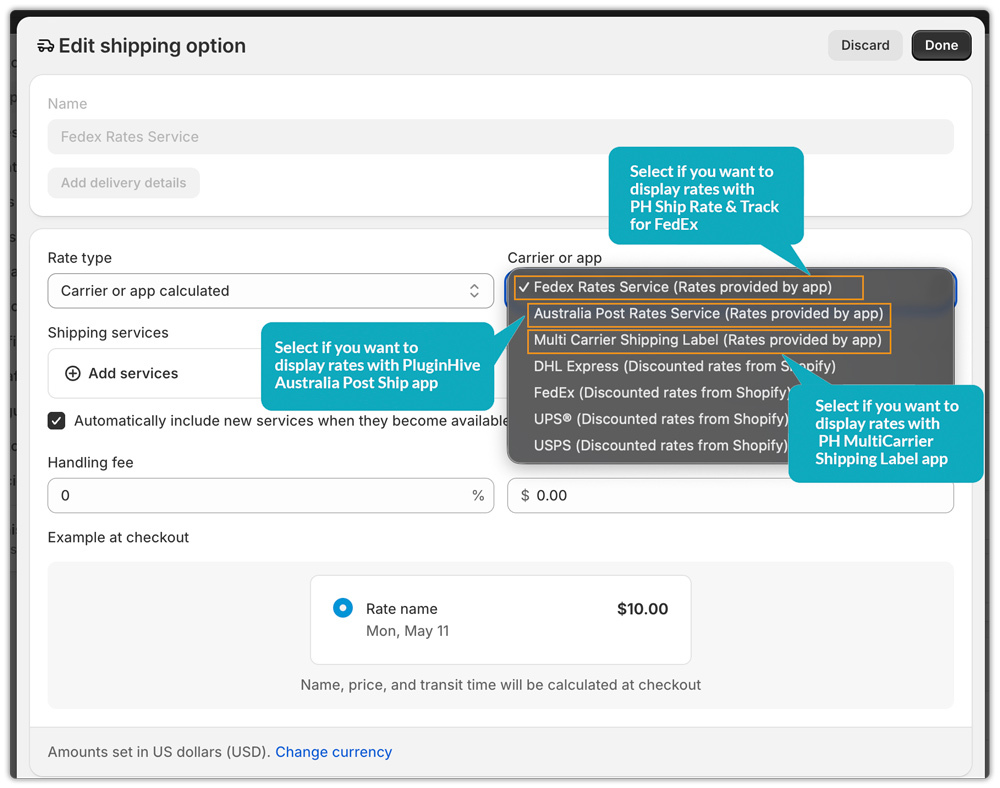
If you want to display live carrier rates provided by PluginHive apps, select Use “carrier or app calculated rates”. Then choose the rates from the specific app you want to use at checkout.
Setting Up Custom Profile
The other method of setting up the profile is custom configuration. For this, all you need to do is click “Add Custom Profile” to create a new shipping configuration.
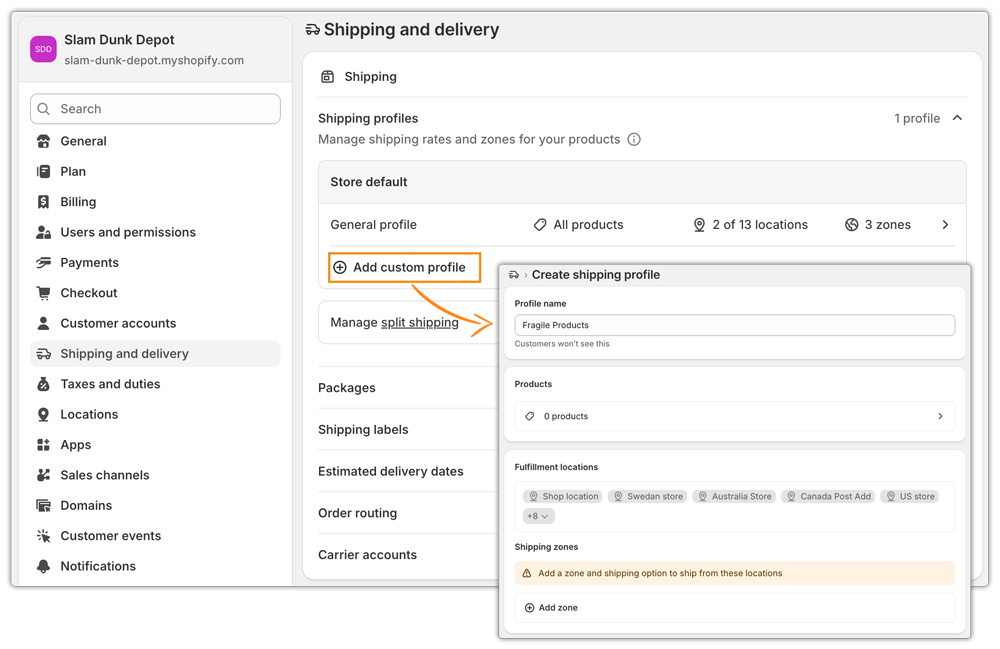
While setting up the profile:
Enter a profile name.
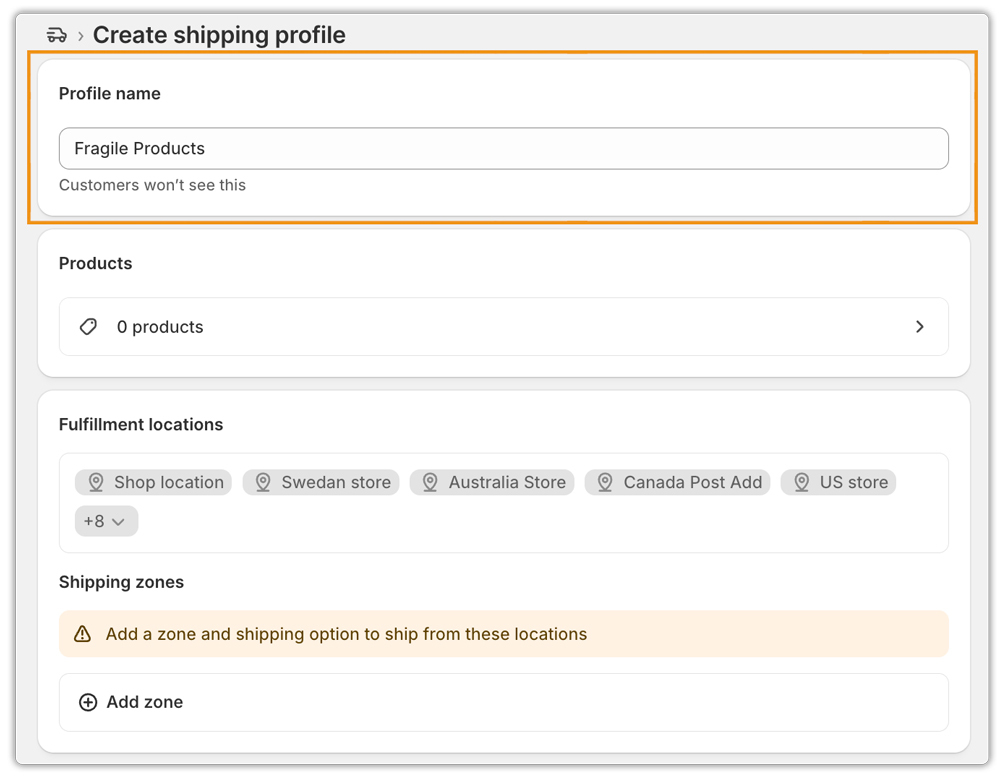
Add the products you want to the profile and click on “done.”

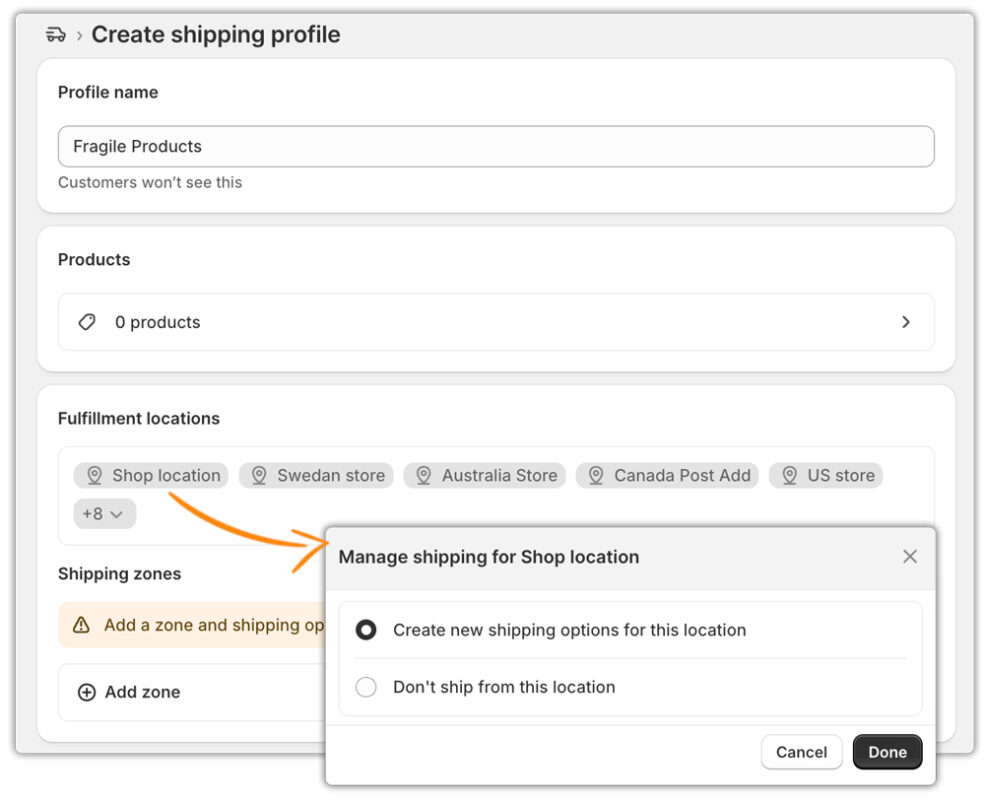
Configure fulfillment locations; by default, all the warehouses you have will be displayed here. If you don’t want to configure a certain warehouse, click on the warehouse and select “don’t ship from this location.”
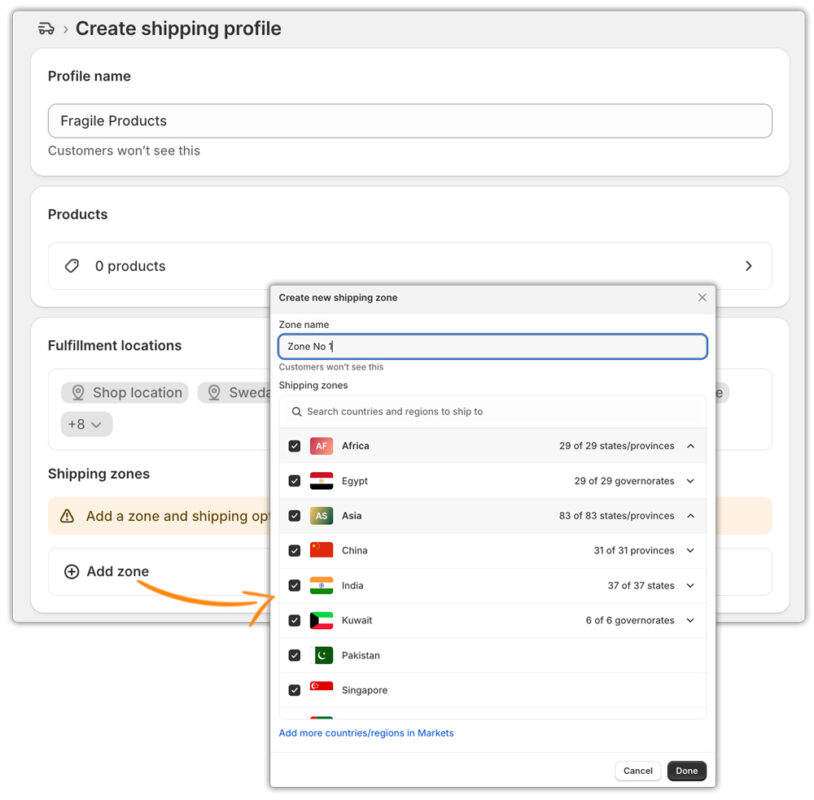
Now, create shipping zones based on countries or regions that you want to ship to for this profile.
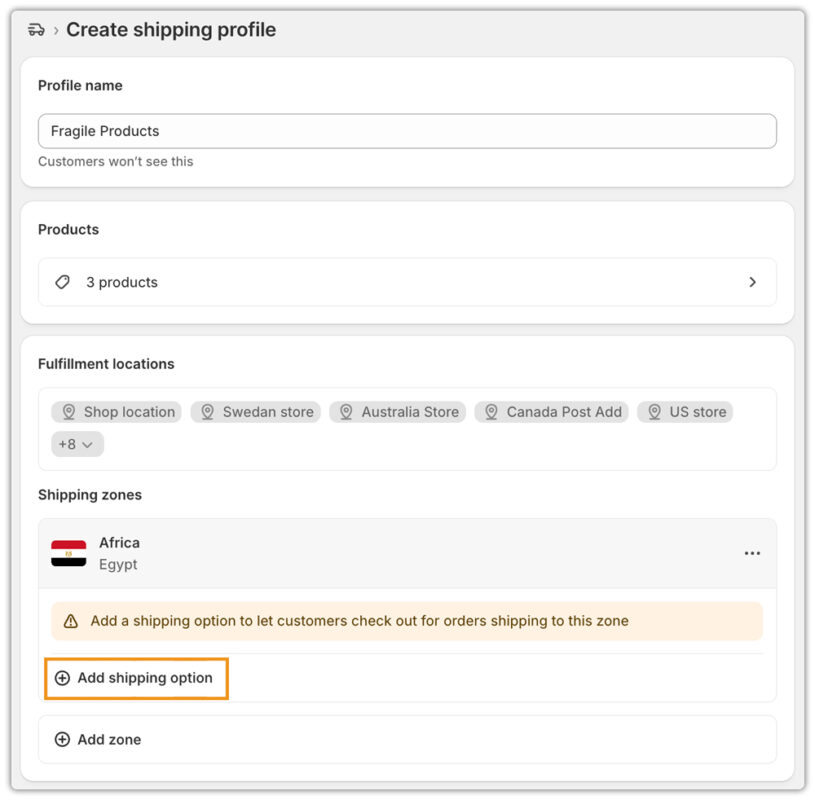
Now, to display rates for this profile, click the “Add Shipping option”.
Here you can give a name to your rates. This is the name that will be displayed at checkout.
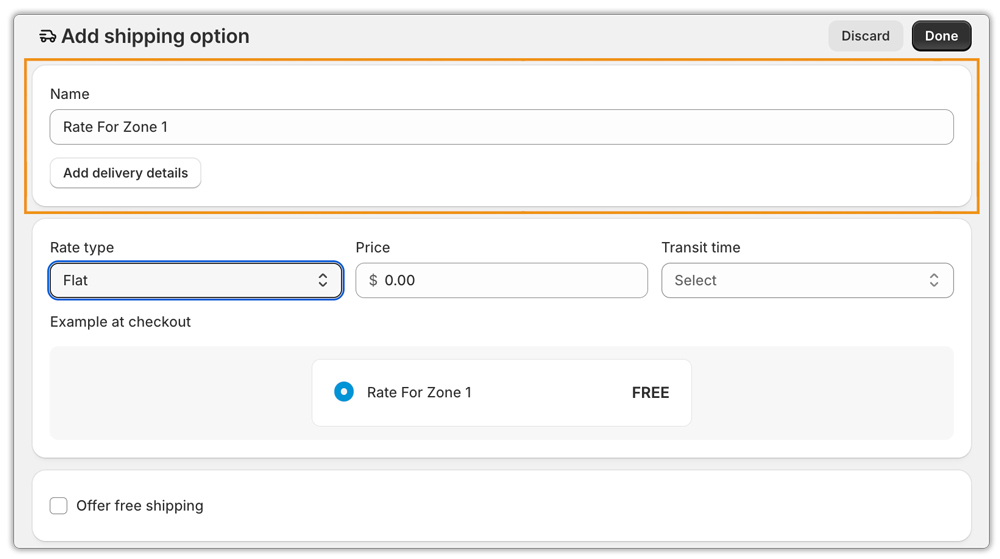
Also, here, you can select the type of shipping rate you want to display at checkout. Shopify allows you to configure different rate types such as flat rates, carrier-calculated rates, order value-based rates, or weight-based rates, giving you complete flexibility to define shipping prices based on your business requirements.
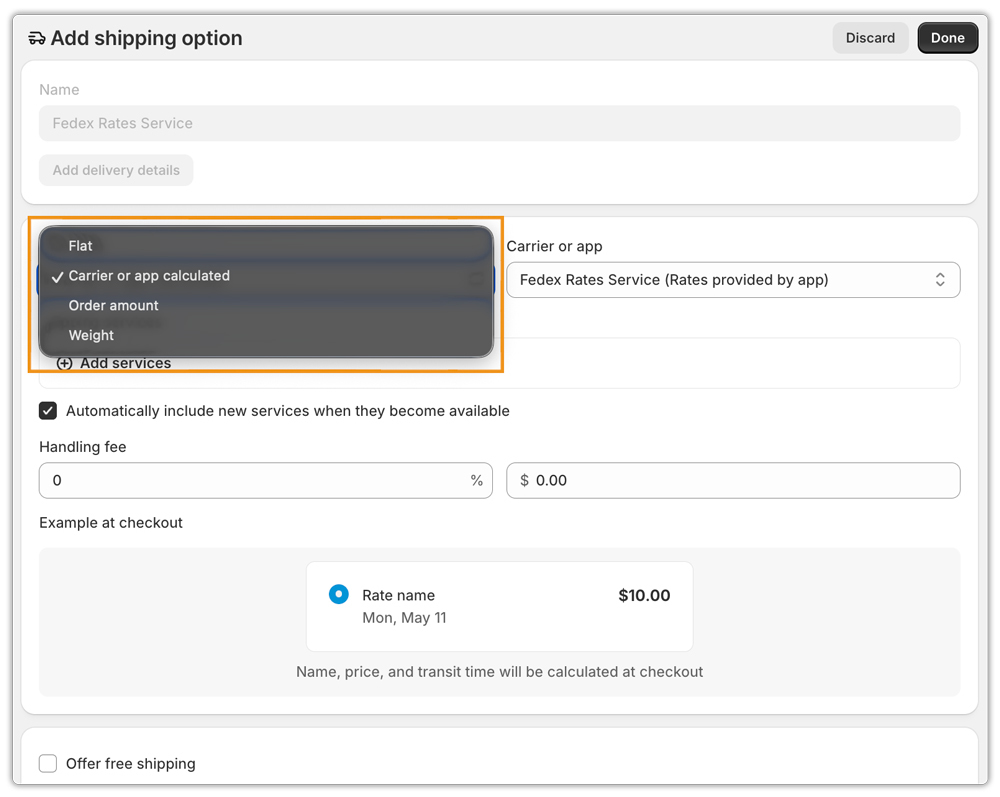
Once configured, Shopify automatically displays the appropriate shipping rates at checkout based on the product, shipping zone, fulfillment location, and carrier configuration.
Conclusion
Shopify Shipping Profiles let you apply different shipping rules to different products in your store. You can create custom shipping zones, rates, fulfillment locations, and carrier services for heavy items, fragile products, or products shipped from different warehouses.
When combined with PluginHive apps such as PH Ship, Rate and Track for FedEx, PluginHive Australia Post Ship, and PH Multi-Carrier Shipping Label, you can automate live rate calculation, label printing, pickup scheduling, and shipment tracking directly from your Shopify store.
Once configured, Shopify automatically displays the most accurate shipping options and costs at checkout based on the products in the cart, fulfillment location, and selected carrier. This helps you reduce shipping errors, control costs, and deliver a better customer experience.
FAQs
Q. Can I create multiple shipping profiles in Shopify?
Yes. Shopify allows you to create as many custom shipping profiles as needed. This is useful when different products require different shipping rates, zones, or carriers.
Q. Can one product belong to multiple shipping profiles?
You can assign a product to only one shipping profile at a time.
Q. What happens if a product is not assigned to a custom profile?
Shopify automatically assigns it to the General Shipping Profile.
Q. Do I need carrier-calculated shipping to use shipping profiles?
No. Shipping profiles work with flat rates, weight-based rates, and order value-based rates on all Shopify plans. Carrier-calculated shipping is only required if you want to display live rates from carriers such as FedEx, UPS, and Australia Post.
