


Handling bookings through calls, emails, and messages gets harder as your WooCommerce business grows. Double bookings, missed slots, and endless back-and-forth over dates quickly eat into your day. A WooCommerce booking system solves this by letting customers pick a date or time on your website and pay right away.
In this article, we’ll explain what a WooCommerce booking system is, why your store needs one, what you can offer with it, and how to set one up using the Bookings and Appointments for WooCommerce plugin.
On This Page
- What Is a WooCommerce Booking System?
- Why Does Your WooCommerce Store Need a Booking System?
- What Can You Offer With a WooCommerce Booking System?
- How to Add a Booking System to WooCommerce
- Tips for Managing Online Bookings in WooCommerce
- Final Thoughts
- FAQs
What Is a WooCommerce Booking System?
WooCommerce doesn’t come with booking features out of the box. A WooCommerce booking system is a plugin that adds a booking calendar to your product pages. Customers can see what’s available, choose a date or time slot, and pay at checkout.
Every booking is saved as a regular WooCommerce order, so you manage it from the same dashboard you already use. The booking calendar is also mobile-friendly, so customers can book from any device. It works for appointments, rentals, classes, reservations, and any other service that depends on time.
Why Does Your WooCommerce Store Need a Booking System?
Without a booking system, every reservation on your WooCommerce store depends on you or your team being available to reply. A booking system takes that load off and gives customers a faster way to book. Here’s what it does for your business:
- Saves time: Customers book on their own, so you spend less time on calls and emails.
- Avoids double bookings: Once a slot is taken, it’s blocked on the calendar automatically.
- Takes bookings anytime: Customers can reserve a slot at night or on weekends without waiting for a reply.
- Collects payment upfront: Customers pay at checkout, which helps reduce no-shows. You can also accept deposits if you prefer.
- Keeps everything in one place: Bookings, payments, and customer details stay in your WooCommerce dashboard.
With the booking process handled online, you spend less time managing slots and more time running your store.
What Can You Offer With a WooCommerce Booking System?
A WooCommerce booking system suits any business where customers need to reserve a time slot, a date, or an item. Here are some common examples and what customers can book in each.
| Business | What Customers Can Book |
|---|---|
| Salons and spas | Haircuts, massages, and beauty treatments |
| Healthcare and consultants | Doctor appointments, one-on-one consultations, and meetings |
| Fitness businesses | Personal training sessions and fitness classes |
| Rental businesses | Bikes, equipment, and holiday stays |
| Educational services | Tutoring sessions, online classes, and coaching |
| Tourism businesses | Guided tours and local experiences |
| Restaurants and venues | Tables, halls, and studios by the hour or day |
Whatever your business, the setup stays the same: you define what can be booked, when it’s available, and how much it costs. The calendar then handles the rest. You can also sell regular WooCommerce products on the same store alongside your bookable ones.
How to Add a Booking System to WooCommerce
You can set up a WooCommerce booking system in a few steps using the Bookings and Appointments for WooCommerce plugin.
Choose a Calendar Design: Go to Bookings > Settings > Calendar Design and pick one of the three templates. Designs 1 and 2 show the calendar directly on the product page, while Design 3 opens it on click. You can also match the colours to your WooCommerce theme.


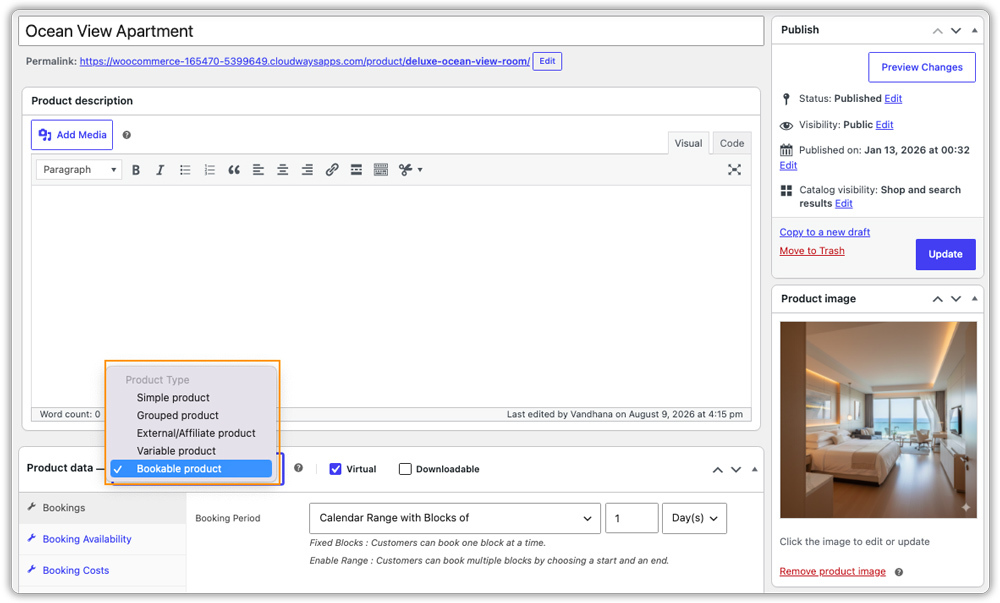
Create a Bookable Product: Go to Products > Add New in WooCommerce (or edit an existing product) and change the Product Type to Bookable Product. This adds a Bookings tab for all the booking settings.
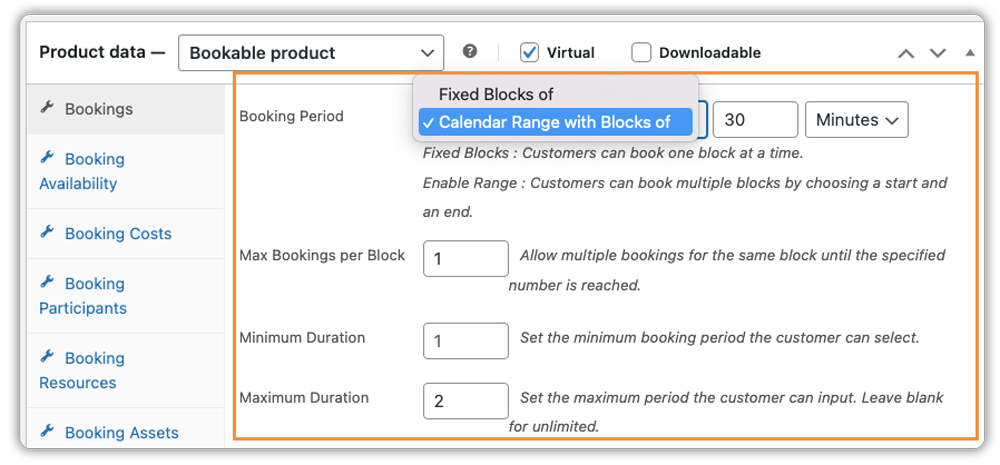
Set the Booking Period: Use Fixed Blocks when customers book a single day or time slot, such as a 1-hour appointment. Use Enable Calendar Range with Blocks when customers choose their own start and end, such as a check-in and check-out date.
Add Pricing and Availability: Set a base cost, then add special prices for weekends, peak seasons, or specific dates using the booking cost settings.

Use the availability settings to block holidays or slots you don’t want to offer.

Add Extras and Staff: If a booking needs extras like parking or an extra bed, attach them using Booking Resources with their own price.

You can also add staff members with their own schedules and pricing.

Publish and Test: Publish the product and place a test booking from the front end of your WooCommerce store. Check that the calendar, price, and booking emails work as expected. You can also try the live demo first.

Tips for Managing Online Bookings in WooCommerce
Once bookings start coming in on your WooCommerce store, a few settings can keep things running smoothly without extra effort.
- Add buffer time: Leave a gap between bookings for cleanup, preparation, or travel. Here’s how to add buffer time in WooCommerce Bookings.
- Send reminder emails: Remind customers about upcoming bookings automatically with booking email notifications.
- Sync with your calendar: Connect bookings to Google Calendar or Microsoft Outlook, so they show up alongside the rest of your schedule.
- Accept deposits for bigger bookings: Collect part of the payment upfront and the rest later with the PH Deposits for WooCommerce plugin.
- Set a cancellation window: Allow cancellations up to a time limit before the booking starts, so you have time to fill the slot again.
- Approve bookings manually: Turn on the Requires Confirmation option if you want to review a booking before the customer pays.
These small choices keep your calendar organized and reduce manual follow-ups.
Final Thoughts
A WooCommerce booking system takes manual scheduling off your plate and gives customers an easy way to book at any time. With Bookings and Appointments for WooCommerce, you can set up your calendar, pricing, and availability in one place on your WooCommerce store. If you need help along the way, the PluginHive Support team is ready to assist.
FAQs
Q: Does WordPress offer a booking system?
No. WordPress doesn’t include a booking feature by default. You need to install a booking plugin to let customers book dates or time slots on your website.
Q: What is the best free booking system for WordPress?
It depends on what you need. Free plugins work for simple appointment requests, but they often limit payments, pricing rules, staff scheduling, and calendar sync. If you run a WooCommerce store and need these features, a plugin like Bookings and Appointments for WooCommerce is a better fit.
Q: How do I create my own booking system?
The easiest way is to use a booking plugin instead of writing custom code. Install the plugin, create a bookable product, and set the booking period, pricing, and availability. For step-by-step instructions, read our guide on how to add a bookable product in WooCommerce.
Q: Does WooCommerce have a booking system?
No. WooCommerce doesn’t include one by default, but you can add it with a plugin like Bookings and Appointments for WooCommerce. Each booking is then saved as a regular WooCommerce order, so you manage it from your existing dashboard.
