



If you’re shipping orders with Royal Mail from your WooCommerce store, your customers expect a tracking email once their parcel is on the way. But WooCommerce doesn’t support Royal Mail tracking by default, so these updates won’t be sent automatically without the right setup.
The PH Royal Mail Shipping with Tracking for WooCommerce by PluginHive solves this by sending tracking emails as part of the order completion email. In this article, you’ll learn how to set it up and make sure your customers receive their Royal Mail tracking details.
On This Page
- What You Need Before You Start
- How to Send Royal Mail Tracking Emails in WooCommerce
- Example Scenario
- Tips to Get WooCommerce Royal Mail Tracking Emails Right
- Conclusion
- FAQs
What You Need Before You Start
Before Royal Mail tracking emails can go out to your customers, three things need to be in place.
- Install and activate the PH Royal Mail Shipping with Tracking plugin on your WooCommerce store
- Enable WooCommerce order completion emails under WooCommerce → Settings → Emails
- A Royal Mail tracking number for each shipment is provided by Royal Mail
The tracking email is appended to WooCommerce’s native order completion email, so if that email is turned off, the tracking details won’t reach your customer. It’s worth a quick check before you start shipping.
For a full walkthrough of the plugin configuration, refer to the Royal Mail Shipping Plugin Setup Guide.
How to Send Royal Mail Tracking Emails in WooCommerce
Once the plugin is active, sending Royal Mail tracking emails comes down to three things: enabling the tracking option, adding the tracking number to the order, and marking the order complete.
Enabling the Tracking Pin Option
Inside the plugin settings, turn on the Tracking Pin option. This is what tells the plugin to include the Royal Mail tracking number and link in the order completion email. Without it, tracking details won’t be passed through to the customer, even if you’ve added a tracking number to the order.

You can also add a Custom Shipment Message here, a short note that appears in the email alongside the tracking number, useful for mentioning the dispatch date or the service used.
This is a one-time setting that applies to all future orders automatically.
Adding the Royal Mail Tracking Number to WooCommerce Orders
Once an order has been shipped, open it from WooCommerce → Orders. You’ll find the Royal Mail Shipment Tracking block on the order page. Here, you can:
- Select the carrier – Royal Mail or Parcelforce
- Enter the Tracking ID for the shipment
- Add the Shipment Date
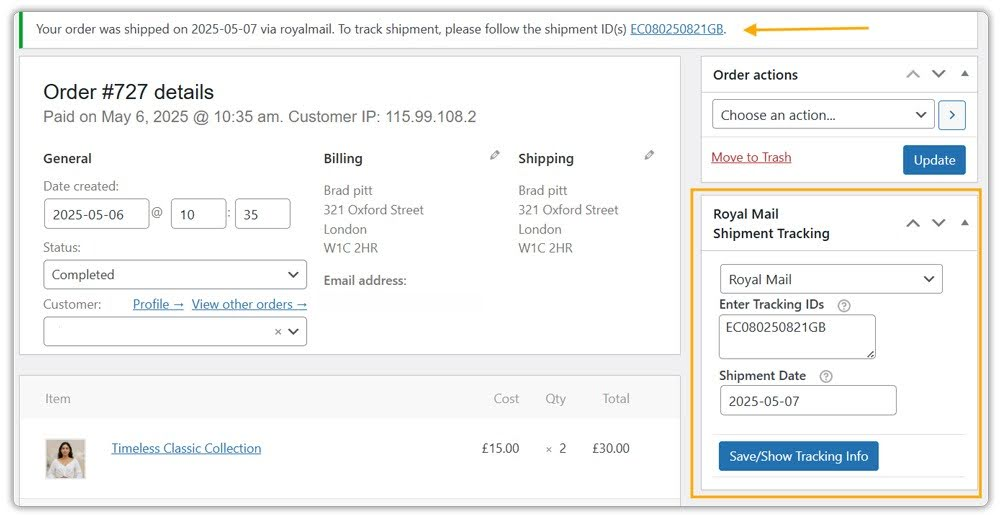
Once you fill in these details and click Save/Show Tracking Info, the plugin attaches all of this to the WooCommerce order completion email and sends it to the customer automatically.
What the Customer Receives
The customer gets the standard WooCommerce order completion email with the Royal Mail tracking details included. This contains:
- The Royal Mail tracking number for their shipment
- A clickable tracking link that takes them directly to the Royal Mail tracking page
- Your custom shipment message, if one was added at the order level

The customer doesn’t need to log in to your store or search for their order; they click the link and land straight on Royal Mail’s live tracking page. This significantly cuts down on “Where is my order?” support messages.
Example Scenario: Royal Mail Tracking Emails in WooCommerce
Let’s say you run a WooCommerce store selling home accessories across the UK and you’re processing around 50 orders a week using Royal Mail Tracked 48. Here’s what you’re likely dealing with without an automated tracking flow.
Challenges You’re Probably Facing
- Customers keep asking where their order is, even after it’s been shipped
- Tracking numbers exist in Royal Mail Click & Drop, but customers have no way to access them
- You’re sending tracking details manually through separate emails.
- There’s no consistent way to let customers know their parcel is on its way
How the PH Royal Mail Shipping Plugin Solves This
With the PH Royal Mail Shipping with Tracking plugin, the tracking email goes out as part of your existing WooCommerce order completion flow – nothing extra to manage.
- Tracking numbers added at the order level are automatically included in the completion email
- Customers receive a direct link to the Royal Mail tracking page, not just a number to copy
- The custom shipment message field lets you add dispatch details without editing your email template
- The same process works for both domestic and international Royal Mail orders
Results
- Customers track their own parcels without contacting support
- Every order gets consistent, professional tracking communication
- The completion email doubles as a dispatch confirmation
- No separate tool or manual process is needed to share tracking with customers
Once your tracking flow is in place, keeping customers informed about their Royal Mail shipments becomes a built-in part of how your WooCommerce store operates.
Tips to Get WooCommerce Royal Mail Tracking Emails Right
Getting the tracking email out is one part; making sure it works well for every order is another. Here are a few things worth keeping in mind.
- Make sure product weights and dimensions are accurate: Royal Mail pricing is weight-sensitive, and the plugin uses these values to calculate rates and classify shipments. Inaccurate product data can lead to incorrect charges or wrong service classification at the order level. Fix this at the product level before it causes fulfilment issues.
- Use the Custom Shipment Message to set delivery expectations: Rather than leaving the tracking email generic, use this field to note the dispatch date and the service used. for example, “Dispatched via Royal Mail Tracked 48, expected delivery in 2–3 working days.” It gives the customer a clear reference point.
- Keep your store currency set to Pound Sterling with metric units: The Royal Mail plugin requires GBP as the store currency and metric measurements for product dimensions. If these aren’t configured correctly, rate calculations and service availability can behave unexpectedly. You can verify this under WooCommerce → Settings → General.
- Scale Your Tracking Workflow Efficiently: The Shipment Tracking Pro for WooCommerce plugin supports 80+ carriers (including Royal Mail), lets you bulk import tracking data via CSV, FTP, or SFTP (even from Royal Mail Click & Drop), and adds a live tracking lookup page to your store’s My Account section—making it ideal for stores handling multiple carriers or high order volumes.
Small adjustments like these go a long way in making your Royal Mail tracking emails more reliable and useful for your customers.
Conclusion
Sending Royal Mail tracking emails in WooCommerce is straightforward with the PH Royal Mail Shipping with Tracking for WooCommerce plugin. Enable the Tracking Pin option, add the tracking number to the order, and the email goes out automatically – no extra steps. If you have any questions or need help getting set up, the PluginHive support team is available to help.
FAQs
Q. Is there a way to track Royal Mail parcels?
Yes. You can track Royal Mail shipments using the tracking number on the official Royal Mail tracking page. In WooCommerce, the tracking link can be automatically shared with customers through the order completion email using the PH Royal Mail Shipping with Tracking for WooCommerce plugin.
Q. How do I add shipping tracking in WooCommerce?
You can add shipping tracking by entering the tracking number on the order edit page. With the PH Royal Mail Shipping with Tracking for WooCommerce plugin, this tracking information is automatically included in the WooCommerce order completion email sent to the customer.
Q. What does a Royal Mail tracking number look like?
A Royal Mail tracking number typically consists of a combination of letters and numbers, such as AB123456789GB. This number is provided on the receipt or label and is used to track the shipment online.
