



How to Set Up PH Royal Mail Shipping with Tracking for WooCommerce
In this article, we will show you how to set up the PH Royal Mail Shipping with Tracking for WooCommerce plugin to get real-time Royal Mail and Parcelforce shipping rates on your WooCommerce Store, apply EU customs duty where applicable, and track your shipments directly from your store. This tutorial will give you an excellent launch pad to kick-start the usage of this plugin on your WooCommerce site.
Table of Contents
- General Settings
- Packaging Settings
- How Rates Appear at Cart/Checkout Page
- Tracking Settings
- EU Customs Duty
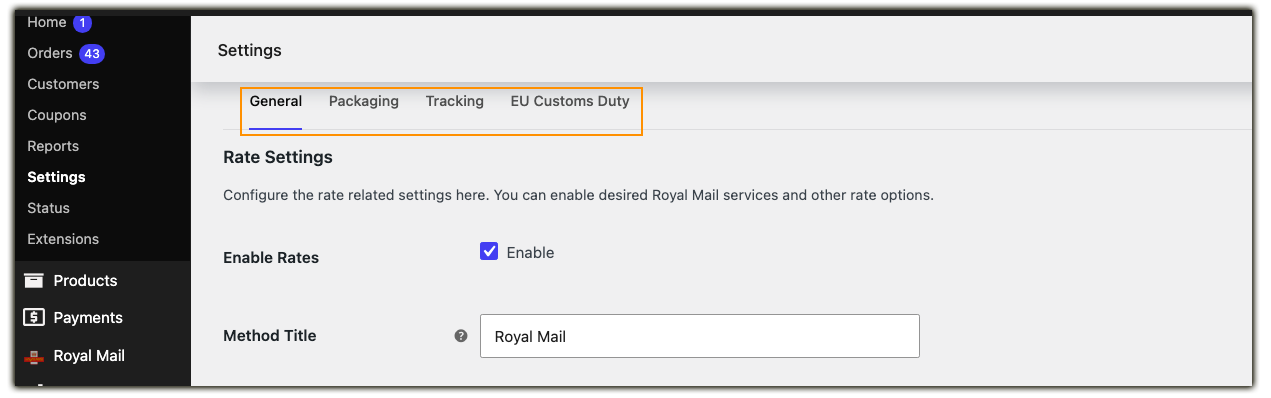
The plugin settings page is organized into four tabs – General, Packaging, Tracking, and EU Customs Duty – covered one by one below.
1. General Settings
This is where you turn on rates and control the basics of how they’re displayed
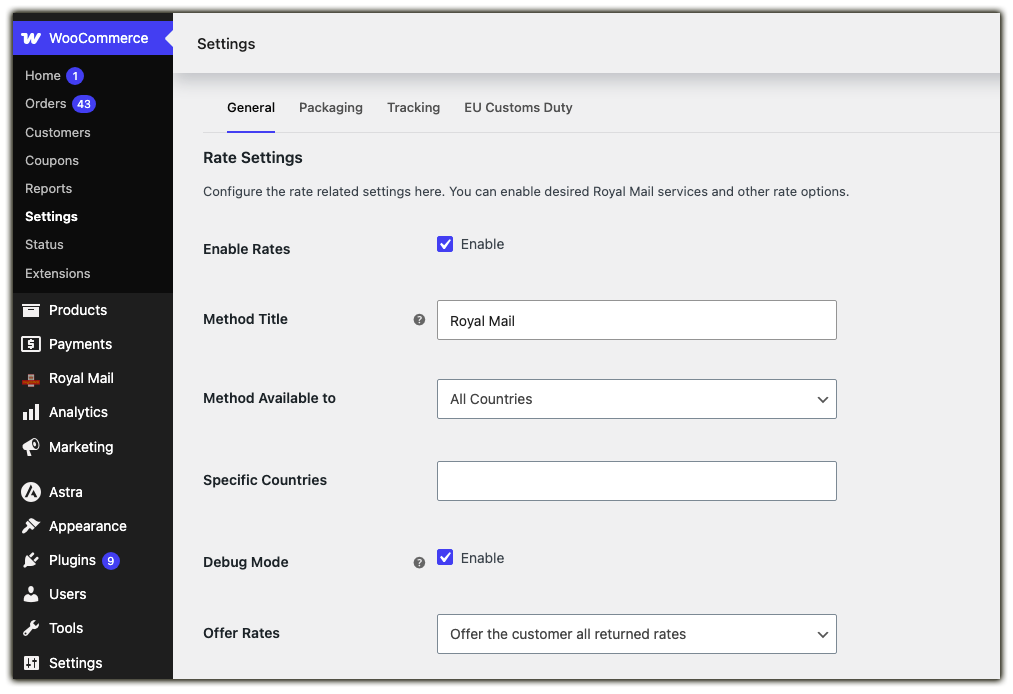
- Enable Rates: Select the Enable check box to enable rates using the Royal Mail Shipping Plugin. This is the most important part of the setup, and you have to enable this option to show the shipping rates on the Cart/Checkout page.
Note: Unchecking this feature only disables rates on the Cart/Checkout page. Shipment Tracking functionality will still be available to you.
- Method Title: The method Title is visible on the Cart/Checkout page under Shipping options. Specify the Method Title as required (defined by you).
- Method Available to: This field allows you to select countries for shipping. The available options are as follows:
- All Countries: This option provides the availability of the Royal Mail Shipping plugin to the customer in all countries. It is set as a default option.
- Specific Countries: This option allows you to add a list of countries. Royal Mail Shipping Method is available only in the listed countries.
- Debug Mode: Turn this on if rates look off, are missing, or aren’t showing at all. It logs helpful details on the Cart/Checkout page so you can pinpoint the issue.
- Offer Rates: Decide how rates are presented to customers – for example, showing all available rates or just the cheapest one.
Services
The PH Royal Mail Shipping with Tracking for WooCommerce plugin comes with all the shipping services available. You can find the list of services in this section of the plugin settings page. You can select the required services by enabling each service. The non-selected services will not be shown to the customers even if the services are valid in their region. You can adjust the shipping price by adding/subtracting the required amount to/from the actual shipping cost. Use the minus sign (–) for subtracting the amount. You can mention the amount in % and £ for each service.
The services available in the plugin are listed below:
1. UK Tracked Services

2. UK Standard & Signed Services
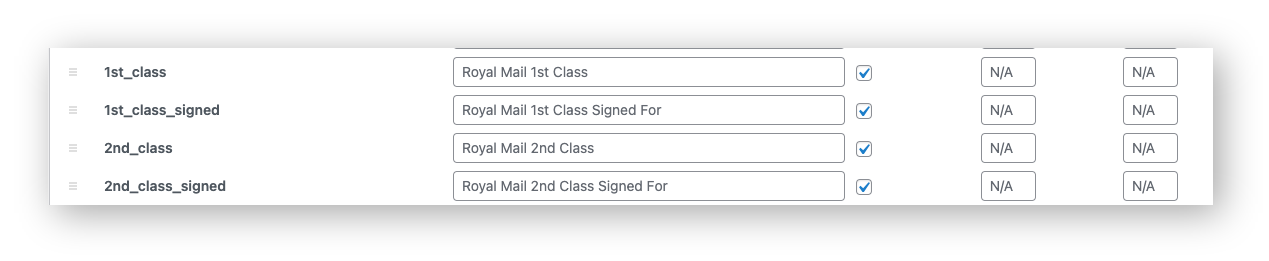
3. UK Special Delivery Services
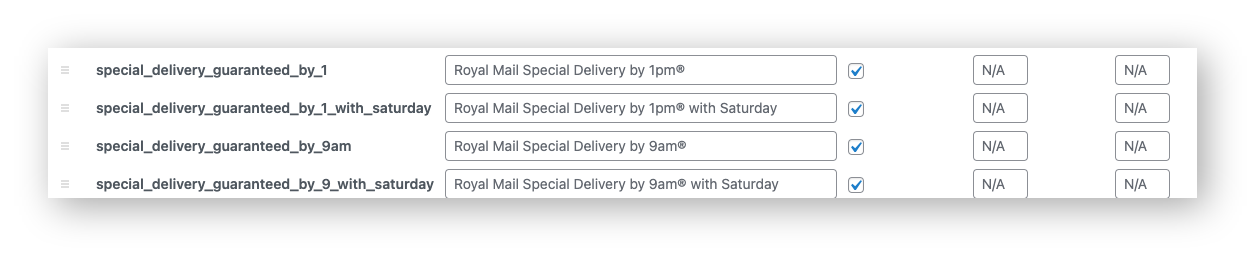
4. International Services
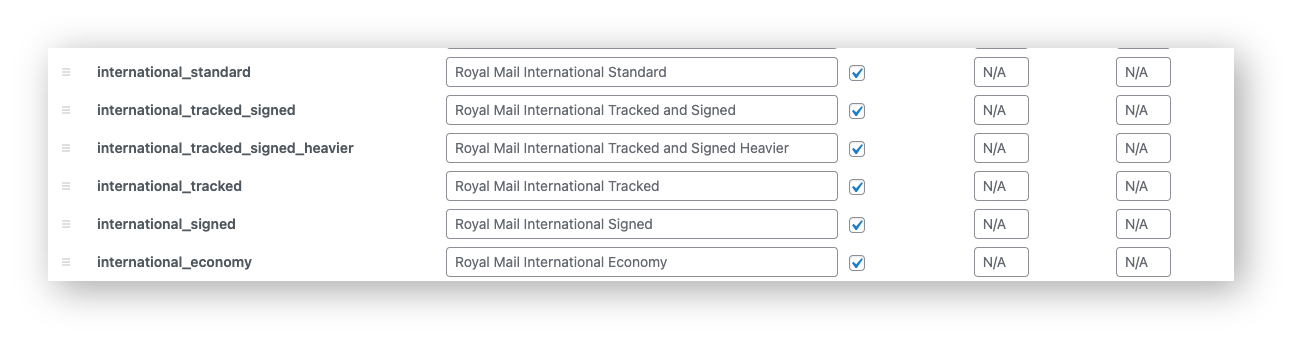
5. Parcelforce Services

Price Adjustment Examples
For example, consider that the shipping cost of Royal Mail 1st Class is £5.
Price Adjustment (£): If you enter 5 in the £ adjustment field, the total shipping cost displayed on the Cart/Checkout page would be £10 (5+5).

Price Adjustment (%): If you enter 10 in the % adjustment field, the total shipping cost would be £5.50 (10% of 5 is added to 5).

Both Price Adjustment (£) and (%): If you enter 5 in the £ field and 10 in the % field, the total shipping cost would be £10.50 (10% of 5 is added to 5+5).

Other General Settings
At the bottom of the General tab, you’ll also find:
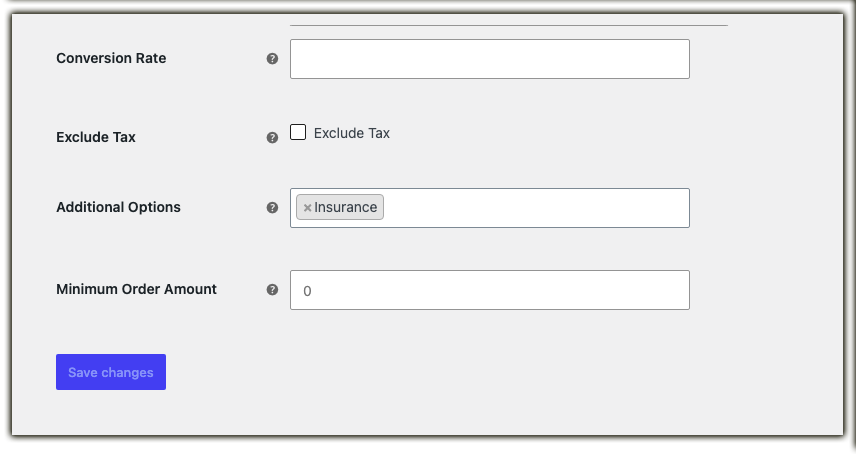
- Conversion Rate: If your store currency is different from the currency returned by Royal Mail, enter the appropriate conversion rate here. The plugin will use this value to convert the returned shipping rates into your store currency.
- Exclude Tax: Enable this option to exclude tax from the shipping rates displayed to your customers.
- Additional Options: Select optional services, such as Insurance, to include with your Royal Mail shipments. These options are applied when supported by the selected shipping service.
- Minimum Order Amount: Set the minimum order value required for Royal Mail shipping methods to appear at checkout. If the cart total is below this amount, Royal Mail shipping options will not be displayed to the customer.
2. Packaging Settings
The plugin provides you with three options to pack a parcel(s), and they are listed below:
- Pack items individually: By choosing this option, each item in the cart is packed separately. The total Shipping cost is calculated by adding the shipping cost of each item.
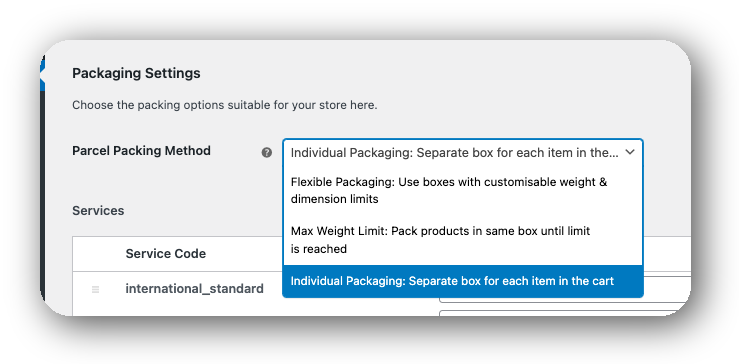
For example, the shipping cost of item A is £10. If the customer adds two quantities of Item A to the cart, the total shipping cost will be calculated as £10×2, which is £20.
- Pack into boxes with weight and dimensions: If packing items individually does not suit your business, then you can define the required box sizes under Box Sizes. All the cart items are packed into custom boxes defined in the Box Sizes settings. The best-fit box is auto-chosen from the defined boxes.
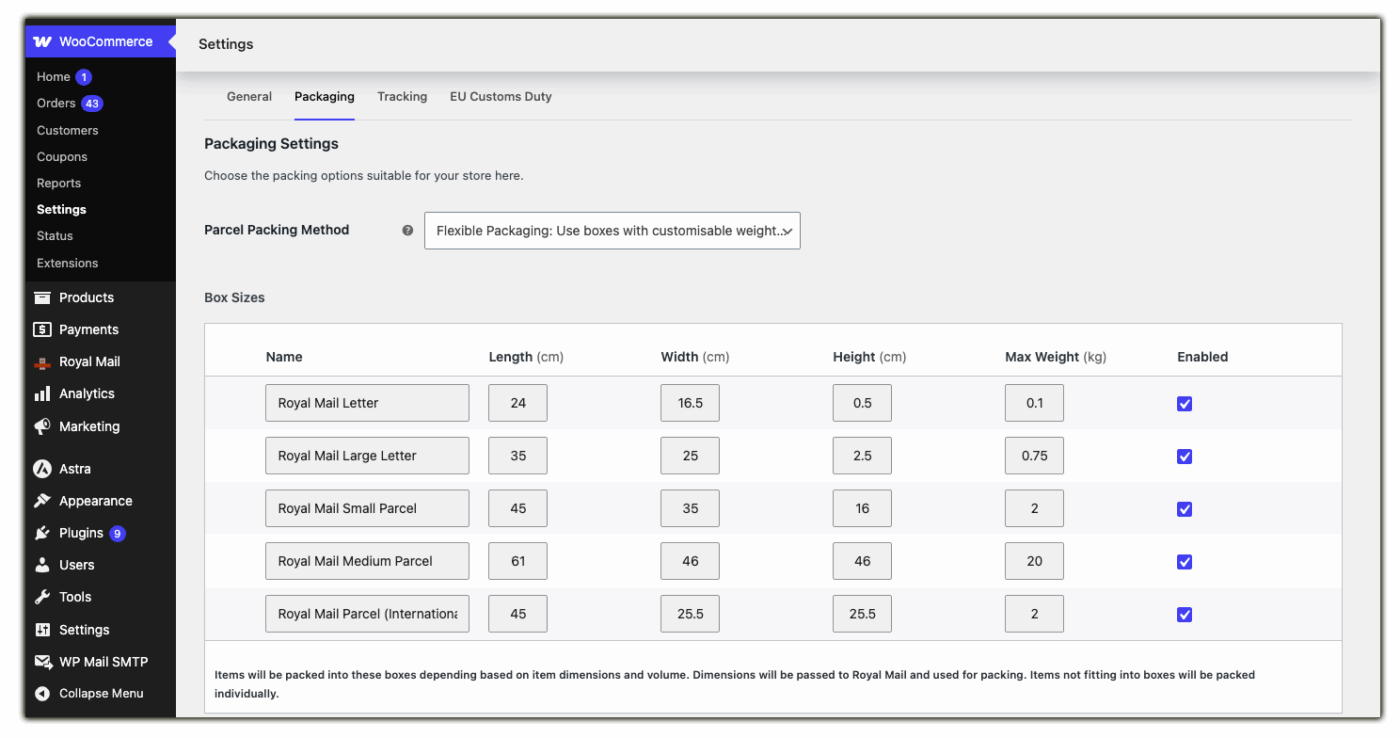
These box dimensions and weight settings are applicable only when “packed into boxes with weight and dimension” is selected. Here, you can define the dimensions of the boxes. |
- Recommended: Weight based, calculate shipping based on weight: In some business cases, you may wish to pack items according to their weight. If you are using this option, make sure that you have set accurate weights for your products. If you need to do this now, go to your Products page and click on each product in turn to set the weight.

Max Package Weight: Enter the highest limit of the weight for a single box.
Packing Process: You can pack the items based on weight in three ways as given below:
- Pack heavier items first
- Pack lighter items first
- Pack purely divided by the weight
3. How Rates Appear at Cart/Checkout Page
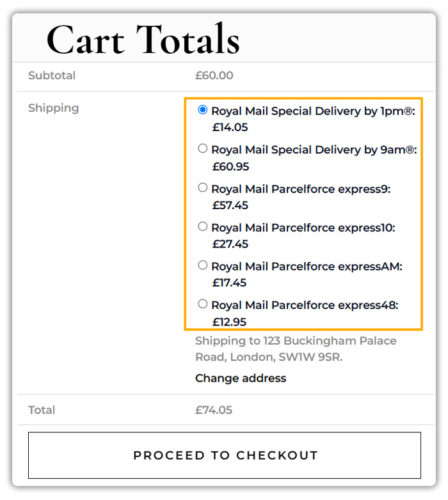
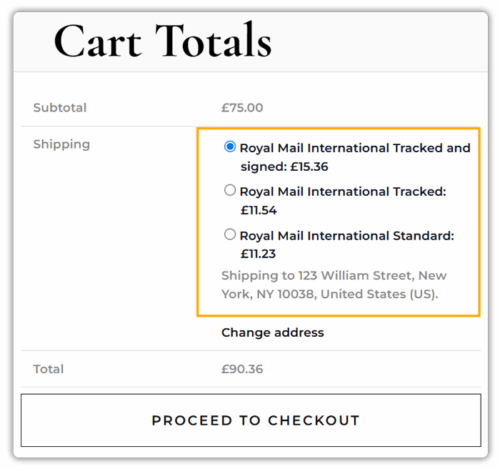
If the product enters the Cart, then the shipping rates will appear when the correct address is mentioned in the Calculate Shipping option. Only then will the Royal Mail Shipping services be displayed on the Cart and Checkout page. The shipping rates will be mentioned next to their respective shipping service.
4. Tracking Settings
Configure how tracking info reaches your customers.
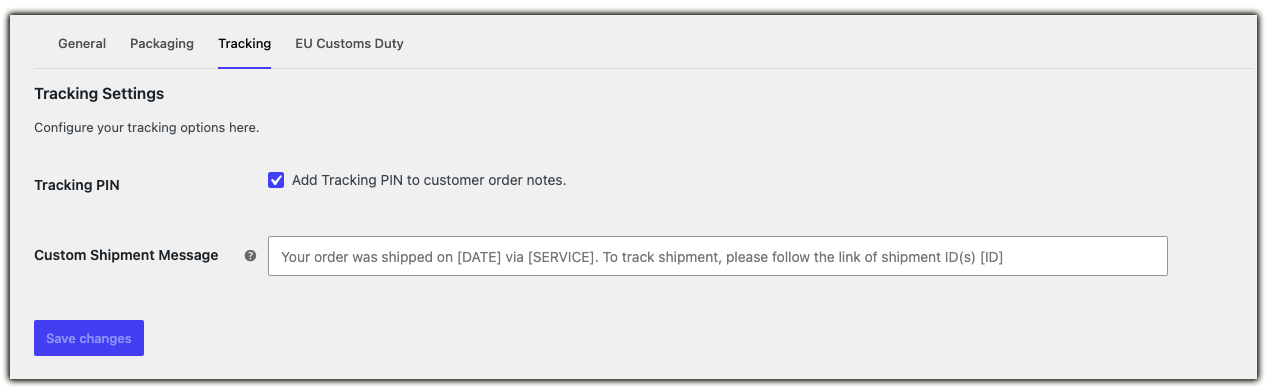
- Tracking PIN: Enable this to add the tracking PIN to customer order notes.
- Custom Shipment Message: Personalize the tracking message shown in emails, the Admin Order page, and the customer’s My Account order page. Use placeholders like [DATE], [SERVICE], and [ID] to auto-fill shipment details.
| Tag | Description |
|---|---|
| [DATE] | It gets replaced with the shipment date in the order page tracking section. |
| [SERVICE] | It gets replaced with the selected shipping service in the order page tracking section. |
| [ID] | It gets replaced with the tracking code in the order page tracking section. |
The placeholders are replaced with the shipment details when the tracking information is added to the order. This allows you to create a consistent tracking message without entering the shipment details manually each time.
Royal Mail Shipment Tracking
You will find the Royal Mail Shipment Tracking section on the Edit Order page. You can go to the order page and then find the following section:

You can add the shipment or order tracking ID in the Royal Mail Shipment Tracking box. You can further choose the shipment date. After doing that, you will see the message indicated by the top red arrow.
If you mark the order as completed, the plugin will attach the shipment tracking information to the order completion email. The email will contain the following part:
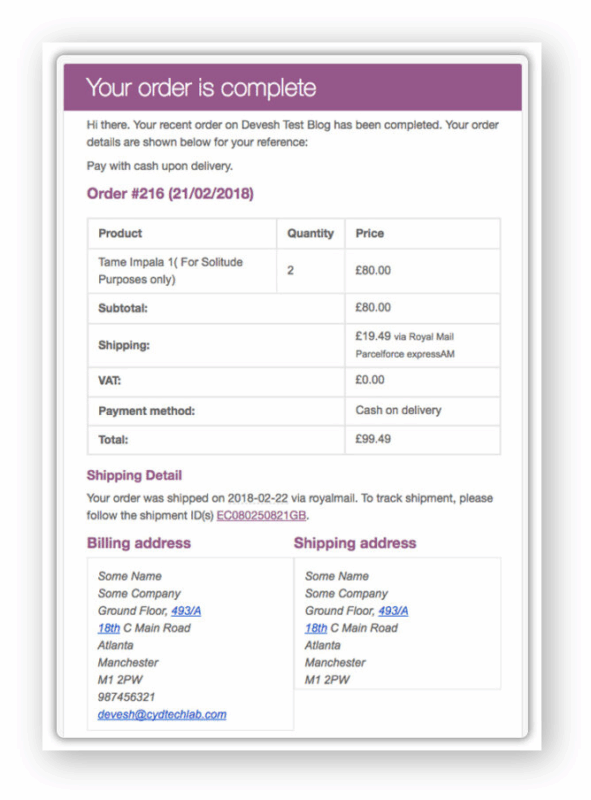
This way, the customers can directly click on the link (highlighted as underlined-purple) and go directly to the Royal Mail website, where they can see the live tracking data.
4. EU Customs Duty
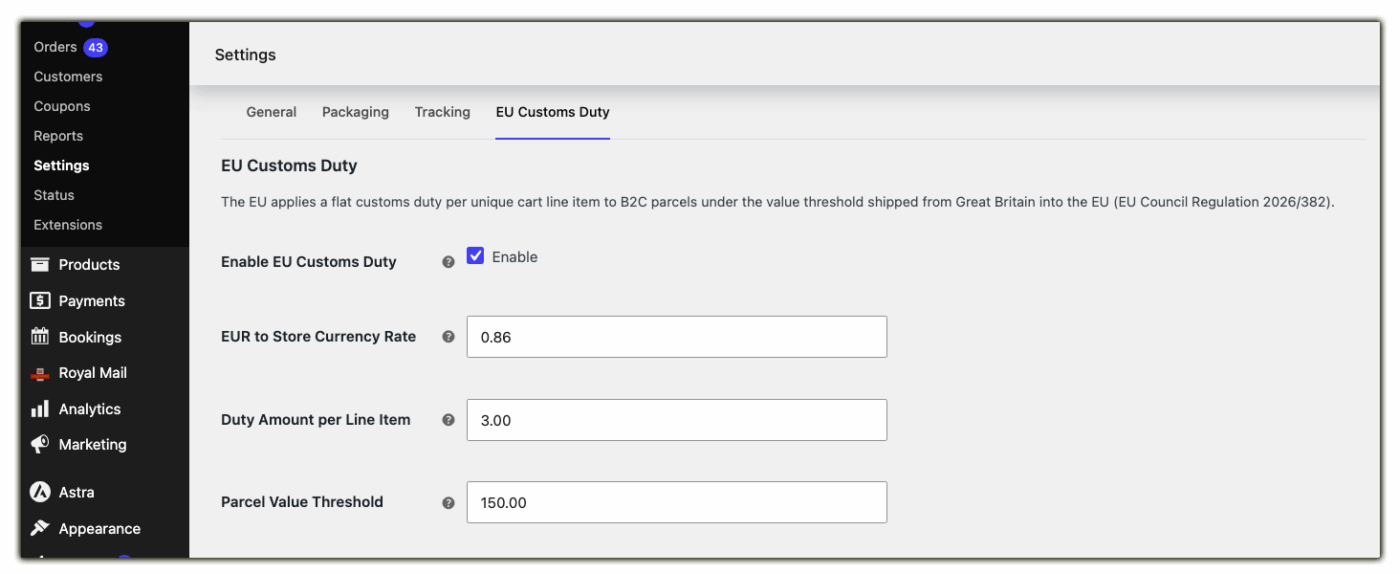
The EU Customs Duty tab lets you add a customs duty surcharge to eligible Royal Mail and Parcelforce shipments sent to EU destinations. You can control when the surcharge applies, which shipping services it affects, exempt specific customers or countries, and add additional charges for selected destinations.
Configure the Duty Calculation
These settings determine how the customs duty surcharge is calculated and when it should be applied.
- Enable EU Customs Duty: Enable this option to start applying the customs duty surcharge to eligible shipments.
- EUR to Store Currency Rate: Enter the conversion rate from Euros (€) to your store currency. The plugin uses this value to calculate the surcharge in your store’s currency.
- Duty Amount per Line Item: Specify the customs duty surcharge to apply for each eligible product line in the order. This amount is applied per line item, regardless of the product quantity.
- Parcel Value Threshold: Enter the maximum parcel value for which the customs duty surcharge should apply. Orders above this value won’t receive the surcharge.
Choose the Shipping Services
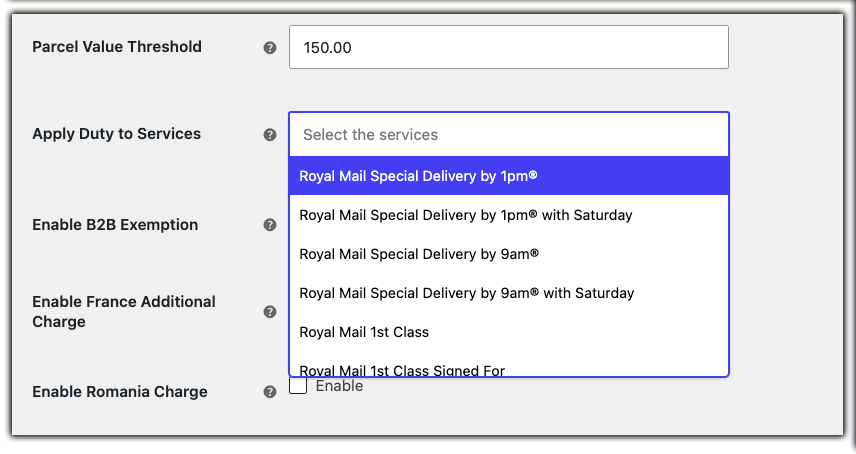
Select the Royal Mail and Parcelforce services that should include the customs duty surcharge.
Apply Duty to Services: Choose one or more shipping services. The surcharge will only be added when customers select one of the chosen services at checkout.
Display the Surcharge at Checkout
Choose how the customs duty surcharge is presented to your customers during checkout.
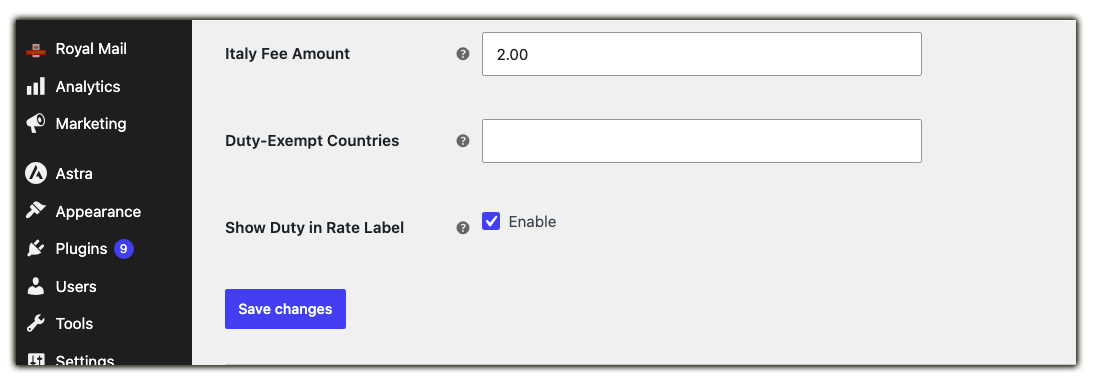
Show Duty in Rate Label: Enable this option to include the customs duty surcharge in the shipping rate label displayed at checkout, allowing customers to see that the shipping cost includes the additional duty charge.
Note: The plugin calculates the customs duty surcharge correctly even when an order is split into multiple packages, ensuring the surcharge is applied consistently across all packages.
Verify the EU Customs Duty at Checkout
Once you’ve configured the EU Customs Duty settings, add an eligible product to the cart and proceed to checkout.
Before enabling the feature, customers will see the standard Royal Mail shipping rates based on the selected shipping service.
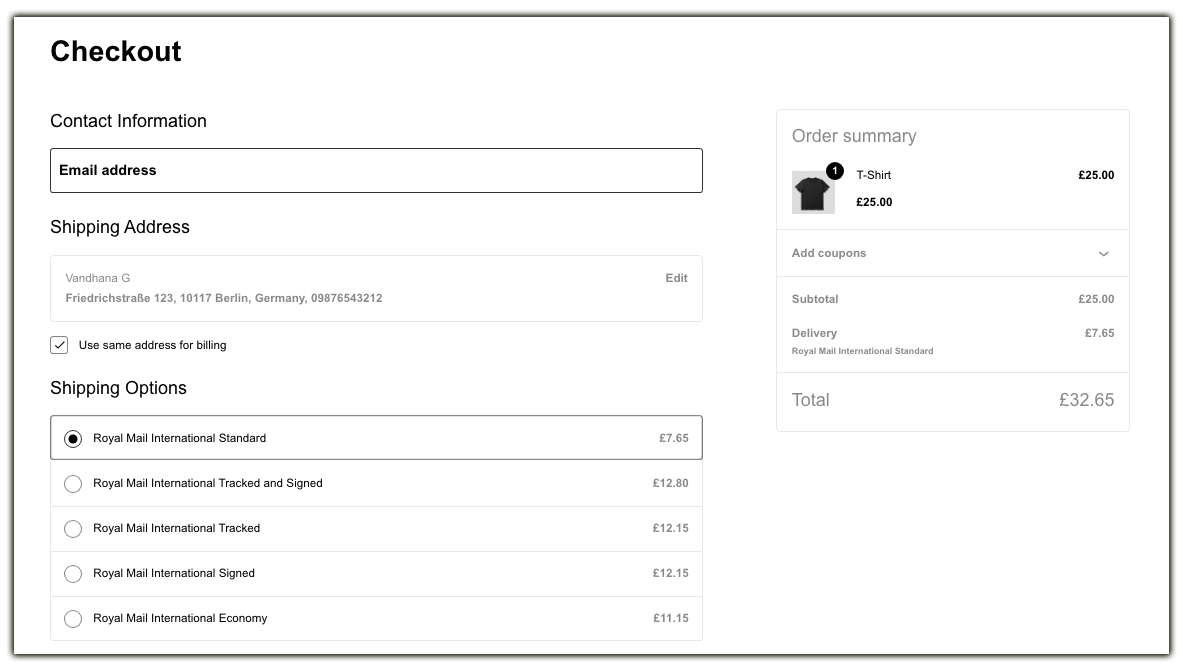
After enabling the EU Customs Duty feature, the configured surcharge is added to the eligible Royal Mail or Parcelforce shipping rates. If Show Duty in Rate Label is enabled, the surcharge is also displayed as part of the shipping method label, making it clear to customers that the shipping rate includes the customs duty charge.
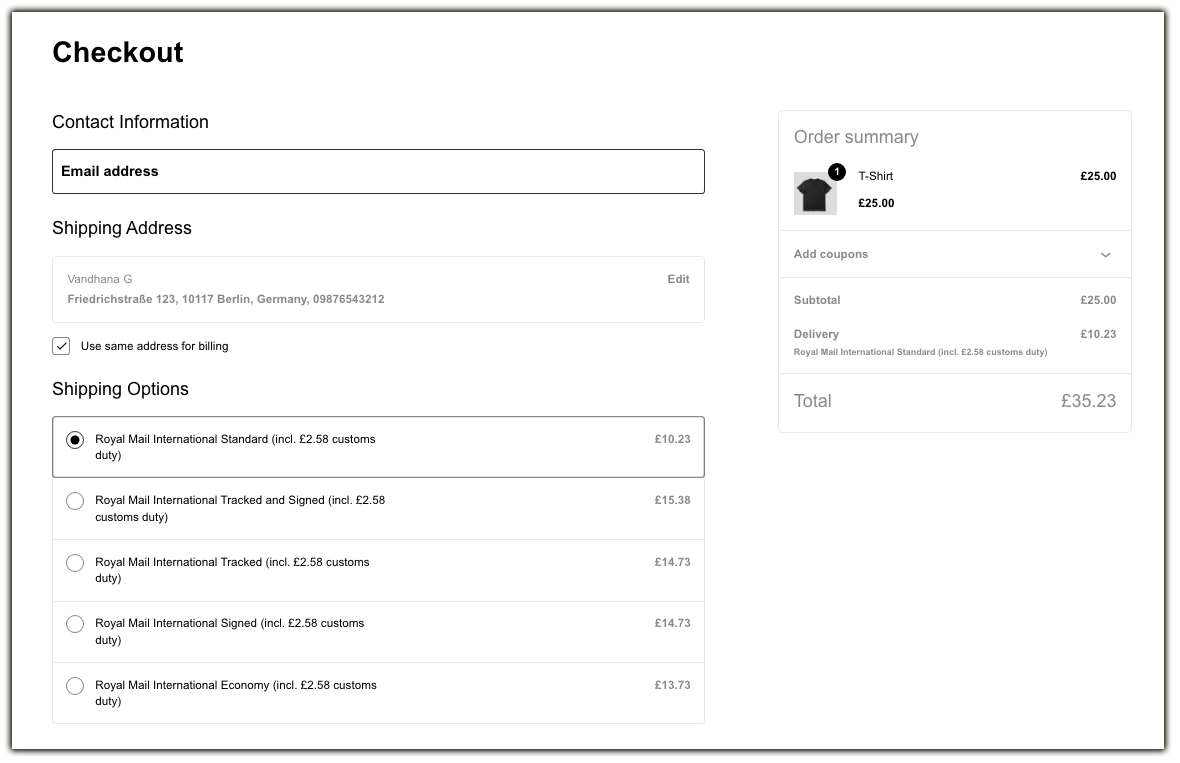
In this example, the Royal Mail International Standard shipping rate increases from £7.65 to £10.23, with £2.58 customs duty included in the shipping rate label.
Configure Customer and Country Exemptions
Use these settings to exclude specific customers or destinations from the customs duty surcharge.
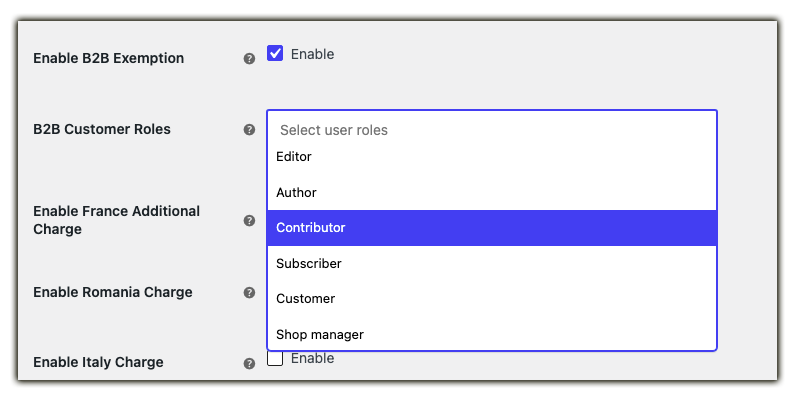
- Enable B2B Exemption: Enable this option if you don’t want business customers to be charged the customs duty surcharge.
- B2B Customer Roles: Select the WooCommerce user roles that should be treated as B2B customers. Orders placed by users with these roles won’t receive the surcharge.
- Duty-Exempt Countries: Select the countries where the customs duty surcharge should never be applied, even if the shipment meets the other conditions.

Configure Additional Country Charges
Some destinations may require an additional customs-related charge. You can configure separate charges for these countries.
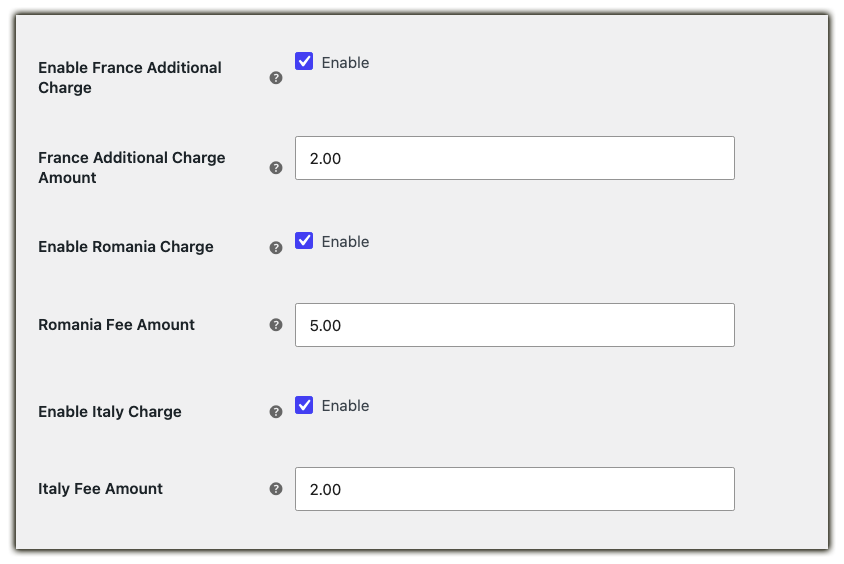
- France Additional Charge: Enable this option and enter the additional amount to be added for shipments to France.
- Romania Additional Charge: Enable this option and enter the additional amount to be added for shipments to Romania.
- Italy Additional Charge: Enable this option and enter the additional amount to be added for shipments to Italy.
If you have any queries regarding the setting up of this plugin, then kindly comment down below. If you need any further help, kindly contact our customer support. We would be more than happy to help you with anything.