


Shipping heavy or oversized products through WooCommerce is a challenge that standard parcel carriers simply aren’t built for. TForce Freight, formerly UPS Freight, now operating under TFI International, offers dedicated Less Than Truckload (LTL) freight services across the U.S. and Canada, purpose-built for shipments that exceed parcel limits. This article breaks down how TForce Freight works for WooCommerce, what services it offers, and how you can automate the entire shipping process.
On This Page
- What Is TForce Freight?
- TForce Freight Shipping Services
- How TForce Freight Works in WooCommerce
- Real-World Use Case: WooCommerce Store Selling Furniture
- Best Practices for TForce Freight Shipping in WooCommerce
- Conclusion
- FAQs
What Is TForce Freight?
UPS sold its freight division to TFI International in 2021, after which it was rebranded as TForce Freight. The carrier continues to operate the same LTL network, offering reliable freight services across the U.S., Canada, Mexico, and Puerto Rico.
LTL shipping means your goods share trailer space with other shippers’ cargo — making it a cost-effective option for shipments that are too large for parcel delivery (typically over 150 lbs) but don’t fill an entire truck.
TForce Freight Shipping Services
TForce Freight provides three core LTL service options:
- TForce Freight LTL: Standard freight service for shipments up to 19,999 lbs. Best for cost-efficient movement of heavy goods without strict delivery deadlines.
- TForce Freight LTL – Guaranteed: Same weight range as standard LTL but with a time-definite delivery commitment, arrival guaranteed by the end of the business day. Ideal for time-sensitive large orders.
- TForce Standard LTL: Handles near-full-truckload volumes — shipments approaching or exceeding 20,000 lbs with up to 9,999 pieces. Suited for high-capacity freight operations.
How TForce Freight Works in WooCommerce
Integrating TForce Freight into WooCommerce requires a dedicated freight plugin. The PH TForce Freight Shipping Plugin for WooCommerce makes it easy. Once installed and connected to your TForce Freight account via API, the plugin manages the entire shipping workflow inside your WooCommerce dashboard.
For detailed setup instructions, visit the PluginHive TForce Freight Setup Guide .
Setting Up Products for Freight
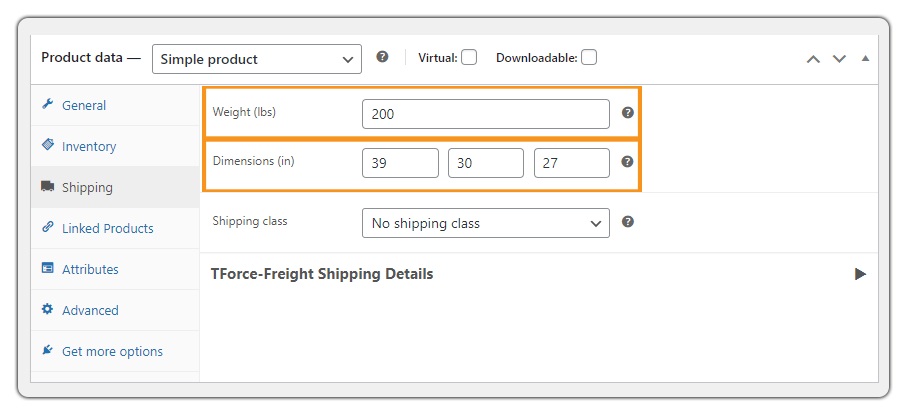
Configure each product with accurate weight, dimensions, freight class, and NMFC code before calculating rates. Determine the freight class—ranging from Class 50 to Class 500—based on density, stowability, handling requirements, and liability. Misclassifying a product can lead to reclassification surcharges from the carrier, so this step deserves care.
Displaying Live Rates at Checkout
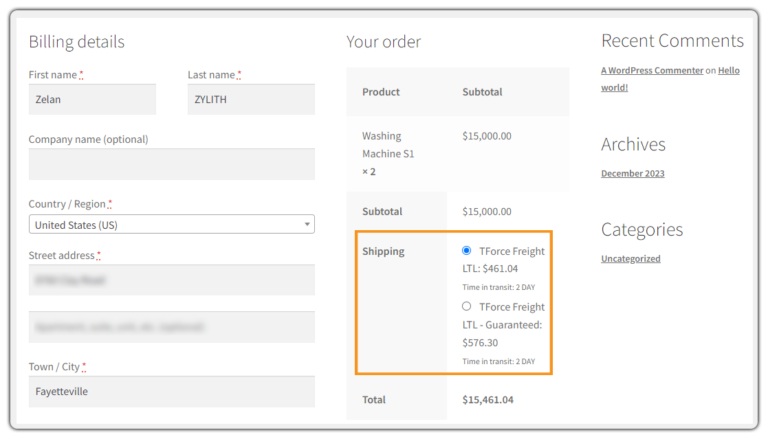
Once products are configured and TForce services are enabled in the plugin settings, customers with freight-eligible items in their cart see real-time shipping rates at checkout.

The system calculates rates based on shipment weight, dimensions, freight class, and delivery location, including whether the destination is commercial or residential (residential deliveries carry additional fees).
Generating Shipping Labels
After a customer places an order, generate freight labels directly from the WooCommerce Orders page—no need to log in to a separate carrier portal. For stores processing multiple freight orders daily, bulk label generation speeds up fulfillment significantly.

Scheduling Pickups and Tracking
Freight pickups can be scheduled through the plugin without leaving WooCommerce. Once the shipment is booked, tracking details are captured and automatically shared with customers.

Real-World Use Case: WooCommerce Store Selling Furniture
A WooCommerce store specializing in premium home and office furniture — modular sofas, solid wood dining sets, large bookshelves, and executive desks — was struggling with freight shipping. Most orders weighed between 180 and 600 lbs and required LTL handling, but the store had no freight integration in place.
The team manually requested freight quotes via email, applied them as flat shipping rates in WooCommerce, and then separately coordinated labels and pickups through the TForce web portal. The problems were compounding fast:
- Customers had no visibility into actual shipping costs at checkout, causing frequent cart abandonment.
- Flat rates were often inaccurate — sometimes too high (losing sales), sometimes too low (cutting into margins).
- Generating labels and scheduling pickups across a separate portal slowed down the fulfillment team.
- Bulky furniture without proper freight class assignments was triggering reclassification fees from TForce.
The Solution
The store integrated the PH TForce Freight Shipping Plugin for WooCommerce and configured each product with dimensions and freight class. The transformation was immediate:
- Live TForce freight rates appeared at checkout based on cart weight and destination.
- Residential vs. commercial delivery was automatically detected, applying the correct surcharge.
- Labels were generated from the WooCommerce Orders page right after purchase, eliminating the portal switch.
- Pickups were scheduled in one click from the dashboard.
- A rate adjustment was applied to factor in pallet wrap, liftgate fees, and handling costs.
The Outcome
Checkout abandonment linked to shipping confusion dropped noticeably within the first month. Reclassification fees disappeared entirely once the correct NMFC codes were in place. Customers received tracking updates automatically, reducing inbound “where’s my order?” inquiries significantly.
Best Practices for Freight Shipping in WooCommerce
Efficient TForce freight shipping starts with proper setup and the right supporting tools. Here are the key recommendations:
- Use rate adjustments for accessorial fees: Add a buffer in the plugin settings to cover liftgate service, inside delivery, pallet costs, and fuel surcharges — without surprising customers.
- Palletize where required: Palletize heavy or bulky items where required to ensure safe transit and meet TForce carrier compliance requirements.
Use delivery add-ons for a complete freight experience: Enhance your freight workflow with these PluginHive add-ons:
- Estimated Delivery Date Plugin for WooCommerce: Display accurate estimated delivery dates for freight shipments across your store, so customers know what to expect before they place an order.
- WooCommerce Shipment Tracking Pro: Automatically shares real-time tracking updates with customers once you book the freight shipment, no manual follow-up required.
- WooCommerce Multi-Vendor Shipping Addon: If your WooCommerce store supports multiple vendors, this addon ensures each vendor can manage their own freight shipments independently and efficiently.
- WooCommerce Table Rate Shipping: Define custom shipping rules based on weight, destination, or cart total — useful for stores that want to combine TForce freight with conditional flat-rate or tiered pricing for certain product categories.
- Test before going live: Always run a checkout test with a freight-eligible product to confirm live rates load correctly and the right service options are displaying.
Conclusion
TForce Freight gives WooCommerce merchants a dependable path for shipping heavy, oversized, or bulk products. With the right plugin, the entire freight workflow runs inside WooCommerce, removing the need to juggle separate carrier tools. For stores regularly dealing with shipments above 150 lbs, the one-time configuration effort pays off quickly in faster fulfillment and a better customer experience at checkout.
If you need help configuring TForce freight in WooCommerce, reach out: PluginHive Support.
FAQs
1. Do I need a TForce Freight account to use a WooCommerce freight plugin?
Yes. You need an active TForce Freight account with API credentials. Without them, the plugin cannot fetch live rates or generate labels.
2. Can TForce Freight run alongside other carriers in the same store?
Yes. The plugin works alongside parcel carriers like UPS or FedEx. Freight rates only appear when cart contents meet the freight threshold; lighter items continue routing through standard carriers. You can use WooCommerce Shipping Services to display rates from other carriers.
3. What happens if I assign the wrong freight class to a product?
TForce Freight will reclassify the shipment and charge the corrected rate plus a reclassification fee. Accurate setup upfront avoids these unexpected costs.
4. Can I offer ODFL LTL freight rates instead of TForce for oversized or palletized items?
Yes, but you need an integration that does. A dedicated solution like the ODFL Shipping Plugin for WooCommerce handles this seamlessly.
5. Does TForce Freight offer weekend deliveries?
TForce Freight operates Monday through Friday as standard. Weekend deliveries are not routine and would require direct arrangements with the carrier.
