


Every WooCommerce store owner knows the pain: a flood of “Where is my order?” emails hitting the inbox right after a busy sales weekend. These WISMO tickets aren’t just annoying; they eat up hours of support time that could go toward growing your business. The good news? UPS tracking notifications, when properly integrated with WooCommerce via WooCommerce UPS Shipping Plugin with Print Label, can dramatically cut this ticket volume before it starts. Let’s see how.
On This Page
- The Real Cost of “Where Is My Order?” Tickets
- What UPS Tracking Notifications Do for WooCommerce Stores
- How to Set Up UPS Tracking Notifications in WooCommerce
- Real-World Use Case
- Conclusion
- FAQs
The Real Cost of “Where Is My Order?” Tickets
Post-purchase anxiety is real. Research consistently shows that 93% of customers want proactive updates throughout the delivery journey, and nearly half won’t return to a brand after a poor delivery experience. When customers don’t hear anything after placing an order, they don’t just wait — they email, they call, and they leave frustrated reviews.
For a mid-volume WooCommerce store shipping 100+ orders per week via UPS, even if just 10% of customers send a WISMO inquiry, that’s 10+ avoidable support conversations per week. Multiply that across a busy holiday season, and you’re looking at hundreds of tickets that automation could have prevented entirely.
What UPS Tracking Notifications Do for WooCommerce Stores
UPS tracking infrastructure is one of the most robust in the industry. Packages are scanned at multiple checkpoints throughout their journey — from label creation at origin all the way to delivery confirmation with photo proof. Each scan triggers a status update in UPS’s system.
UPS offers several native notification channels:
- Email notifications — automated status updates tied to key tracking milestones
- SMS alerts — customers can opt in via UPS My Choice® to receive texts at every checkpoint (send tracking numbers to 69877 for US customers)
- UPS My Choice® dashboard — a centralized view where customers can manage all incoming packages, reschedule deliveries, and redirect to UPS Access Point locations
- Photo proof of delivery — delivery confirmation photos visible in email, the UPS app, and the My Choice dashboard
UPS has also been investing heavily in tracking accuracy, allocating $3.5 billion in capital expenditures in 2025 to improve infrastructure and delivery speed, including the rollout of RFID sensors across its network for more granular package-level visibility.
How to Set Up UPS Tracking Notifications in WooCommerce
Getting this running requires two things: a UPS account and the right WooCommerce plugin.
Step 1: Set Up Your UPS Account
You’ll need a registered UPS account to access shipping rates and generate tracking numbers via API. Sign up for free at ups.com. Once active, retrieve your API credentials from the UPS Developer portal — these connect your WooCommerce store to the UPS network.
Step 2: Install the WooCommerce UPS Shipping Plugin
The WooCommerce UPS Shipping Plugin with Print Label by PluginHive automates the entire tracking workflow.
For a detailed setup walkthrough, refer to the PluginHive UPS Shipping Guide for WooCommerce .
Once configured, it:
- Generates a UPS tracking ID automatically when a shipping label is printed from within WooCommerce.
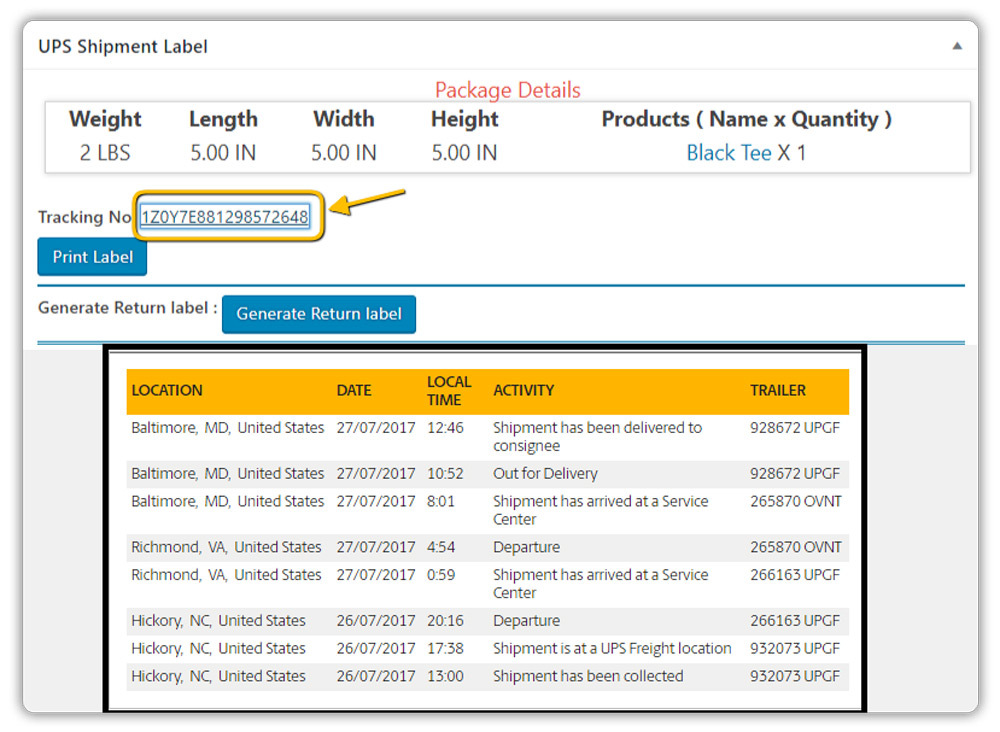
- Displays the tracking number directly on the WooCommerce order page, with a clickable link to check live status.

Step 3: Configure Tracking Notification Settings
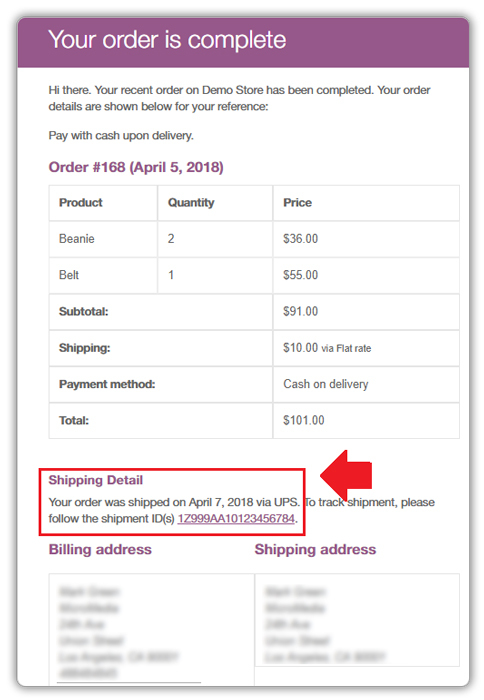
Inside the plugin settings, enable the UPS Tracking service option. You can also customize the tracking message that appears in the customer-facing order completion email — add your brand voice, set expectations for delivery windows, or include a support contact for exceptions.

Once an order is marked Complete in WooCommerce, the tracking email fires automatically. The customer receives the UPS tracking number, a direct link to track the package, and a clear delivery status — all without any manual intervention from your team.
To learn more about the plugin, watch the video below.

Real-World Use Case: How Tracking Reduced Support Load for a WooCommerce Store
A mid-sized WooCommerce store selling home fitness equipment was shipping around 120 – 150 UPS orders per week, especially during peak sale periods. Despite timely dispatch, their support team was receiving 15 – 20 “Where is my order?” (WISMO) emails every week.
The issue wasn’t delays, it was lack of visibility.
Customers placed orders, received a confirmation email, and then heard nothing until delivery. This gap led to unnecessary anxiety and support queries.
After integrating UPS tracking notifications using the WooCommerce UPS Shipping Plugin with Print Label, the store made a few key changes:
- Automatically included tracking links in order completion emails
- Encouraged customers to follow shipment updates via UPS tracking
- Ensured real-time tracking visibility directly from the WooCommerce order page
The result within a few weeks:
- WISMO tickets dropped by nearly 60%
- Support team saved 5-6 hours per week
- Customer satisfaction improved, with fewer complaints about delivery transparency
Instead of contacting support, customers simply tracked their orders in real time. The store didn’t ship faster, it just communicated better.
Conclusion
UPS tracking notifications don’t just keep customers informed; they preempt the anxiety that drives most post-purchase support tickets. When customers can see their package moving through the UPS network in real time, they don’t need to contact you. They already have their answer.
For WooCommerce store owners, the setup is straightforward with the WooCommerce UPS Shipping Plugin. If you need help configuring or optimizing your UPS shipping setup, feel free to reach out to PluginHive Support.
FAQs
Q. Can I hide certain UPS shipping methods based on package size or weight?
Yes. The PH Hide WooCommerce Shipping Methods & Rate Adjustment Plugin lets you conditionally show or hide UPS services based on weight, cart total, product type, or shipping zone — keeping checkout clean without any code.
Q. Can I set different UPS shipping rates based on cart weight, quantity, or product type?
Absolutely. The WooCommerce Table Rate Shipping Pro Plugin lets you build rule-based shipping tables using weight, quantity, destination, product category, and more, with bulk CSV import for high-volume stores.
Q. Can I provide advanced shipment tracking and delivery notifications for UPS orders?
Yes. For multi-carrier tracking, branded tracking pages, and automatic status-based email triggers, the WooCommerce Shipment Tracking Pro Plugin is the ideal upgrade — supporting 85+ carriers, including UPS.
Q. Can I show estimated delivery dates along with live UPS rates?
Yes. For advanced control over holidays, handling days, cutoff times, and per-product rules, the Estimated Delivery Date Plugin for WooCommerce gives you full flexibility beyond what the UPS plugin offers out of the box.
