


Handling booking cancellations can get messy fast. Slots stay blocked, refunds pile up, and customers keep following up without getting clear answers. For most WooCommerce store owners, this ends up becoming a lot of unnecessary manual work.
It doesn’t have to be that way. In this guide, you’ll learn how to manage booking cancellations, handle WooCommerce refunds without the chaos, and cut down on no-shows so your store runs smoothly without the constant back-and-forth.
Table of Contents
- How Booking Cancellations Impact Your WooCommerce Store
- Managing Booking Cancellations in WooCommerce
- Processing WooCommerce Refunds After Booking Cancellation
- Tips for Reducing Booking Cancellations in WooCommerce
- Conclusion
- FAQs
How Booking Cancellations Impact Your WooCommerce Store
A cancelled booking doesn’t just mean a lost sale; it creates a ripple effect that hits your revenue, your calendar, and your customer relationships all at once.
- Slots stay blocked longer than they should: when a cancelled slot isn’t freed up in time, the next customer sees it as unavailable and moves on
- Refund delays damage trust: nearly 70% of customers say a poor refund experience stops them from returning, and without a clear confirmation, they’ll follow up repeatedly
- It creates extra manual work: updating the calendar, handling refunds, and responding to customers takes up time quickly
The Bookings and Appointments for WooCommerce plugin by PluginHive handles all of this in one place, so cancellations stop being a problem you manage and start being something your store handles on its own.
Managing Booking Cancellations in WooCommerce
The first step is making sure your plugin is installed and configured correctly – the Bookings and Appointments Setup Guide walks you through everything you need to get your store ready. Once that’s done, here’s how to enable cancellations.
To enable it, go to WordPress Admin → Products, open the bookable product, and scroll to Bookable Product Data. Click the Bookings tab, find the Allow Cancellation option, and enable it. Once enabled, set the cancellation time gap; this defines how far in advance a customer must cancel before the booking starts. You can choose the unit in minutes, hours, or days, depending on your business type.

For example, if you set a 24-hour cancellation window, customers can only cancel if their booking is more than 24 hours away. Anything within that window won’t show the cancel option at all.
Since this is configured at the product level, you can have different cancellation policies for different services, stricter on high-demand slots, and more flexible elsewhere.
How Customers Cancel a Booking
Once cancellations are enabled on a product, customers can handle it themselves without reaching out to you.
The customer logs in and goes to My Account → Orders, opens the relevant booking order, and if the booking is still within the cancellation window, a Cancel button appears on the order page.


Clicking it updates the booking status to Cancelled, immediately releases the slot in the calendar, and sends a cancellation confirmation email automatically.
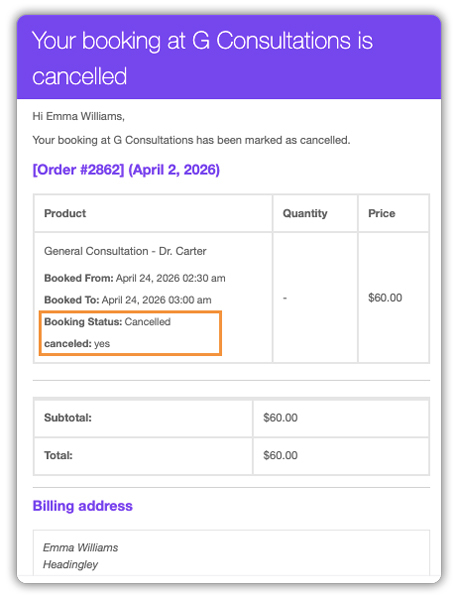
If the customer is outside the allowed window, the Cancel button simply won’t appear; no extra configuration is needed on your end. This self-service flow removes the need for back-and-forth support and gives customers clear visibility into their booking status.
How Admins Cancel a Booking
Admins can cancel any booking at any time, regardless of the cancellation window set on the product. This is useful when a customer contacts you directly, when you need to reject a pending booking, or when a slot needs to be blocked retroactively.
There are two ways to do this:
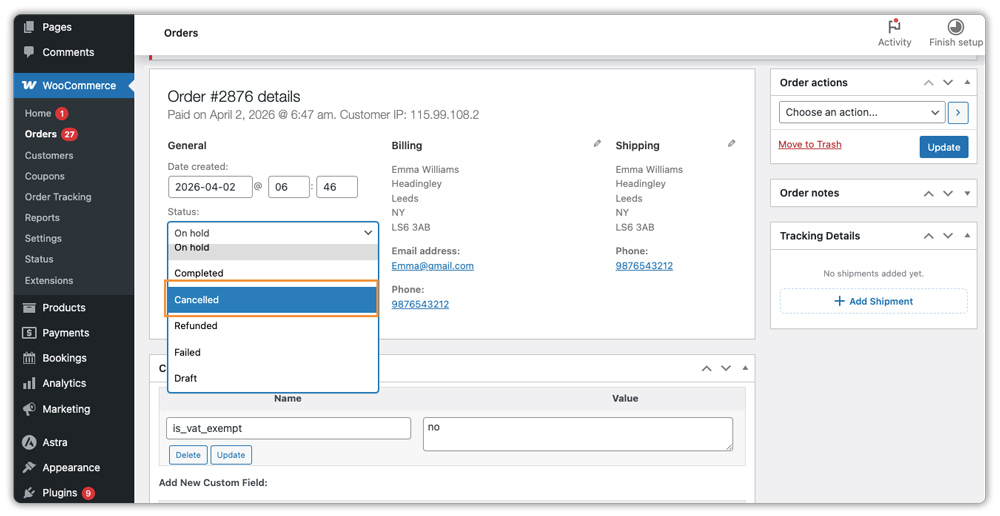
- From the order dashboard: Go to WooCommerce → Orders , open the booking order, change the status to Cancelled using the dropdown on the right, and save.
- From the Bookings list: Go to Bookings → All Bookings, use the filters to locate the booking, and use the Cancel action directly.

Both paths release the slot instantly and trigger the cancellation email. For more complex management, you can see how to manage your bookings for a full overview of your schedule.
Processing WooCommerce Refunds After a Booking Cancellation
Cancelling a booking and issuing a refund are separate steps in WooCommerce. Once the booking is cancelled, go to WooCommerce → Orders, open the order, and click Refund in the Order Items section. Enter the refund amount (full or partial), then choose how to process it automatically via your payment gateway (like Stripe or PayPal) or manually for offline payments. Complete the refund, and the order will update with the refunded amount and status.

Keeping WooCommerce refunds quick and clear helps build customer trust, especially for repeat bookings.
Tips for Reducing Booking Cancellations in WooCommerce
A solid cancellation system is important, but reducing unnecessary booking cancellations in the first place is even better.
- Set a realistic cancellation window: 24 to 48 hours works well for most service-based businesses; it’s fair to customers while protecting your schedule
- Communicate your policy upfront: add it to the product description, the booking confirmation email, and the checkout page so customers know before they book, not after
- Send automated booking reminders: the plugin supports reminder emails before the booking start time; a timely reminder significantly cuts down on no-shows and last-minute cancellations
- Use the Requires Confirmation option: for high-value or limited-availability bookings, this lets you review and approve before payment, reducing impulsive or accidental bookings
- Collect deposits for high-risk bookings: the plugin works with the PH WooCommerce Deposits Plugin, letting you take partial payments upfront, which naturally reduces cancellations
Small, consistent improvements to how you structure and communicate your booking policy will have a bigger impact on your cancellation rate than any single setting.
Conclusion
A well-configured cancellation system means fewer support requests, accurate calendars, and customers who actually trust your store. The Bookings and Appointments for WooCommerce plugin by PluginHive gives you everything you need: cancellation windows, automatic slot release, and clean refund processing without the manual work.
Set it up right once, and your store handles cancellations on its own. If you need help setting up this in your WooCommerce store, the PluginHive support team is ready to assist you with configuration and guidance.
FAQs
- Does WooCommerce have a booking system?
No, WooCommerce doesn’t offer bookings by default. You need a plugin like Bookings and Appointments for WooCommerce to enable it. - What is a reasonable cancellation policy?
A 24 – 48 hour cancellation window is ideal. It gives customers flexibility while protecting your schedule. - How to stop customers from cancelling?
You can’t completely stop cancellations, but you can reduce them by setting clear policies, sending reminders, and using deposits or approval. - How do you do a refund in WooCommerce?
Go to WooCommerce → Orders, open the order, click Refund, enter the amount, and complete the refund.
