


If you run a UK-based WooCommerce store, you already know that shipping costs at checkout can make or break a sale. Customers expect to see clear, service-specific rates before they complete a purchase, and if those rates are missing or inaccurate, cart abandonment follows. WooCommerce doesn’t show Royal Mail shipping rates out of the box, leaving many store owners to rely on flat fees that don’t reflect actual costs.
This article walks you through exactly how to set up your WooCommerce Royal Mail shipping so that live rates appear at checkout, the right services, the right costs, for every order – using the PH Royal Mail Shipping with Tracking for WooCommerce plugin.
On This Page
- Understanding Royal Mail Shipping Rates in WooCommerce
- How to Display Royal Mail Shipping Rates in WooCommerce Checkout
- Example Scenario
- Best Practices to Optimise WooCommerce Royal Mail Shipping
- Conclusion
- FAQs
Understanding Royal Mail Shipping Rates in WooCommerce
Royal Mail calculates shipping costs based on a combination of factors: package weight, physical dimensions (which determine whether an item is classified as a letter, large letter, small parcel, medium parcel, or large parcel), the destination zone, and the chosen service level. Standard WooCommerce shipping methods, flat rate, free shipping, and local pickup have no way of pulling these variables together and displaying service-specific Royal Mail costs.
This gap is why UK store owners who ship with Royal Mail need a dedicated Royal Mail WooCommerce integration. Without one, you’re either overcharging customers (and losing conversions) or undercharging (and absorbing losses on every order). Accurate checkout rates remove that guesswork entirely.
The PH Royal Mail Shipping with Tracking for WooCommerce plugin directly bridges this gap. It uses Royal Mail’s official rate sheet to calculate and display the correct cost for each enabled service, in real time, as the customer moves through your checkout.
How to Display Royal Mail Shipping Rates in WooCommerce Checkout
Setting up WooCommerce Royal Mail shipping rates at checkout comes down to four straightforward things: installing the plugin, turning rates on, making sure your products have weight and size information, and choosing which Royal Mail services you want to offer. Here’s how each part works.
Start by installing the PH Royal Mail Shipping with Tracking for WooCommerce plugin.
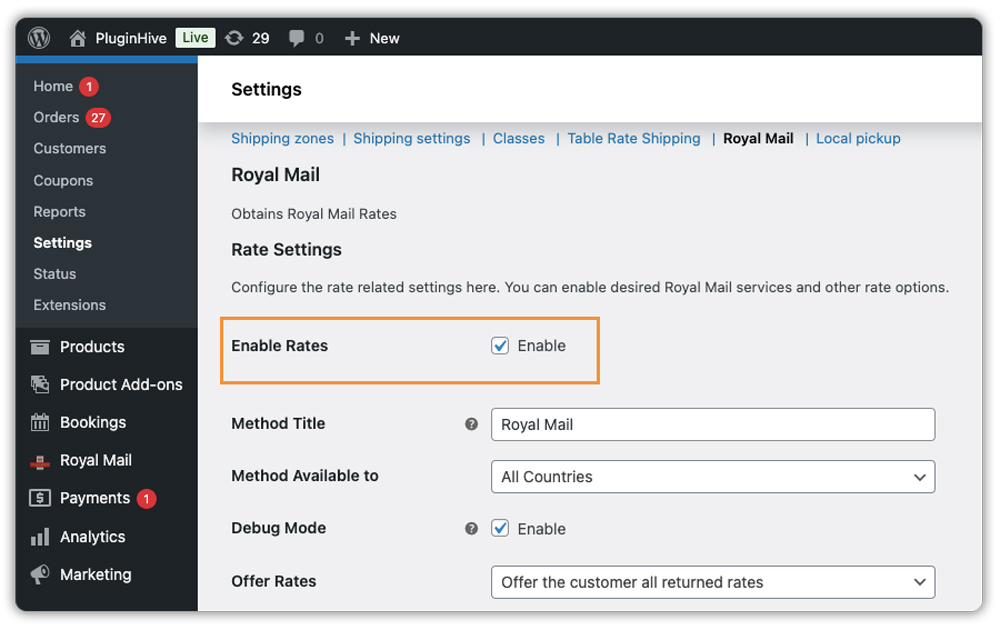
Once it’s active, head to your WooCommerce shipping settings, and you’ll find the Royal Mail plugin settings panel there. The very first thing to do is tick the Enable Rates checkbox. This controls whether any Royal Mail rates show up at your cart and checkout pages, so it needs to be on before anything else works.
Make Sure Your Products Have Weight and Size
Royal Mail’s pricing depends on what you’re shipping. Go through your products and make sure each one has a weight and dimensions (length, width, height) filled in. Without this information, the plugin has nothing to calculate rates from, and your checkout will show nothing.
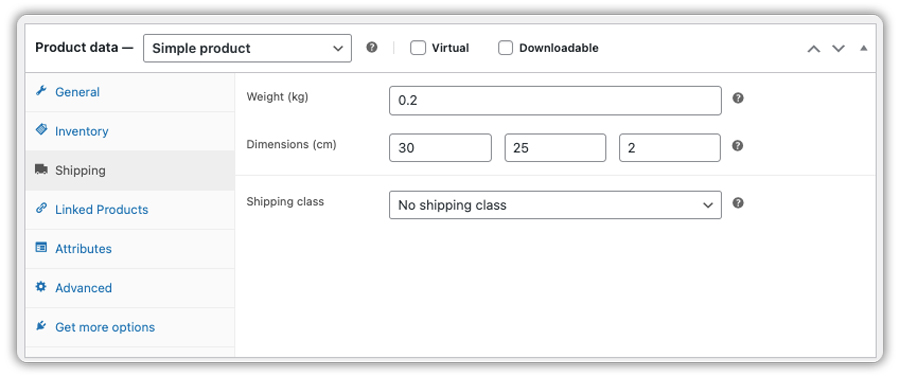
Also, check that your WooCommerce store is set to use the metric system (kg and cm). Royal Mail works on metric units; if your store is set to imperial, the rates will come out wrong.
Choose How Items Are Packed
The plugin gives you three ways to handle packing:
- By total order weight – all items in the cart are combined into one weight, and a single rate is calculated. Easy to manage for most stores.
- Each item individually – useful if your products vary significantly in size or weight and you want per-item rates displayed.
- By box dimensions – the most precise option. The plugin works out whether the order ships as a letter, large letter, small parcel, medium parcel, or large parcel, and applies the rate that matches Royal Mail’s actual classification guidelines.

Pick the Services You Want to Show
In the plugin settings, you’ll find the full list of Royal Mail and Parcelforce services. Enable only the ones you actually ship with. For most UK stores, a practical selection looks something like this:
- Royal Mail 1st Class / 2nd Class for standard domestic orders
- Royal Mail Signed For 1st / 2nd Class when delivery confirmation matters
- Royal Mail Special Delivery Guaranteed by 1pm for urgent or high-value items
- International Tracked / Signed / Tracked & Signed for overseas orders
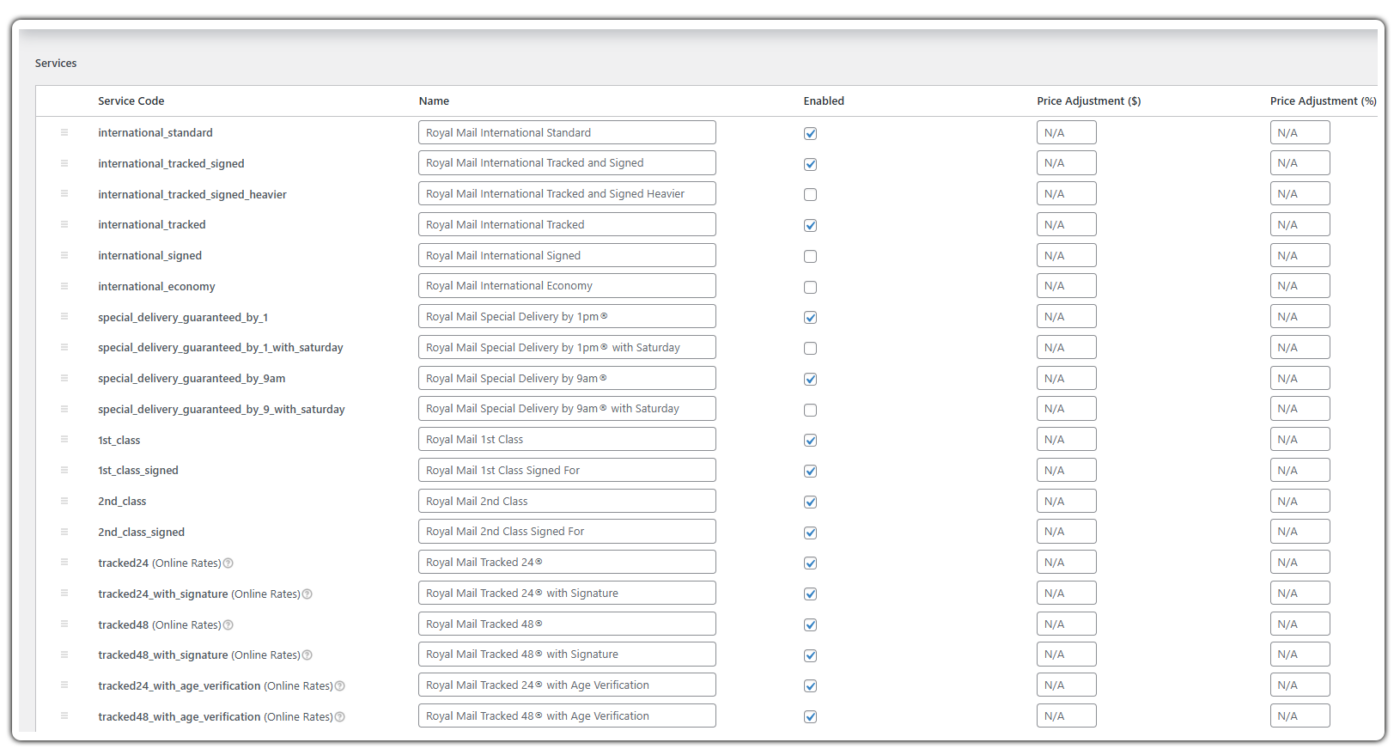
You can also rename any service to something more customer-friendly (for example, adding “Arrives in 1–2 days” to a 1st Class label) and add a handling fee on top of the Royal Mail rate to cover packaging costs.

Once saved, these services will appear at checkout automatically with the correct rate for each customer’s address and cart.
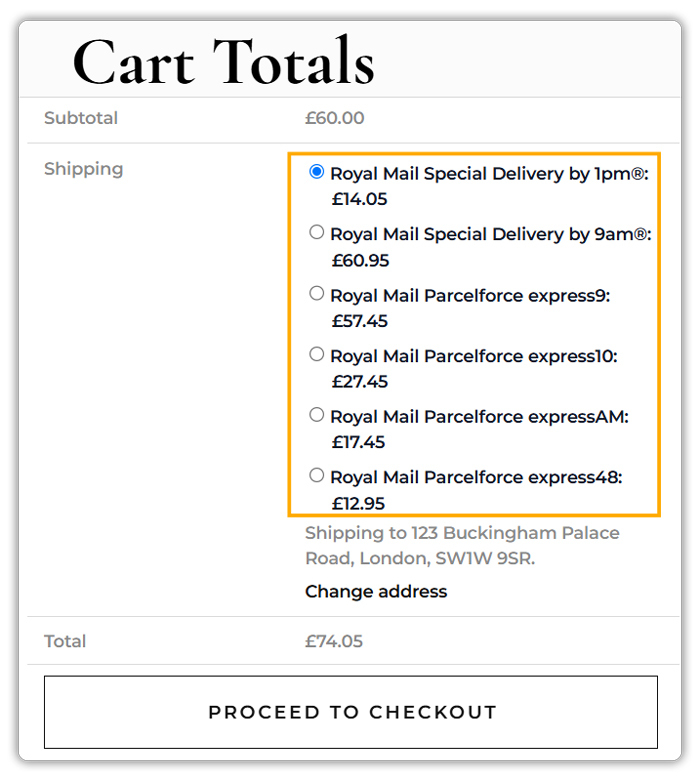

Example Scenario: UK Home Accessories Store with Flat-Rate Shipping
Let’s say you run a WooCommerce store selling home accessories, candles, cushions, small décor pieces, and you’re currently using flat-rate shipping for UK and international orders. Here’s what you’re likely dealing with.
Challenges You’re Probably Facing
- A customer ordering one small candle and a customer ordering four large cushions are being charged the same shipping fee, and you’re getting complaints or abandoned checkouts because of it
- International customers have no visibility into delivery options at checkout, so European orders stall or don’t complete
- High-value orders are going out on standard untracked services because Special Delivery never surfaces as an option at checkout
- Every time Royal Mail updates its prices, you’re manually updating flat rates, and it sometimes slips for weeks before anyone notices
How the PH Royal Mail Shipping with Tracking Plugin Solves This
The plugin replaces your flat-rate setup with automatic, weight-based rates drawn directly from Royal Mail’s official pricing, with no manual calculations needed.
- Each order displays the rate that matches its actual weight and destination. A small candle and a set of cushions each show the correct cost
- International customers see the relevant Royal Mail services at checkout, with accurate costs based on their location
- Special Delivery appears as a selectable option for customers who need guaranteed next-day service
- Royal Mail rate updates are reflected in the plugin automatically, no manual maintenance required
Once the Royal Mail WooCommerce integration is configured, showing accurate rates is no longer something you manage order by order; it becomes a reliable, automatic part of how your store works.
Best Practices to Optimise WooCommerce Royal Mail Shipping
With rates displayed at checkout, a few additional steps can help you get more out of your Royal Mail WooCommerce integration over time.
- Limit the services displayed to what you actually fulfil: Showing every available Royal Mail and Parcelforce option creates unnecessary clutter for customers. Pick two or three domestic services and a focused set of international options that match the markets you actively ship to. A cleaner checkout leads to faster decisions.
- Show delivery date estimates alongside rates: Displaying just the shipping cost is helpful, but showing when the order will arrive is even more powerful. The Estimated Delivery Date Plugin For WooCommerce works alongside your WooCommerce Royal Mail shipping setup to show customers an expected delivery date at checkout, reducing hesitation before they place an order.
- Control which shipping options appear and when: Not every service needs to be visible to every customer. The PH Hide Shipping Methods & Rate Adjustment for WooCommerce plugin lets you show or hide specific Royal Mail options based on cart value, location, or product type, so you can, for example, surface free Royal Mail 2nd Class only when an order crosses a certain amount.
- Keep customers informed after they order: Once an order ships, customers want to know where it is. The Shipment Tracking Pro for WooCommerce plugin makes it easy to add Royal Mail tracking details to orders and automatically share them with customers, cutting down on support queries and building trust in your store.
- Re-test your checkout after product catalogue changes. When you add new products or product variations, make sure weights and dimensions are filled in. Any product missing these values can silently break rate calculations for orders that include it, and you won’t always notice until a customer reports it.
Conclusion
Showing accurate Royal Mail shipping rates in WooCommerce checkout isn’t a complex undertaking; it’s a configuration exercise that pays off immediately in fewer abandoned carts, more transparent pricing, and a checkout experience that works for both UK and international customers. A proper Royal Mail WooCommerce integration through the PH Royal Mail Shipping with Tracking plugin handles the rate logic end-to-end, so you can focus on running your store rather than managing shipping costs manually. If you need help with setup or have questions specific to your store, reach out to the PluginHive support team – we’re happy to help.
FAQs
- Does WooCommerce show Royal Mail shipping rates by default?
No. WooCommerce has no built-in connection to Royal Mail’s pricing. To display live Royal Mail shipping rates at checkout, you need a plugin like PH Royal Mail Shipping with Tracking for WooCommerce. - Can I show both UK and international Royal Mail services at the same time?
Yes. The plugin supports Royal Mail’s full range of domestic and international services. What appears at checkout changes automatically based on the customer’s delivery address. UK customers see domestic options, international customers see the relevant overseas services. - Do I need a Royal Mail business account for this plugin?
Not for the plugin to display rates. However, a Royal Mail business account is useful if you want to generate shipping labels through Click & Drop and access volume-based postage discounts.
