


A missed WooCommerce appointment isn’t just an inconvenience; it’s a slot you could have given to someone else, revenue you planned around, and time you can’t get back. For salons, clinics, coaches, and any other service running on a fixed schedule, no-shows add up fast.
The reasons behind them are usually the same: no upfront commitment, no reminder sent, no real consequence for skipping. This article walks through changes you can make to your WooCommerce appointment setup to address each of those reasons directly.
On This Page
- Why No-Shows Happen with WooCommerce Appointments
- How to Reduce No-Shows for WooCommerce Appointments
- Tips to Keep WooCommerce Appointment No-Shows Low
- Conclusion
- FAQs
Why No-Shows Happen with WooCommerce Appointments
Before you work on reducing no-shows, it helps to understand why they happen in the first place.
Here are the most common reasons:
- Customers forget: People book appointments days or weeks in advance and simply lose track of them by the time the date arrives.
- No financial commitment: When there’s no upfront payment or deposit required, customers feel less obligated to show up.
- Unclear cancellation policies: Without clear rules in place, customers may cancel at the last minute or not bother at all.
- Long booking windows: When appointments are booked too far in advance, the urgency fades and the likelihood of a no-show increases.
- No reminders or follow-ups: Without timely notifications, even well-intentioned customers let appointments slip through the cracks.
Most of these issues aren’t about customer intent; they’re about how the booking system is set up. And that means they’re fixable.
How to Reduce No-Shows for WooCommerce Appointments
Reducing no-show appointments in WooCommerce isn’t about one single fix- it’s about building a booking experience where commitment is part of the process from the start. Here’s what that looks like in practice.
1. Send Automated WooCommerce Appointment Confirmations and Reminders
The simplest place to start is making sure customers actually remember they booked.
A confirmation email right after checkout anchors the appointment in the customer’s mind. A reminder sent 24–48 hours before the slot gives them enough time to either prepare or cancel, which is all you need to rebook the slot for someone else.
With Bookings and Appointments for WooCommerce, both are handled automatically as part of the booking flow.
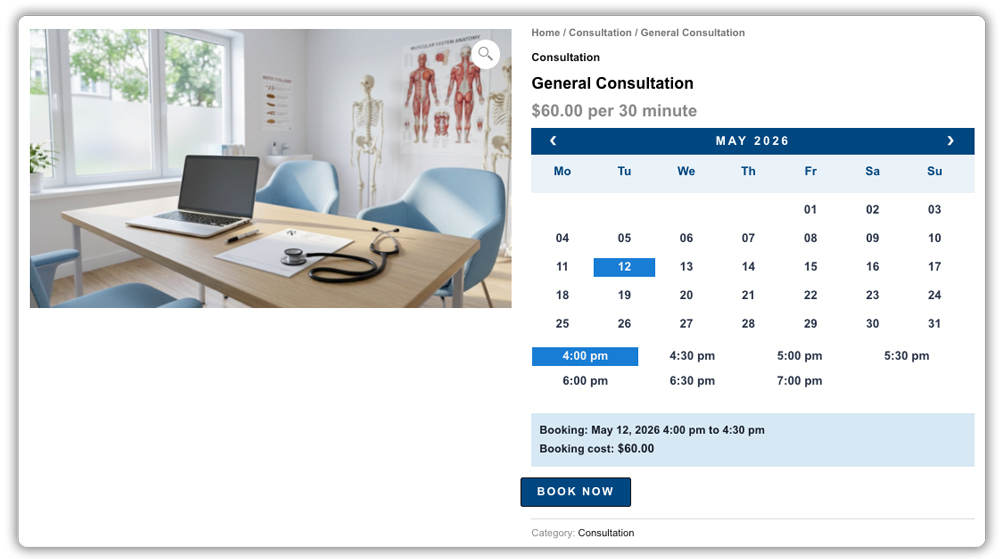

Once a customer completes checkout, a confirmation email goes out to them instantly – no manual action needed on your end.

You can also configure reminder notifications to go out ahead of the appointment date, so customers get a timely nudge before their slot arrives.

The reminder email includes:
- The appointment date, time, and service name – clearly formatted so it’s easy to confirm at a glance
- A cancellation option – so customers don’t just go silent when plans change
- Your contact details – in case they need to reach you directly

With these details in place, customers have everything they need to show up prepared or reach out in advance if they can’t.
2. Let Customers Add WooCommerce Appointments to Google Calendar
Automated reminders do their job, but giving customers a way to save the appointment directly to their own calendar adds another layer of assurance.
With the Bookings and Appointments for WooCommerce plugin, customers get an Add to Google Calendar option after completing their booking. With one click, the appointment is saved to their Google Calendar with all the details: date, time, and service name – so it sits alongside everything else in their schedule.

For customers who manage their day through their calendar, this small step can make a bigger difference than a reminder email.
3. Require a WooCommerce Appointment Deposit Before Confirming the Booking
Reminders help with forgetfulness. Deposits handle the bigger problem – customers who book without being fully committed.
When a customer has paid something upfront, they have a concrete reason to show up or at least cancel in advance rather than simply not turning up. Even a 20–30% deposit is typically enough to shift that behaviour. The remaining balance can be collected at the time of the appointment.
The PH Deposits for WooCommerce plugin lets you set this up directly on your booking products, either as a fixed amount or a percentage of the total.

The deposit and remaining balance are shown clearly in the product and cart page before checkout, so there are no surprises for the customer.


When used alongside the Bookings plugin, it creates a complete pre-payment booking workflow without any custom development.
4. Set a Clear Cancellation Policy at WooCommerce Checkout
A deposit creates commitment, but a cancellation policy is what enforces it.
When customers can see at checkout that cancelling within a set window means forfeiting their deposit, they’re more likely to notify you in advance if plans change. That advance notice is what gives you a real chance to rebook the slot rather than finding out about it too late.
Your policy should be visible at checkout – not buried in terms and conditions. State clearly:
- The free cancellation window, e.g., cancellations accepted up to 48 hours before the appointment
- What happens to the deposit if they cancel inside that window
- Whether rescheduling is an option and how far in advance it needs to happen
With the Bookings and Appointments plugin for WooCommerce, you can control whether customers can cancel on their own or whether all changes need to go through you, giving you the flexibility to manage this in a way that suits your business.

For a deeper look at how to handle cancellations and refunds, refer to this guide on booking cancellations and refunds in WooCommerce.
5. Limit How Far in Advance Customers Can Book WooCommerce Appointments
Deposits and reminders do a lot of the heavy lifting, but your booking window matters more than most store owners realise.
A customer who books two months out is a very different commitment from one who books two days ahead. The longer the gap, the more time there is for plans to change, urgency to fade, and the appointment to become an afterthought. Tightening your booking window keeps your calendar filled with near-term, higher-intent bookings.
The Bookings and Appointments plugin lets you control exactly how far in advance customers can book and how close to the appointment date bookings are still accepted. Tighten the window, and you naturally filter out low-intent bookings before they make it onto your calendar.

With these four things working together – reminders, deposits, a clear cancellation policy, and controlled booking windows your WooCommerce appointment setup stops being something customers can walk away from without a second thought. The next step is seeing how this plays out in a real store scenario.
Tips to Keep WooCommerce Appointment No-Shows Low
These are smaller, often overlooked adjustments that can make a real difference to your overall no-show rate.
- Track which slots have the highest no-show rate: Early mornings, late Fridays, and post-lunch windows tend to underperform. Once you spot the pattern, you can adjust availability, apply stricter deposit rules, or simply stop offering those slots altogether.
- Make your cancellation policy visible before checkout: Adding a brief policy note on the service or product page means customers are aware of the terms before they even begin booking, reducing last-minute surprises and cancellation disputes down the line.
- Collect the right customer information at booking: A phone number or preferred contact method captured at checkout gives you a direct line to reach customers when needed, particularly useful when an appointment is approaching, and you haven’t heard anything from their side.
- Shorten booking windows for your hardest-to-fill slots: The closer a customer is to the appointment date when they book, the more likely they are to show up. Tighter windows on low-performing slots can quietly improve attendance without any other changes.
- Review your deposit amount periodically: A deposit that felt reasonable at launch may no longer reflect your current pricing or service value. If no-shows start creeping back up, revisiting the deposit amount is often the quickest adjustment to make.
Small changes like these compound over time. Combined with the structural fixes covered above, they give you a much tighter grip on how reliably your WooCommerce appointments are kept.
Conclusion
No-shows become far less of a problem when your WooCommerce appointment setup is built to prevent them. The strategies covered in this article work best when used together. Start with the one that addresses your biggest gap and layer in the rest from there. For any questions on setup or configuration, the PluginHive support team is here to help.
FAQs
Q. How to decrease no-show appointments?
To reduce no-shows, use automated reminders, require deposits, and set clear booking rules. Sending reminders before the appointment and collecting a partial payment helps customers stay committed and remember their bookings.
Q. How do you ensure appointment confirmations and reduce no-shows in WooCommerce?
The Bookings and Appointments for WooCommerce plugin sends an automated confirmation email as soon as a booking is placed, and allows you to configure reminder notifications ahead of the appointment date. Pairing this with the PH Deposits for WooCommerce plugin ensures that customers receive both an inbox confirmation and a financial stake in showing up.
Q. How should you handle no-show appointments in WooCommerce?
To handle no-show appointments, enforce a clear cancellation policy, retain deposits where applicable, and follow up with customers to understand the reason. You can also track repeat no-shows and adjust booking rules to prevent future issues.
