


Shipping costs can make or break the profitability of your WooCommerce store. When customers see unexpectedly high charges at checkout, cart abandonment follows, and when you undercharge, it eats directly into your margins. UPS is a premium carrier with a strong reputation for reliability, but without the right approach, those shipping costs can add up fast.
The good news is that reducing UPS shipping expenses does not mean switching carriers or cutting corners on service quality. With the right plugin and a few smart strategies, you can bring costs down while keeping your fulfillment experience consistent and professional.
On This Page
- How UPS Calculates Shipping Rates in WooCommerce
- How to Reduce WooCommerce Shipping Costs with UPS
- Additional Tips to Reduce UPS Shipping Costs in WooCommerce
- Conclusion
- FAQs
How UPS Calculates Shipping Rates in WooCommerce
Before you can reduce UPS shipping costs, it helps to understand what drives them. UPS rates in WooCommerce are determined by a combination of factors, and knowing which ones apply to your store gives you a clearer picture of where savings are possible.
1. Package Weight (Actual vs Billable)
UPS compares the actual weight of a package with its billable weight, which accounts for dimensional size, and charges whichever is higher. Lightweight but bulky items are a common source of unexpected cost increases.
2. Shipping Zones
UPS divides shipping distances into zones. The further a package needs to travel, the higher the zone and the higher the rate. Domestic zone distances and international destinations both factor into the final cost.
3. Service Type
Faster services like UPS Next Day Air or UPS 2nd Day Air come at a premium compared to ground services like UPS Ground or UPS Ground Saver. Giving customers access to multiple service levels lets them self-select based on budget and urgency.
4. Package Dimensions
Larger boxes increase billable weight through dimensional calculations. Even if a product is light, an oversized box can push the shipment into a higher rate bracket.
5. Surcharges and Additional Fees
UPS applies various surcharges that can add up quickly, including:
- Fuel surcharges
- Residential delivery fees
- Address correction charges
- Peak season surcharges
- Additional handling fees for irregular packages
6. Account-Specific Rates
UPS offers negotiated rates for business accounts based on shipping volume. If your account includes discounted pricing, those rates are reflected directly in what customers see at checkout when the plugin fetches your account-specific rates.
Understanding these factors helps you pinpoint where your UPS costs are climbing and which adjustments will have the most impact.
How to Reduce WooCommerce Shipping Costs with UPS
One of the most effective ways to bring UPS shipping costs under control is by using a dedicated shipping plugin, the WooCommerce UPS Shipping Plugin with Print Label. This plugin automates rate fetching, label printing, and packaging logic, giving you a reliable foundation for cost optimization.
For a detailed setup walkthrough, refer to the PluginHive UPS Shipping Guide for WooCommerce .
Once the plugin is set up, you can apply the following strategies to reduce your UPS shipping costs:
Enable Real-Time UPS Rates
Displaying live UPS rates at checkout ensures customers are charged exactly what UPS quotes for their specific order — no more, no less. This prevents overcharging that pushes customers away and undercharging that hurts your margins.

Use UPS Simple Rate
UPS Simple Rate offers flat-rate shipping for packages that fit within specified size and weight limits. For certain product types and shipping distances, Simple Rate can work out cheaper than standard dimensional-weight pricing.

Negotiate Better Rates with UPS
If you ship consistently, you may be eligible for negotiated rates through your UPS account. Higher shipping volumes give you more leverage to secure discounts. Once your negotiated rates are active on your UPS account, the plugin automatically fetches and displays those reduced rates at checkout.

Optimize Packaging
Dimensional weight is one of the biggest hidden drivers of UPS shipping costs. The plugin’s packing logic helps assign the right box size to each order, reducing unused space inside packages and keeping billable weight as low as possible.

Offer Smart Shipping Options
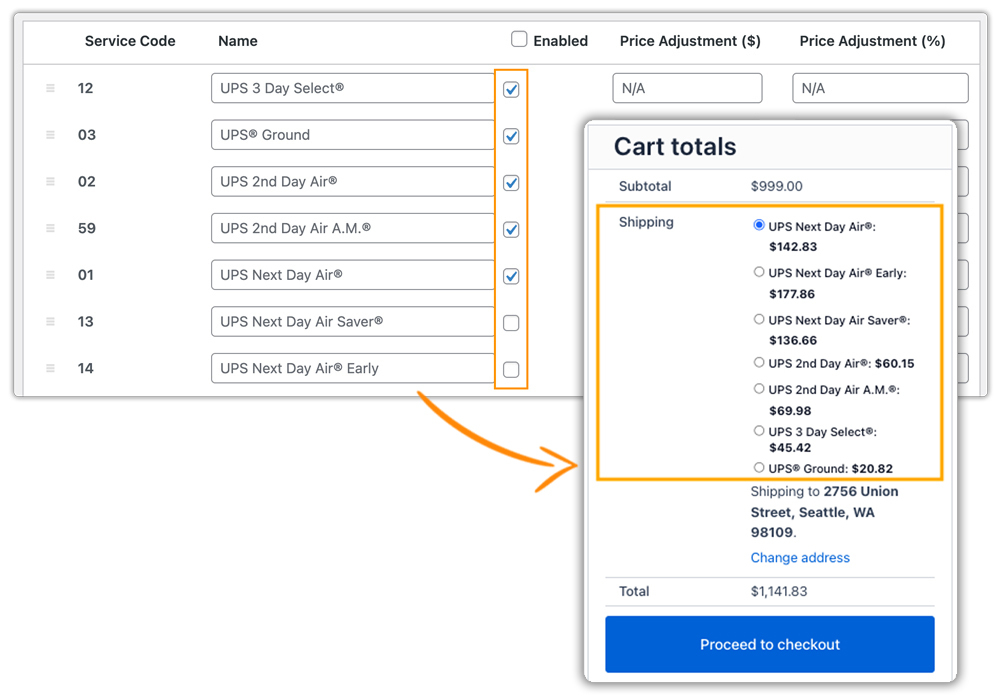
Presenting multiple UPS service levels at checkout gives customers the ability to choose based on their own priorities. Offering a range from economy to express services lets budget-conscious shoppers opt for slower, cheaper delivery while urgent buyers pay for speed, reducing your exposure to subsidising premium shipping costs across the board.
Additional Tips to Reduce UPS Shipping Costs in WooCommerce
Beyond the core strategies, a few additional optimizations can help you squeeze further savings out of your UPS shipping setup:
- Combine UPS with Free or Flat Rates: Rather than relying exclusively on UPS live rates, you can layer in free or flat-rate shipping conditions using the WooCommerce Table Rate Shipping Pro.
- Control UPS Shipping Methods at Checkout: Showing too many UPS service options can overwhelm customers and lead to decision fatigue. The PH Hide WooCommerce Shipping Methods & Rate Adjustment lets you hide specific UPS services, keeping the checkout experience clean and focused.
- Use Multi-Carrier Shipping When Needed: UPS may not always be the most cost-effective option for every destination or package type. The WooCommerce Shipping Services plugin helps you compare rates across multiple carriers and choose the most economical option. If you only want to display rates from different carriers, you can consider the Multi-Carrier Shipping Plugin for WooCommerce.
- Reduce Address Errors: Incorrect or incomplete addresses can lead to additional charges like address correction fees. Use address validation and ensure customers enter accurate shipping details during checkout.
- Avoid Unnecessary Surcharges: Be mindful of extra fees such as residential delivery, fuel surcharges, and peak season charges. Where possible, optimize delivery settings or inform customers upfront to avoid unexpected costs.
Conclusion
Reducing shipping costs in WooCommerce doesn’t require major changes — just smarter decisions. Even small improvements in packaging, pricing, and shipping options can make a noticeable difference over time. The key is to regularly review your setup and adjust it based on your store’s needs and customer behavior.
If you need help configuring or optimizing your shipping setup, feel free to reach out to PluginHive Support.
FAQs
Q. Can multi-vendor WooCommerce stores use the UPS shipping plugin?
Yes. With the PH Multi-Vendor Shipping Addon for WooCommerce, each vendor in your store can manage UPS shipments independently, with labels and tracking automatically assigned per order.
Q. Can I show estimated delivery dates for UPS shipping in WooCommerce?
Yes. The Estimated Delivery Date Plugin for WooCommerce works alongside the UPS plugin to display accurate delivery timelines to customers at checkout, helping set clear expectations before purchase.
Q. Why are my UPS shipping rates higher than expected in WooCommerce?
This usually comes down to dimensional weight, oversized packaging, longer shipping zones, or additional surcharges like residential delivery and fuel fees. Reviewing your box dimensions in the plugin settings and optimizing packaging is often the quickest fix.
Q. How can I avoid UPS surcharges in WooCommerce?
Ensure customer addresses are accurate at checkout, minimize package size where possible, and plan shipments ahead of peak seasons to avoid additional handling and peak surcharges.
Q. Do I need a UPS account to use live shipping rates in WooCommerce?
Yes. A valid UPS account is required to fetch real-time rates, access negotiated pricing, and generate UPS shipping labels directly from your WooCommerce store.
