


Order tracking is one of the most frequently searched topics by customers after placing an order. Without a dedicated WooCommerce tracking page, customers have no easy way to check their shipment status, and that directly affects their post-purchase experience.
This article shows you how to set up a branded WooCommerce order tracking page using the Shipment Tracking Pro for WooCommerce plugin, so customers can check their order status directly on your site.
On This Page
- What Is a Branded WooCommerce Tracking Page?
- Why Your WooCommerce Store Needs a Tracking Page
- How to Set Up Your WooCommerce Order Tracking Page
- How Customers Check Their Order Status on the Tracking Page
- Example Scenario
- Tips to Get More Out of Your WooCommerce Tracking Setup
- Conclusion
- FAQs
What Is a Branded WooCommerce Tracking Page?
A branded tracking page is a page on your WooCommerce store where customers can enter their order details and see live shipment status without being redirected to UPS, FedEx, or any other carrier’s website.
Instead of showing carrier branding and generic updates, customers see:
- Your store’s name and design throughout the experience
- Live tracking status is pulled directly from the carrier
- Order-specific updates like “In Transit”, “Out for Delivery”, or “Delivered.”
- A consistent post-purchase experience that keeps them on your site
In addition, for carriers like UPS, FedEx, USPS, DHL Express, Canada Post, Australia Post, and several others, Shipment Tracking Pro for WooCommerce supports a fully hosted tracking lookup page within your store.
Why Your WooCommerce Store Needs a Tracking Page
By default, WooCommerce sends customers a basic order completion email with no tracking number, no carrier details, and no delivery update of any kind. Without a dedicated tracking page, this is what typically happens:
- Customers have no self-service option – With no way to check their order status, they contact your support team instead.
- Post-purchase experience feels incomplete – Every gap in communication after an order is placed affects customer confidence in your store.
A branded WooCommerce tracking page helps you:
- Keep customers in your store – They check their order status directly on your website, not elsewhere.
- Reduce support queries – A self-service tracking page cuts down “Where is my order?” emails significantly.
- Maintain consistent branding – Every post-purchase touchpoint stays within your store’s look and feel.
The Shipment Tracking Pro for WooCommerce plugin makes setting this up straightforward, and the next sections show you exactly how.
How to Set Up Your WooCommerce Order Tracking Page
Setting up your WooCommerce order tracking page with Shipment Tracking Pro for WooCommerce takes two simple steps.
Note: install and activate the Shipment Tracking Pro for WooCommerce plugin from your PluginHive account. For a detailed walkthrough with screenshots, refer to the Shipment Tracking Pro setup guide.
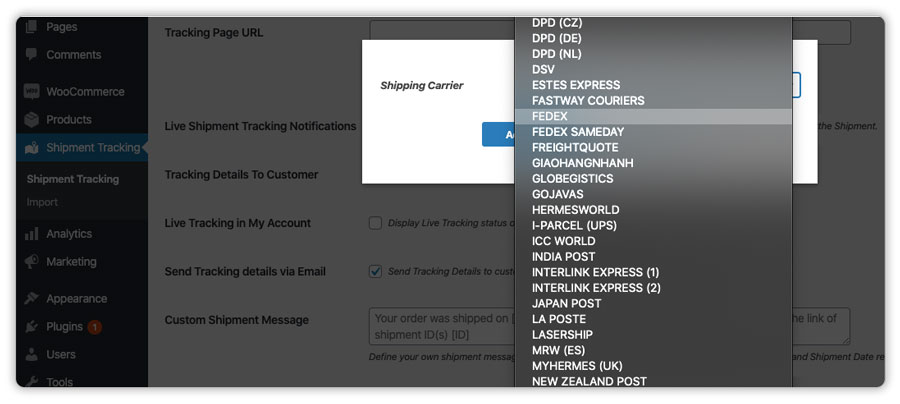
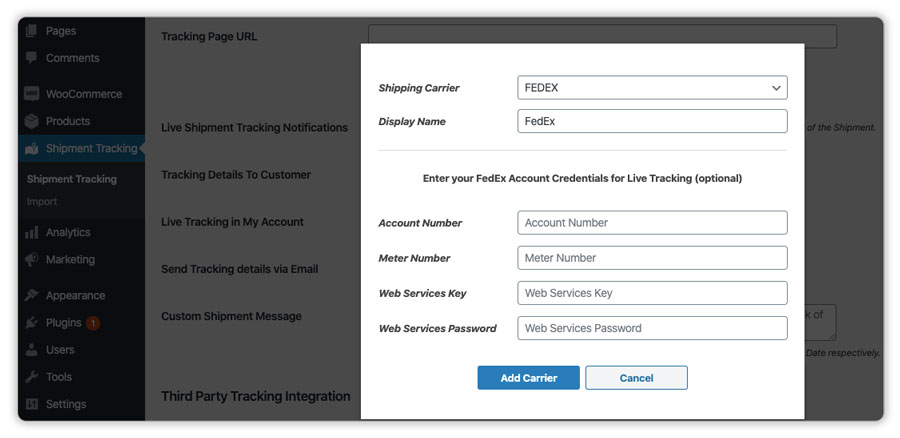
Step 1: Add Your Shipping Carrier: Once the plugin is active, go to its settings and add the carrier you ship with, UPS, FedEx, USPS, or any of the 80+ supported options. This tells the plugin which carrier to pull tracking updates from.
Step 2: Create Your Tracking Page: Next, create a new page on your WordPress site, add the shortcode [ph-shipment-tracking-page] to it, and publish it.
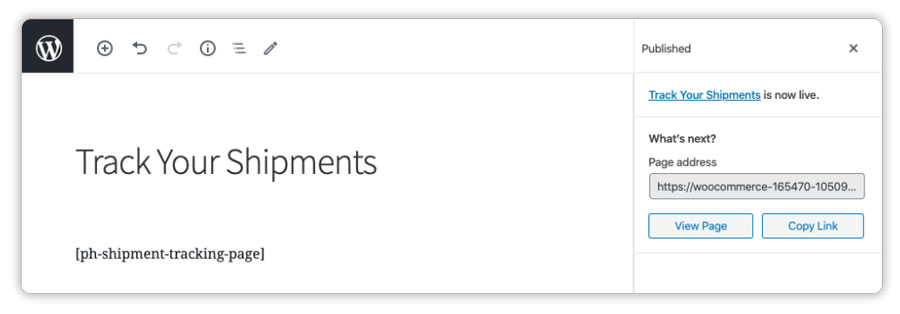
Then copy that page’s URL and paste it into the Tracking Page URL field in the plugin settings.
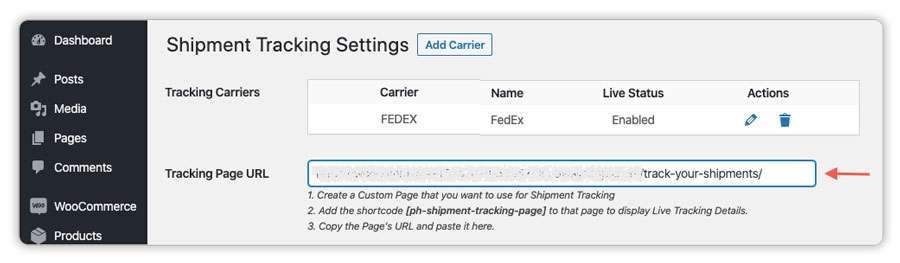
That’s it, your branded WooCommerce tracking page is live. Customers can visit it, enter their order details, and see their shipment status without leaving your store.
How Customers Check Their Order Status on the Tracking Page
Once the tracking page is live, using it is straightforward for any customer – no account or login needed.
A customer visits the tracking page on your store, enters their order ID and email address, and the page pulls the latest status directly from the carrier. They see updates like “In Transit”, “Out for Delivery”, or “Delivered” all within your store’s design, not a carrier portal.
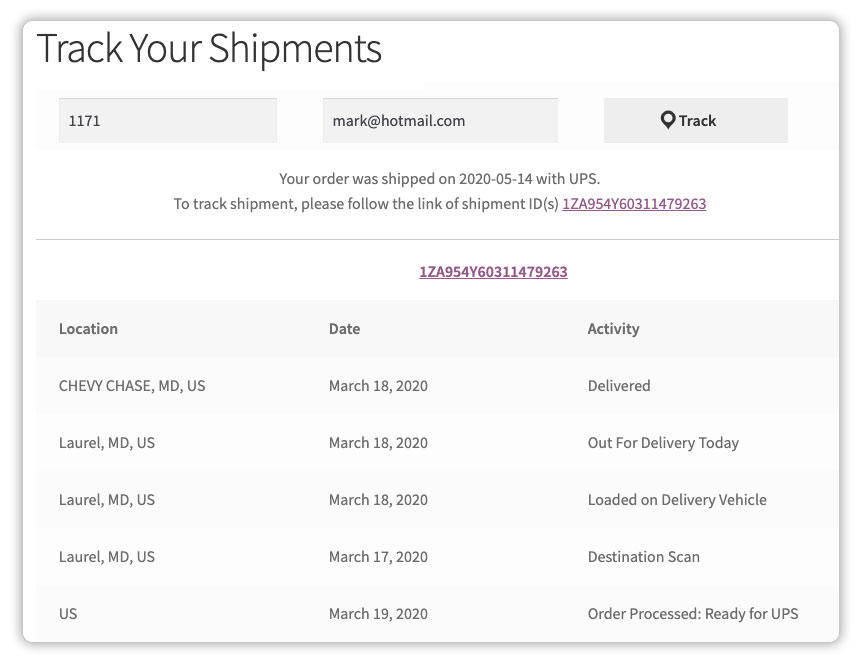
Because the page lives on your domain, every part of the post-purchase experience, from order confirmation to delivery update, stays within your brand.
Example Scenario: Managing Post-Purchase Queries in WooCommerce
Let’s say you run a WooCommerce store shipping home goods across multiple regions, and you’re currently handling tracking manually – copying numbers into emails, fielding “Where is my order?” messages, and sending customers to carrier websites to check updates. Here’s what that usually looks like.
Challenges You’re Probably Facing
- Customers can’t find their tracking information easily, and contact support instead
- Every carrier link sends buyers away from your store to a third-party site
- There’s no way to know an order is delayed until a customer complains
- Furthermore, sending tracking numbers manually for every order isn’t scalable as volume grows
How Shipment Tracking Pro for WooCommerce Solves This
With Shipment Tracking Pro for WooCommerce, the tracking experience moves entirely within your store. Customers get a self-service tracking page on your domain where they can check their order status at any time – without contacting you.
For stores processing higher volumes, bulk import via CSV, FTP, or SFTP means tracking data syncs to WooCommerce orders automatically, and orders are marked complete once the import is done.
Results
- Customers self-serve tracking queries without contacting support
- Your branding stays consistent from order confirmation through to delivery
- Delays surface in the plugin dashboard before customers notice them
- Tracking data syncs in bulk – no manual entry per order
Once Shipment Tracking Pro for WooCommerce is set up, managing delivery updates is no longer something you handle order by order – instead, it becomes part of how your store runs.
Tips to Get More Out of Your WooCommerce Tracking Setup
The tracking page is the core of the setup, but Shipment Tracking Pro for WooCommerce offers a few additional ways to keep customers informed that are worth enabling.
- Let logged-in customers track from their account: Customers with a store account can view their live shipment status directly from My Account > Orders, with the option to set it to refresh automatically or via a manual Refresh button.
- Send tracking details in the order completion email: Enable the Send Tracking Details via Email option in the plugin settings, and the tracking ID, carrier name, and shipment date are included automatically in the order completion email. Full guide: adding tracking numbers to WooCommerce order completion emails.
- Set up automatic status update emails: The plugin notifies customers each time the carrier updates their shipment status – “In Transit”, “Out for Delivery”, “Delivered” using the In Every ___ Minutes setting to control the check frequency.
- Add a custom tracking message: Add a short personalised note that appears alongside tracking details in emails to set delivery expectations or keep the tone consistent with your store.
- Test before going live: Finally, place a test order, add a tracking number, and check the tracking page as a customer would to confirm everything loads correctly.
Together, these additions work alongside the tracking page to give customers multiple ways to stay informed without adding any manual work on your end.
Conclusion
A branded WooCommerce order tracking page removes one of the most common post-purchase frustrations: customers not knowing where their order is. Shipment Tracking Pro for WooCommerce handles the setup in a few steps and keeps everything running automatically from there. If you need help getting it configured, the PluginHive Support team is ready to help.
FAQs
Q: What is a WooCommerce tracking page?
It’s a page on your store where customers enter their order details and see live shipment status without being sent to a carrier’s website. You set it up once using Shipment Tracking Pro for WooCommerce, and it runs automatically.
Q: Does WooCommerce have a built-in order tracking page?
No. WooCommerce doesn’t include one by default. Therefore, you need a plugin like Shipment Tracking Pro for WooCommerce to add this to your store.
Q: Which carriers are supported on the WooCommerce tracking page?
The tracking page works with UPS, FedEx, USPS, DHL Express, Canada Post, Australia Post, Blue Dart, Aramex, Purolator, and more. The full list is in the plugin setup guide.
Q: Do customers need an account to use the tracking page?
No. Any customer can check their order status by entering their order details on the tracking page. In addition, logged-in customers also get the option to view updates from their My Account > Orders page.
