


Expensive products are abandoned at checkout more than any other item in your WooCommerce store. Customers browse, add to cart, and disappear not because they don’t want the product, but because paying the full amount upfront is a hard ask.
The fix isn’t discounting. It’s removing the financial friction at checkout. When customers can pay a deposit instead of the full price, that barrier drops and so does your WooCommerce cart abandonment rate. The PH Deposits for WooCommerce plugin makes this straightforward to set up. This article shows you exactly how.
Table of Contents
- Why Expensive Products Drive WooCommerce Cart Abandonment
- How WooCommerce Deposits Fix Cart Abandonment
- How to Set Up Deposits for Expensive Products in WooCommerce
- Example Scenario
- Best Practices to Reduce WooCommerce Cart Abandonment on Expensive Products
- Conclusion
- FAQs
Why Expensive Products Drive WooCommerce Cart Abandonment
Before fixing the problem, look at what’s actually stopping customers at checkout. Cart abandonment on expensive products isn’t random; it usually comes down to a few predictable friction points:
- Full upfront payment feels too risky: At higher price points, doubts about quality, delivery, and returns get amplified. A $1,500 commitment to a store they’ve never bought from before is a lot to ask of a first-time customer.
- No payment flexibility exists: Standard WooCommerce checkout asks for 100% upfront. There’s no middle ground between paying in full and not buying at all.
- Budget timing works against you: A customer may genuinely want the product but not have the full amount available at that exact moment.
Cart abandonment for expensive products usually happens because the upfront cost feels too high. Most customers are interested, but they’re just not ready to pay the full amount in one go.
How WooCommerce Deposits Fix Cart Abandonment
Now that the problem is clear, here’s how deposits directly address it.
Offering a deposit changes what customers see at checkout. Instead of a $1,200 total, they see a $360 upfront payment with the balance due later. That shift in perceived commitment is often the difference between an abandoned cart and a confirmed order.
The PH Deposits for WooCommerce plugin gives you precise control over how this works across your store:
- Fixed or percentage deposits: Set a flat amount upfront or a percentage of the product price. Percentage deposits scale naturally with your most expensive products.
- Mandatory or optional: Require a deposit, or let customers choose between a deposit and full payment. Giving customers the choice typically works better for first-time buyers.
- Scheduled payment plans: For very high-ticket items, split the balance into structured daily, weekly, or monthly instalments.
- Automatic balance reminders: For scheduled payment plans, the plugin sends reminder emails with a secure payment link when each instalment is due. If you’re using percentage or fixed deposits and want automated reminders for the balance payment, the Reminder Emails add-on handles that.
- Per-product control: Enable deposits only on expensive products. The rest of your store’s checkout stays completely unchanged.
With these things in place, setting it up on your store is straightforward. Here’s how.
How to Set Up Deposits for Expensive Products in WooCommerce
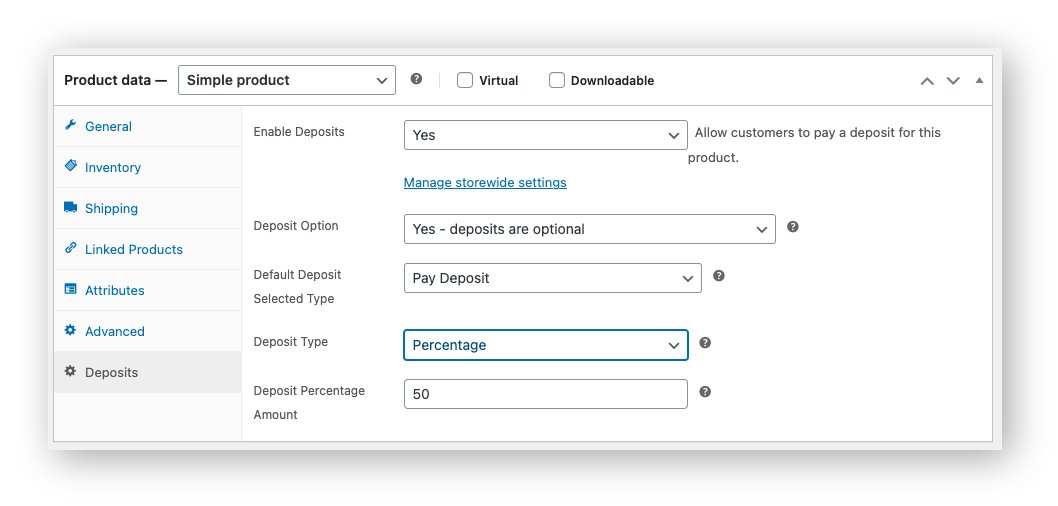
Step 1 – Enable deposits on the product: Open the product in your WordPress admin, go to the Deposits tab, and enable deposits. Choose whether they’re mandatory or optional for that product.
Step 2 – Choose your deposit type: Select from Percentage, Fixed Amount, or Scheduled Payment Plan. For expensive products, a percentage deposit (e.g. 25%) tends to work best, as it scales with the price automatically.
Step 3 – Set the deposit amount: Enter the percentage or fixed amount. For example, 25% on a $1,200 product means customers pay $300 at checkout and owe $900 later.
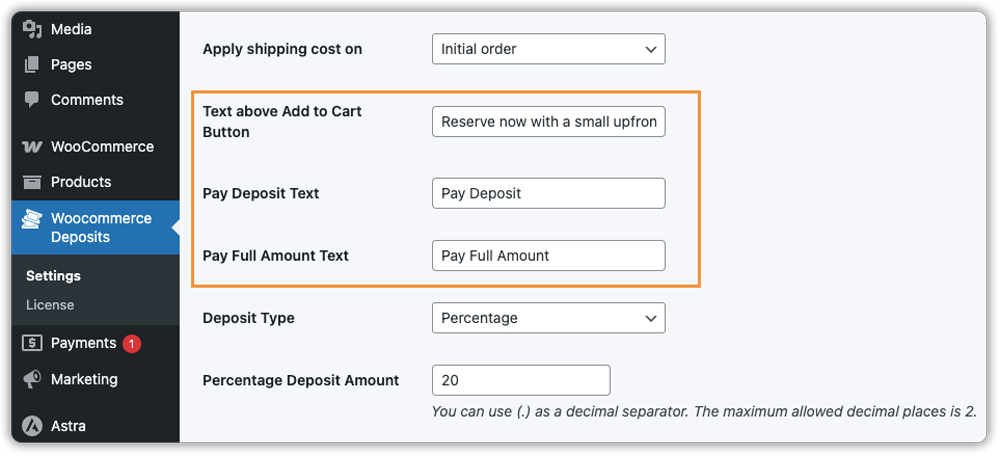
Step 4 – Customise product page messaging: Go to the plugin settings to configure the text that appears above the Add to Cart button storewide. This is where you control what customers read before they even click to buy, so make it clear and direct.
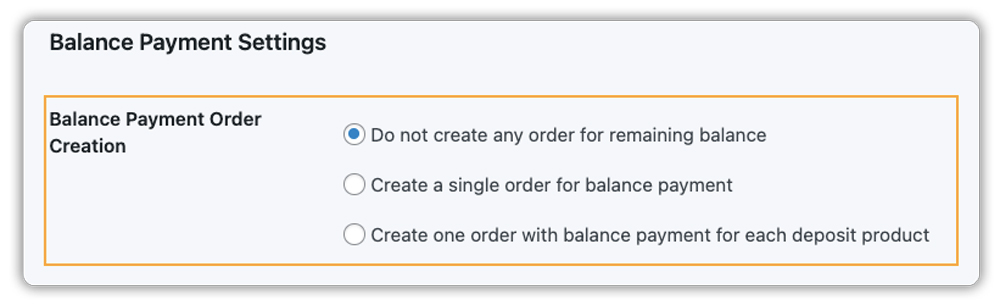
Step 5 – Configure balance payment handling: In the plugin, choose whether balance payments are collected automatically via a new order or triggered manually by you from the WooCommerce admin.
Step 6 – Set up payment reminders: If you’re using Scheduled Payment Plans, reminder emails are built into the plugin. Configure the timing and template directly in the plugin settings.

If you’re using percentage or fixed deposits, the Reminder Emails add-on lets you automate balance payment notifications separately.
For stores with many expensive products, configure storewide deposit settings first, then override at the individual product level wherever needed.
What the customer sees:
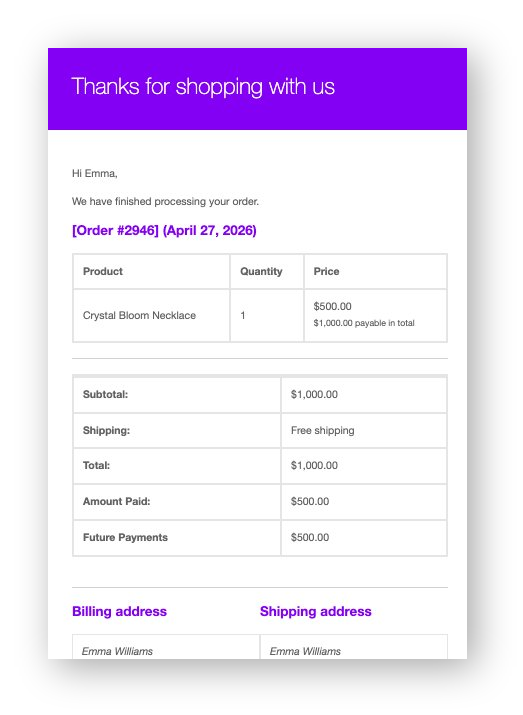
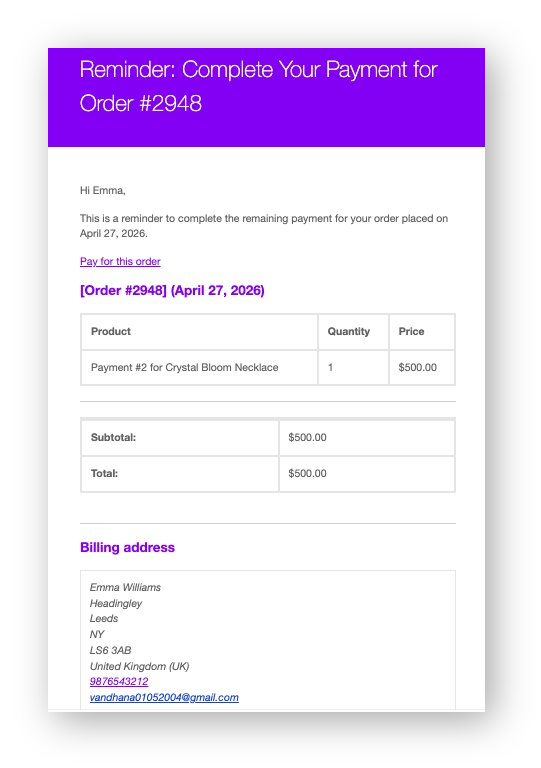
Say a customer adds the Crystal Bloom Necklace ($1,000) to their cart. Instead of seeing the full $1,000 at the cart and checkout, they see $500 due today, clearly labeled as a deposit.

Once the order is placed, they receive a confirmation email showing the deposit paid ($500), balance due ($500), and the payment due date.
When the due date arrives, the plugin sends a reminder. No manual follow-up needed on your end.
If your “expensive products” are actually high-value services or rentals (like equipment or luxury villas), you can combine deposits with a booking system to secure commitments without demanding the full rental fee upfront.
Example Scenario: Furniture Store Recovering Abandoned Carts with WooCommerce Deposits
Let’s say you run a WooCommerce store selling custom furniture, sofas, dining sets, and bedroom furniture, with most products priced between $800 and $2,500. Traffic is decent, but expensive products have a low checkout conversion and a high cart abandonment rate.
Here’s what you’re likely dealing with:
- Customers browse, add to cart, and drop off when they see the full price at checkout.
- There’s no payment flexibility on your store pay in full or leave.
- Customers occasionally ask if you offer payment plans, but there’s no way to handle it.
- Discounting feels like the only option, but it directly cuts into your margins.
Here’s how PH Deposits for WooCommerce changes that:
You set a 30% deposit on all products priced above $500. A customer buying a $1,500 dining set now pays $450 upfront. The plugin confirms the order, schedules the balance payment, and handles reminders all without manual work on your end.
- The lower upfront cost removes the biggest friction point at checkout for expensive products.
- Deposit-confirmed orders carry a higher commitment – cancellations drop.
- Balance reminders go out automatically, keeping your cash flow predictable.
- Lower-priced products keep their standard checkout completely untouched.
Once deposits are live, converting high-value browsers into buyers stops being something you manage one order at a time – it becomes how your store works by default. For more industry-specific examples of how this plays out, see how stores boost sales of expensive products with WooCommerce deposits.
Best Practices to Reduce WooCommerce Cart Abandonment on Expensive Products
Setting up deposits is step one. These practices help you get better results from them:
- Set deposit amounts based on product type: Use higher deposits (40–50%) for custom or made-to-order products to reduce risk. Use lower deposits (20–25%) for ready-made products to keep the entry barrier low. Adjust this per product instead of using one rule for everything.
- Offer a choice, don’t force deposits: Let customers choose between paying in full or paying a deposit. Some prefer to pay up front, while others need flexibility. Giving both options usually leads to better conversions.
- Use payment plans for very high-ticket items: For your most expensive products, split the balance into 2–3 instalments. This makes the total cost easier to manage and helps customers move forward with the purchase.
- Make balance payments easy: Send clear, timely reminder emails with a direct payment link. The simpler it is to complete the payment, the fewer orders get delayed or abandoned later.
Conclusion
WooCommerce cart abandonment on expensive products is a pricing friction problem more than anything else. When the full upfront cost is the barrier, lowering that cost at checkout through deposits is the most direct fix available. The PH Deposits for WooCommerce plugin gives you the control to make this work cleanly: per-product, with flexible deposit types, and with automated balance reminders built in. If you need help getting it configured for your store, the PluginHive Support team is ready to assist.
FAQs
- Does WooCommerce support deposit payments out of the box?
No. WooCommerce doesn’t include partial payment or deposit functionality natively. You need a plugin like PH Deposits for WooCommerce to enable it on your store. - How do WooCommerce deposits help reduce cart abandonment for expensive products?
Deposits lower the upfront amount at checkout. Instead of paying the full price of an expensive product, customers pay a deposit and settle the balance later, directly removing the financial friction that causes most high-ticket cart abandonment. - Can I enable deposits only on specific expensive products?
Yes. The plugin lets you apply deposit settings per product. Set storewide defaults first, then override them on individual products wherever you need different rules.
