


Double bookings in WooCommerce can disrupt your business, frustrate customers, and damage your reputation. Whether you’re managing appointments, rentals, or classes, overlapping bookings often lead to manual corrections, missed opportunities, and unnecessary stress.
In this article, we’ll show you how the Bookings and Appointments for WooCommerce plugin helps you avoid double bookings by managing availability, resources, buffer times, and calendar sync, ensuring your booking system runs smoothly and without conflicts.
Table of contents
- Impact of Double Bookings on Your WooCommerce Business
- Core Settings to Eliminate Double Bookings
- Real World Example
- Best Practices for Seamless WooCommerce Booking Management
- Conclusion
- FAQs
Impact of Double Bookings on Your WooCommerce Business
Double bookings in WooCommerce don’t just cause minor inconveniences; they create a ripple effect that impacts your customers, operations, and revenue. Here’s why preventing them is critical for any business offering online bookings.
1. Customer Impact
- Loss of trust: Customers who face overlapping appointments may never return or leave negative reviews.
- Poor experience: Double bookings often lead to delays, cancellations, or rushed services, damaging your brand’s reputation.
2. Operational Challenges
- Manual rescheduling: Staff waste time resolving booking conflicts instead of focusing on service delivery.
- Internal confusion: Overlapping appointments lead to miscommunication, overworked staff, and reduced efficiency.
3. Financial Loss
- Missed revenue: You lose out on legitimate bookings that could have filled the calendar correctly.
- Refunds and penalties: Customers who are double-booked may demand refunds, resulting in additional costs or lost sales.
A well-configured booking system, like Bookings and Appointments for WooCommerce Plugin, eliminates these issues at their source.
WooCommerce Booking Plugin Settings to Avoid Double Bookings
Note: Ensure the Bookings and Appointments for WooCommerce plugin is installed and properly configured on your store. If you haven’t done that yet, follow this setup guide to get started.
Once the plugin is ready, the next step is to configure it correctly to prevent booking conflicts. Here’s the key setting you need to control to avoid double bookings completely.
1. Enable Time-Based Booking Slots
Without time slots, your system can’t tell when one booking ends and another begins, leading to overlaps.
Steps:
- Go to your product edit page
- Select Bookable product data ( Below Product Description) -> Bookings
Besides the Booking Period, choose Fixed Block or Enable Range (based on your business needs).
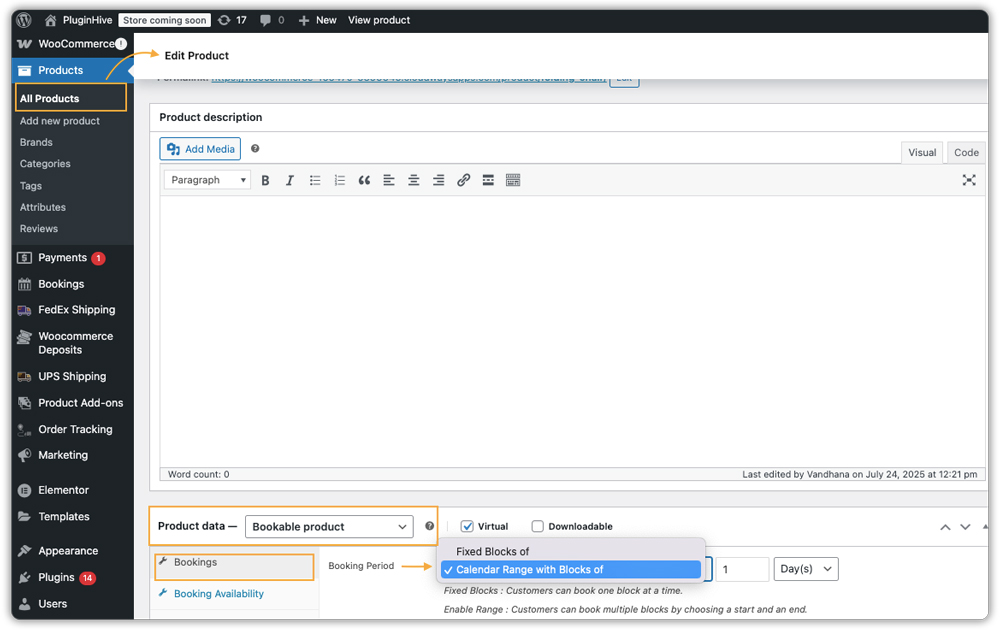
This defines clear time windows for bookings, the first layer of protection against double bookings.
Not sure how to set the booking period or booking type (fixed time, multiple time slots, etc.)? Check this guide to define your booking period.
Note: Before setting your booking period, ensure your availability is configured. If you skip this step, all dates will be available for booking by default. Learn how to set booking availability.
2. Set Maximum Bookings Per Slot
The Maximum Bookings Per Slot setting controls how many bookings can be made for the same time slot before it’s blocked. Setting it to 1 ensures only one person can book that slot, completely preventing double bookings.
If your business allows multiple bookings per slot (like a group class), set the number to match your capacity. This also helps prevent overbooking by automatically blocking the slot once it’s full.
Steps:
- Go to the Bookings section of your product.
- Locate Maximum Bookings Per Slot (just below the Booking Period section).
- Enter your desired limit (e.g., 1 for one-on-one appointments, 10 for group classes).

Example: Let’s say you rent out a camera for a fixed period of 2 days. By setting the Maximum Bookings Per Slot to 1, as soon as one customer reserves it, the booking period automatically disappears from the calendar for others, keeping your schedule conflict-free.
When a second customer tries to book the same slot, the date/time is shown as unavailable (grayed out in the calendar), preventing them from completing the booking.

3. Add Buffer Time Between Bookings (Optional but Recommended)
Buffer time helps avoid indirect double bookings caused by tight back-to-back schedules. This is especially useful for rentals, services, or appointments that may run slightly over time.

Example: A salon offers 1-hour haircut appointments. If one booking ends at 3:00 PM, adding a 15-minute buffer ensures the next customer can only book from 3:15 PM onwards, giving the stylist enough time to clean up, reset, and stay on schedule.
Learn how to set buffer time between the two bookings.
4. Assign Shared Resources Using Booking Assets
Double booking can also occur across different products if they share the same resource, for example, a single therapist, a car, or a room.
When to use this: If you have a limited resource shared across multiple products or services.
Steps:
- Go to WooCommerce Bookings → Settings → Global Assets.
- Create a shared asset (e.g., “Therapist A” or “Room 1”).
- Set Asset Quantity to 1.
- Set Asset Availability – define the working hours, days, or blackout dates for that resource so it’s only bookable when available.
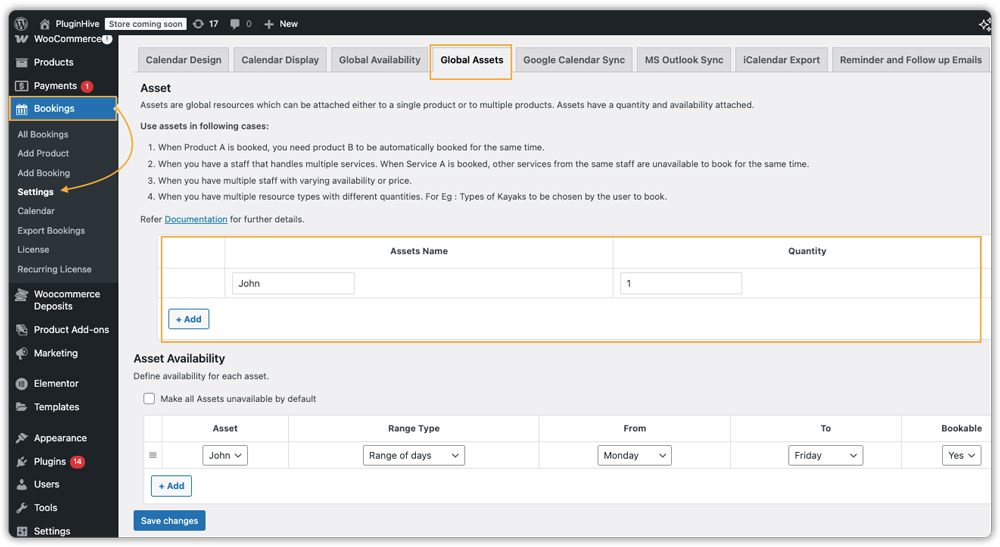
- Assign the asset in the Booking Asset section of each relevant product.

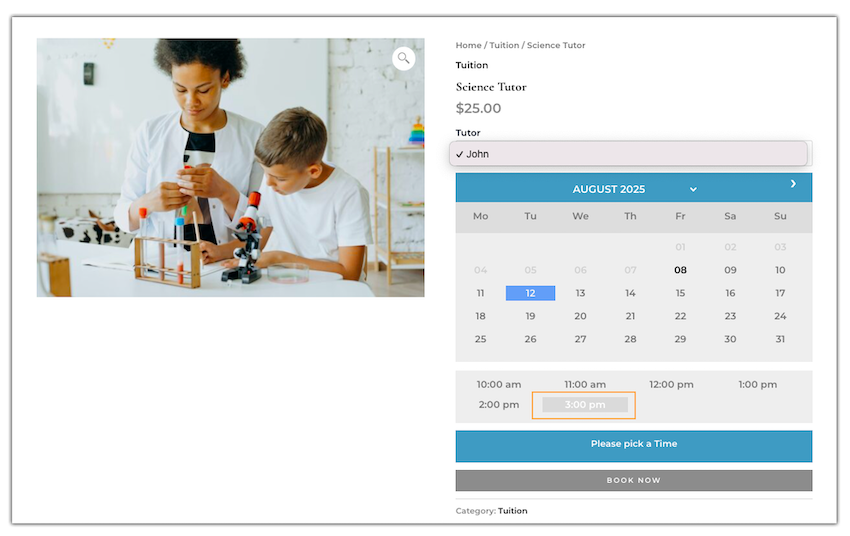
This ensures the same resource isn’t booked twice at the same time, even across different listings.
Example – Online Tutoring: Let’s say you are a single tutor teaching Math, Science, and English online. If a student books you for Math from 3:00 PM to 4:00 PM, that time slot is automatically blocked for Science and English, too.
This prevents another student from booking you for a different subject during the same time, ensuring you’re never double-booked.
To learn more about setting up Assets, check out this detailed guide.
5. Block Time Slots from Offline Bookings via Google Calendar Sync
If you also take offline bookings (such as phone calls, walk-ins, or emails) and don’t record them in your online store, double bookings are inevitable.
Solution: Use Two-Way Google Calendar Sync
How it Works:
- Add offline bookings directly to your Google Calendar
- The Bookings and Appointments for WooCommerce plugin auto-syncs these events and blocks those slots on your WooCommerce store.
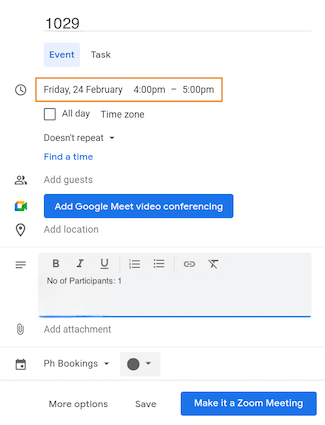

Follow this guide to enable 2-way Google Calendar sync.
This way, bookings from all online and offline channels stay synchronized, eliminating conflicts.
Avoiding double bookings in WooCommerce isn’t just about one setting; it’s a comprehensive system. By combining time slots, slot limits, buffer times, shared resource management, and Google Calendar sync, you can create a booking setup that works across all channels without overlaps. Follow this flow, and you’ll never have to worry about double bookings again.
Real World Example: Preventing Double Bookings in a WooCommerce Salon
Let’s say you run a WooCommerce-powered salon offering haircuts, styling, and coloring, with multiple services but only one stylist available at a time.
How double booking could happen without proper settings:
- You forgot to configure Maximum Bookings Per Slot, so the system allows multiple appointments at the same time.
- You offer multiple services (haircut, styling, coloring) but don’t assign the stylist as a shared resource. This means the same stylist could be booked for two different services in overlapping time slots.
How to prevent this with the Bookings and Appointments for WooCommerce plugin :
- Set Maximum Bookings Per Slot to 1 for each service.
- Add a 15-minute buffer between appointments for cleanup and prep time.
- Create a shared resource (e.g., “Stylist A”) and assign it to all services they handle.
- Enable Google Calendar sync so any walk-in or phone booking blocks the corresponding online time slot automatically.
Result: Even if multiple services are available at the same time, the system ensures the same stylist is never booked twice in overlapping slots, keeping your schedule organized and conflict-free.
Best Practices for Seamless WooCommerce Booking Management
Along with the right settings, good habits help keep your calendar conflict-free:
- Set Clear Time Slots: Choose hourly, half-day, or daily blocks that fit your service.
- Review Availability Often: Update hours, staff schedules, and special dates regularly.
- Use Buffers Wisely: Add prep or cleanup time between bookings.
- Track Shared Resources: Assign rooms, vehicles, or staff to avoid overlaps.
- Train Staff: Ensure everyone understands the booking process.
- Test the Flow: Book the same slot from two devices to confirm settings work.
Conclusion
Avoiding double bookings in WooCommerce is all about proactive setup and smart automation. With the Bookings and Appointments for WooCommerce plugin, you can set strict slot limits, manage resources, add buffer times, and sync calendars to keep your schedule conflict-free. The result? Happier customers, fewer headaches, and a more professional booking process.
Need help setting it up? The PluginHive support team can guide you through every step so you never have to deal with double-booking chaos again.
FAQs
1. Will availability settings alone prevent double bookings in WooCommerce?
No. Availability only controls when customers can see open slots. To block multiple people from booking the same slot, you must set Maximum Bookings Per Slot.
2. Can WooCommerce handle both online and offline bookings without conflicts?
Yes. Using 2-way Google Calendar sync, offline reservations (phone, walk-ins) update your site’s availability instantly.
3. Is buffer time necessary to prevent double-booking?
While buffer time doesn’t directly stop double bookings, it prevents overlapping services and allows for setup or cleanup between appointments.
4. Is this setup suitable for both appointments and rentals?
Yes. The same double-booking prevention settings work for service appointments, property rentals, events, and equipment hire.
5. Can the plugin “hold” a slot while someone is checking out, so another person can’t snatch it?
Yes, the Bookings and Appointments for WooCommerce plugin includes safeguards that temporarily hold a slot when a booking is placed in the cart to avoid immediate cart race conditions. See the plugin FAQ for details on how the slot hold behaves during checkout.
